



Table of Contents


Salesforce records contain far more important dates than just meetings and appointments.
Opportunity Close Dates. Contract renewals. Asset expirations. Warranty end dates. Campaign periods. Project milestones. Inspection dates. Certification deadlines. Delivery dates.
Some represent something scheduled. Others tell you when something starts, ends, expires, renews, becomes due, or simply needs attention.
The challenge is that these dates often remain inside records, list views, reports, or different Salesforce objects. Users can find the information, but understanding how those dates come together across a day, week, or month is not always easy.
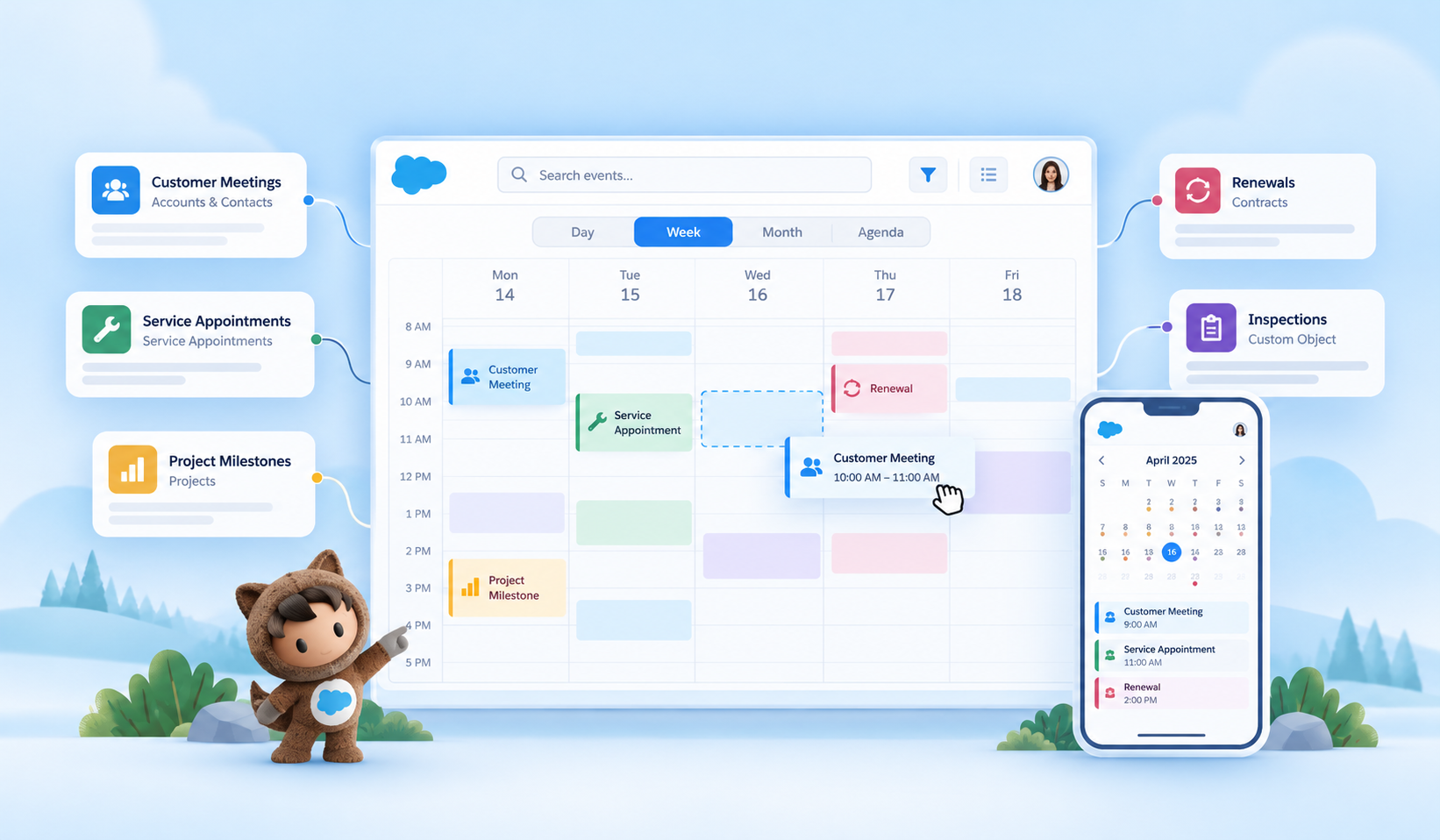
AGrid Calendar gives Salesforce users a clearer way to display records by date in a Salesforce calendar, turning existing records into configurable calendar views.
And that does not mean appointments alone.
If a Salesforce record contains a meaningful date or date range, AGrid Calendar can help make that date easier to see and act on.
Why Important Salesforce Dates Can Be Hard to Manage
List views and reports are essential when users need to review, filter, or summarize Salesforce data.
But date-driven work often raises different questions.
- Which Opportunities are closing next week?
- Which warranties are expiring this month?
- Are several inspections due around the same time?
- When does a Campaign start and end?
- Which certifications require attention before the quarter closes?
- Are project milestones beginning to overlap?
The data may already exist, but the timeline is harder to understand when every date is viewed independently.
A calendar adds that time-based context.
Instead of reading a date as another field in a row, users can see where the record falls in relation to everything else happening around it.
What Does AGrid Calendar Change?
AGrid Calendar is an admin-configurable calendar experience for Salesforce.
It helps teams manage date-based records in a Salesforce calendar, whether those records belong to a single object or multiple objects within the same business process.
It can be built around one Salesforce object or multiple objects when those records belong to the same business process.
Admins can customize the calendar in Salesforce by configuring the following settings for each Calendar source:
- The Salesforce object
- The field used as the Calendar entry title
- The start date
- An optional end date
- Event color
- Filters that control which records appear
- Default Calendar behavior
Standard and custom Salesforce objects can be used.
A record can represent a single date or a date range. If an end date is not configured, the entry is treated as ending on the same day as the start date. When both start and end dates are available, the Calendar can represent activity across multiple days.
That is what makes AGrid Calendar useful for more than scheduling.
It can represent:
- Opportunity Close Dates
- Contract renewal dates
- Campaign periods
- Asset expiry dates
- Warranty end dates
- Milestones
- Certification deadlines
- Maintenance windows
- Appointments and visits
The common factor is simple: the date matters to the process.
A Practical Example: From Opportunity Close Dates to a Working Calendar
Consider a Sales team that already manages Opportunities through list views and reports.
The team can see the Close Date on every Opportunity, but they also want a clearer picture of how deals are distributed across the month.
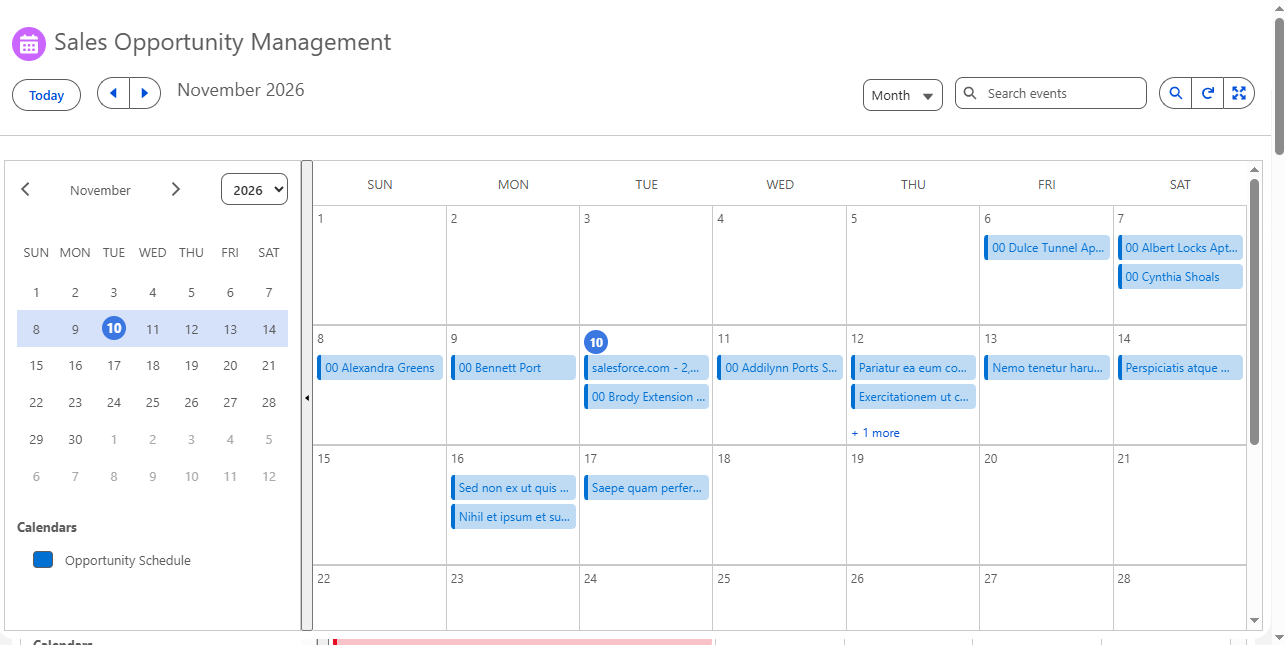
With AGrid Calendar, the team can view date-based records in a Salesforce calendar and see how Opportunity Close Dates are distributed across the month.
1. Start with Opportunity and Close Date
The admin adds Opportunity as the Calendar source.
The Opportunity Name can be used as the entry title, while Close Date determines where the Opportunity appears on the Calendar.

If the team only needs the Close Date, no additional end date is required.
The Calendar works with the fields already used in the Salesforce process.
2. Narrow the Calendar to the Right Opportunities
The admin may not want every Opportunity in Salesforce to appear.
Filters can be applied to show, for example:
- Open Opportunities only
- Specific Opportunity stages
- Opportunities for a selected region
- Records owned by a particular team
- Opportunities above a certain amount

Multiple conditions can be combined when the Calendar needs more specific logic.
This creates an important distinction:
The object determines where the records come from. Filters determine which records from that object belong in the Calendar

The admin can also decide which Calendar views should be available and which one should open first. A Sales team might begin in Month View, while still giving users access to Week, Day, or Agenda.
3. Add AGrid Calendar Where the Team Works
Once the Calendar is configured, the AGrid Calendar component can be placed on the required Salesforce Lightning page.
For existing AGrid users, the approach is familiar.
Just as an admin can drag and drop the AGrid component onto a Lightning page, the AGrid Calendar component can be added where users need it.
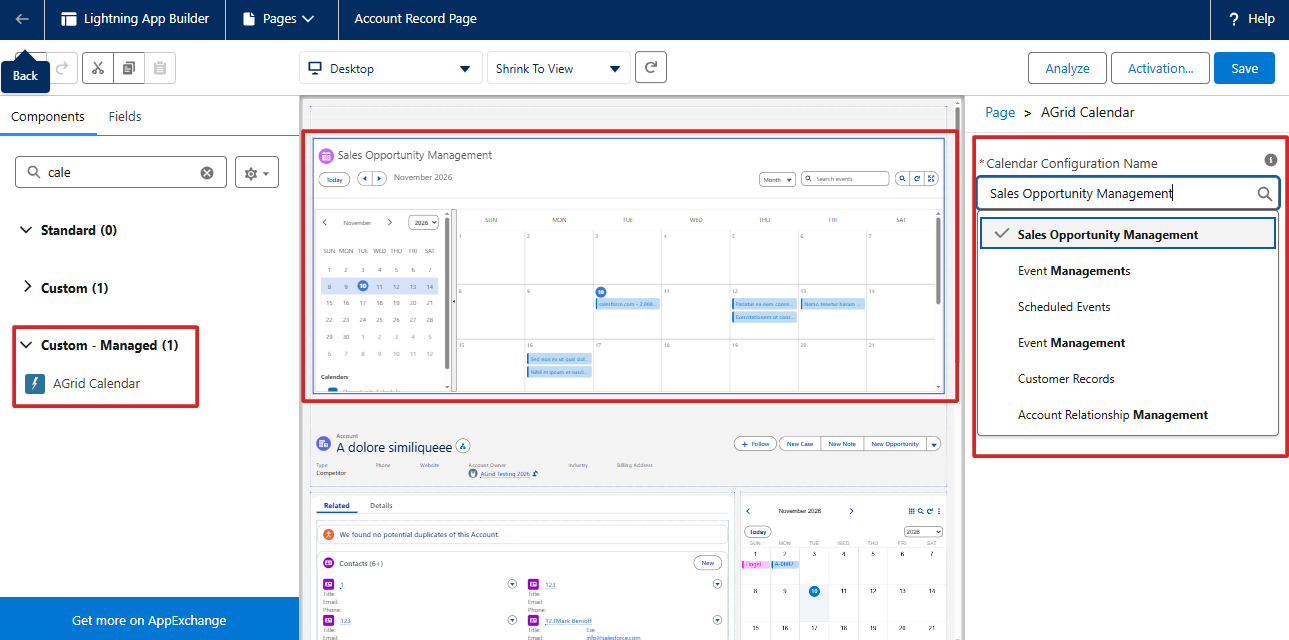
Access can also be configured based on who should use the Calendar, including internal users, external users, specific users or groups, or a more restricted audience.
At that point, the setup becomes a working Calendar experience for the Sales team.
What Can Salesforce Users Do with AGrid Calendar
Once the admin has configured the Calendar, the end-user experience becomes much more practical.
The administrator controls which records and sources are available, while users can choose how to work with them through a configurable calendar view in Salesforce.
View the Calendar the Way You Need
Users can switch between:
- Day
- Week
- Month
- Agenda
They can move between periods, return to Today, or jump to another month or year.
If several Calendar sources are configured, users can choose which ones they want to see.
Different source colors also make it easier to distinguish the records visually.

That means a user can start with a broader view, then narrow what they are looking at without changing the admin configuration behind the Calendar.
Search and Work with Records
As the number of Calendar entries grows, users do not need to scan an entire month manually.
AGrid Calendar includes search as part of the end-user experience, helping users locate a specific Calendar entry by name.
This is different from filters:
- Filters are configured by admins to control which records are available.
- Search helps users find a particular entry within those records.
Users can also click a Calendar item to view more information.
The event detail popover can show configured record details such as Start Date, End Date, and other fields, with actions such as:
- More Details
- Edit
- Delete

Users can also create records for configured objects directly from AGrid Calendar.
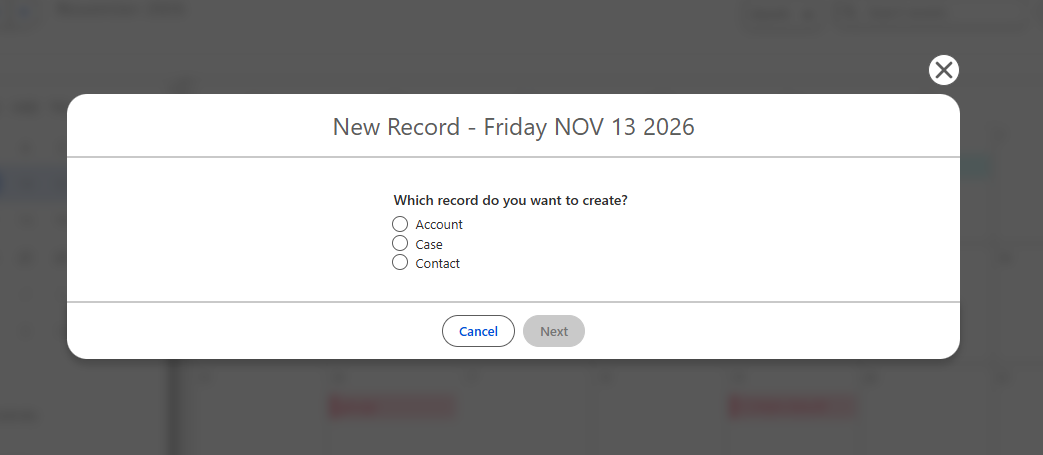

And when the date changes, the Calendar item can be moved to another supported date or time. The corresponding Salesforce record is updated rather than forcing the user to maintain the Calendar separately.

Use AGrid Calendar on Mobile
AGrid Calendar also supports users working away from a desktop.
Mobile views include:
- Day
- 3-Day
- Month
- Agenda
Users can navigate between periods and open Calendar entries to view more details from their mobile device.
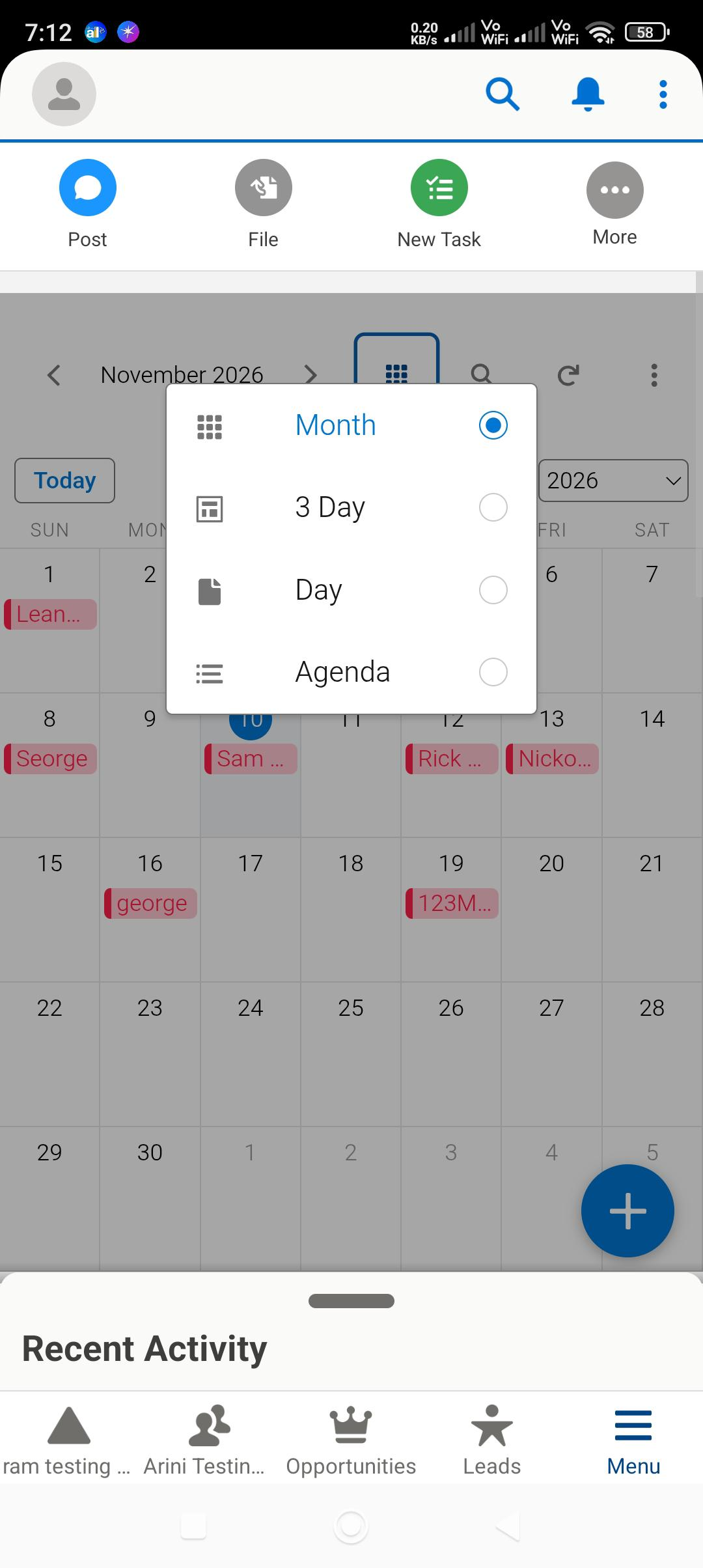
This can be useful whether someone is checking a customer visit, reviewing an inspection, looking at an upcoming renewal, or checking an asset expiry while away from their desk.
Standard vs Related AGrid Calendar
Not every Calendar needs to show the same level of context.
AGrid Calendar supports both broader Calendar views and record-specific Calendar views.
Standard AGrid Calendar
A Standard Calendar provides a broader view of the records that match the configured objects and filters.
For example, the Sales team in the earlier scenario could use a Standard Calendar to view Opportunity Close Dates across the pipeline.
There is no single parent record controlling what appears.
View Record-Specific Dates with Related Calendars
A Related Calendar provides a parent-child records calendar view in Salesforce, helping users see date-based records associated with a specific parent record.
The admin first selects the Parent Object for the Calendar Configuration.
For each Calendar source, the appropriate Parent Lookup Field defines how those records connect back to the parent.
For example, if Account is the Parent Object, users can view related records in a Salesforce calendar placed directly on the Account record page, displaying the configured records associated with that Account.

Instead of viewing all relevant dates across the organization, the user sees the timeline for the record they are already working with.

That makes Related Calendars particularly useful when context matters as much as the date itself.
When One Salesforce Object Is Not Enough
Some Calendar use cases can be built entirely around one Salesforce object.
Others depend on dates stored across several objects.
AGrid Calendar allows admins to configure multiple Calendar sources within the same Calendar experience.
That does not mean unrelated objects should be mixed together.
The idea is to combine objects that belong to the same business process.
For example, a project-focused Calendar could include:
- Project milestones
- Site inspections
- Delivery records
An asset-focused Calendar could include:
- Asset expiry dates
- Maintenance activity
- Certification records
Each source keeps its own date mapping, filters, color, and configuration.

The end user can then view those sources together or switch individual sources on and off depending on what they need to focus on.
This is where AGrid Calendar moves beyond a single-object Calendar and starts giving users a broader view of the process itself.
Practical AGrid Calendar Use Cases
The same AGrid Calendar capability can support very different Salesforce processes.
What matters is not just which date fields exist, but what seeing those dates together helps the team do.
Asset Expiry and Warranty Management
Operations teams can track expiring records in a Salesforce calendar, including assets, warranties, and certifications.
Instead of checking individual records or expiry-date columns, users can identify clusters of upcoming work and open the relevant Salesforce records before those dates pass.
Contract and Renewal Management
Customer success teams can track contract renewals in Salesforce Calendar views and identify approaching renewal periods.
That makes it easier to spot periods where several renewals are approaching and start follow-up activity before the customer reaches the renewal date.
Compliance and Certification Tracking
Teams responsible for permits, licenses, certifications, or audits can use AGrid Calendar to make upcoming deadlines more visible.
Instead of relying on users to remember or repeatedly check expiry fields, the Calendar gives those dates a clear place in the timeline.
Project and Delivery Tracking
Project teams can view milestones, inspections, review dates, and delivery periods together.
When those dates live across different Salesforce objects, multiple Calendar sources can help teams understand how those activities line up and where work may overlap.
Campaign and Program Dates
Campaigns, training programs, enrollment periods, or promotions often have both start and end dates.
AGrid Calendar can show those periods visually, helping users understand when initiatives overlap or when one period is ending as another begins.
Appointments, Visits, and Scheduled Work
Traditional scheduling still fits naturally into AGrid Calendar.
Meetings, visits, inspections, installations, maintenance, and appointments can all be represented.
The difference is that scheduling is one use case, not the limit of the feature.
Try AGrid Calendar with a Salesforce Process You Already Use
You do not need to start with a complicated use case.
Start with a process your users already manage in Salesforce — Opportunities, Assets, contracts, milestones, inspections, or another record where dates matter.
Choose the object, map the relevant date, apply the right filters, and add AGrid Calendar where users need it.
With AGrid Calendar, Salesforce calendar management becomes more flexible, giving users a clearer and more actionable view of the records and dates that drive their daily work.
Install or Upgrade AGrid now to explore AGrid Calendar in your Salesforce org.
Ready to Transform with AI?
Frequently Asked Questions
AGrid Calendar lets you display Salesforce records using their date fields, including Opportunity Close Dates, contract renewals, and asset expirations.
Yes. With AGrid Calendar, admins can configure objects, date fields, filters, colors, and default views to match business needs.
Yes. AGrid Calendar combines date-based records from multiple standard or custom Salesforce objects into a single calendar view.
AGrid's Related Calendar displays records associated with a parent record, such as an Account, directly on its Salesforce record page.
Yes. You can visualize upcoming warranty expirations, certification deadlines, contract end dates, and other date-based records.
Yes. AGrid Calendar displays contract renewal dates, helping teams identify upcoming renewals and plan follow-up activities.
Yes. AGrid Calendar supports record creation, editing, and moving calendar entries to update their corresponding Salesforce dates, subject to available actions and permissions.
More Insights for you







Ready to Transform Your Business with Salesforce & AI?
