

Creating AGrid from existing Salesforce List views and Related Lists



.svg)
Table of Contents


Introduction: Salesforce List Views Have Limits
Salesforce List Views are usually where admins define how records should be seen—important fields, trusted filters, and a shared view for teams.
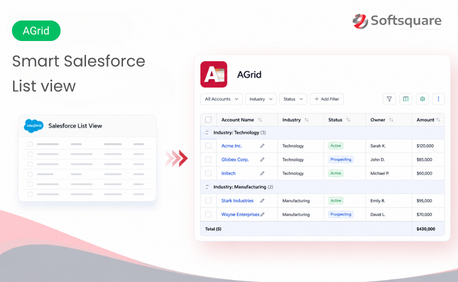
But List Views are confined to the object tab. They cannot be reused on record pages, they don’t carry over to related lists, and they offer very limited interaction. As a result, admins often duplicate filters, rebuild layouts, or fall back on reports just to show the same data elsewhere.
AGrid starts by reusing existing Salesforce List Views—but it goes further by turning them into interactive, reusable experiences that work across Lightning pages.
What AGrid Does
AGrid is a no-code Salesforce grid solution that takes everyday lists and makes them more actionable to work on.
Instead of treating List Views and Related Lists as static displays, AGrid allows admins to:
- Start from an existing Salesforce List View or a related-list requirement
- Create a reusable configuration instead of one-off layouts
- Extend those lists with actions, sorting, grouping, highlights, and visual views
The goal isn’t to replace Salesforce List Views or Related Lists—it’s to build on top of them.
Build a Real Example
Import an Existing View
Consider an admin who already has a Salesforce List View with the right filters and columns. The team trusts it, uses it daily, and relies on it for decision-making.
Now the requirement is simple:
- Reuse the same view on a record page
- Allow users to act on the data
- Avoid recreating filters and columns
This is where AGrid Salesforce List views and Related Lists fits naturally.
Creating an AGrid Configuration
AGrid makes it easy to start by importing an existing Salesforce List View and guiding it through a structured setup flow. To get started, open the AGrid app from the App Launcher and navigate to Configurations tab. Click on New to Create a new configuration and choose Import Salesforce List View. When you choose Import from Salesforce List View, the configuration follows five clear steps.
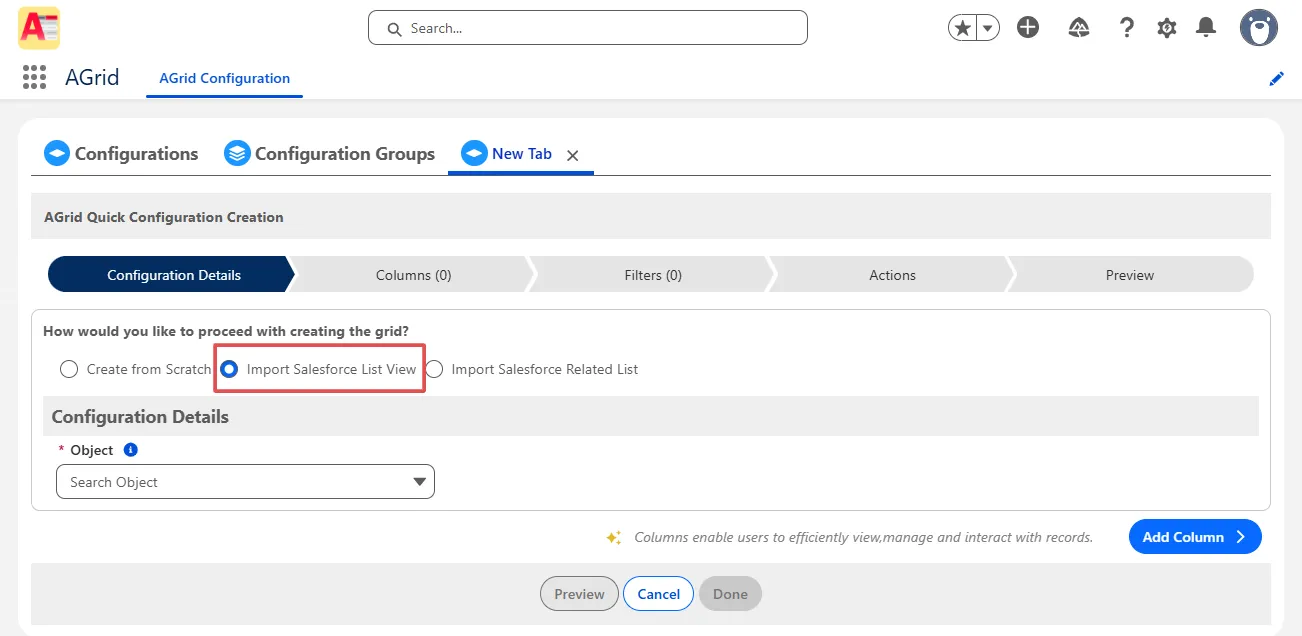
Configuration Details
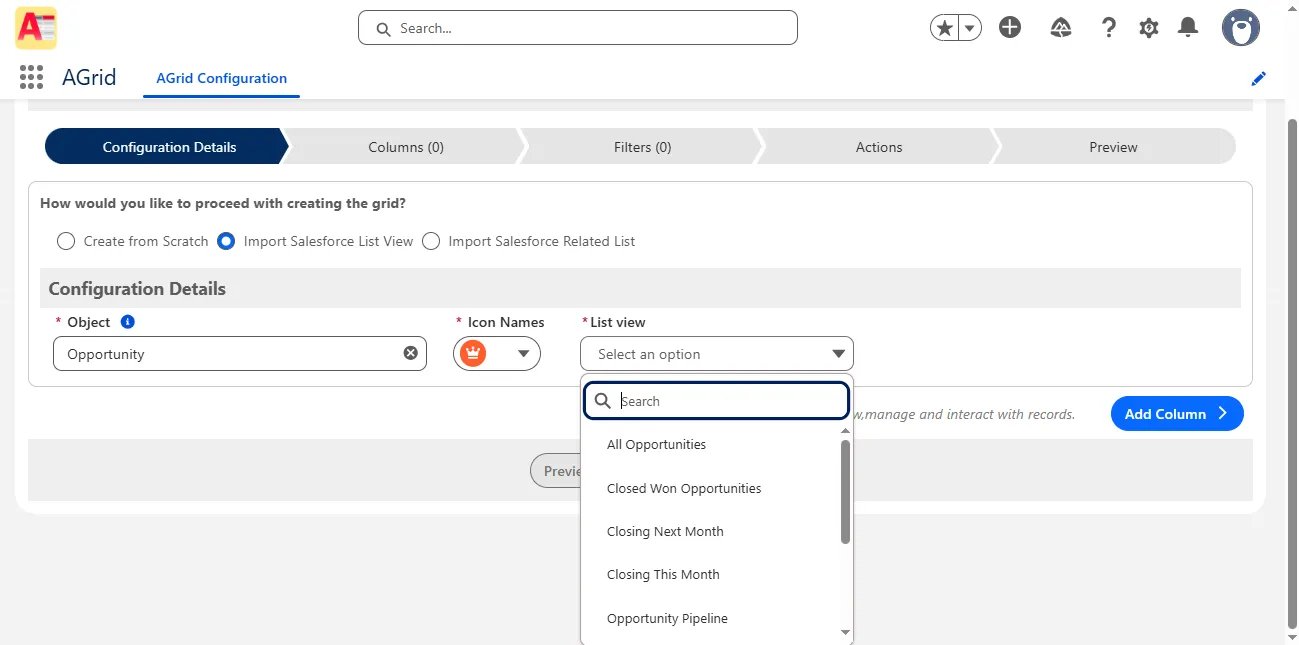
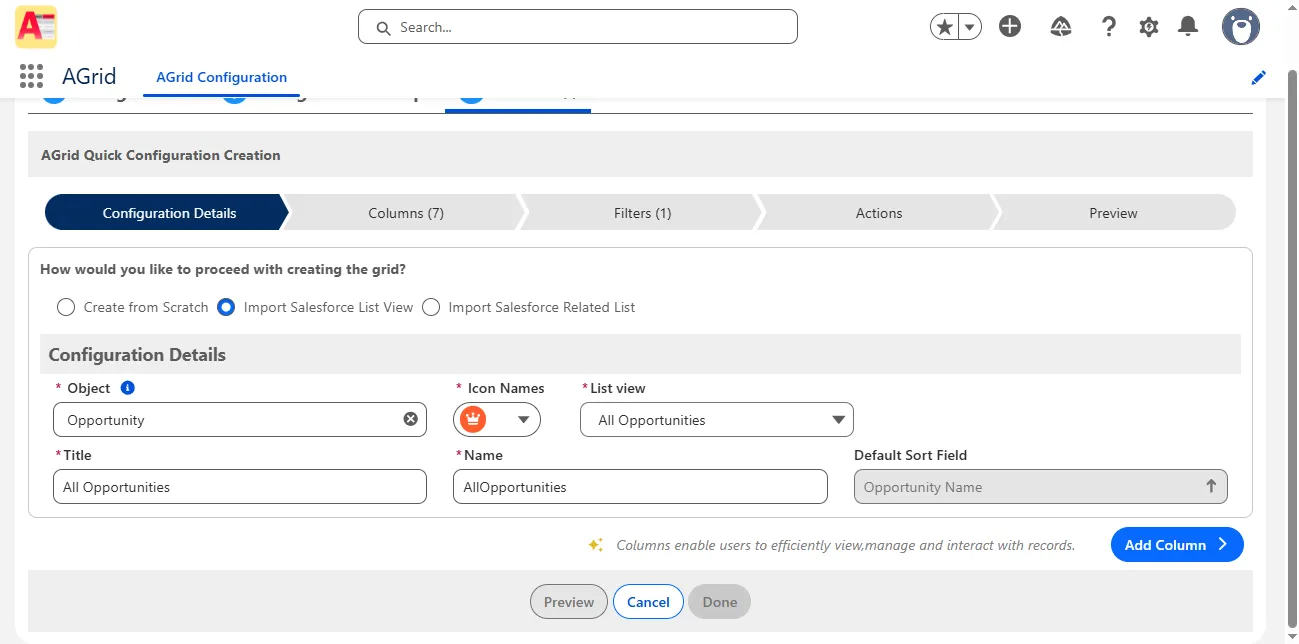
Begin by selecting:
- The Salesforce Object
- The List View you want to reuse
AGrid uses this selection to prefill the configuration context so you’re starting from an already defined Salesforce view.
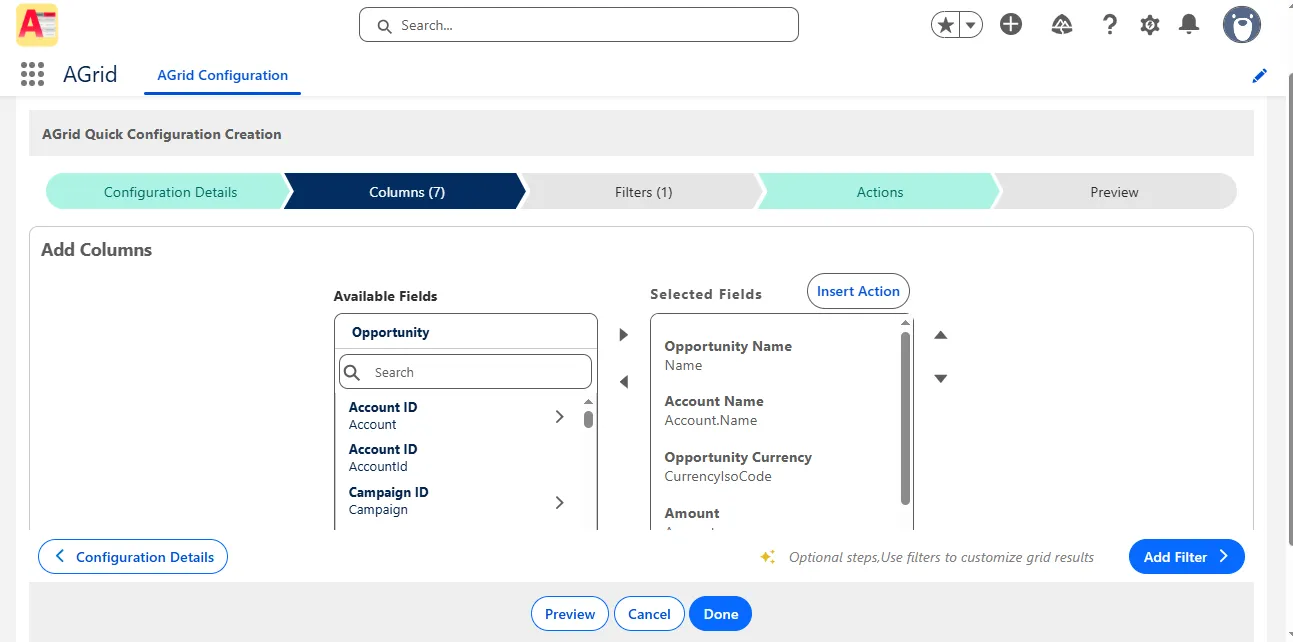
Columns
Next, review the columns imported from the List View. At this stage, admins can:
- Add or remove fields
- Reorder columns to match how users work
- Fine-tune what will actually appear in the grid
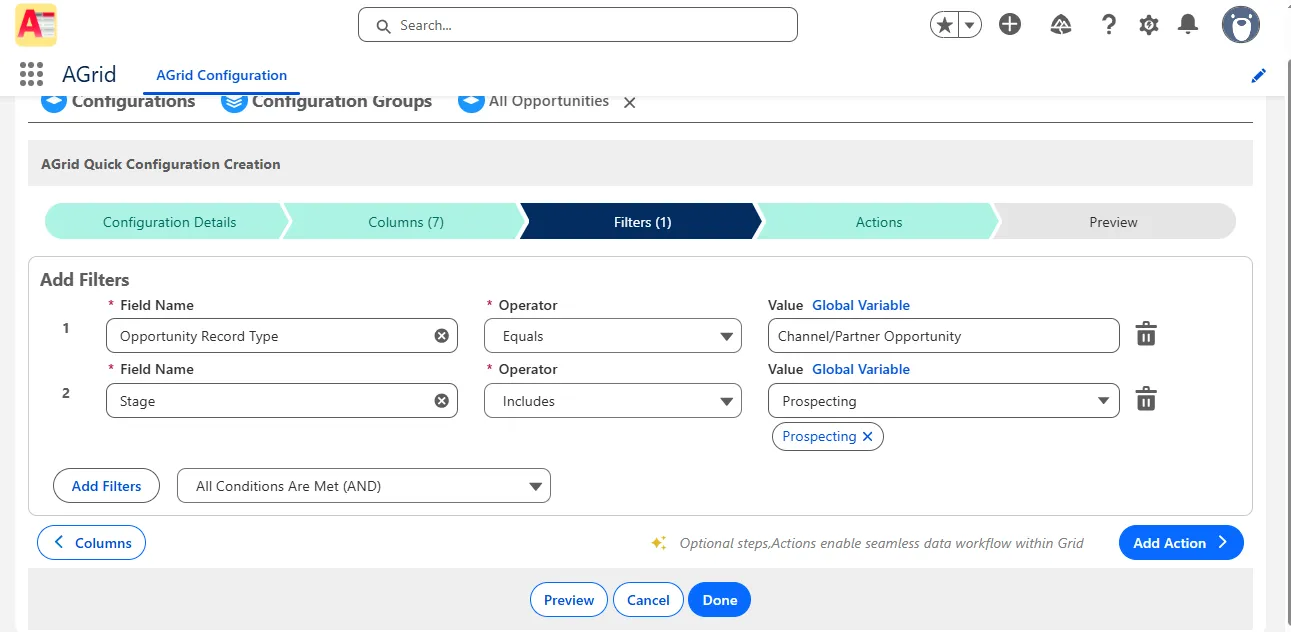
Filters
Filters from the Salesforce List View are imported automatically.
Admins can:
- Keep the imported filters
- Remove unnecessary conditions
- Add new filters if the results need to be more focused
Filtering is shaped as part of the setup, not as an afterthought.
Actions
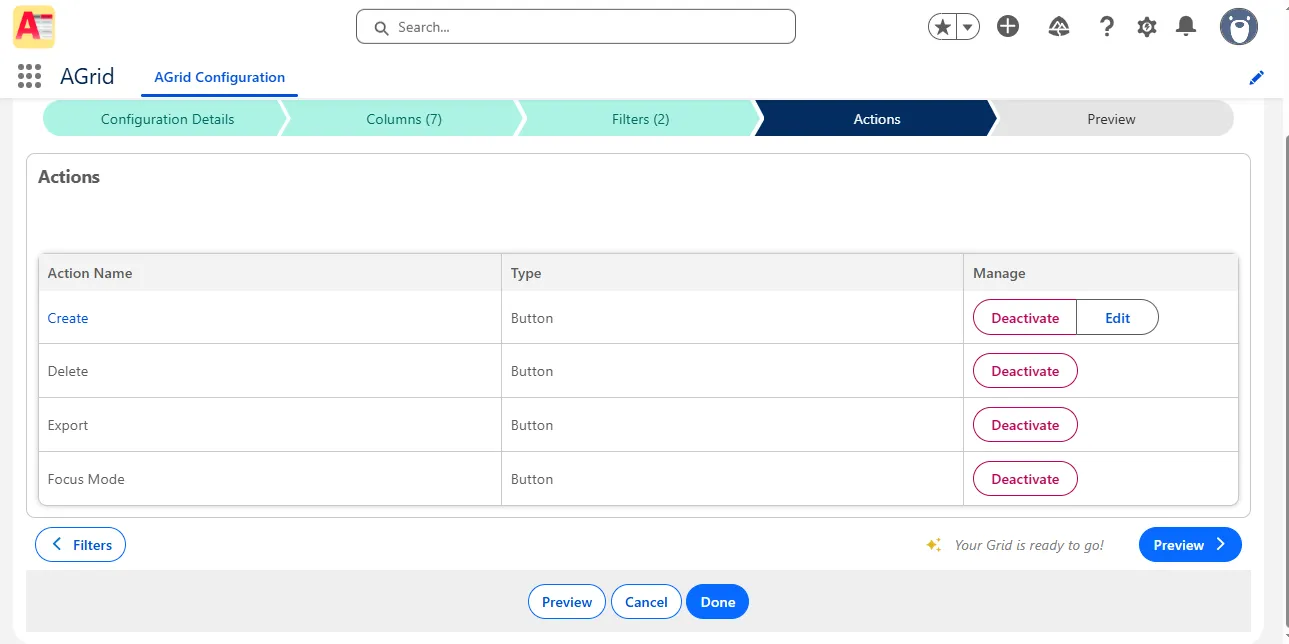
AGrid also brings in standard actions by default.
From here, admins can:
- Review actions like Create, Delete, Export, and Focus Mode
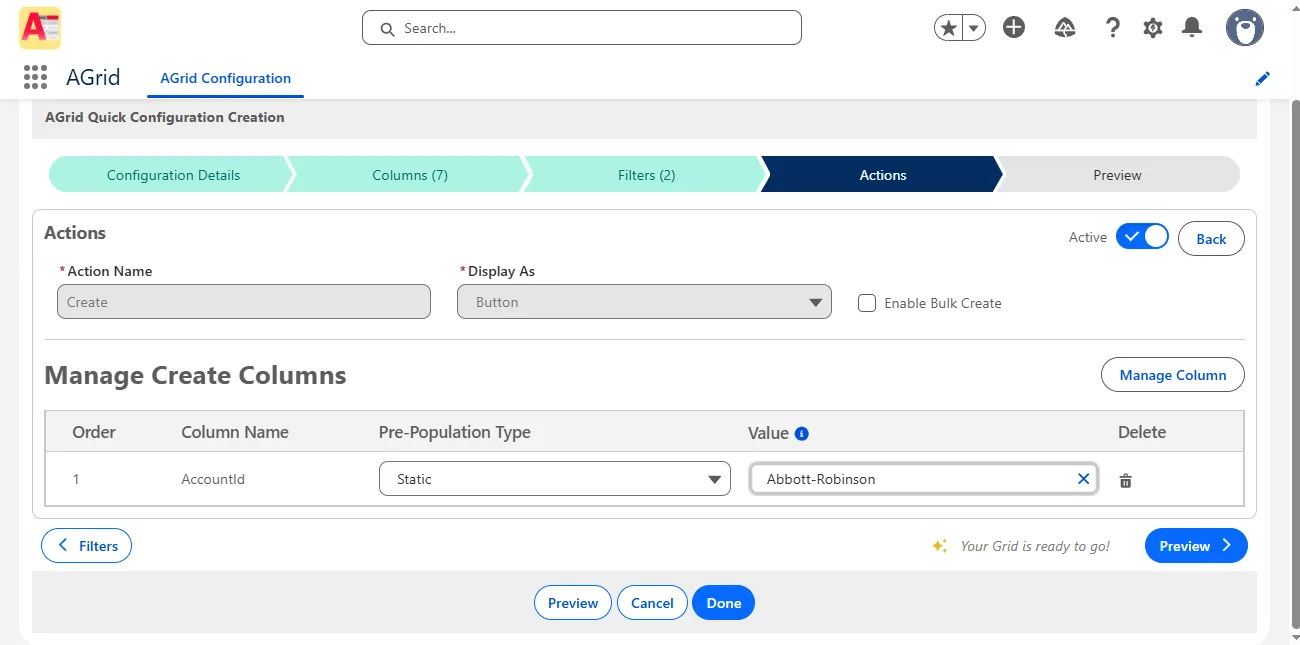
- Edit actions such as Create to support options like Bulk Create, where required
- Enable or disable actions based on how users should interact with the grid
This step is where the list starts becoming actionable.
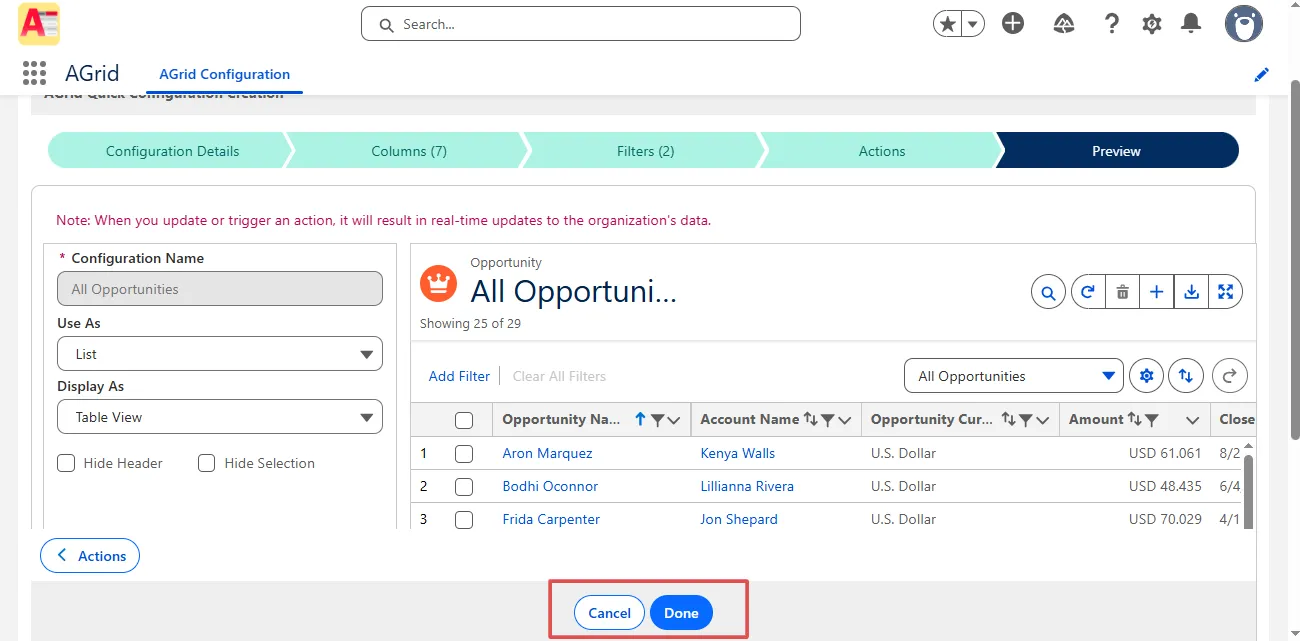
Preview
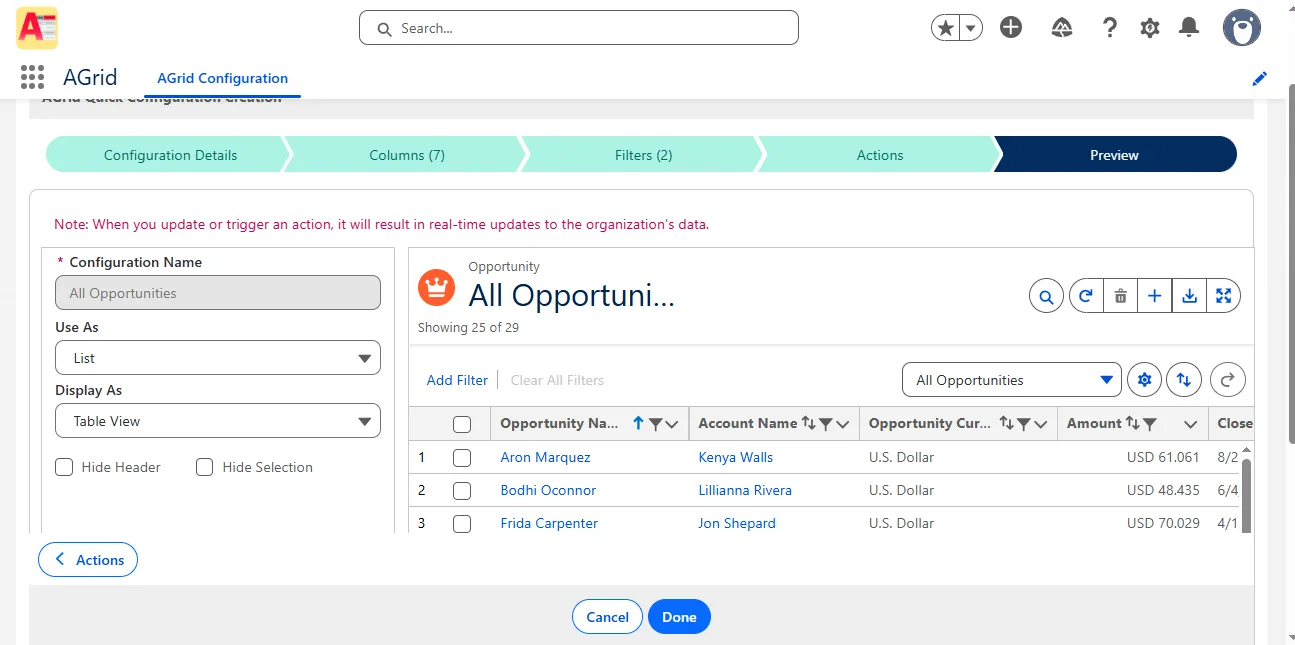
Before finalising, the Preview step shows exactly how the grid will behave—columns, filters, and actions included.
Once reviewed, clicking Done completes the configuration. The grid is now ready to be used on Lightning pages.
Make Lists Actionable
Once the configuration is created, the focus shifts from setup to how users actually work with the list.
This is where AGrid Salesforce List views and Related Lists move beyond, by enabling interactions that reduce clicks and navigation.
AGrid Salesforce List views and Related Lists enables admin to:
- Inline Editing: Update supported fields directly in the grid (including picklists) so users don’t need to open each record for common edits.
- Sort and Group: Sort records by up to 3 levels to prioritise work naturally, and group records into clear buckets so users can scan faster.
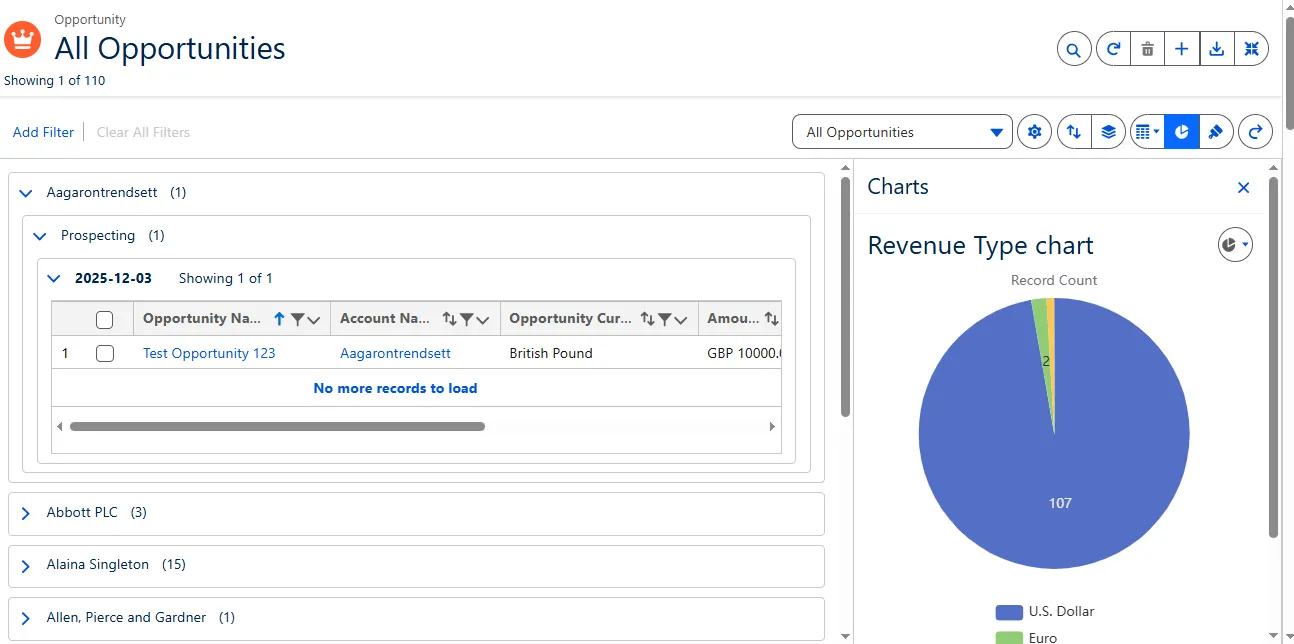
- Kanban and Charts: Switch from rows to cards for stage- or status-based workflows, or add quick visual summaries to spot trends without building reports.
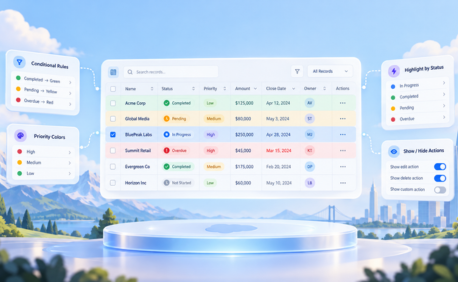
- Conditional Highlighting: Apply rules to visually flag priority records or key field values so attention goes where it’s needed.
- User-Specific Views: Allow users to personalise how they see the grid while keeping the admin-defined configuration as the baseline.
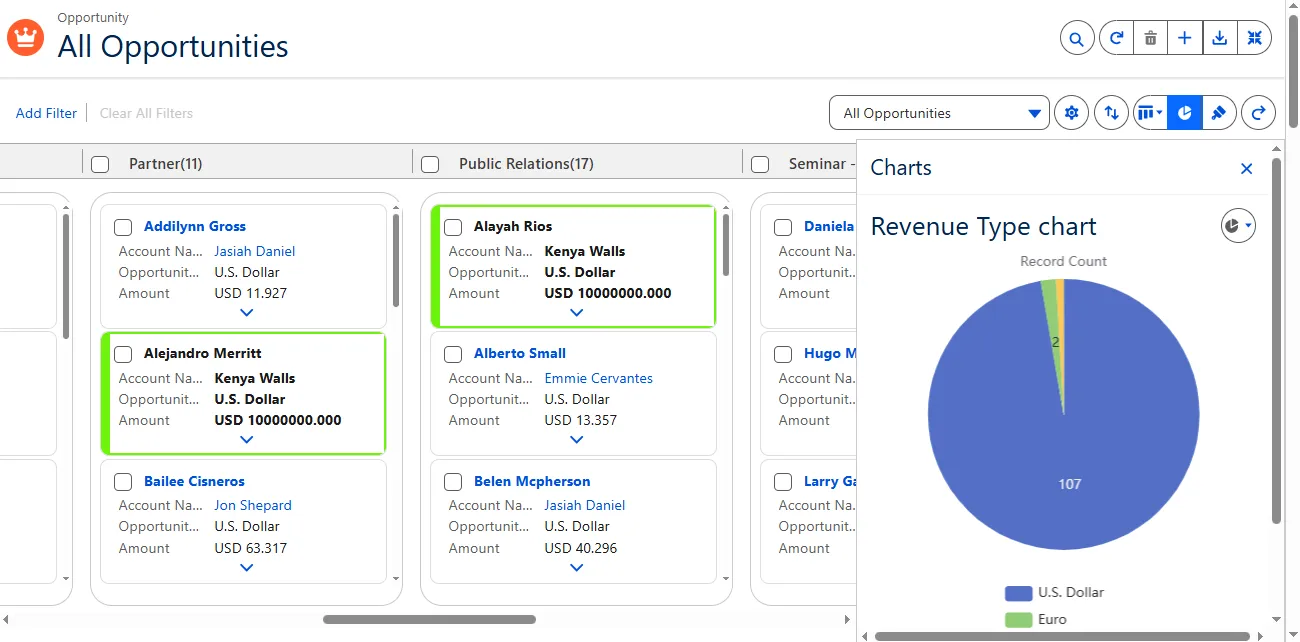
These capabilities turn a reused List View into a working surface instead of a static list.
Related Lists: Where AGrid Changes Everything
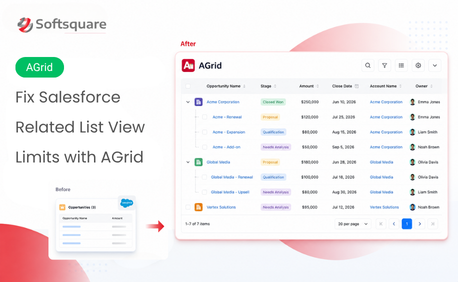
Fix Related List Limits
In many orgs, the real limitation isn’t the object tab—it’s the Related Lists on record pages.
Standard Salesforce Related Lists:
- Support only direct relationships
- Offer limited control over columns and filters
- Cannot reuse List View logic
- Often force users into extra navigation or reports
AGrid addresses this by allowing related-list requirements to follow the same configuration-driven approach.
Start from a Related List
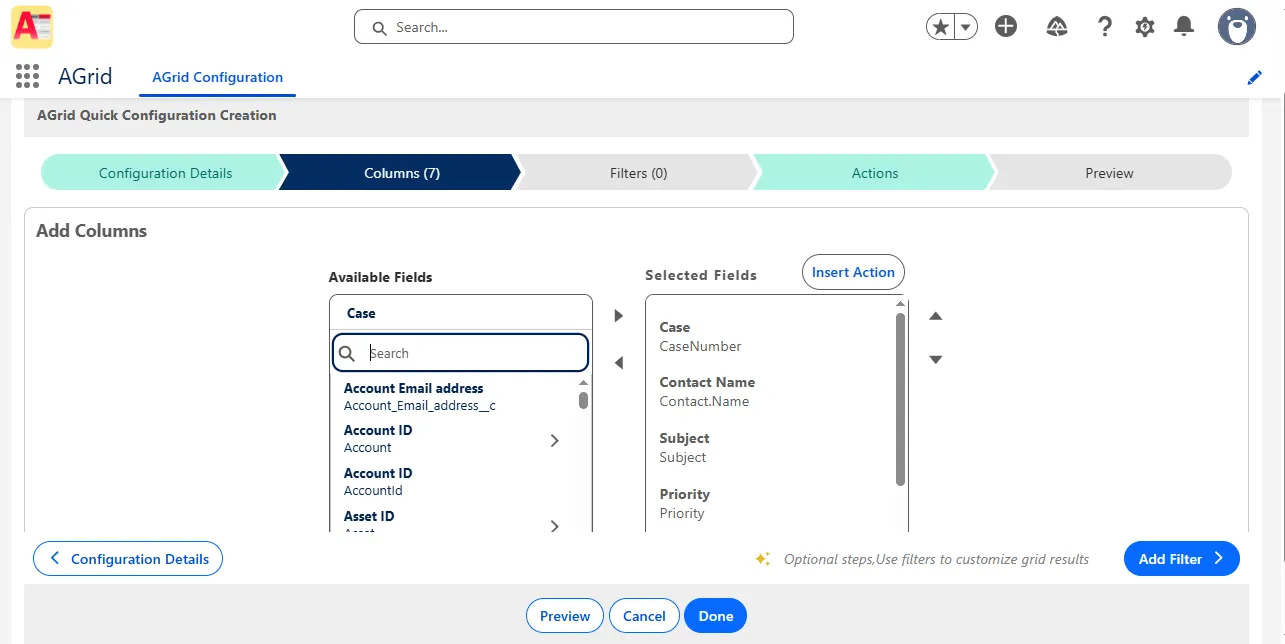
When the goal is to improve a related list experience, admins still begin by:
- Selecting the Salesforce Parent Object
- Selecting the Child Object similarly
- Choosing the List View that represents the related records

From there, the configuration follows the same guided flow:
- Review and adjust Columns. View your Filters
- Enable Actions so users can work directly from the list
- Use Preview to confirm behaviour
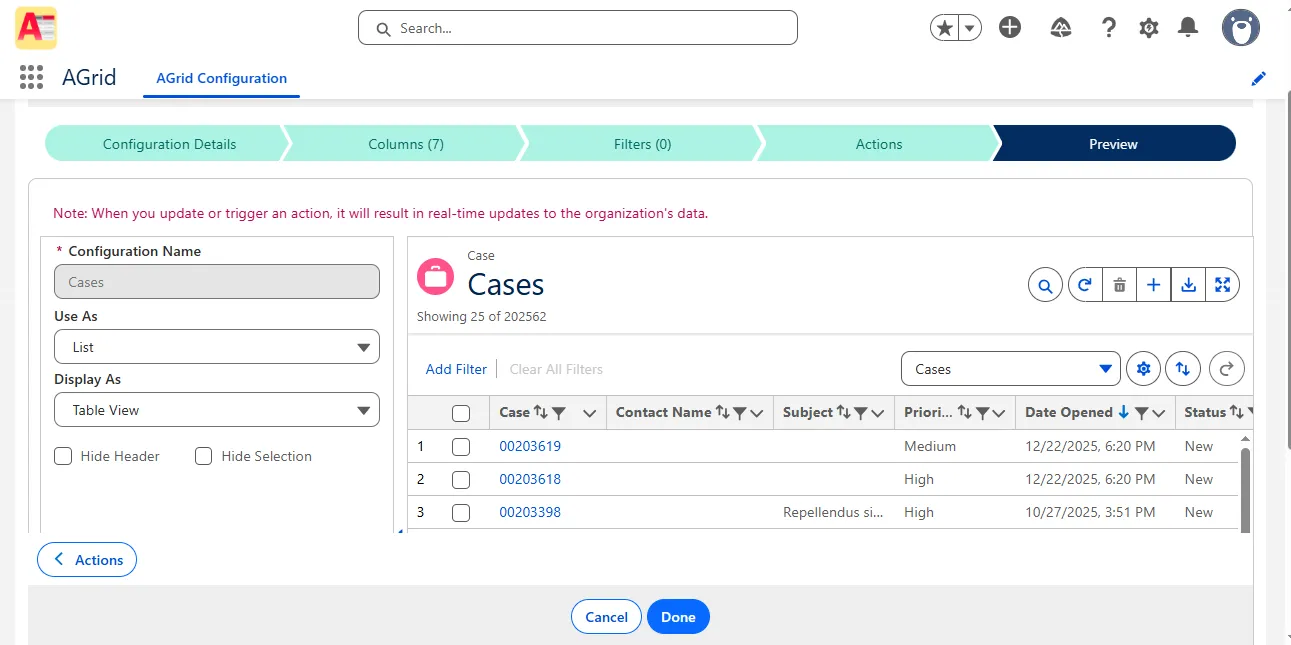
The difference isn’t how the configuration is built—it’s where it’s used.
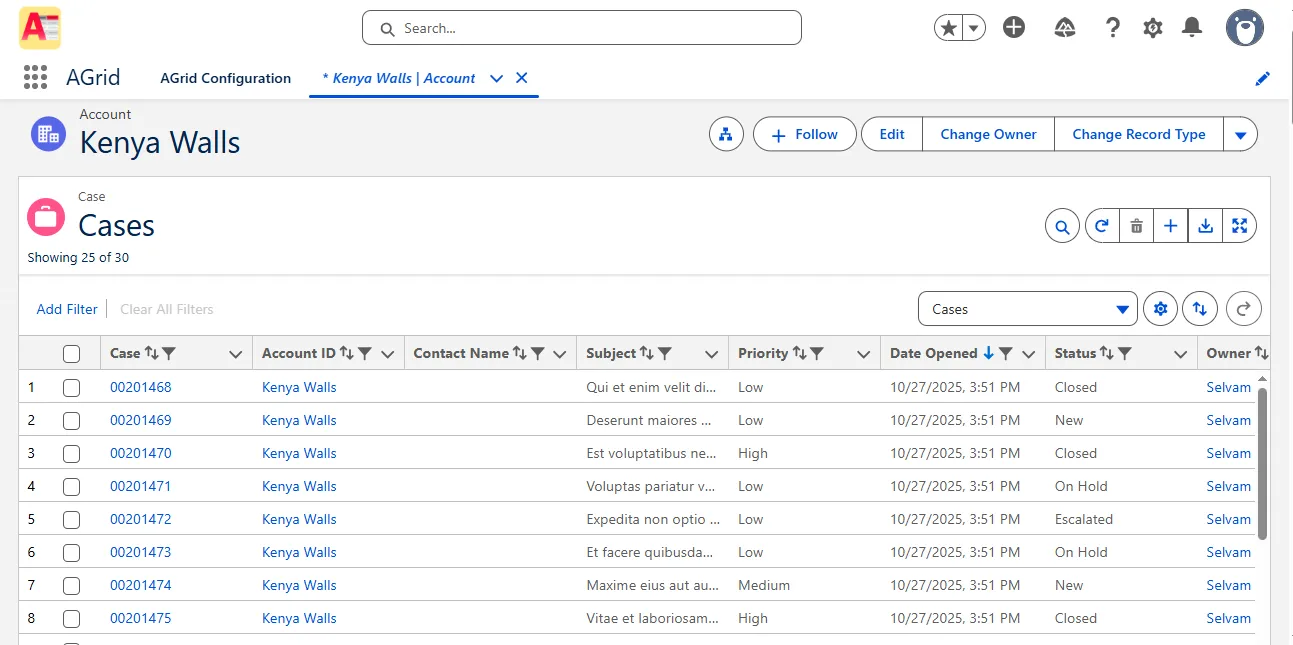
Place it on the record page
Now that your configuration is created it can used as a list view or a related list view. Once your configuration is ready:
- Open Lightning App Builder
- Drag AGrid List View onto the page
- Select your configuration
- Provide the Parent Field Name (example: AccountId) to apply record context
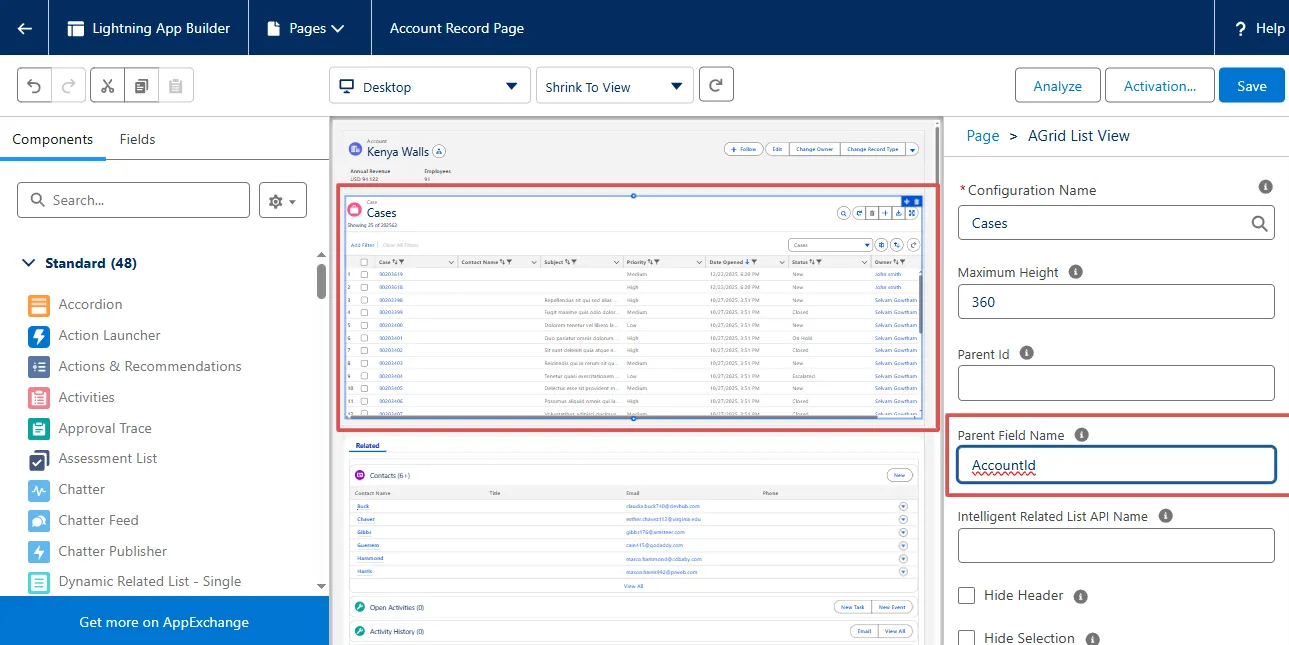
AGrid will then render the list based on the current record while using the columns, filters, and actions you configured.
Beyond Standard Relationships
When Salesforce does not provide a native related list—because relationships are indirect or span multiple levels—AGrid supports this using Intelligent Related Lists.
This allows admins to surface the right records on the record page without changing the data model.
Conclusion
Importing an existing Salesforce List View or starting from a Related List is the entry point—not the end goal. AGrid allows admins to:
- Reuse what already works
- Create configurations instead of one-off views
- Extend lists into actionable, context-aware experiences
It doesn’t replace Salesforce List Views or Related Lists.
It unlocks what they were never designed to do
Start your journey with AGrid today and explore all its robust features. Try AGrid from AppExchange or learn more at Softsquare.
Looking to migrate your Agrid configurations to new orgs? Here’s a step-by-step guide on how to make it seamless.
Transform Every Salesforce List View. Want More from List Views?
More Insights for you








Ready to Transform Your Business with Salesforce & AI?
