

Explore the New Media Manager Winter ’26 Features



Table of Contents


Winter’26 Release is here and it brings meaningful improvements to Salesforce file management across configuration, discovery, and actionability. This release focuses on removing friction from everyday file workflows while giving Salesforce Admins more clarity and control during setup.
Behind the scenes, we’ve refined core experiences, improved configuration flows, and expanded how users interact with files—so teams can work faster without switching tools or navigating away from Salesforce.
What’s included in this release:
- File Mate (Agentforce-powered)
- File Browser – Enhancements
- Row Actions in Columns
- Configuration Page – UI Enhancements
WHAT’S NEW?
Agentforce-Powered File Actions with File Mate
Ever needed quick answers from a document without downloading it—or wanted to act on a file directly within Salesforce? File Mate introduces Agentforce-powered file actions that bring intelligence into everyday file workflows.
File Mate allows users to run intelligent actions on supported files directly from row actions, eliminating the need to export documents or rely on external tools.
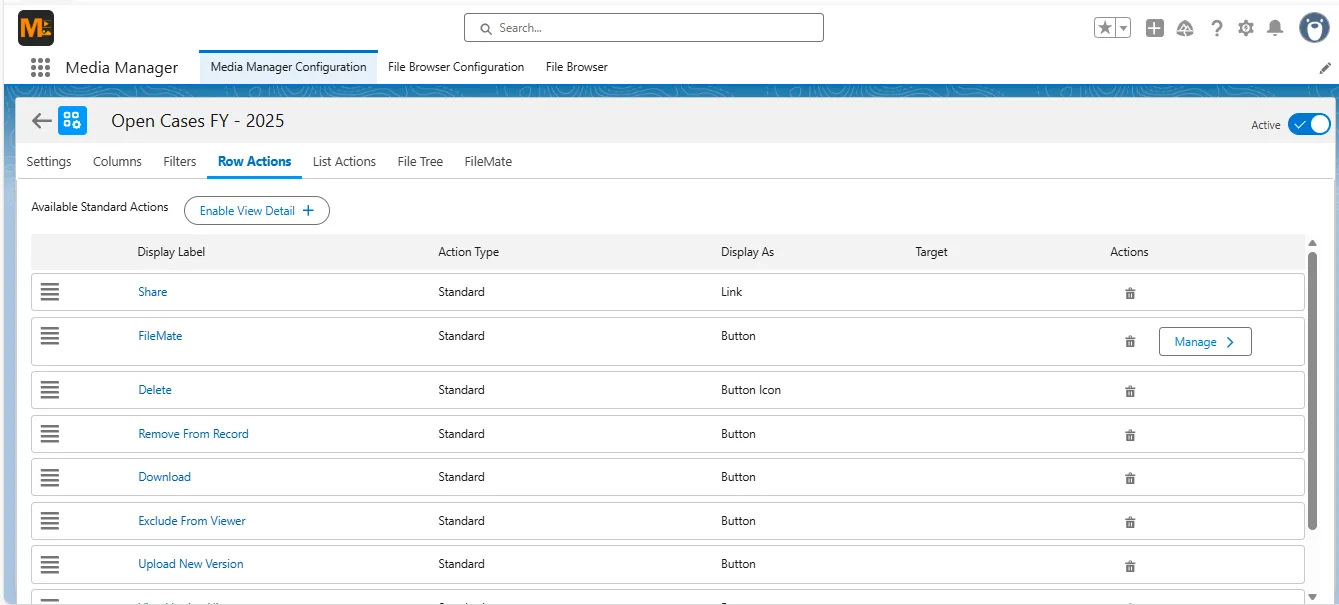
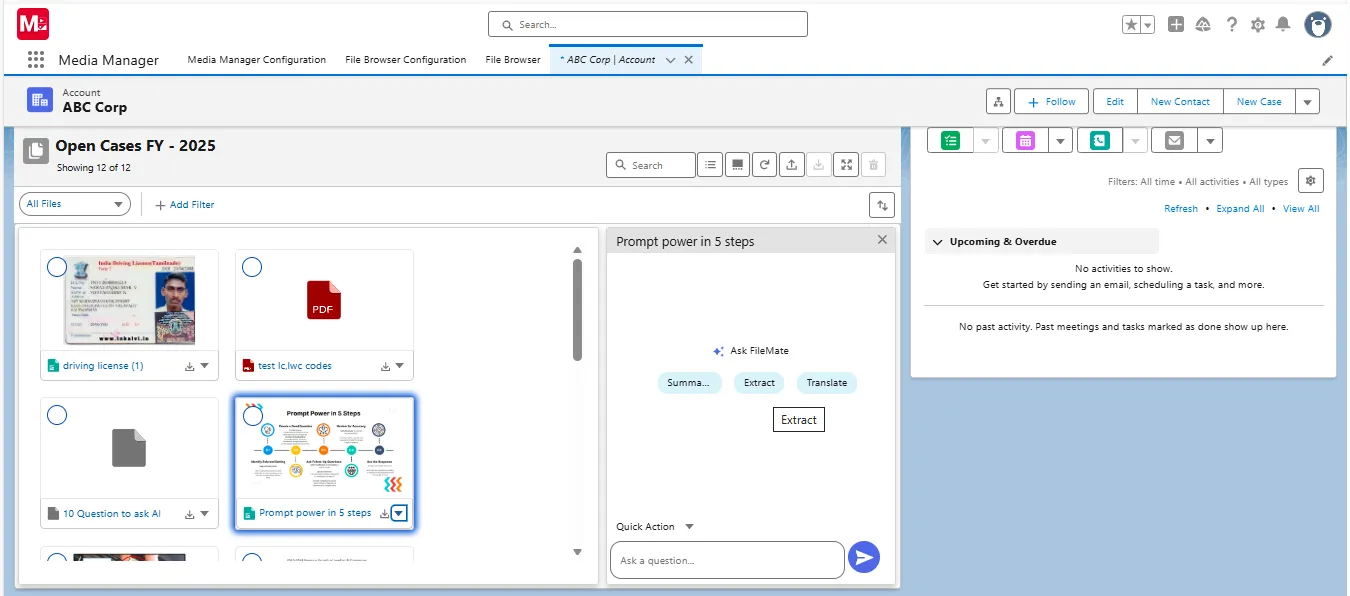
With File Mate, users can now:
- Generate concise summaries to understand file content instantly
- Extract readable text and metadata using OCR
- Translate file content into a selected language
- Ask contextual questions about a file and receive responses based on its content
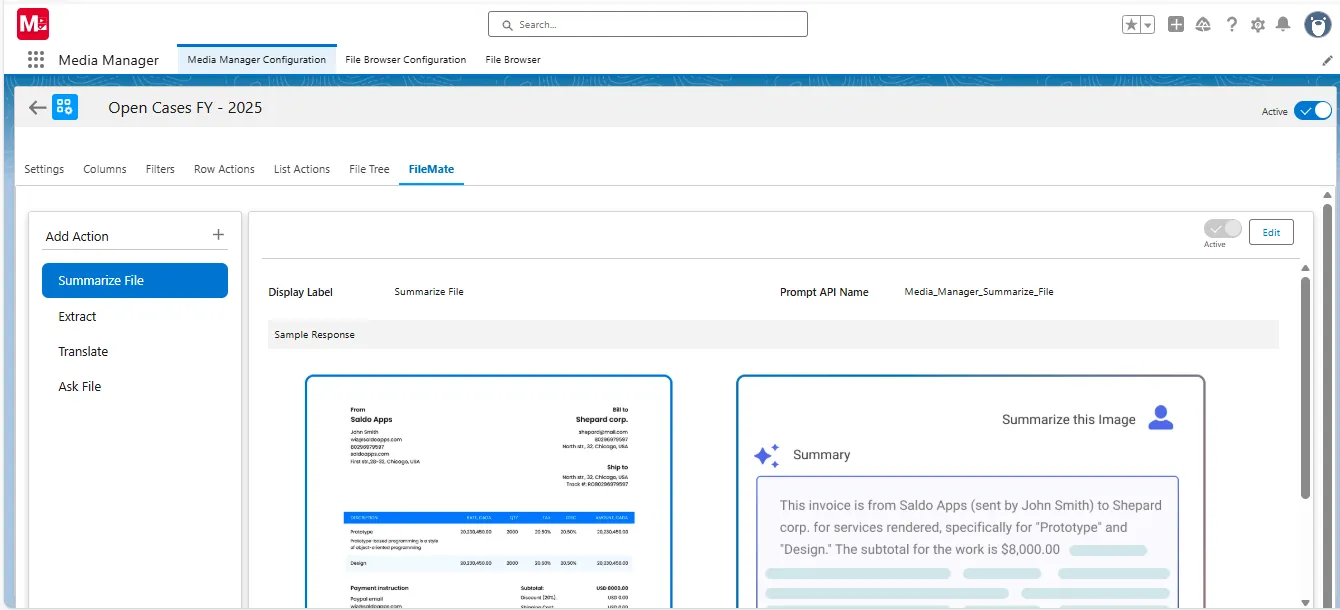
All actions run directly within Salesforce, keeping users focused while improving productivity.
File Mate also supports custom actions for real-world workflows:
- Salesforce Admins configure custom File Mate actions using Prompt Builder
- These actions appear alongside standard File Mate actions in the file interface
- End users can execute both standard and custom actions from row actions
- Optional runtime inputs allow users to influence how an action runs during execution
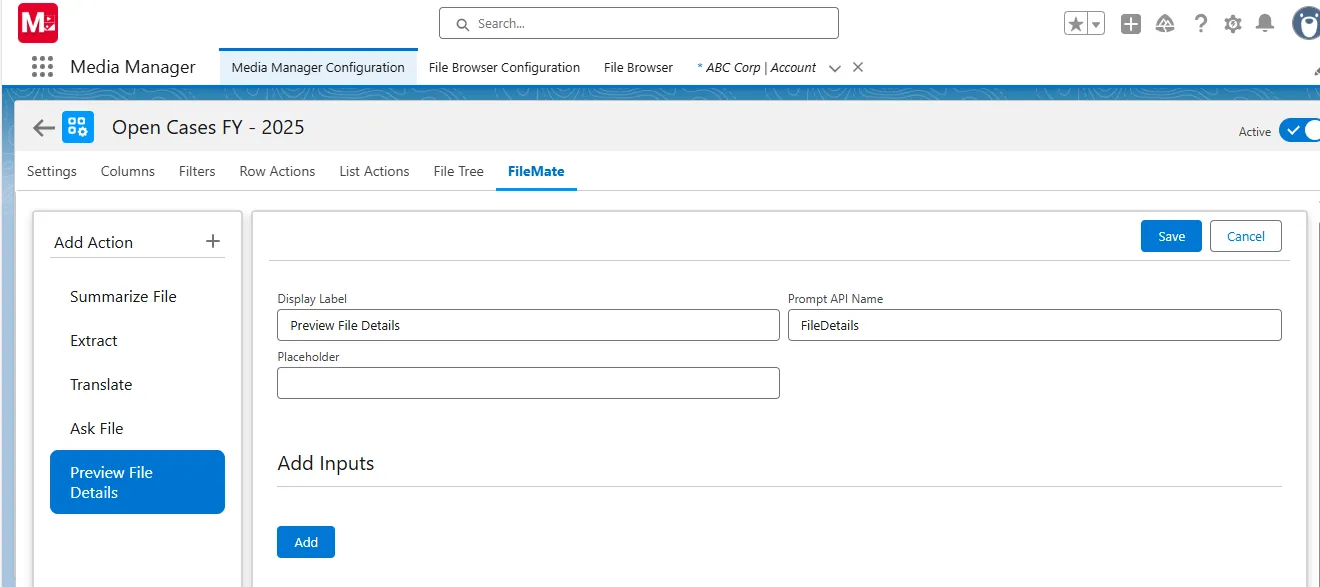
Once configured, File Mate actions become a natural part of Salesforce file management, while still respecting permissions, supported file types, and size limits.
A Fully Reimagined File Browser Experience
What began as a simple file search tool has evolved into a powerful, configuration-driven workspace for Salesforce file discovery and reuse.
The File Browser has grown beyond simple file search. In this release, it becomes a flexible workspace for discovering, previewing, and reusing files—without forcing users to rebuild setups every time.
The experience now starts with a guided landing page that helps users quickly choose how they want to work. Whether starting fresh or reusing existing configurations, the File Browser makes it easy to jump in with confidence.
What’s improved in the File Browser
- A guided entry experience with Need Help support to assist users during setup and search
- Built-in Import and Export options for File Browser configurations, making it easy to reuse setups across orgs or environments
- A clean, structured list of saved configurations, sorted by recency, with quick actions to search, clone, or delete
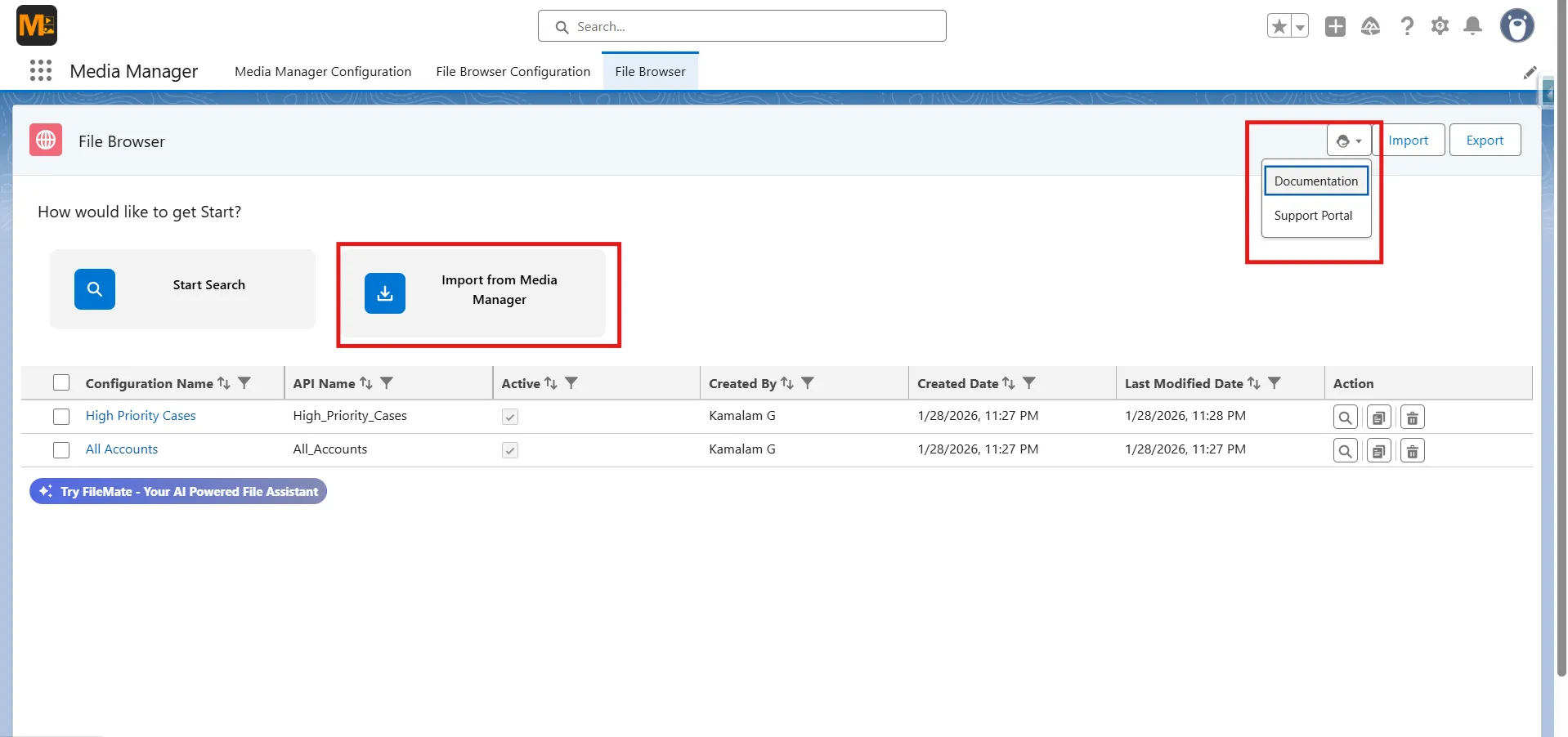
Once inside a search or configuration, users can work with files the way they prefer:
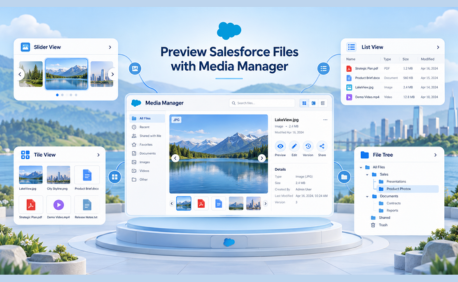
- Switch between Slider View, Tile View, and List View depending on how files need to be previewed
- Apply filters, grouping, and sorting to narrow down results quickly
- Add custom columns to surface the right file and record context
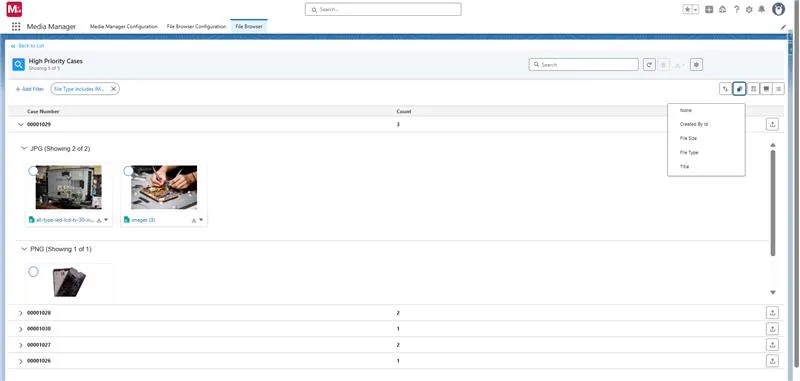
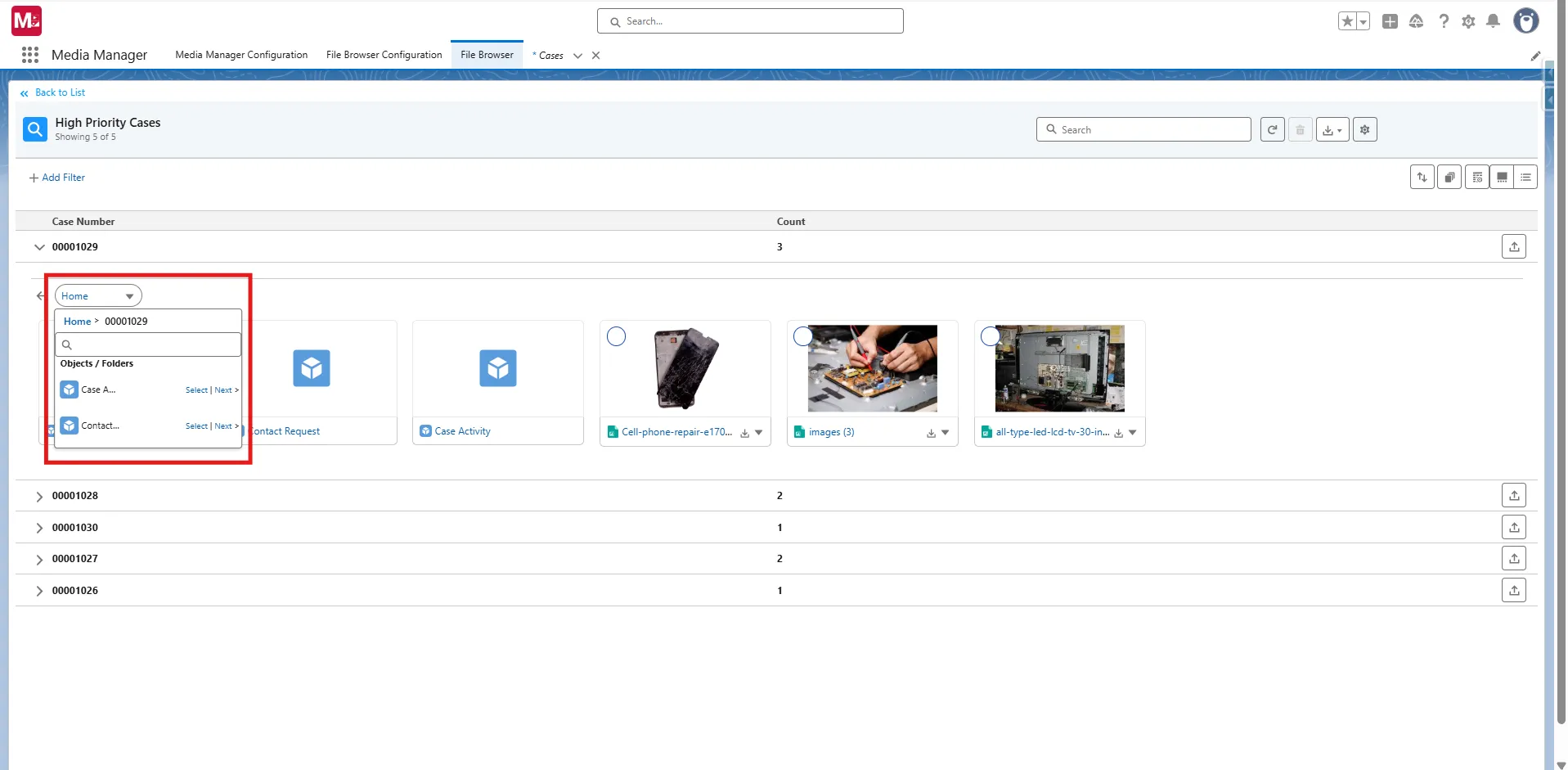
- Navigate files across primary and related objects using multi-object file trees
- Choose between flat layouts or folder-based navigation for better organization
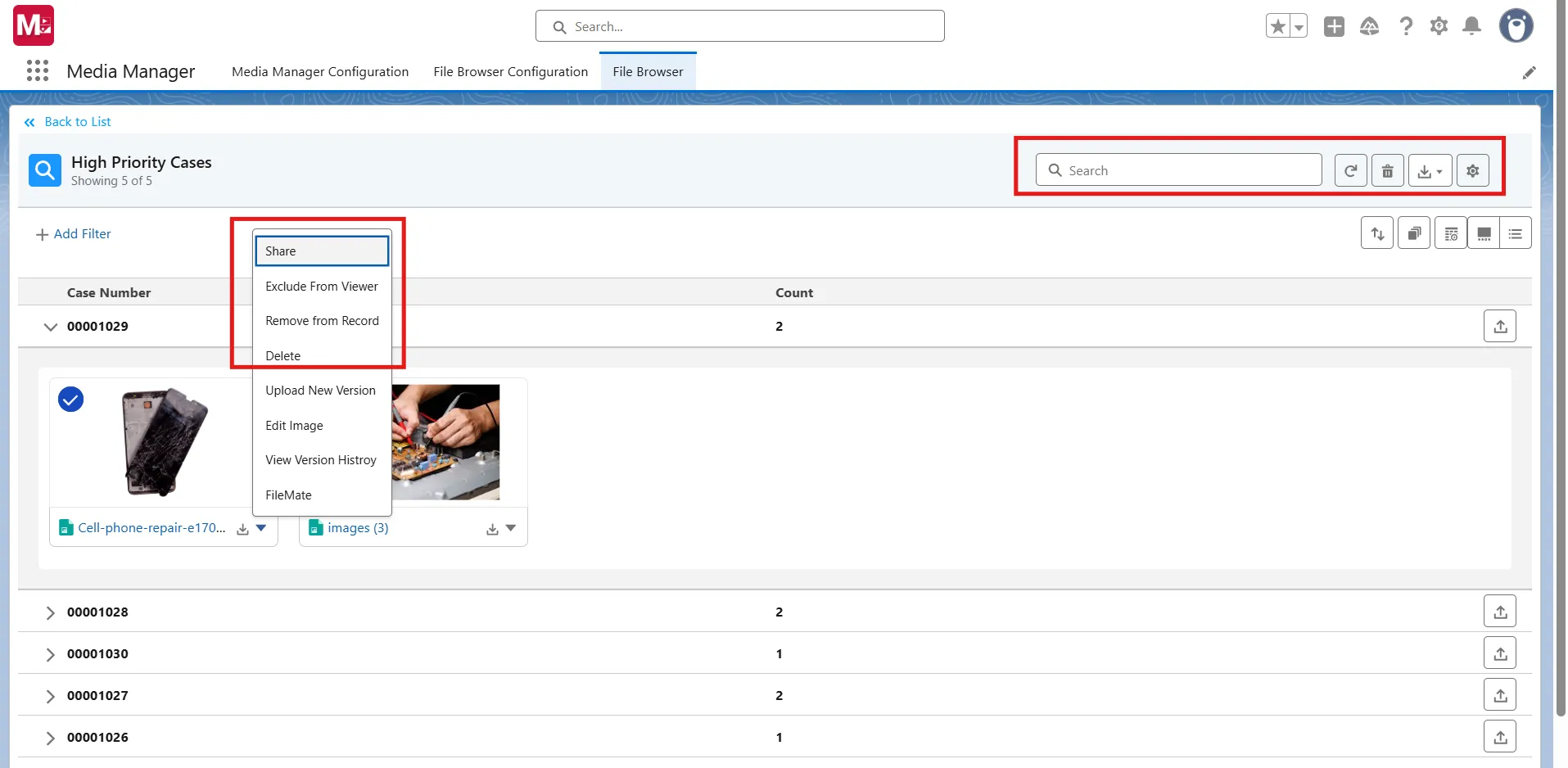
Actions stay consistent and familiar:
- All supported row-level and list-level actions from Media Manager are available in File Browser
- This includes search, filter, download, bulk actions, and custom actions
- Focus Mode and FileMate is intentionally excluded to keep the experience streamlined
To support reuse and personalization, users can save their changes, create new versions using Save As, and access all saved setups directly from the landing page. Preferences are automatically created and managed behind the scenes, so users spend less time configuring and more time working.
The result is a File Browser designed for scalable Salesforce file management, supporting discovery, reuse, and personalization without repeated setup.
ENHANCEMENTS
A Clearer, Faster Configuration Page
Configuring file experiences is now more intuitive and efficient for Salesforce Admins.
The Configuration page UI is redesigned and clearly split into two focused sections:
- Details – captures core configuration information such as name, API name, labels, file source, default sorting, and descriptions
- View Setups – centralizes all preview behavior and file interaction settings, including views, grouping, file tree behavior, limits, and duplication rules
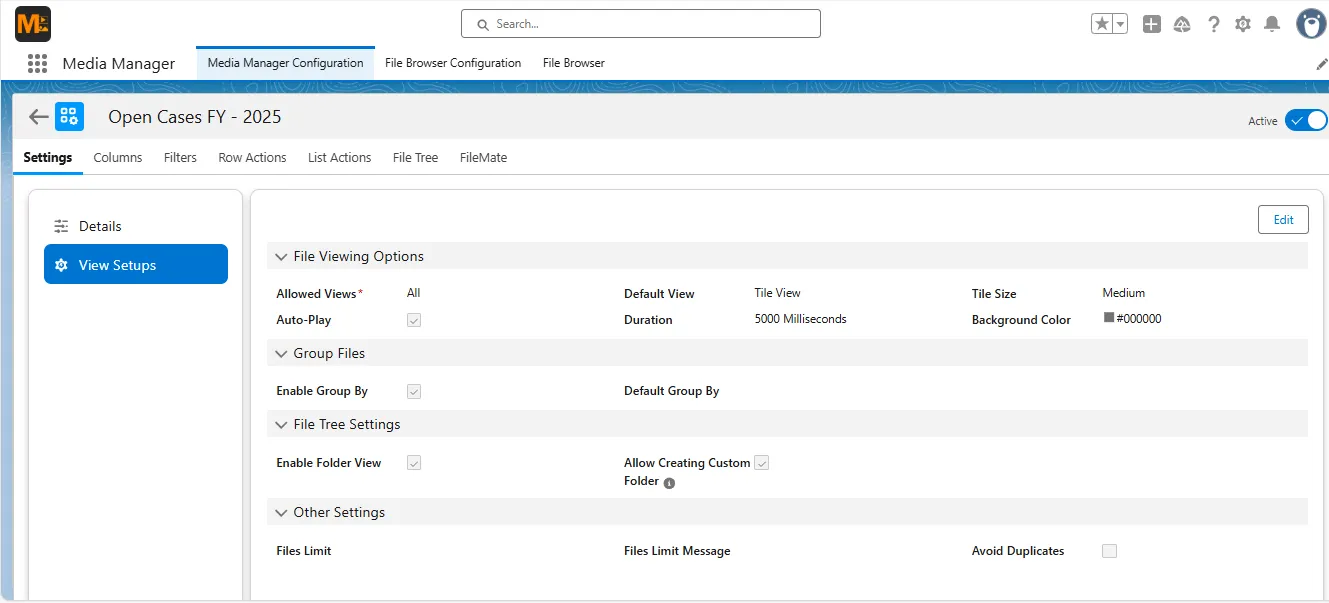
New configurations now preview directly within the View Setups section, allowing admins to validate layout, behavior, and file presentation while configuring—without switching screens.
This structured split improves clarity, reduces setup time, and minimizes configuration errors, especially for complex file setups.
Row Actions Embedded Directly in Columns
Actions are now placed exactly where users expect them.
Row Actions can now be embedded directly within columns, making file interactions faster and more contextual. Instead of relying on a separate Actions column, users can access relevant actions right next to the data they’re working with.
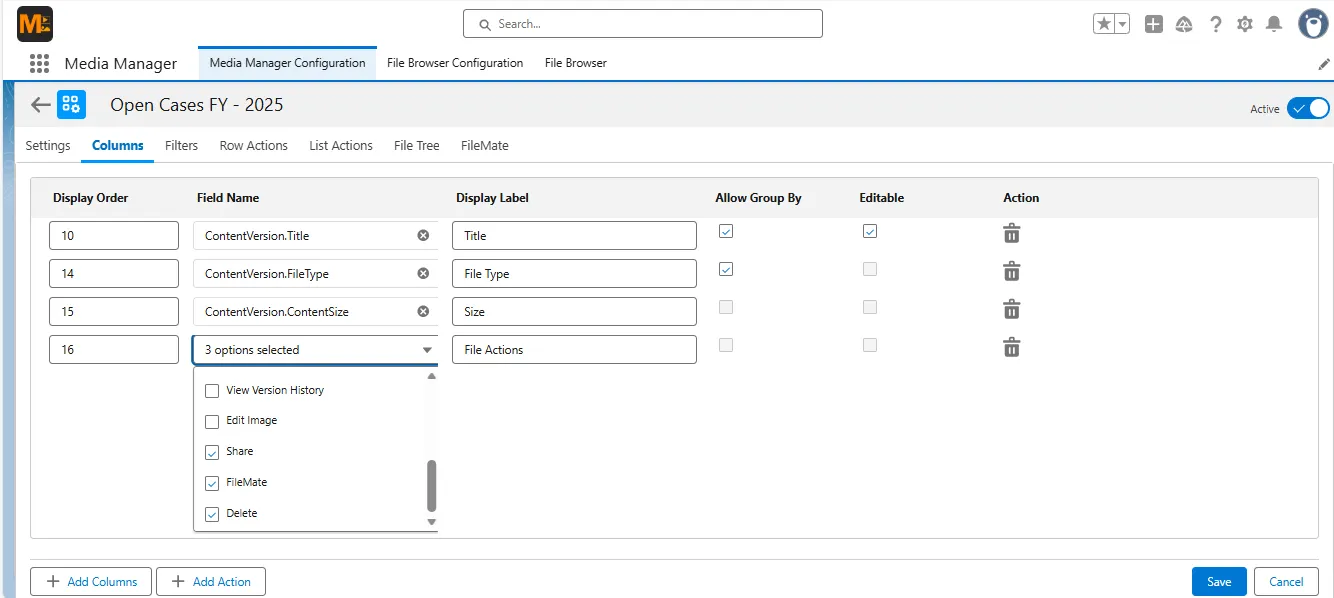
This enhancement introduces:
- Flexible action display options, including buttons, icons, and links
- The ability to assign actions at the column level
- Support for multiple actions within a single column
By keeping actions aligned with each record, this enhancement reduces clicks, improves efficiency, and delivers a cleaner, more interactive list-view experience—while maintaining existing security and permission controls.
WHAT’S NEXT?
These updates are ready to use today and fit seamlessly into existing Salesforce orgs. Whether you’re optimizing configurations or expanding how teams interact with documents, this release strengthens everyday Salesforce file management workflows.
- Upgrade from AppExchange to access the latest updates
- Check the manual for detailed configuration guidance
- Contact us if you’d like help exploring Agentforce-powered file actions or advanced File Browser setups
This release is all about working smarter with files—right where your teams already are.
Want to Explore What’s New?
More Insights for you









Ready to Transform Your Business with Salesforce & AI?
