

Salesforce Grandchild Records List View Access Made Easy with AGrid


.svg)
Table of Contents


Salesforce record pages handle direct child records well. You can easily see Opportunities on an Account, or Opportunity Line Items on an Opportunity. But when you need to see grandchild records, for example, child Opportunities under a parent Opportunity then Salesforce doesn’t provide a native way to show all of them in a single related list.
Even features like Dynamic Related List – Single still only work with direct child relationships, not multi-level hierarchies.
This blog shows how AGrid Intelligent Related Lists let you surface grandchild records in a single grid without new lookups, custom code, or schema changes—us
ing standard objects like Opportunity and a simple parent Opportunity self-lookup.
Community Pain Points: What Admins Keep Asking
Salesforce Admins repeatedly ask how to show grandchild records in salesforce on a parent record page:
- “Show a Related List of a Grandchild?” – Trailhead
- “Show the grandchild record on the grandparent record page” – Trailhead
- “Best option(s) for showing related list of ‘grandchild’ records” – Reddit
Bottom line: natively, Salesforce can’t show multi-level (grandchild) records in one related list—AGrid fills this gap.
What Makes This Feature Possible in AGrid
AGrid is an actionable grid for Salesforce that renders object data as a configurable list view with filtering, sorting, grouping, inline editing, and actions.
The Intelligent Related List feature lets you:
- Define virtual relationships between objects, even when there’s no lookup or master-detail
- Use field-based conditions and global variables from the record page to decide which records appear
- Access hierarchical records up to 5 levels deep in a single configuration, so you can move from parent to child, grandchild, and further descendants without changing the data model
- Work with grandchild, sibling, or multi-level related records without adding new fields, junction objects, or custom code
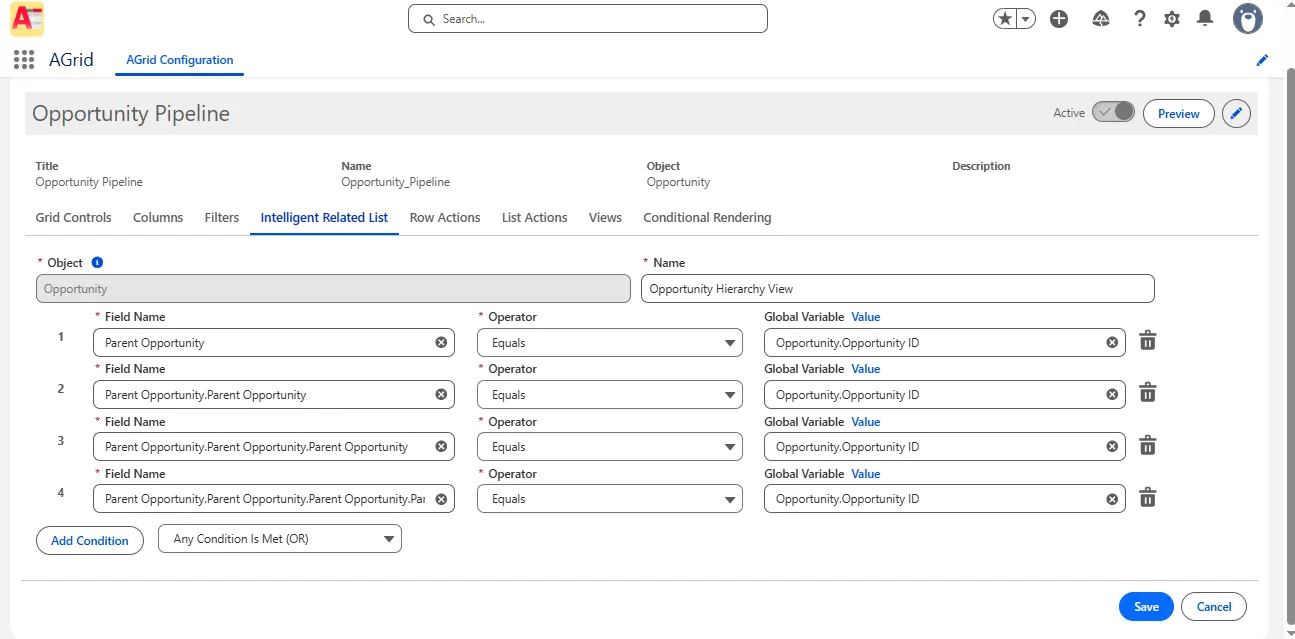
In this use case, you:
- Configure AGrid on Opportunity
- Use a self-lookup on Opportunity (Parent Opportunity) to represent hierarchy
- Use an Intelligent Related List to pull in child and grandchild Opportunities based on that relationship
The result: from a single Opportunity, you can see all related child and grandchild Opportunities in one AGrid view, fully filterable and actionable.
Step-by-Step Guide: Viewing Grandchild Opportunities in One AGrid View
This guide keeps the original flow of your existing blog but simplifies the language and keeps the steps compact.
Set Up the Opportunity Hierarchy
On the Opportunity object:
- Add or confirm a Parent Opportunity self-lookup that represents the hierarchy
- Use it so each child Opportunity points to its parent; grandchild Opportunities point to their immediate parent
You don’t need extra junction objects or special hierarchy logic—this self-lookup is enough for AGrid to work with.
Open or create an AGrid Configuration for Opportunity
- Open the AGrid app and go to Configurations.
- Create a new Opportunity configuration (or open an existing one you want to extend).
- Add the fields you need in the grid: Stage, Amount, Close Date, Owner, Parent Opportunity, etc.
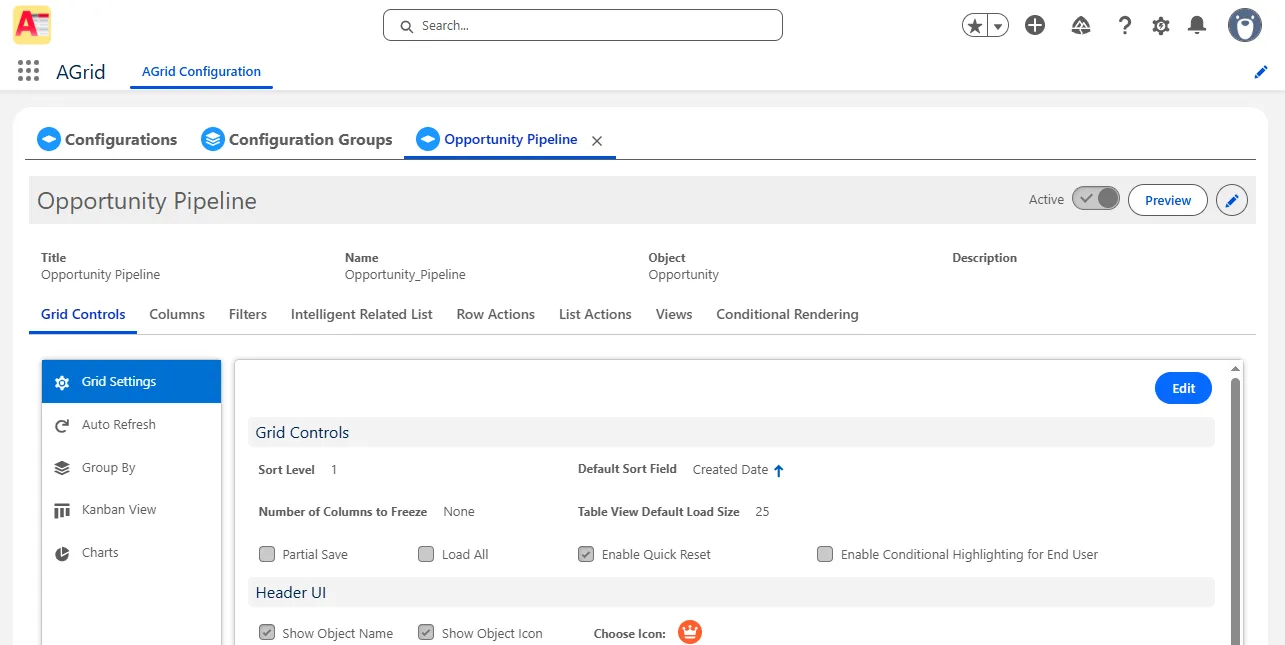
This configuration becomes the base grid for your child and grandchild Opportunities.
Go to the Intelligent Related List Tab
Inside your Opportunity configuration:
- Go to the Intelligent Related List tab.
- Click Intelligent Related List (or the equivalent New button) to create a new definition.
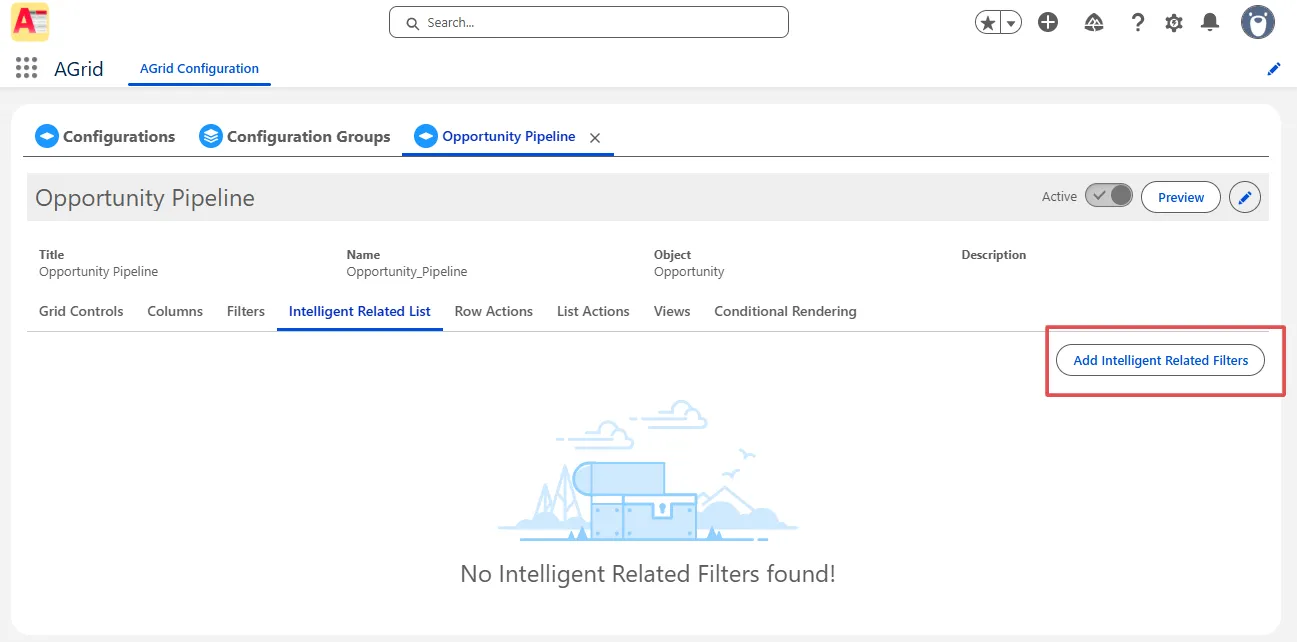
This is where you tell AGrid which related Opportunities to pull into this grid when a user opens an Opportunity record.
Choose the Same Object and Name the List
- For Object, select Opportunity again (same as the configuration object).
- Give the Intelligent Related List a clear name, such as Opportunity_Hierarchy_View.
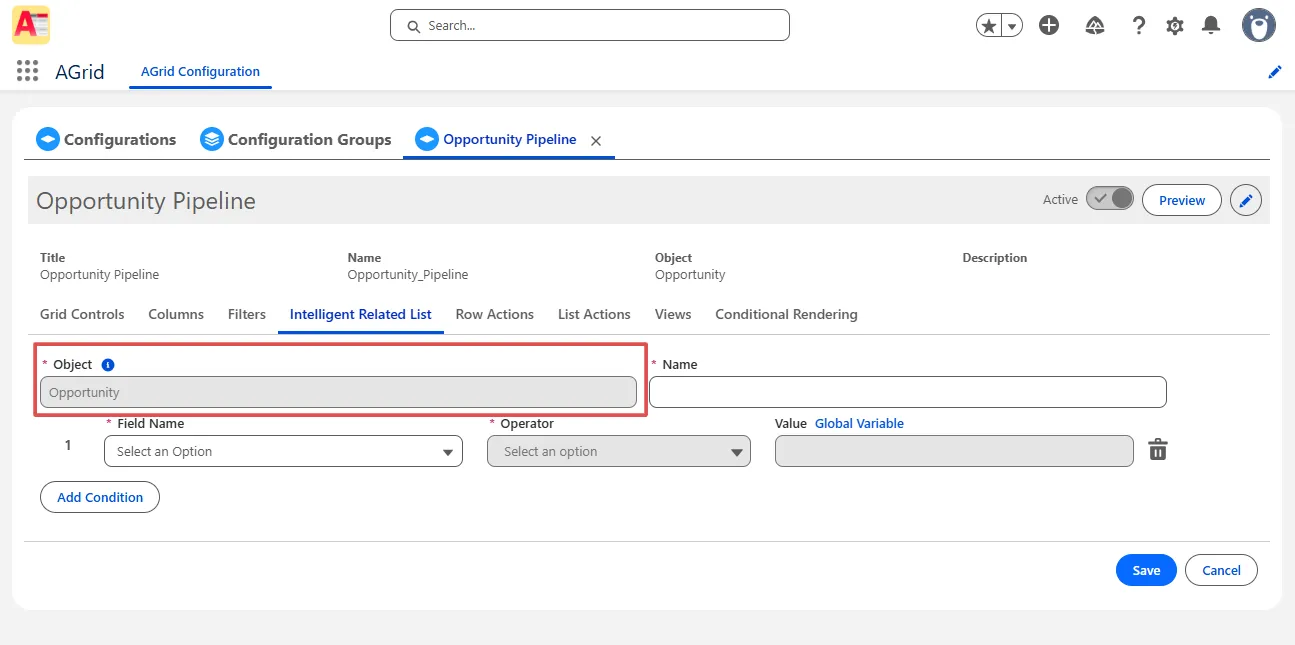
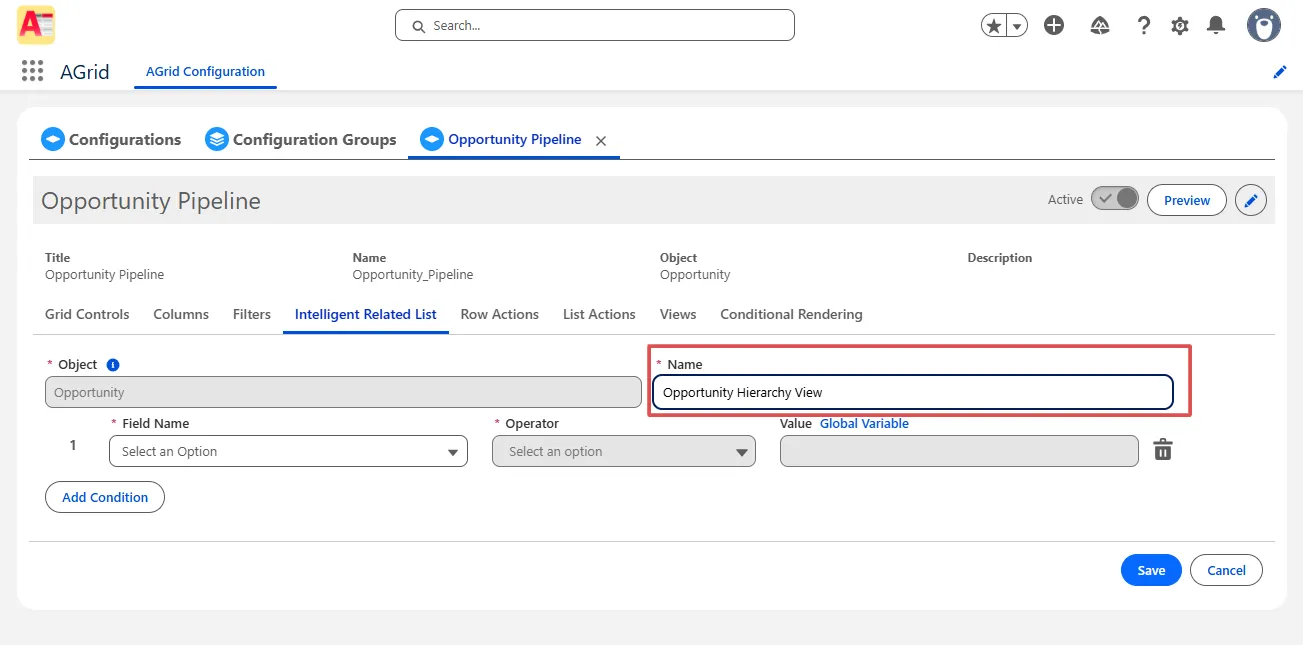
Using the same object lets AGrid show related Opportunities (child and grandchild) while you are still on an Opportunity record.
Add Conditions to Link Child and Grandchild Opportunities
- Click Add Condition.
- On the Source side, pick the relationship field (for example, the Parent Opportunity field on child records).
- On the Destination / Global Variable side, choose the current Opportunity Id passed from the record page.
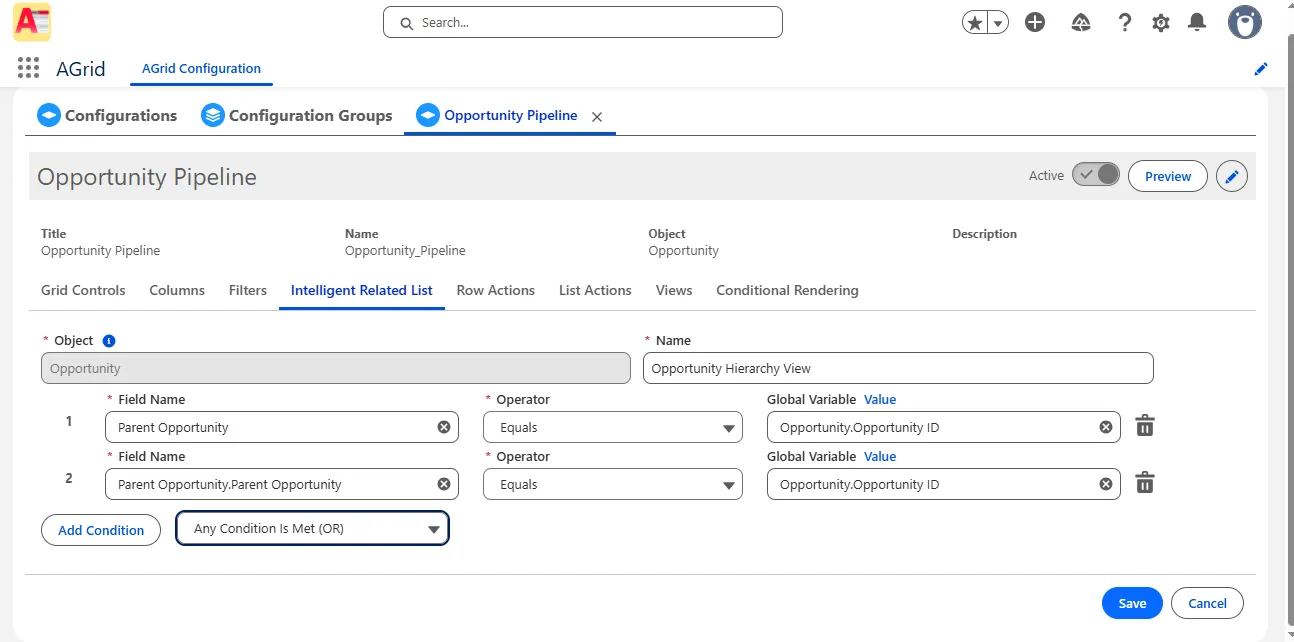
This condition means:
“Include Opportunities whose parent (or ancestor, based on how you design your hierarchy) matches the Opportunity I’m viewing.”
You can add extra filters here (for example, only Open Opportunities) and adjust the Logic setting if you combine multiple conditions.
Group By Parent Opportunity (Optional but Helpful)
For a clearer hierarchy:
- In the Group By settings of the AGrid configuration, select Parent Opportunity.
- Optionally, add summaries (for example, total Amount) at the group level.
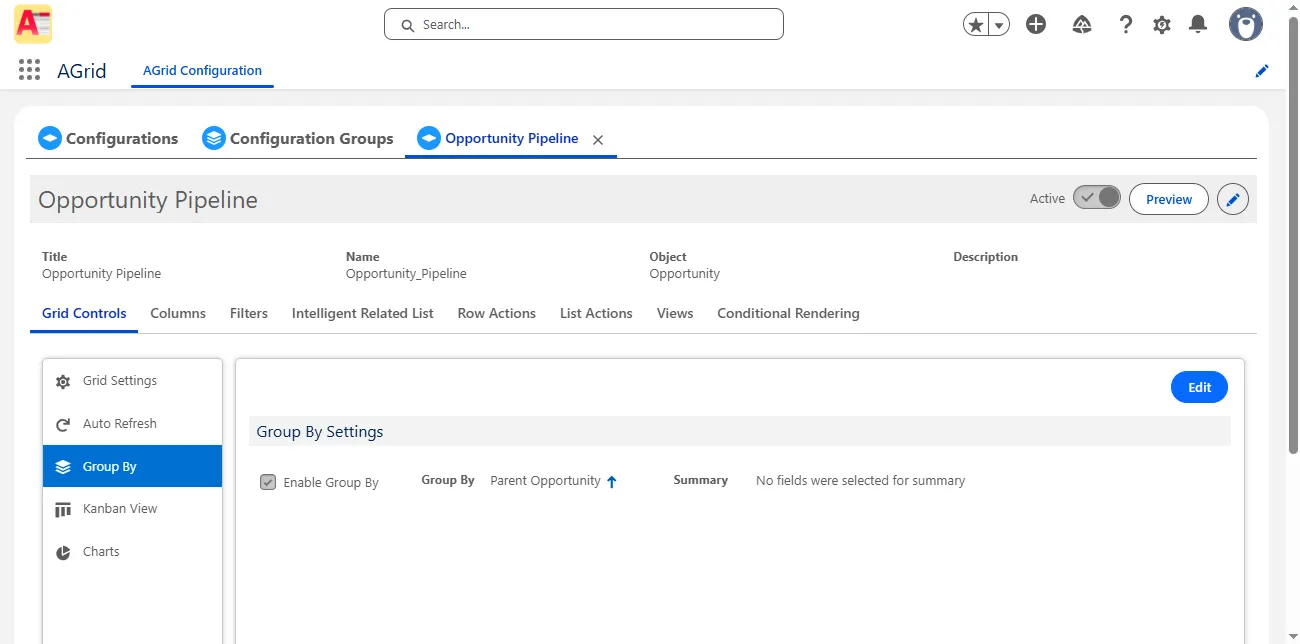
Now users see child and grandchild Opportunities grouped by their parent, making the structure easy to scan.
Place the AGrid Component on the Opportunity Page
- Open any Opportunity and click Edit Page to open Lightning App Builder.
- Drag the AGrid List View component onto the page (for example, under Related Lists).
- In the component properties:
- Set the Configuration Name to your Opportunity configuration.
- Specify the Intelligent Related List Name you just created.
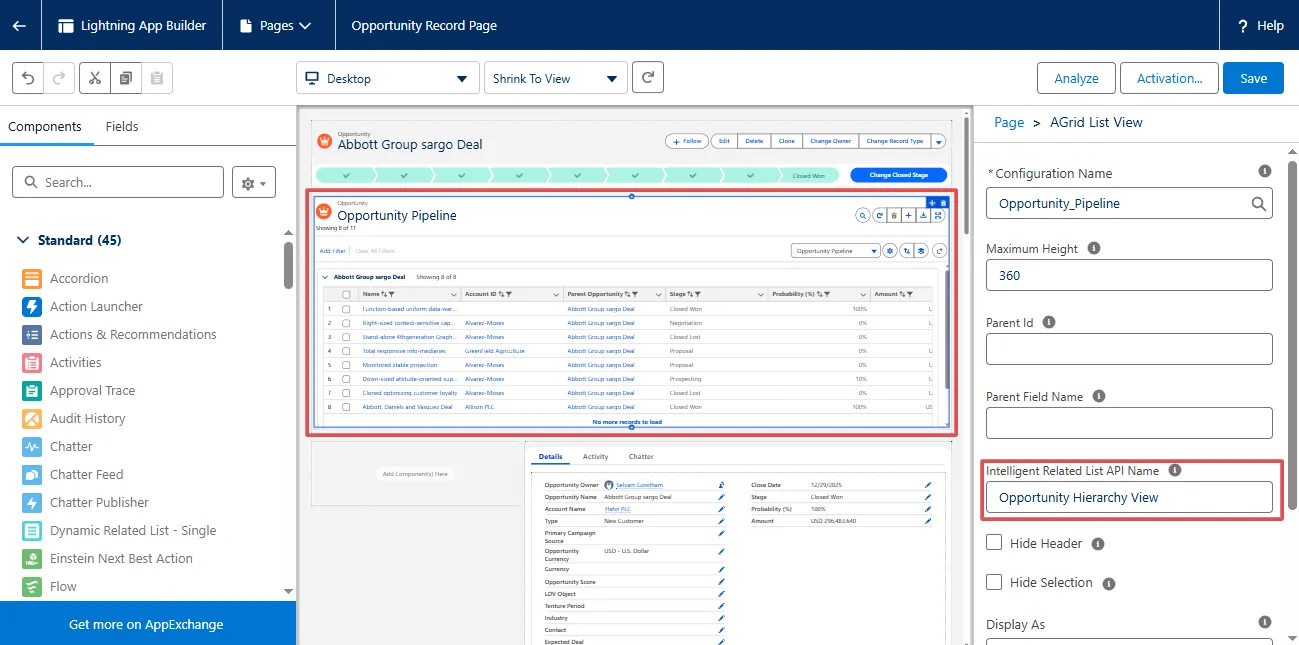
Save the page. When you return to the Opportunity record, you’ll see all related child and grandchild Opportunities in one AGrid grid.

Common Problems This Feature Solves
With AGrid Intelligent Related Lists for grandchild records, admins avoid:
- Creating extra lookups or “Grandparent” fields just to display deeper levels
- Building and maintaining complex reports or joined reports for everyday navigation
- Forcing users to click into each child record to understand the full hierarchy
Instead, users get a single, cross-level view of Opportunities that matches how they actually think about deals and projects.
Enhanced AGrid Capabilities You Can Layer On
Once your grandchild view is in place, the same configuration can take advantage of other AGrid capabilities:
- Inline and bulk updates: Update stages, dates, or owners for multiple child/grandchild Opportunities directly from the grid.
- Filters and saved views: Create admin-defined or user-defined filters (e.g., “Open Child Deals”, “High-Value Grandchild Opportunities”) and save them as views.
- Grouping and summaries: Group by fields like Parent Opportunity, Owner, or Stage and show totals and counts for quick roll-ups.
- Conditional formatting: Highlight Opportunities that are overdue, at-risk, or above/below certain thresholds so they stand out without extra reports.
- Charts and workspace combinations: Add chart views and combine this grid with other AGrid configurations (like Cases or custom objects) on the same page to build a simple “workspace” for a sales or project manager.

All of this builds on the same Intelligent Related List you configured—no additional schema or code required.
Explore More in the Series
If you’re working through cross-object visibility and Salesforce list view limitations, these AGrid Intelligent Related List scenarios fit together as a toolkit:
- Viewing Unrelated Salesforce Object Records with AGrid List Views: Use AGrid to view unrelated objects in Salesforce (no lookup, no master-detail) in a single grid.
- Seamless Sibling Record Exploration in AGrid: Show other records from the objects that share the same parent, so users can view their sibling records directly from the current record without additional navigation.
Want to Access Deeper Records?
More Insights for you








Ready to Transform Your Business with Salesforce & AI?
