

Viewing Unrelated Salesforce Object Records with AGrid Intelligent Related Lists


.svg)
Table of Contents


Why Salesforce Users Struggle with Viewing Unrelated Records
Salesforce users often face a frustrating limitation — related lists only show data tied by lookups or master-detail relationships.
In other words, when two objects don’t have a direct relationship — meaning there’s no Lookup or Master-Detail field connecting them — they’re considered unrelated.
Because of this, admins can’t easily display information from such objects together without making schema changes or creating extra relationships.
That leads to common issues like:
- Creating unnecessary lookup or formula fields just to connect data.
- Maintaining multiple list views or reports to piece together related details.
- Losing the interactive record-level experience that users rely on in Salesforce.
AGrid’s Intelligent Related Fields (IRF) bridge this gap. They let you connect and filter data between objects even when no direct relationship exists.
For example, while Lead and Opportunity aren’t directly related in Salesforce, AGrid can link them through a shared field like CampaignId, letting users see Leads associated with the same Campaign right from the Opportunity view — all without modifying the data model.
What the Salesforce Community Is Saying
Across Trailblazer and Stack Exchange forums, admins and consultants regularly ask how to view unrelated objects in Salesforce or pull data into list views without creating lookups.
Here are a few discussions that echo the same challenge AGrid solves natively:
- How to query two unrelated objects? — developers exploring workarounds in SOQL.
- Pull in a field from an unrelated object into a report — admins attempting report-based joins.
- How can I join unrelated objects? — Trailhead users looking for schema-free data joins.
- Display another object’s records in Lightning page — requests for cross-object views inside Lightning pages.
These conversations show how widespread the need is for a no-code, schema-free way to display unrelated Salesforce object records—precisely what AGrid delivers through its Intelligent Related List framework.
What Makes It Possible
AGrid’s Intelligent Related Lists Use Connected Intelligence to dynamically link records at runtime without requiring any changes to your Salesforce schema.
Instead of relying on hard-coded lookups, AGrid applies a concept similar to SQL table joins — but built natively for Salesforce data.
It matches values across fields (for example, Account.Name between objects) and displays them together in a single, actionable grid.
Think of it as going beyond what Salesforce Joined Reports can do:
joined reports can compare data side-by-side, but AGrid actually merges and interacts with that data in one place — with sorting, inline editing, filters, and actions.
This gives admins the power to design relationship-like views between objects that Salesforce can’t natively connect, unlocking deeper insights without adding new relationships or changing the data model.
Here’s a step-by-step guide to configuring AGrid and enabling visibility between objects that aren’t directly related in Salesforce:
Access AGrid Configuration
Open AGrid and navigate to the Configuration for your target object (for example, Restaurant).
If a configuration doesn’t already exist, create a new one to get started.
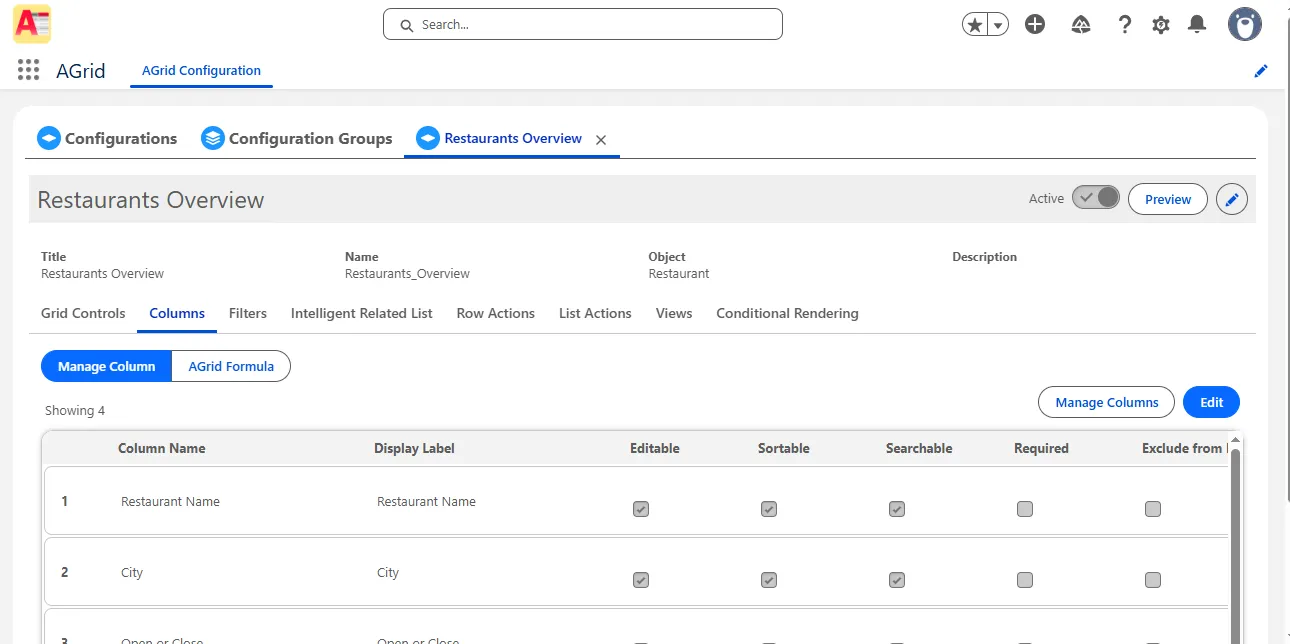
Navigate to the Intelligent Related Tab
On the configuration page, go to the Intelligent Related tab: this is where connections between unrelated objects are defined.
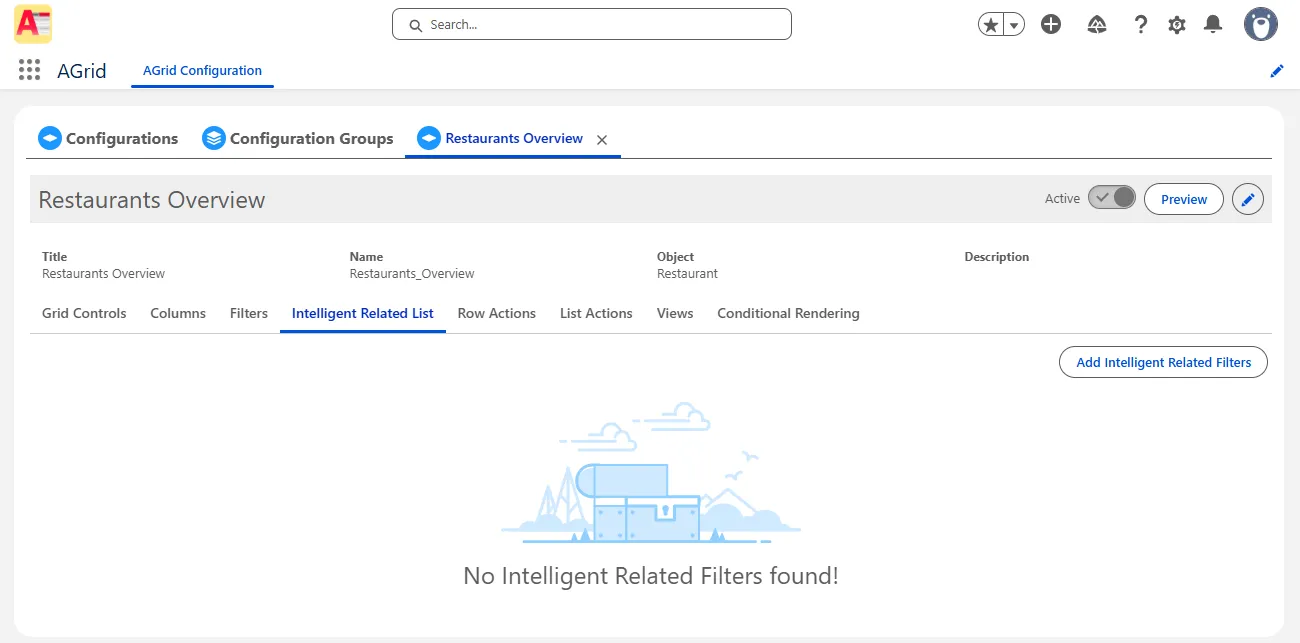
Add Related Filters
Click Add Intelligent Related Filters to begin setting up the relationship logic.
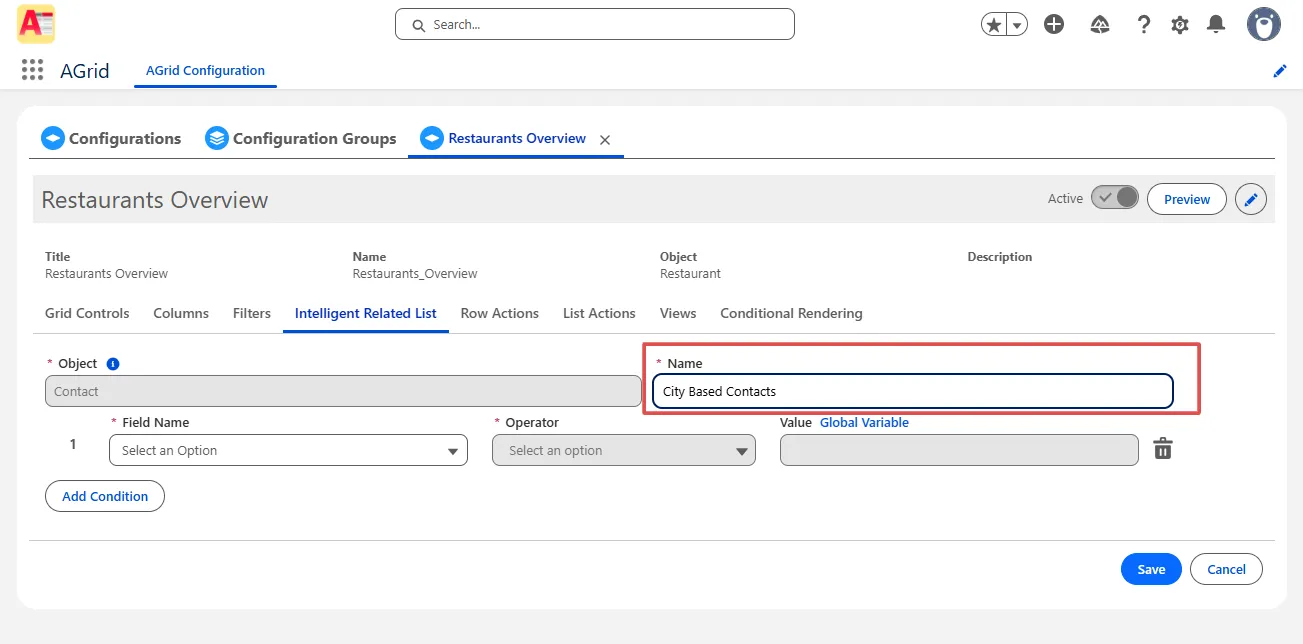
Choose the Relevant Object
Select the object you want to connect (for example, Contact).
This determines which object’s records will be displayed alongside your primary object.
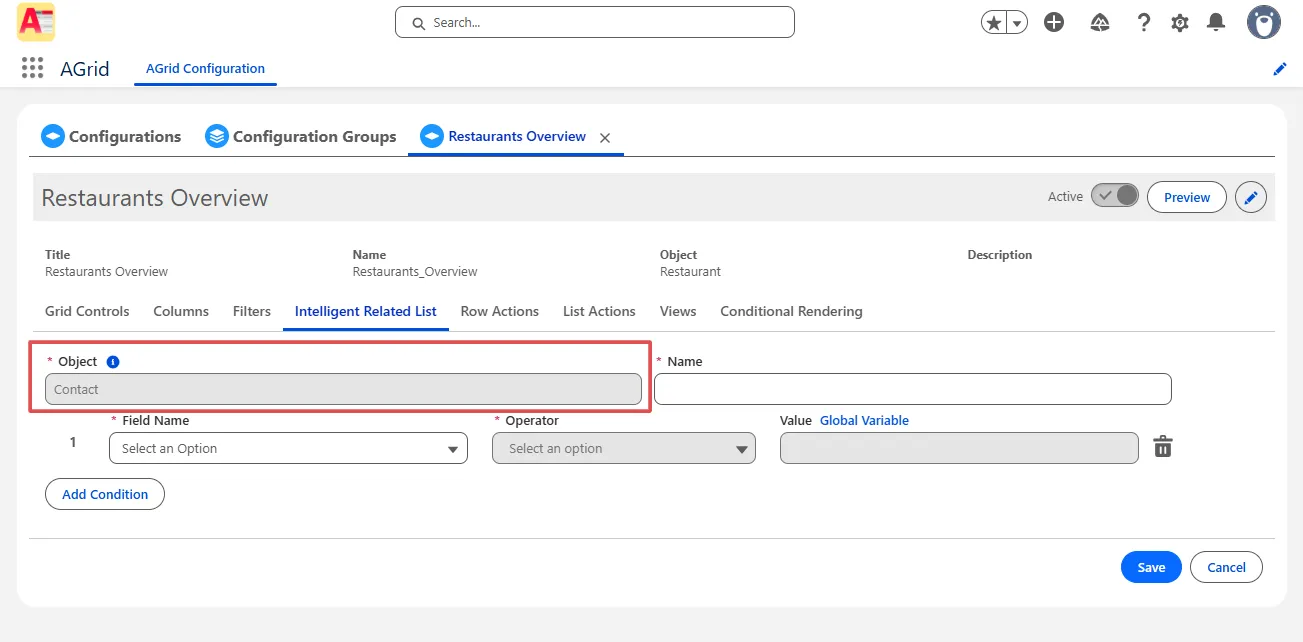
Name Your Intelligent Related List
Assign a clear, recognizable name for the list — this label appears on the record detail page for easy reference.
Set Filters and Conditions
- In the left box, choose a field from the primary object (for example, City from Restaurant).
- Select the appropriate operator based on the field type (equals, contains, etc.).
- Provide a value or use global variables to define the filter condition.
- Add multiple filters if needed and update the logic to match your criteria. \
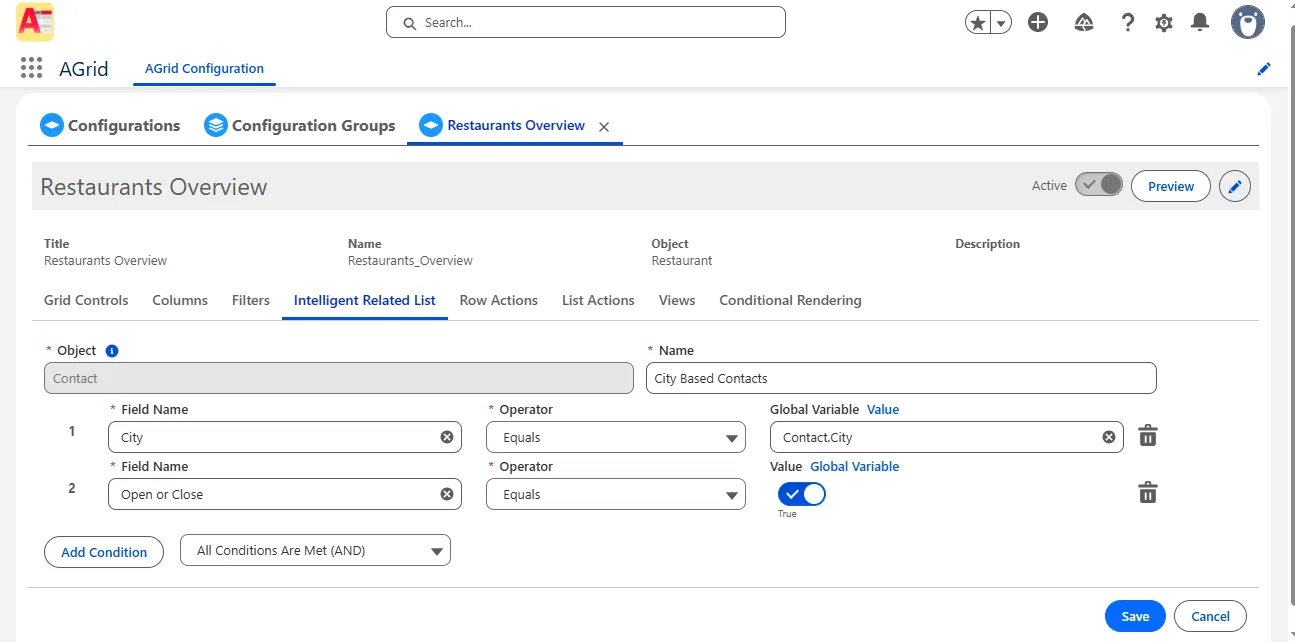
(This logical field matching works similarly to defining keys in SQL joins — AGrid uses it to correlate data dynamically without creating schema relationships.)
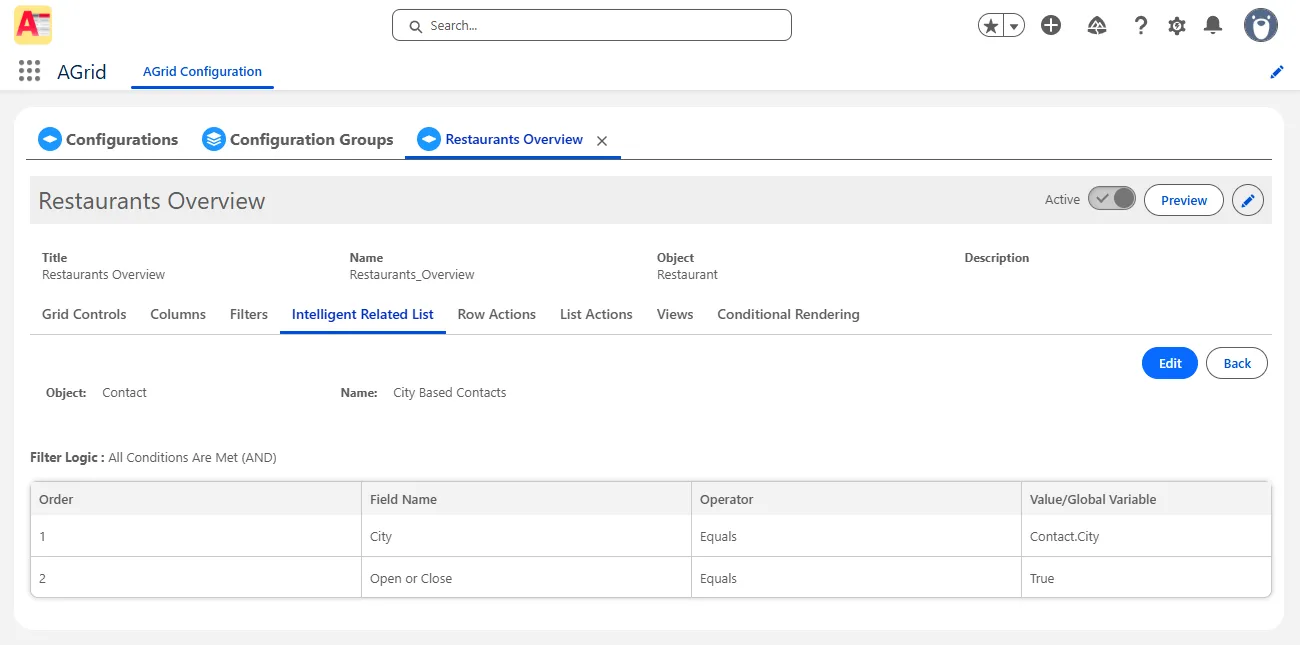
Save Configurations
Save both your Intelligent Related List and the primary AGrid Configuration to preserve the setup.
Position the AGrid Component
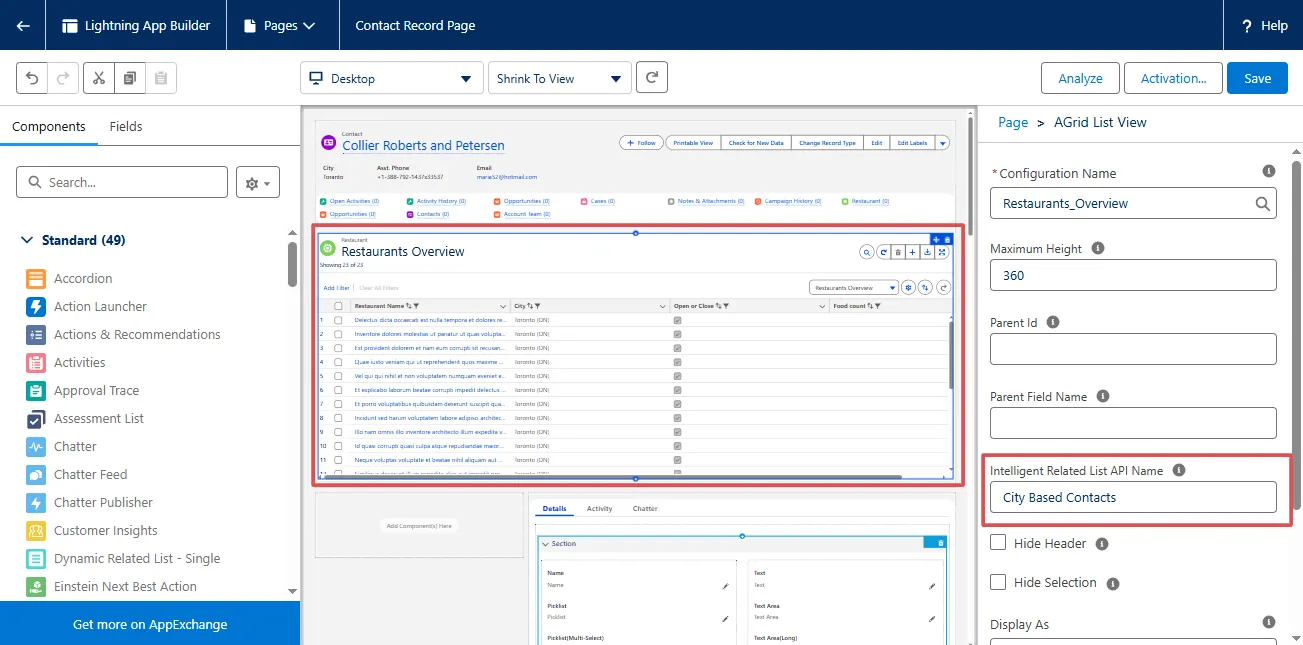
From the gear icon on a record page (e.g., Contact), click Edit Page and add the AGrid component to your layout.
Choose the correct configuration and enter the name of the Intelligent Related List you just created.
Save and Experience
Return to the record detail page to see the results.
You’ll now see data from unrelated objects displayed dynamically — for instance, nearby Restaurant records appearing on a Contact page based on city — all without additional lookups or relationships.
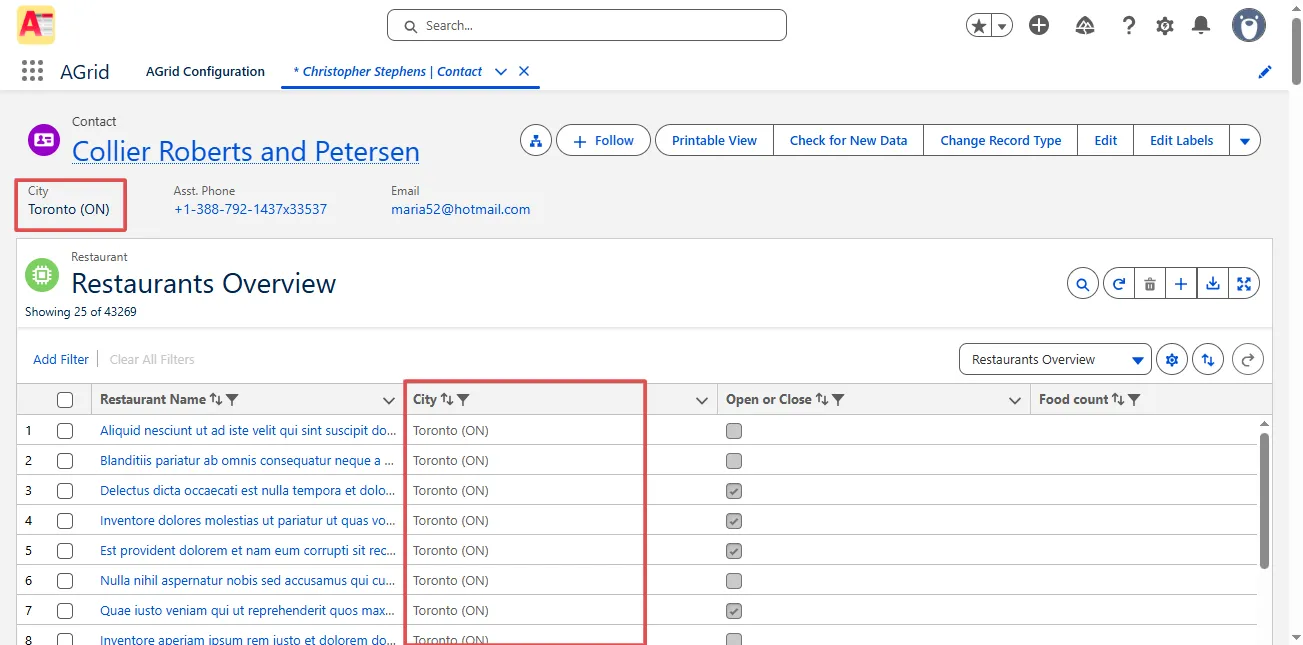
Common Salesforce Pain Points Resolved by This Feature
- No more schema clutter: Avoid creating unnecessary lookup or junction fields just to relate objects.
- No dependency on reports: View data interactively on record pages instead of static dashboards.
- Reduced admin workload: Configuration takes minutes — no need for developer or schema changes.
- Instant cross-object visibility: Teams see related operational data (e.g., billing and support) side by side.
This flexibility is especially valuable in complex enterprise orgs using multiple Salesforce Clouds.
Enhanced Capabilities You Can Leverage
Once unrelated records are visible, AGrid extends their usability with powerful features that go beyond simple data viewing:
- Cross-Object Editing – Update fields not just within the unrelated object, but also from its parent or associated records directly in the same grid — no need to open multiple tabs or switch contexts.
- Multi-Level Grouping – Organize data hierarchically for better analysis.
- Conditional Formatting – Highlight key records based on business rules.
- Embedded Charts – Visualize the relationship patterns instantly within the list view.
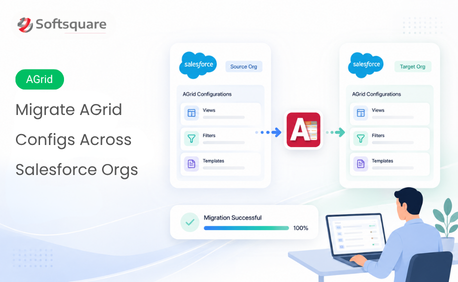
- Reusable Configurations – Save and deploy unrelated object setups across orgs through Config Groups.
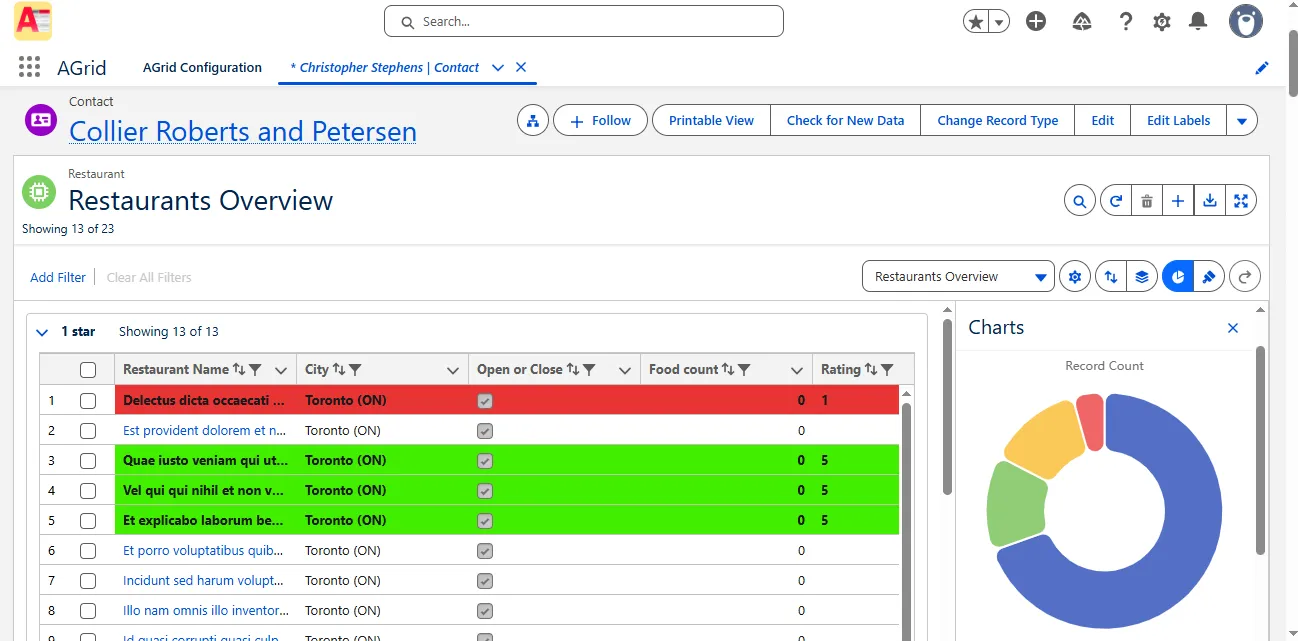
These capabilities make Intelligent Related Lists not just a visualization tool, but a configuration framework for connected insights across your Salesforce data.
Explore More in the AGrid Intelligent Related List Series
This article is part of our Intelligent Related List series.
Continue exploring how AGrid redefines Salesforce data relationships:
Want to try this setup in your org? Start your AGrid free trial on AppExchange.
Want to Connect Unrelated Records?
More Insights for you








Ready to Transform Your Business with Salesforce & AI?
