

Media Manager Spring ’26: External Storage Integration with Amazon S3 is Coming


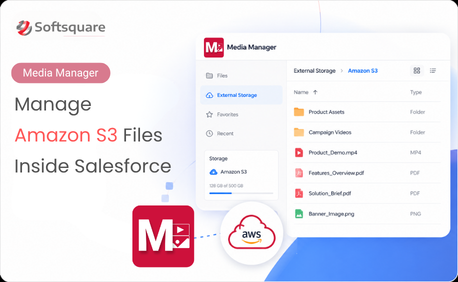
Table of Contents


A long-awaited new way to manage external files from Salesforce is coming with Media Manager Spring ’26.
We have spent considerable time refining the connection, folder structure, Salesforce record mapping, and everyday user experience behind this release. The goal is not simply to connect Salesforce with another storage platform—it is to give teams a complete file management experience while their files remain stored externally.
Spring ’26 will introduce:
- External Storage Integration
- Amazon S3 Connection
- Root Folder Selection
- Object and Record Folder Mapping
- External Storage File Tree
- S3 File and Folder Management
- Lazy Loading and File Count Visibility
Why External Storage Matters for Salesforce Teams
As Salesforce usage grows, so does the volume of files associate with Accounts, Cases, Opportunities, and other business records.
Contracts, customer documents, inspection images, videos, signed forms, and supporting files can quickly add to Salesforce storage usage.
Organizations can store those files in an external platform such as Amazon S3. But moving files outside Salesforce can introduce a different challenge: users may lose the familiar record context and file management experience they rely on.
They may need to switch between systems just to:
- Locate the right file
- Confirm which Salesforce record it belongs to
- Preview or download content
- Upload an updated version
- Organize files into folders
- Manage several files at once
Spring ’26 will bring these two requirements together.
Files can remain in external storage, while users continue accessing and managing them through Media Manager inside Salesforce.
External Storage, Enhanced by the Media Manager Experience
Salesforce can connect with external storage. Media Manager takes that connection further by adding the file management experience teams need for everyday work.
Rather than showing users only an external bucket or folder structure, Media Manager organizes files around Salesforce business records and provides familiar tools for browsing, previewing, searching, and managing them.
The result will be a more connected experience: the storage flexibility of Amazon S3 combined with the familiar usability of Media Manager.
Starting with Amazon S3
Amazon S3 will be the first External Storage connector available in Media Manager Spring ’26.
Before looking at the setup in Media Manager, it is important to understand how files will be organized in Amazon S3.
At a high level, the folder path follows this structure:
Root Folder → Object Folder → Record Folder → Files
For example:
Softsquare Solutions/
└── Accounts/
└── 001E200001iPt7cIAC-Softsquare Solutions/
├── Contract.pdf
├── Account records.csv
└── Customer document.jpg
This structure keeps files external in Amazon S3 while still preserving their Salesforce business context. Under Accounts, you can also add custom folders as in more files and custom folders holding files and folders.
In simple terms:
Amazon S3 stores the files.
External Storage connects the bucket.
Media Manager Configuration controls the user experience.
We are starting with Amazon S3, with more External Storage options planned as Media Manager continues to expand.
How the Folder Structure Appears in Amazon S3
In Amazon S3, files are organized under a clear hierarchy.
This is the structure users and admins will see reflected inside the S3 bucket.
1. Root Folder in Amazon S3
The selected Root Folder acts as the base location for Media Manager-managed files.
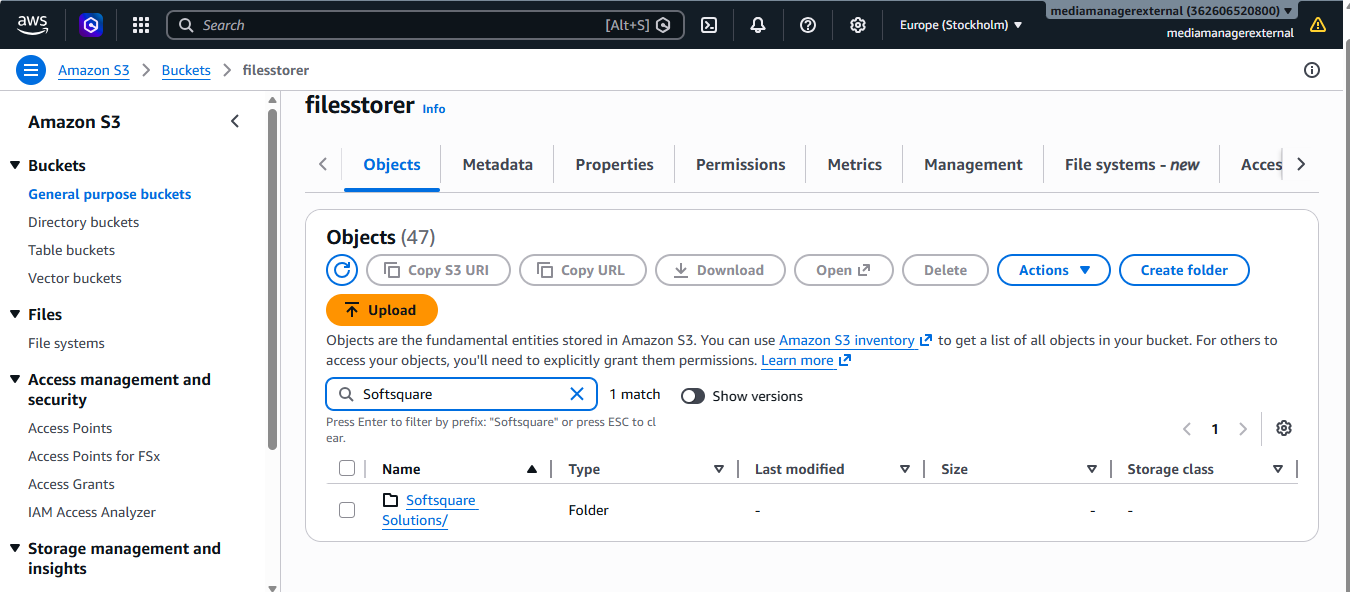
2. Objects under your Amazon S3 Root Folder
Salesforce object folders, such as Accounts and Case, appear under the selected Root Folder.
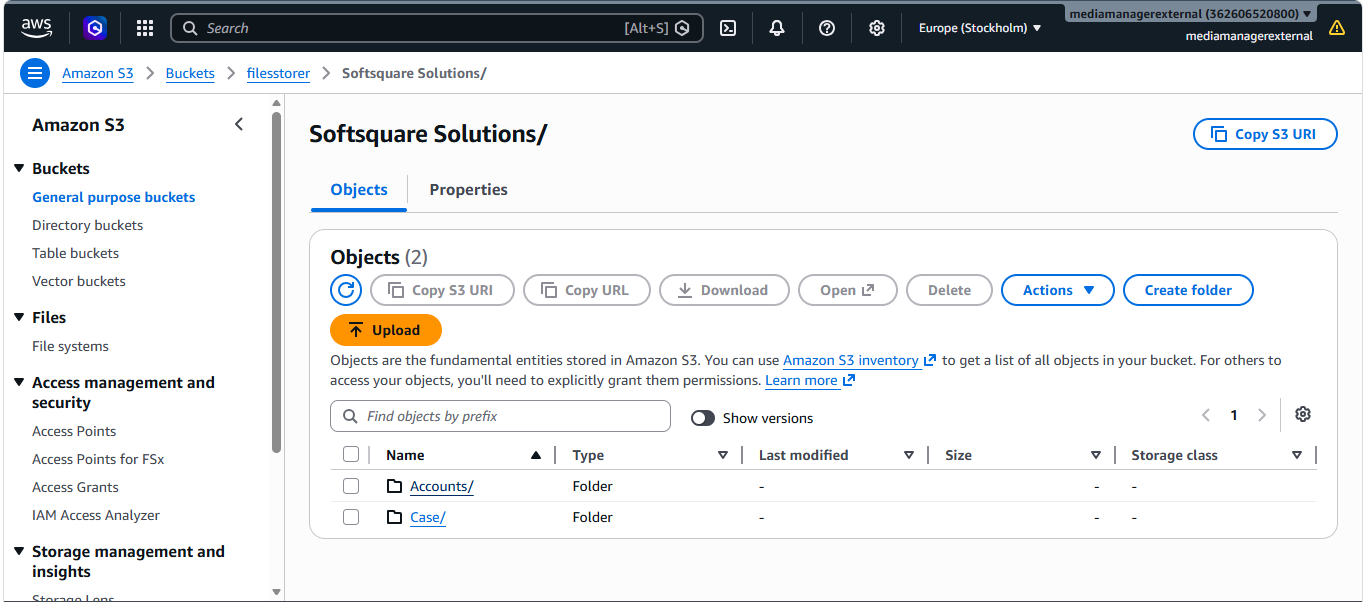
3. Record folders under the object in S3
Record folders are organized under the mapped Salesforce object folder.
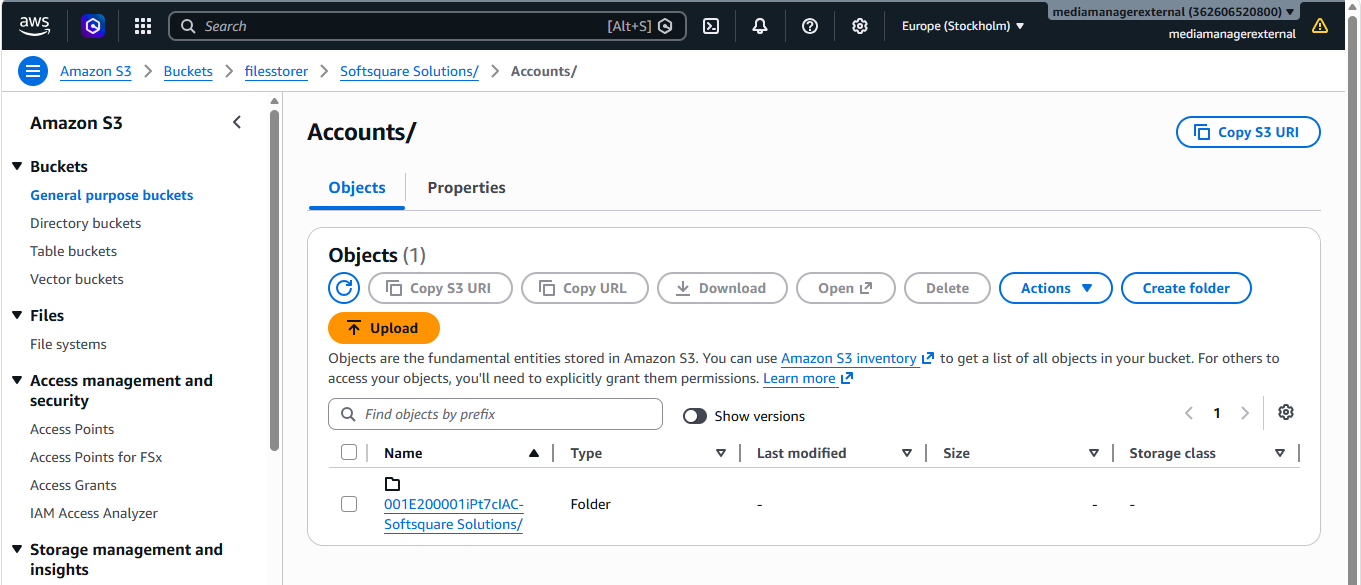
4. Your files under a Salesforce record in S3
Files remain in Amazon S3 and are stored under the related Salesforce record folder.

How the Amazon S3 Integration Will Work
Once the Amazon S3 folder structure is understood, the Media Manager setup becomes easier to follow.
Spring ’26 will provide a structured way to connect Amazon S3 with Media Manager.
This keeps the setup clear: Media Manager handles the connection and object mapping, while Amazon S3 stores the resulting folder structure and files.
Detailed AWS setup, IAM permissions, CORS configuration, Salesforce Trusted URLs, and field-level instructions will be available in the Spring ’26 manual.
Create the Amazon S3 Connection in Media Manager
Admins will be able to create an Amazon S3 connection from the External Storage area in Media Manager.
This connection links Media Manager to the selected Amazon S3 bucket using the required bucket and access details. Once authenticated, the connection becomes available for Root Folder selection and object mapping.
At this stage, admins are creating the connection in Media Manager. The files themselves continue to remain in Amazon S3.
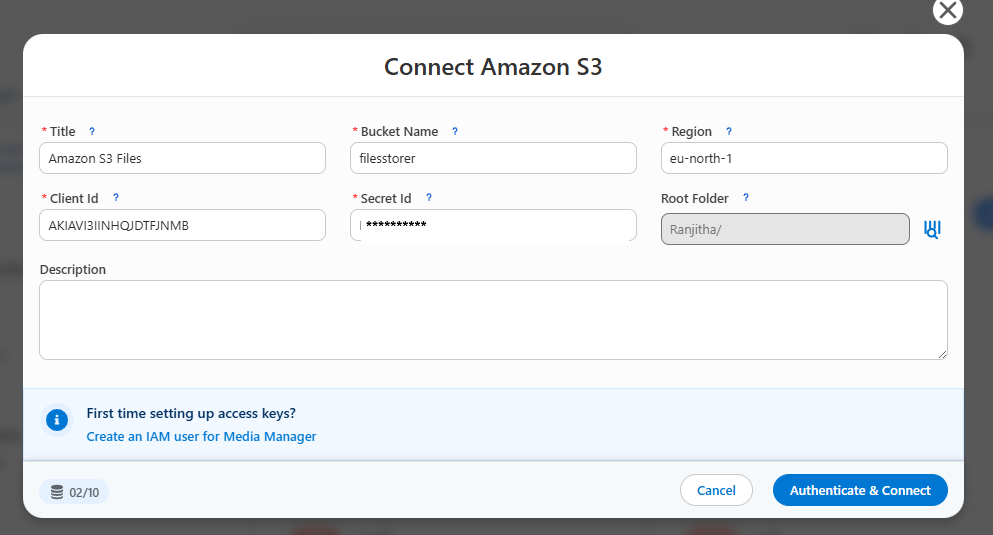
Select the Root Folder in Media Manager
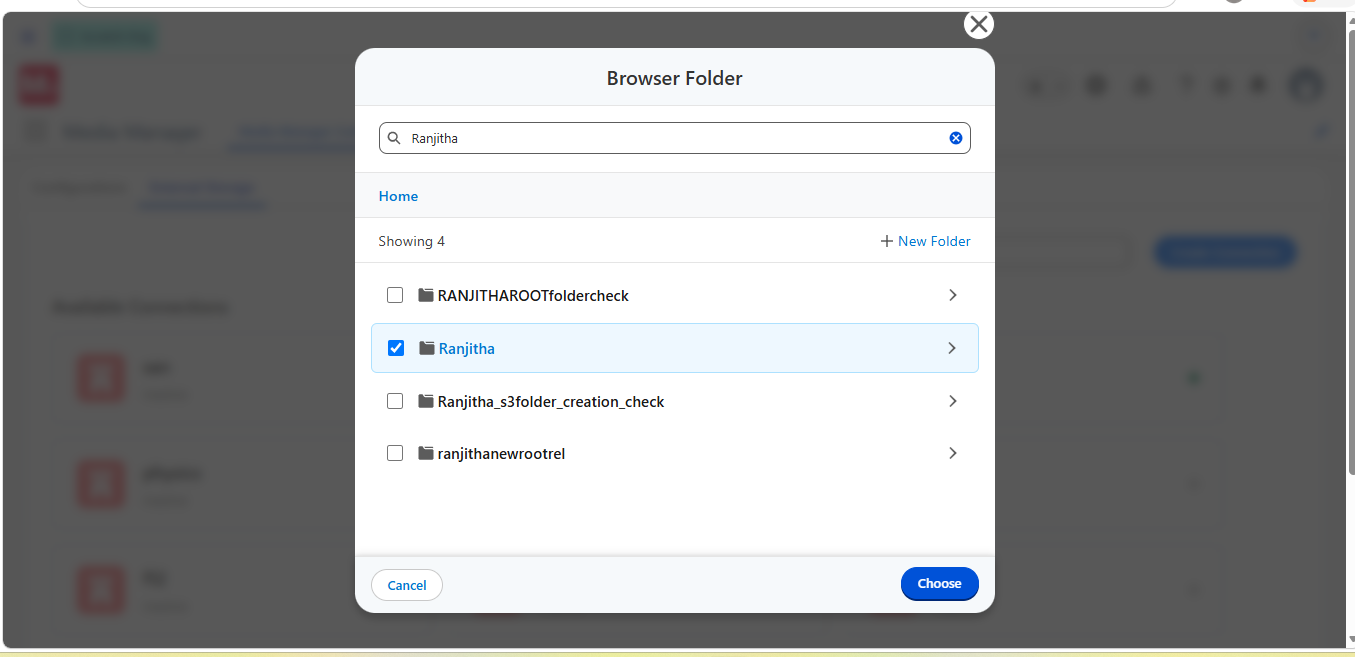
During the connection setup, admins select a Root Folder from the connected Amazon S3 bucket.
The Root Folder is the base S3 location Media Manager will use for external file management. All object folders, record folders, custom folders, and uploaded files managed through this connection will be organized under this selected Root Folder in Amazon S3.
For example, if Softsquare Solutions/ is selected as the Root Folder, Media Manager uses that folder as the starting point for the external storage structure.
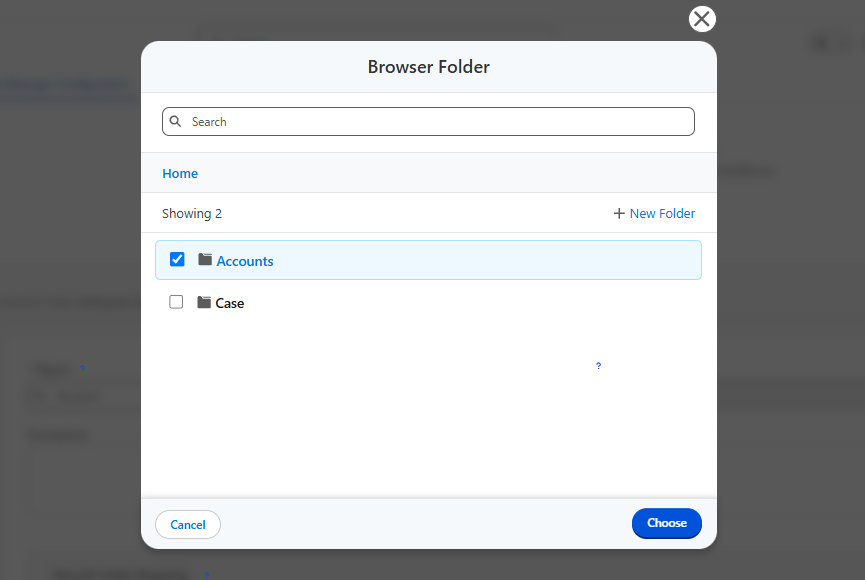
Map Salesforce Objects to S3 Folders
After selecting the Root Folder, admins select the Salesforce object and map it to the appropriate folder inside the selected S3 structure.
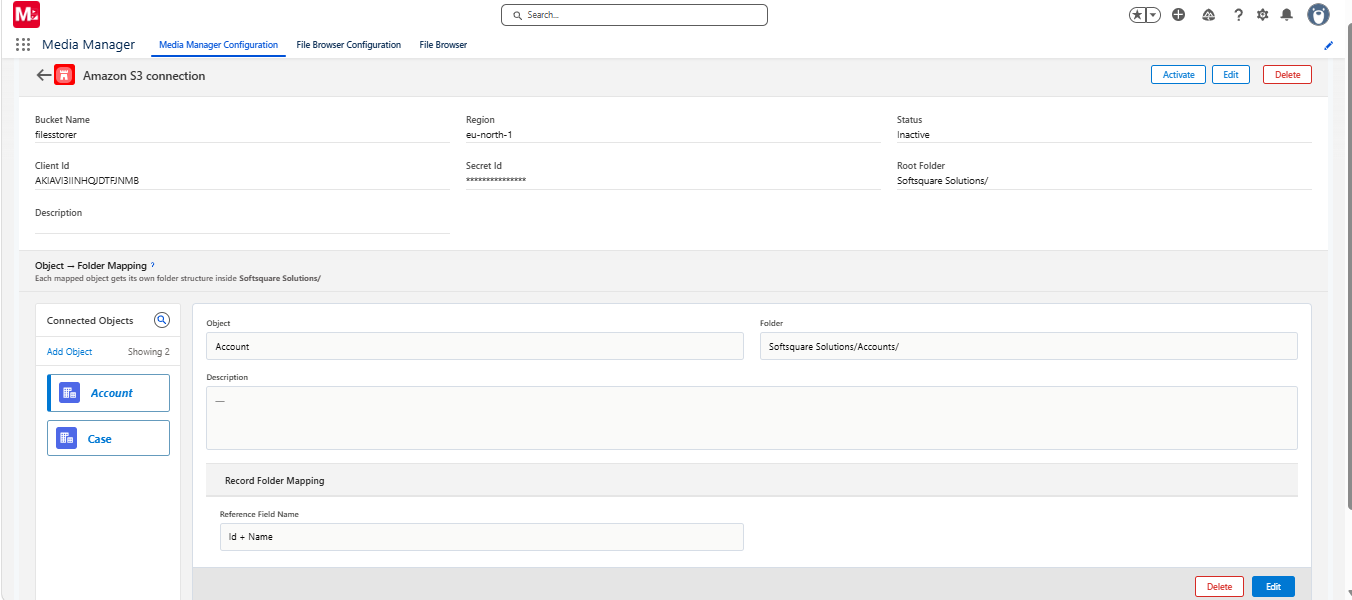
For example, the Account object can be mapped to the Accounts/ folder, and the Case object can be mapped to the Case/ folder.
This tells Media Manager where files for that Salesforce object should be organized in Amazon S3.
At this point, admins are mapping the Salesforce object to an S3 folder. They are not selecting individual record folders inside the connection screen. Record folders appear under the mapped object folder in Amazon S3 as files are organized by Salesforce record context.
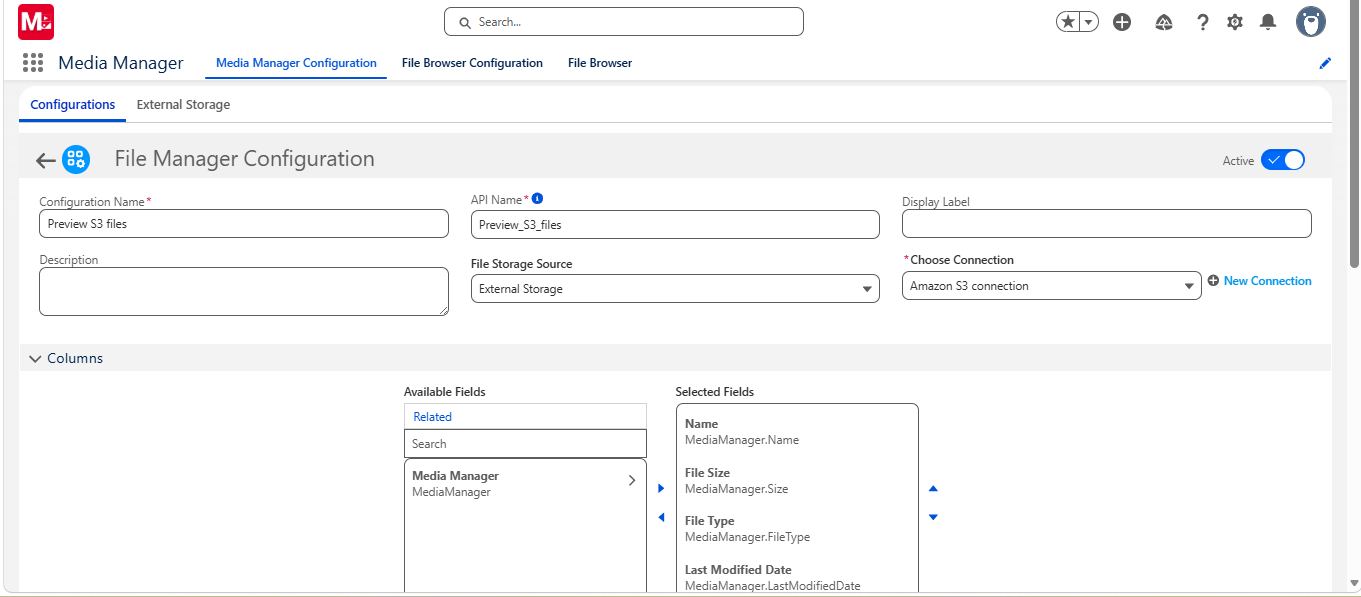
Add External Storage to a Media Manager Configuration
Once the Amazon S3 connection and object mapping are ready, admins can create or update a Media Manager Configuration and select External Storage as the file storage source.
From there, admins choose the Amazon S3 connection and configure how users will interact with external files in Media Manager.
This is where the Amazon S3 connection becomes part of the actual Media Manager experience inside Salesforce.
This keeps the setup flexible for admins while giving users a familiar Media Manager experience inside Salesforce.
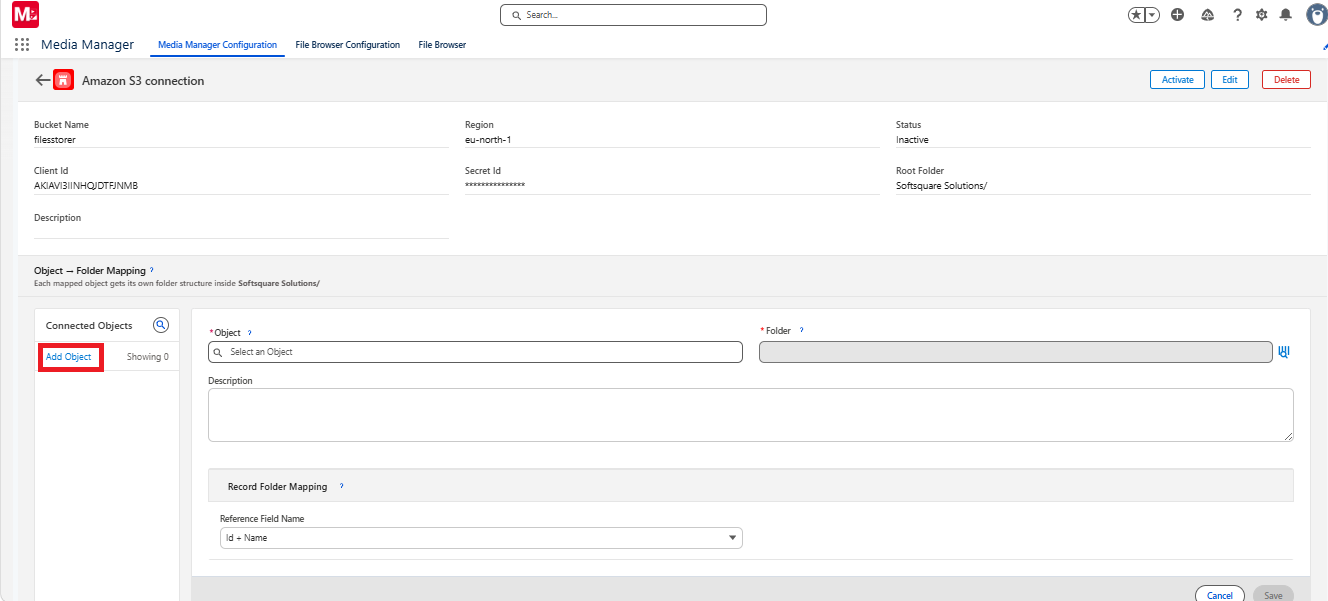
Add Multiple Salesforce Objects to the S3 Connection
After the Amazon S3 connection is created, admins can add more Salesforce objects to the same external storage connection when required.
This is done from the Object → Folder Mapping section by selecting Add Object.
Each additional object can be mapped to its own folder under the selected Root Folder. This allows one Amazon S3 connection to support multiple Salesforce object contexts, such as Accounts, Cases, Contacts, Opportunities, or supported custom objects.
The Familiar Media Manager Experience: Now for Amazon S3
This is where the release becomes exciting for everyday users.
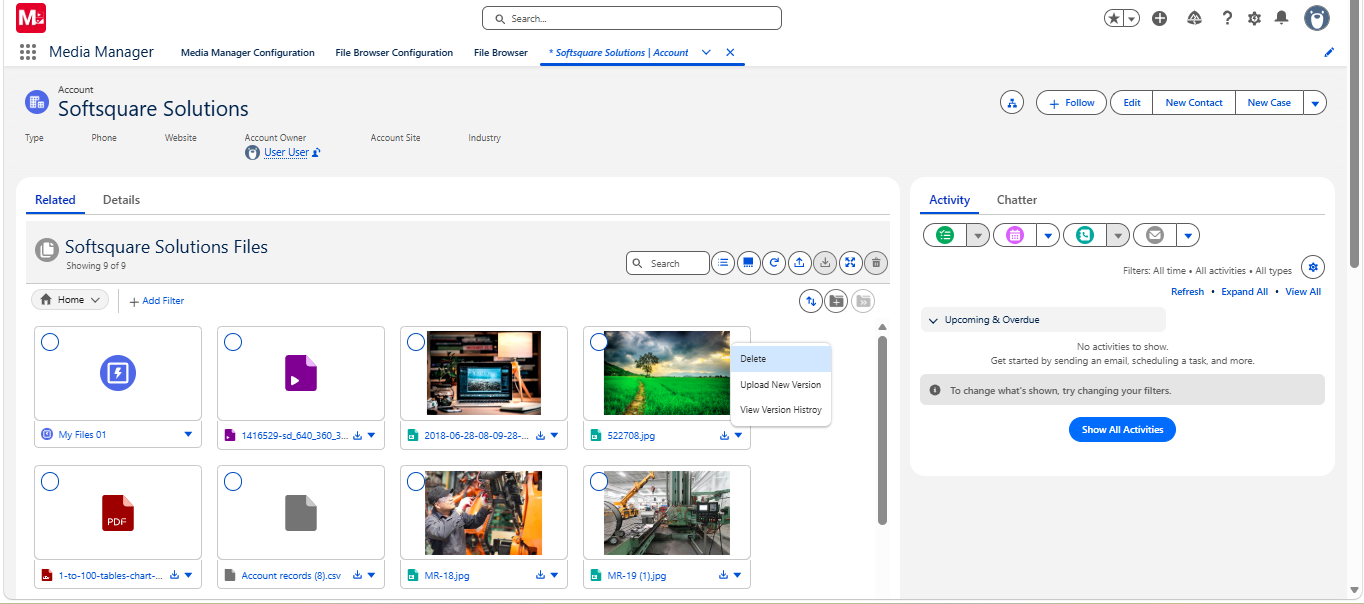
With Spring ’26, Amazon S3 files will not feel like files sitting somewhere outside the Salesforce workflow. They will be available through the Media Manager experience users already know — with familiar views, file actions, folder navigation, and search tools.
That means teams can keep files in Amazon S3 while continuing to work from the Salesforce records that give those files their business context.
What Users Will Be Able to Do
The first release will focus on the core file management actions teams need most often.
For users, the experience is simple: open the Salesforce record, access the related external files, and continue working through Media Manager.
Why This Matters for Salesforce Users
External storage is useful only when users can still work efficiently with the files they need.
With this release, Media Manager helps reduce the friction that often comes with storing files outside Salesforce.
Users will be able to:
- Stay closer to the Salesforce record context
- Work with S3 files through a familiar Media Manager interface
- Find files using supported metadata such as name, file type, file size, and last modified date
- Perform common file and folder actions without moving into a separate storage tool
- Manage larger file collections with search, filters, sorting, lazy loading, and count visibility
This gives teams a more connected way to work with externally stored files — especially when files are tied to customer records, service cases, opportunities, or other business processes.
A Practical Example
Consider a service team working on customer Cases.
A Case may have supporting documents, inspection photos, supporting proof documents, or customer-submitted attachments stored in Amazon S3. Without a connected Salesforce experience, users may need to move between Salesforce and the external storage system just to find, review, update, or organize those files.
With Media Manager Spring ’26, the service agent can work from the Case and use Media Manager to:
- Preview related files
- Search for a specific document
- Download supporting content
- Upload an updated version
- Rename a file
- Move files into the right folder
The storage remains external, but the file experience stays connected to the Salesforce record.
First-Release Scope
Amazon S3 support in Spring ’26 includes the core file viewing, file management, folder management, search, filtering, sorting, File Tree, lazy loading, and count visibility capabilities described above.
For complete setup instructions, supported actions, configuration details, and current limitations, customers can refer to the Spring ’26 Media Manager manual.
Expected to Go Live Next Week
Media Manager Spring ’26 is expected to go live next week.
Once the release becomes available, customers will be able to upgrade Media Manager and begin configuring Amazon S3 External Storage Integration.
For complete setup instructions, AWS prerequisites, IAM permissions, bucket policies, CORS configuration, Salesforce Trusted URLs, folder mappings, supported actions, and current limitations, refer to the Media Manager Spring ’26 manual and Amazon S3 setup guide.
You can also:
- Upgrade Media Manager from AppExchange when the release becomes available
- Contact our team with questions about setup or migration
Spring ’26 marks a major step forward for Media Manager. Amazon S3 is the first connector, and more External Storage options are planned as we continue expanding how teams can manage external files from Salesforce.
Get ready to bring the storage flexibility of Amazon S3 together with the complete file management experience of Media Manager directly inside Salesforce.
Want Amazon S3 Inside Salesforce?
More Insights for you






Ready to Transform Your Business with Salesforce & AI?
