

Stop Wasting Time Searching for Salesforce Files
Organize, preview, and manage every media file with Media Manager for Salesforce—control your documents natively, without downloads or third-party tools.

trusted by over 1000 organizations worldwide




.png)
















Centralized File Management trusted by leading teams
Media Manager transforms how Salesforce users work with files. Instead of bouncing between attachments, tabs, and teams, get a single viewer to preview, manage, edit, and organize every file natively with Salesforce media management.
Built for fast adoption, it removes manual steps from your workflow while ensuring control and visibility. From Cases to Campaigns, every file is now exactly where-and how-you need it.
Impacted Teams That Value Efficiency

What You’ll Get

Replace disorganized file attachments with structured foldering and intuitive navigation.
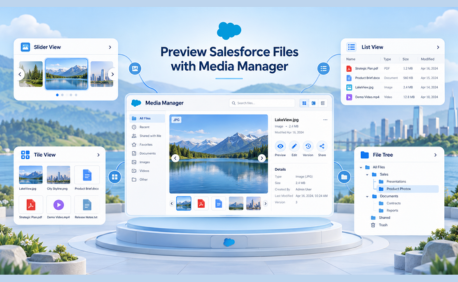
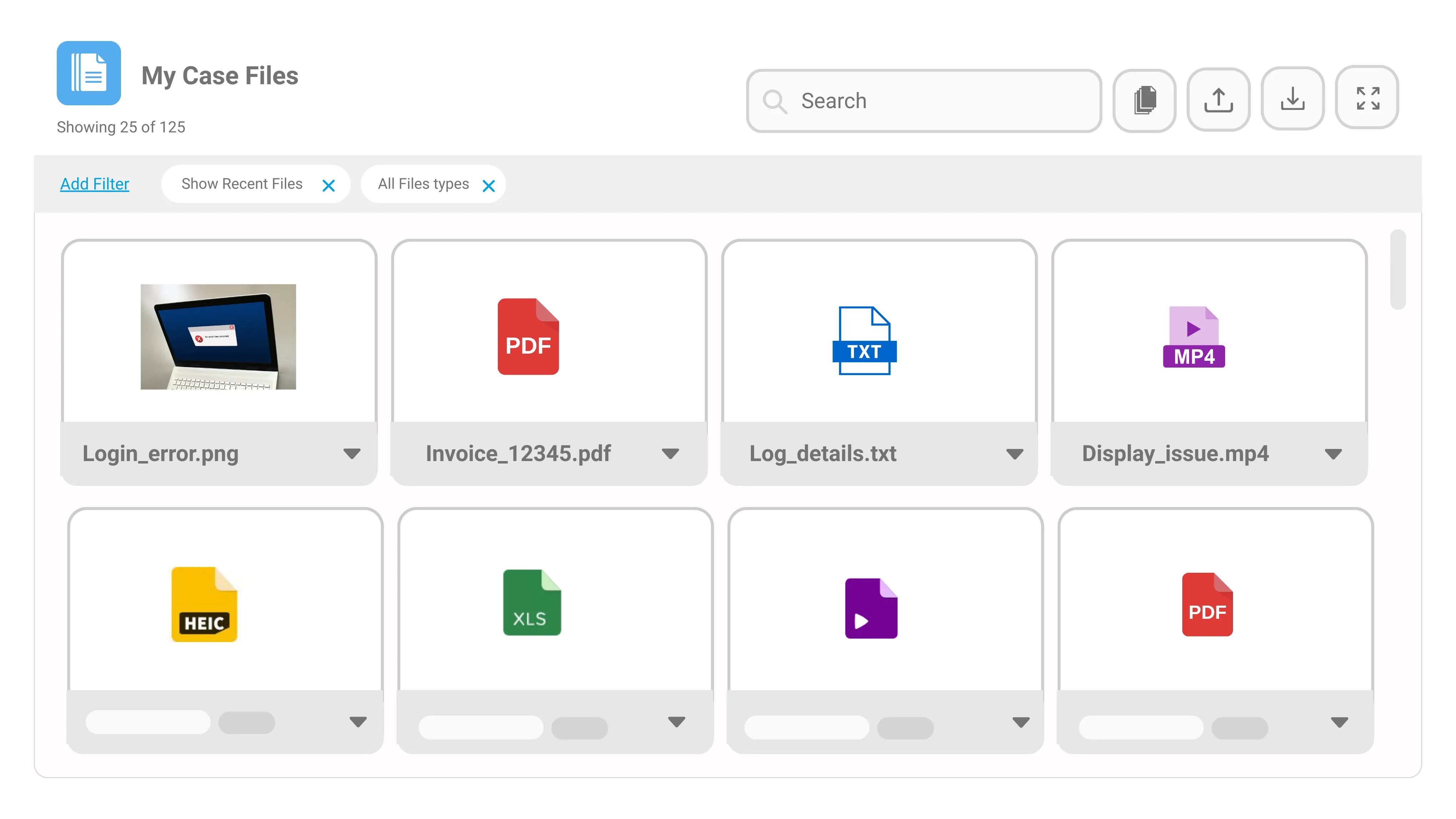
One-click Salesforce file preview for PDFs, images, videos, and HEIC files, with in-app editing and versioning. Save time and simplify workflows.
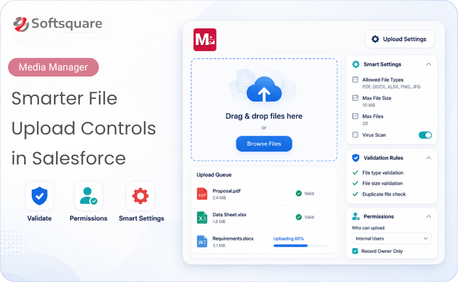
Bulk upload, rename, share, and version files—all inside Salesforce
See every file from a record and its related objects records in a single viewer
A mobile-ready file manager that works without compromises on any device
What You Can Do with Media Manager
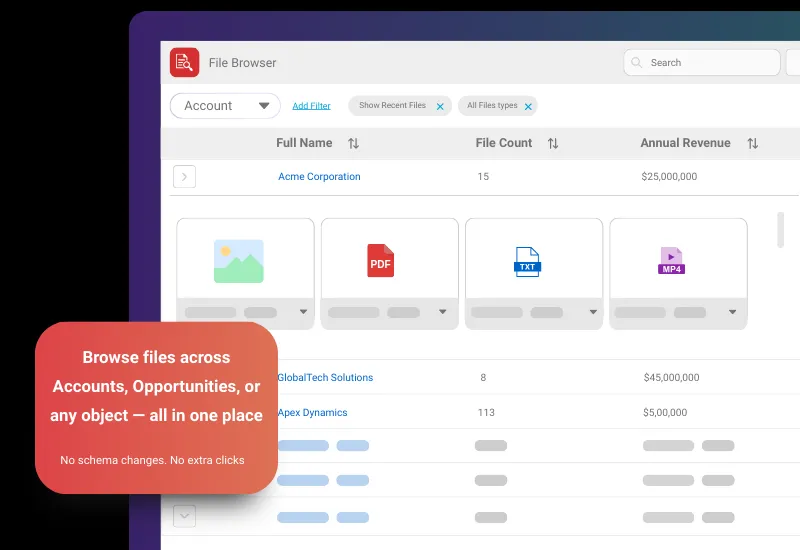
Cross-Object Viewer
View files from parent and child records in a single, nested folder structure.
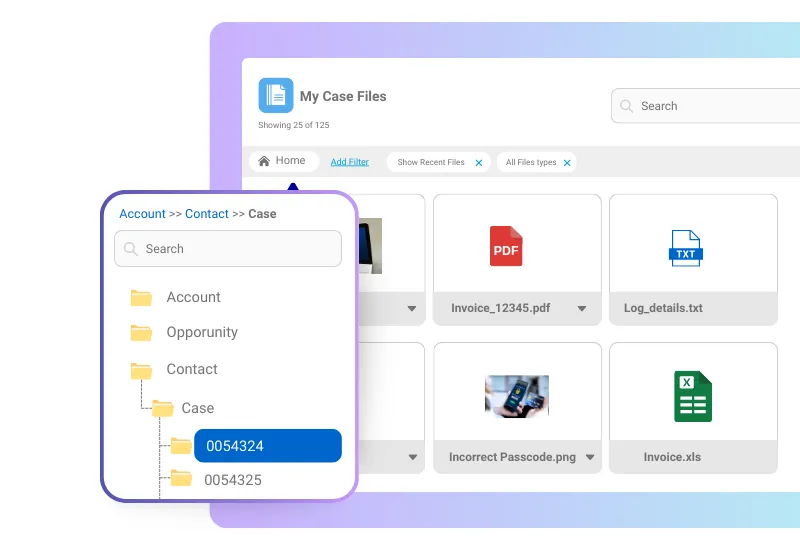
HEIC & Video Preview
Preview iPhone HEIC images, PDFs, and videos with one click—no extra tools or downloads needed.
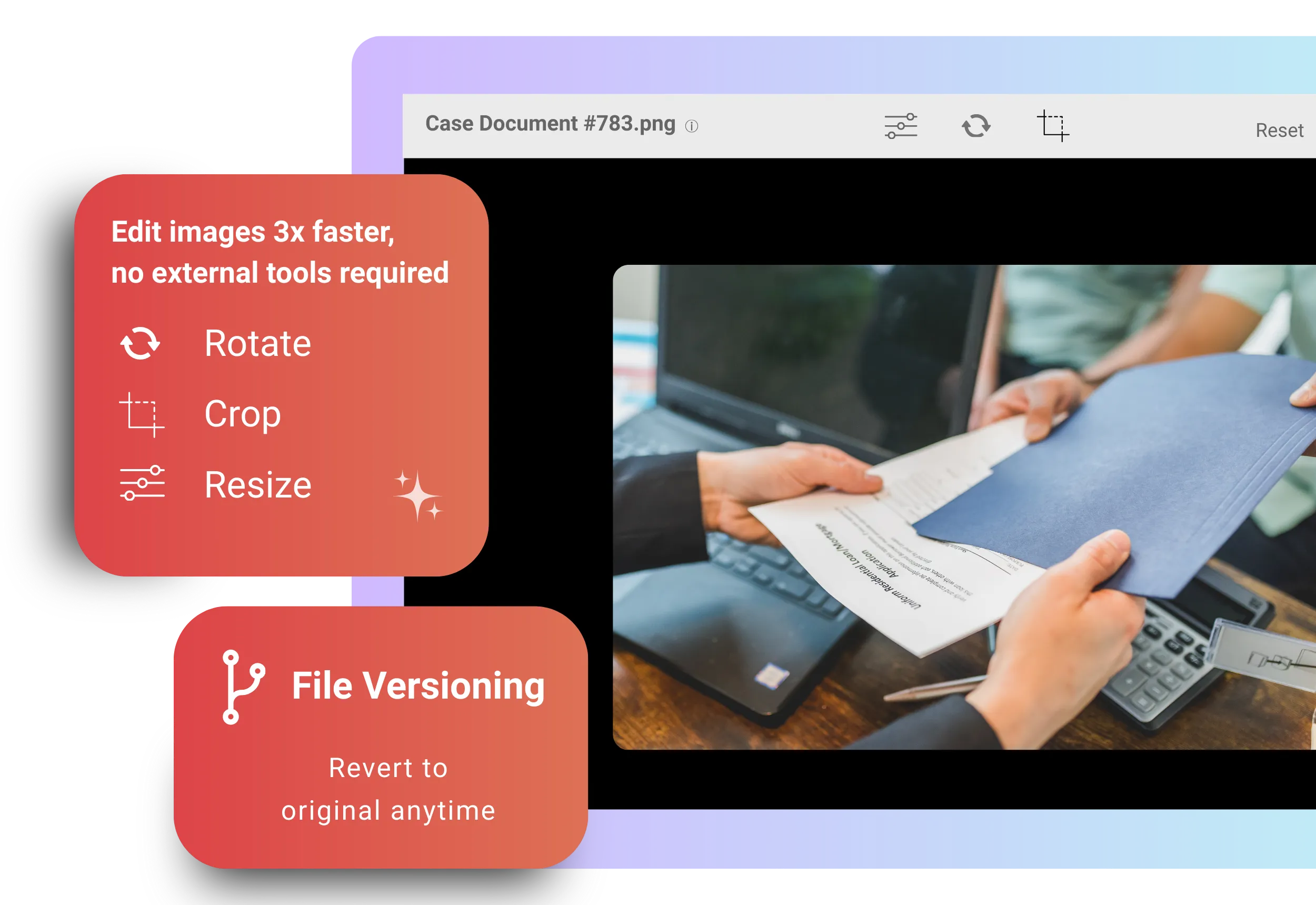
In-App Image Editing
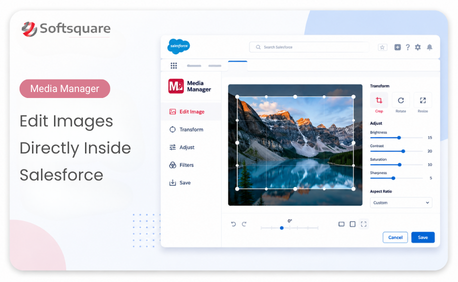
Crop, rotate, compress, and version images without leaving your Salesforce interface.
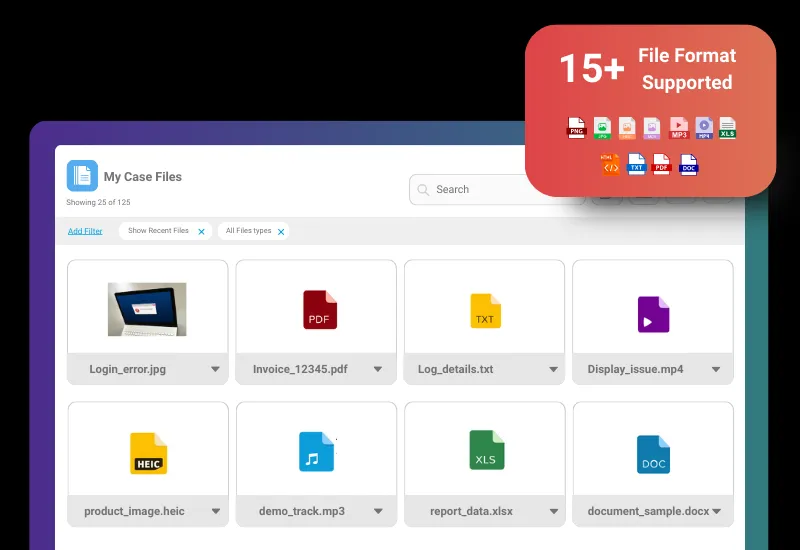
Advanced File Browser
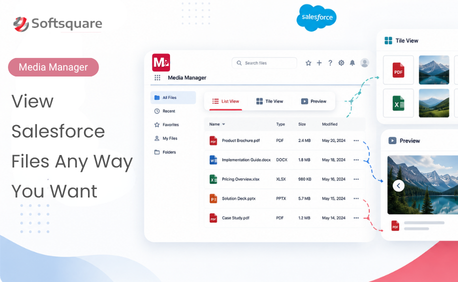
Navigate through files with a user-friendly interface, supporting multiple view modes and filters.
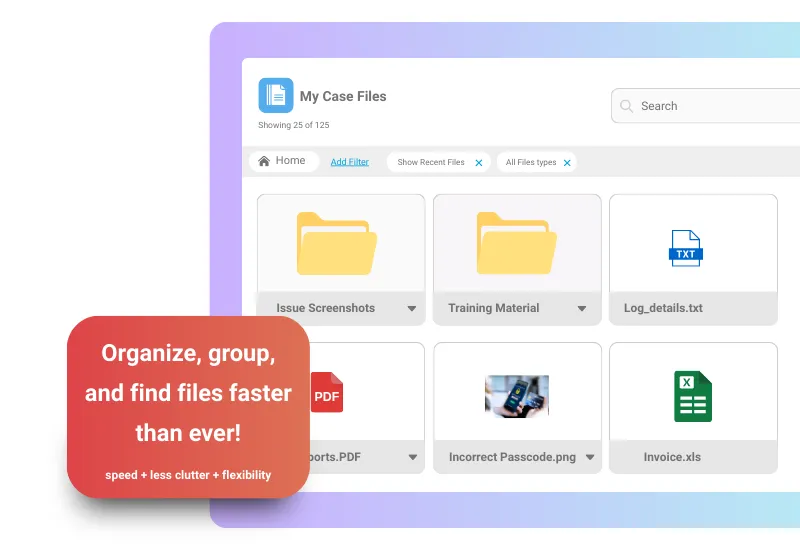
Configurable Folders
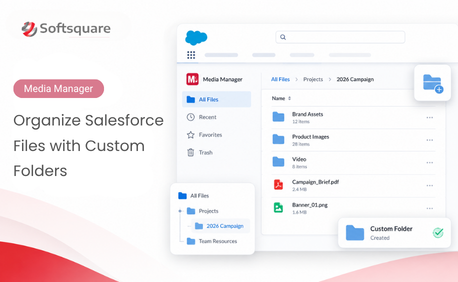
Create and organize folders per record - move, rename, or bulk-download files for structured management
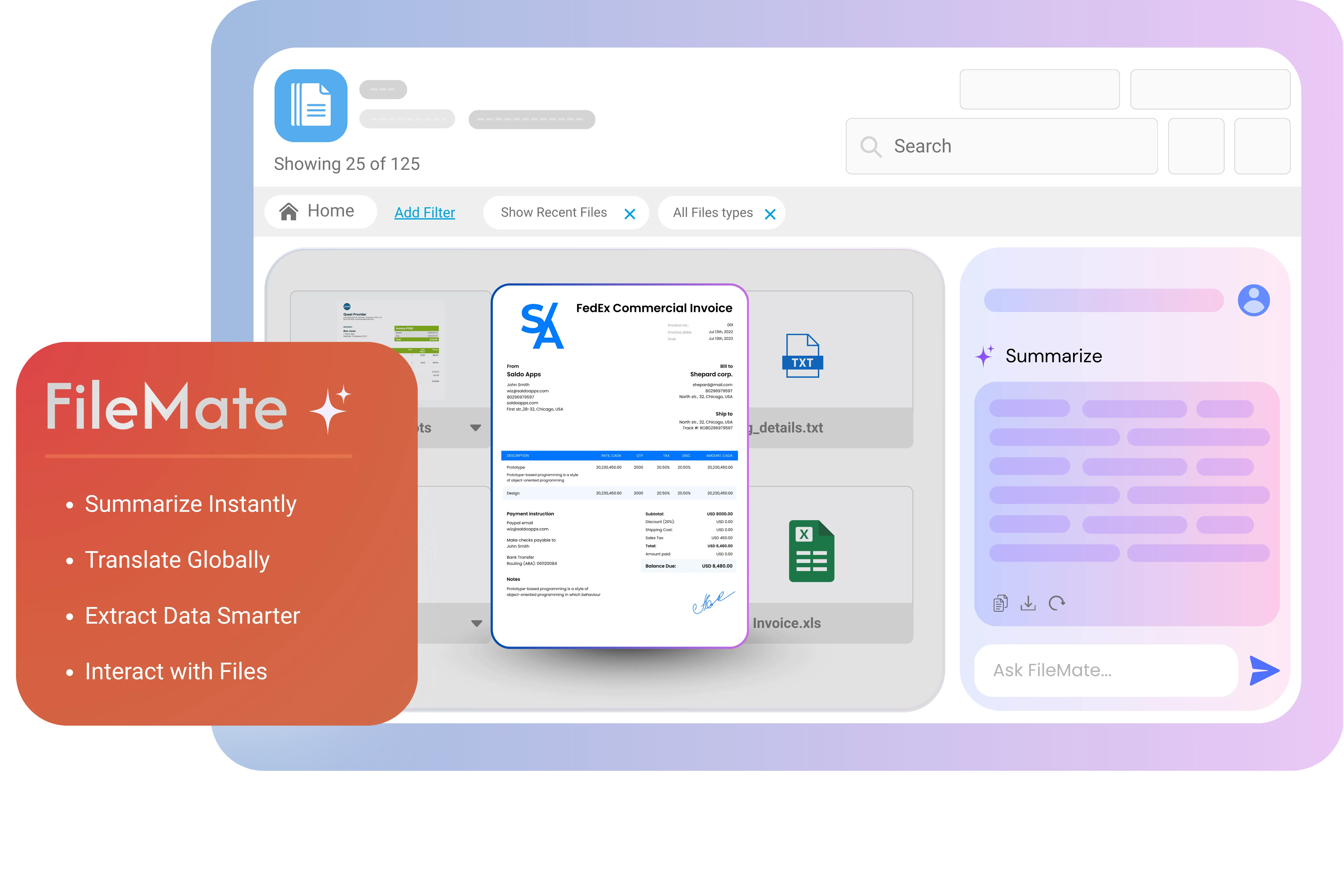
FileMate by Agentforce
Extract and understand information from PDFs and images for quick answers and smarter file handling in Salesforce.
External Storage Integrations
Connect external storage with Media Manager to access, organize, preview, and manage files from Amazon S3, SharePoint, OneDrive, and more directly within Salesforce.
.png)
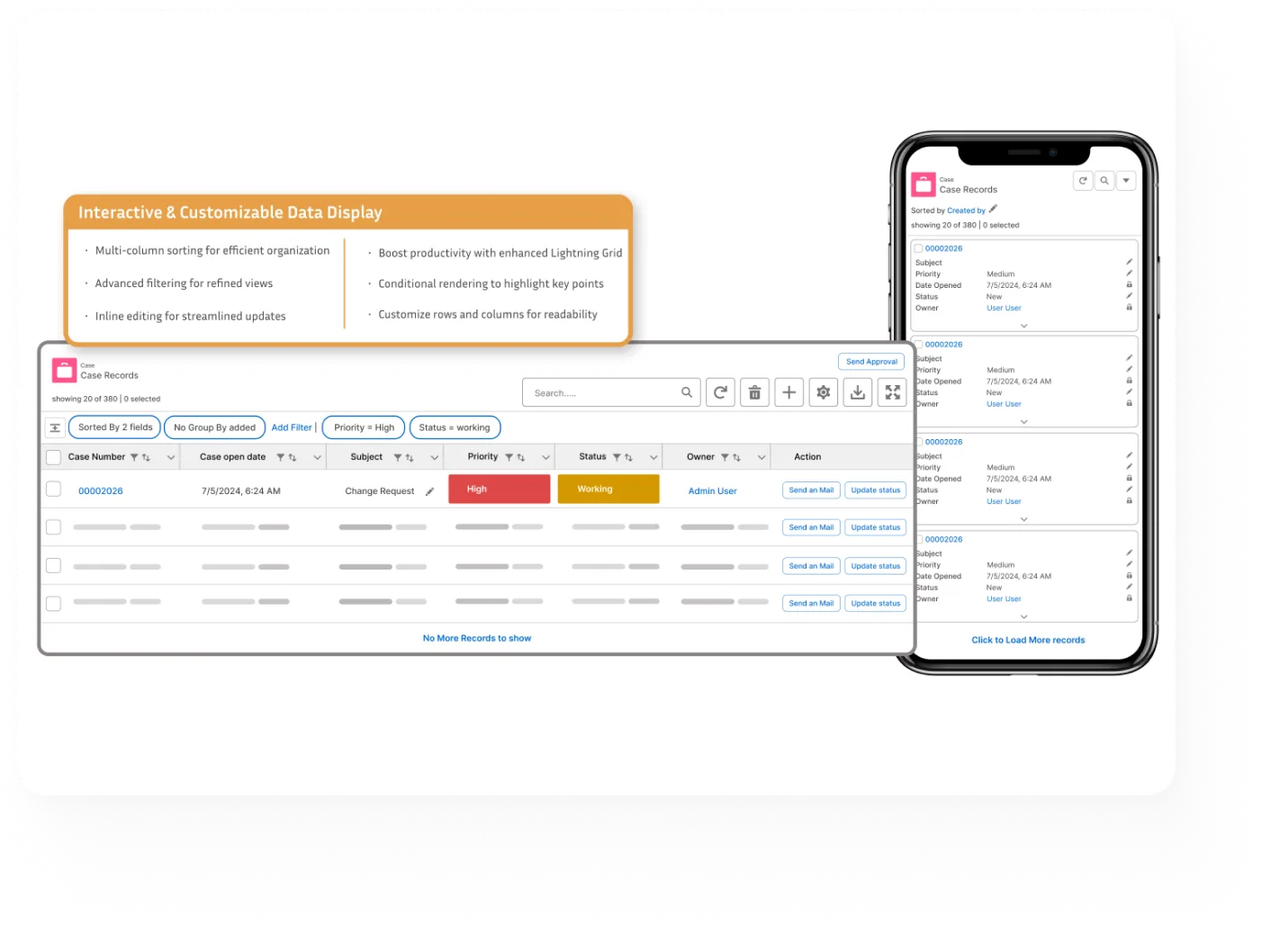
Feature Highlights


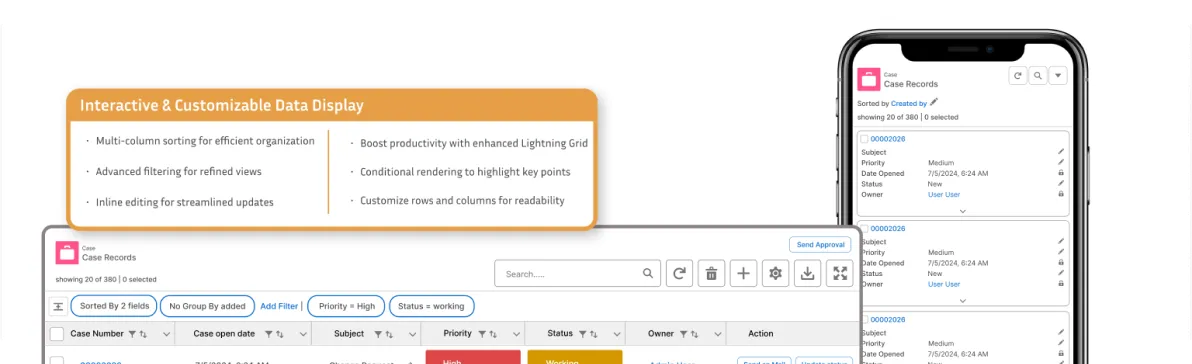


Simple, Transparent Plans
Compare Features
- Free Trial : 14-day full-feature trial, no credit card required.
- Non-Profit Discounts: Special pricing for eligible organization



Resources & Support
Smarter Salesforce File Management





Frequently Asked Questions
- Enable "Group By" in Settings.
- Choose a field (e.g., File Type, Related Record) as the grouping criterion.
- Ensure File Source = Files or Attachments (not Both).
- In List View: Files are grouped in collapsible rows under each group label.
- In Tile View: Files are displayed in visually separated groups.
- Group Headings help users quickly scan and access relevant files.

.webp)

Work Smarter Inside Salesforce
Manual processes and scattered data create bottlenecks across sales, ops, and support. Our Salesforce-native products eliminate the friction so your teams can focus on results — not workarounds.

AGrid

Media Manager

User 360

FileMate

