

Seamless Salesforce Sibling Record Exploration in AGrid


.svg)
Table of Contents


Salesforce provides useful components like Related List – Single and Dynamic Related List – Single to show sibling records in Salesforce—records that share a common parent. For example, you can view all Cases or Opportunities related to an Account when you are on the Account record. This works well when users simply need basic visibility into related activity.
However, many real-world workflows require sibling records to be visible directly on the record where users work, not only on the parent. Salesforce Sibling records simply mean records connected through the same parent—often hold critical context, whether they belong to the same object or different objects.
AGrid Intelligent Related Lists extend Salesforce’s related list experience by bringing sibling records directly onto record pages in an interactive grid, allowing users to filter, analyse, and act on related data without navigating away.
Why Salesforce Users Still Need More Than Basic Sibling Views
While Salesforce can display sibling records through related lists, it offers limited flexibility when users want to interact with those records directly on a record page. Once sibling records are visible, users often want to do more with them as part of their day-to-day work.
Common needs include:
- Viewing sibling records from different objects that share the same parent
- Editing sibling records without opening them one by one
- Applying quick filters while investigating an issue
- Visually identifying urgent or high-priority related records
- Taking actions directly from the list
These needs frequently arise in support, sales, and operations teams. AGrid builds on Salesforce’s foundation by keeping sibling logic intact while expanding how users interact with those records.
What AGrid Adds to the Sibling Record Experience
AGrid Intelligent Related Lists allow admins to define logical relationships between records that share a parent and display them in a dynamic grid on any record page.
With AGrid, sibling records become easier to work with through:
- Inline editing, allowing updates directly within the grid
- Dynamic filters for quick, on-the-fly refinement
- Conditional highlighting to surface important records visually
- Built-in row and list actions to update records or trigger processes
Salesforce makes sibling records visible.
AGrid makes sibling records actionable.
Step-by-Step Guide: Viewing Sibling Records
Example used in this section:
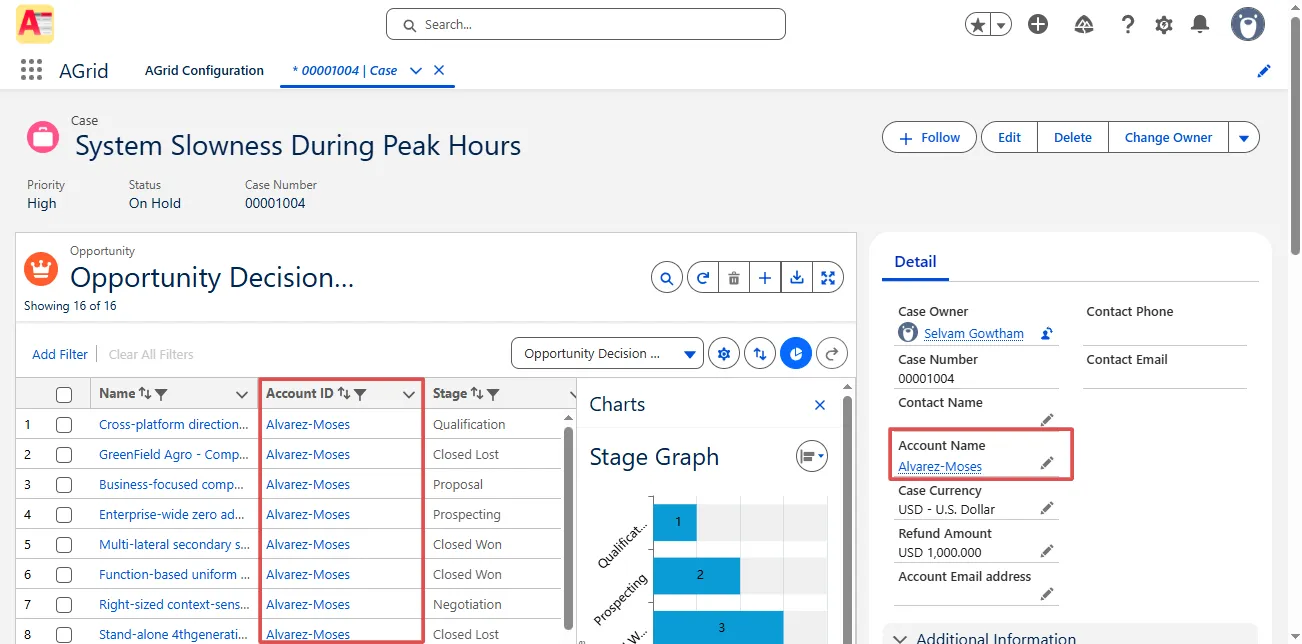
Displaying Opportunity sibling records (Opportunities related to the same Account) directly on a Case record page.
This configuration shows how to display sibling records directly on a Salesforce record page without modifying the data model.
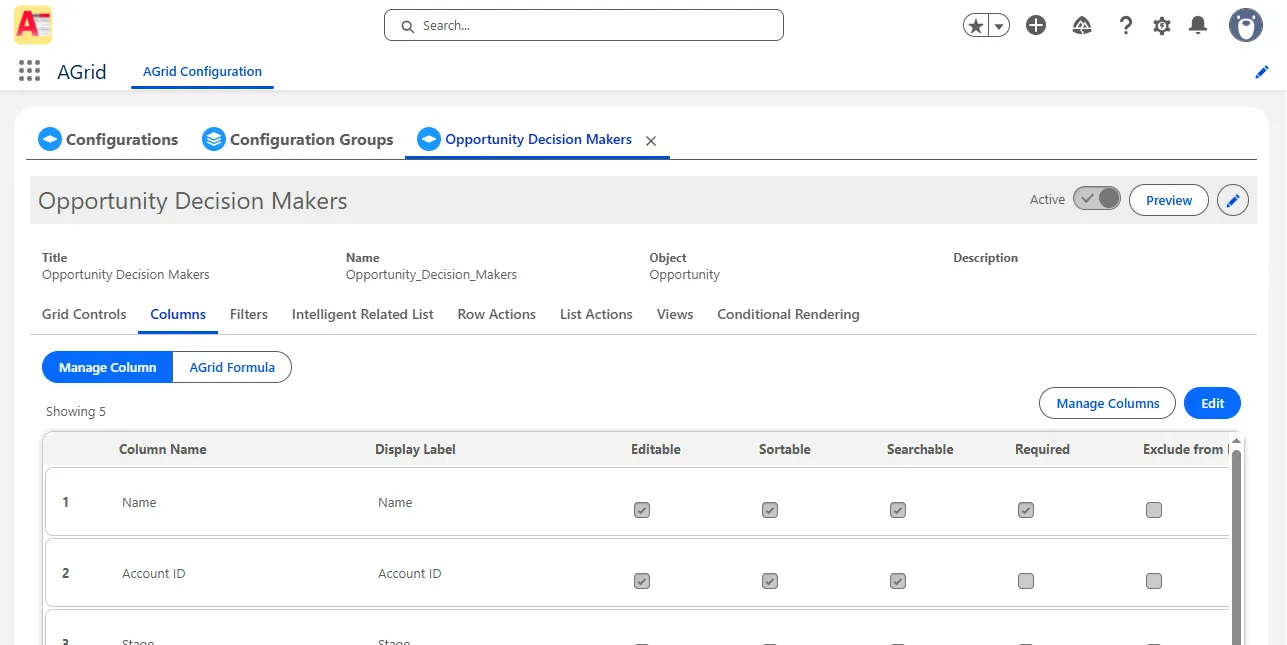
Step 1: Open or Create an AGrid Configuration for Opportunity
Open AGrid Configuration, select Opportunity, and either create a new configuration or open an existing one.
Add the fields you want users to see in the sibling grid, such as Opportunity Name, Stage, Amount, Close Date, and Owner.
Step 2: Configure Grid Enhancements (Optional)
If required, enable optional enhancements such as:
- Chart View (for example, Opportunities by Stage)
- Conditional Formatting (for example, highlight Opportunities above a certain Amount)
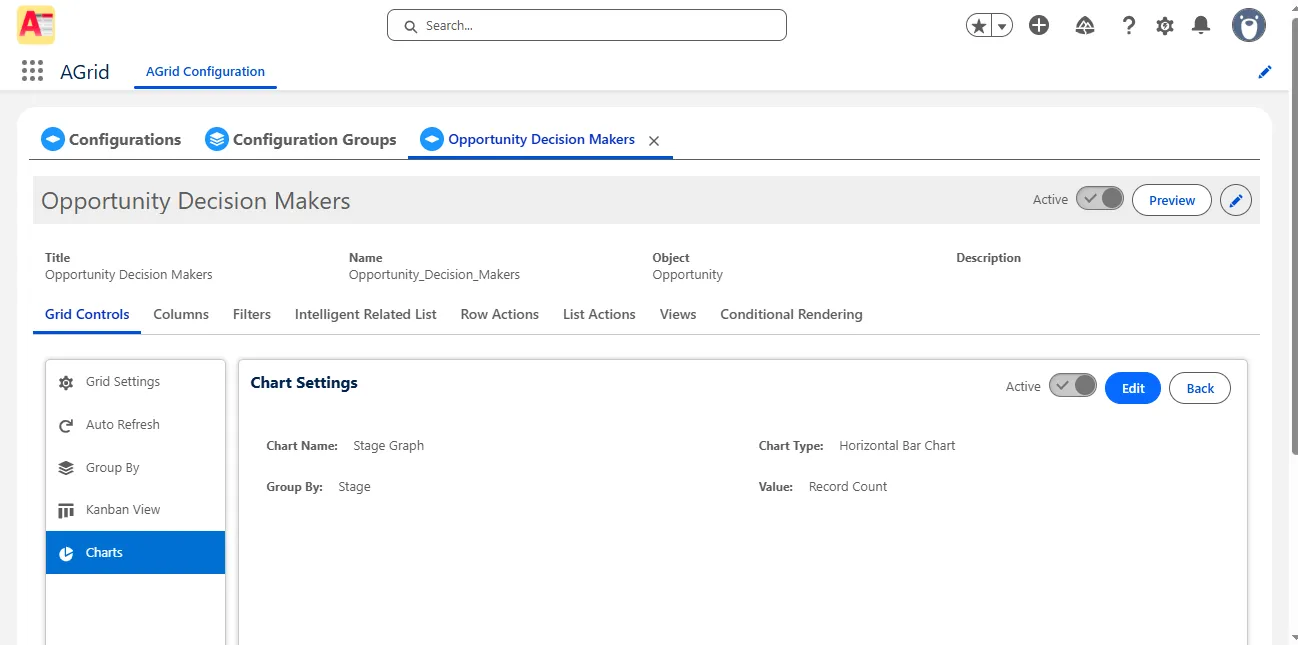
These settings improve usability but do not affect how sibling records are matched.
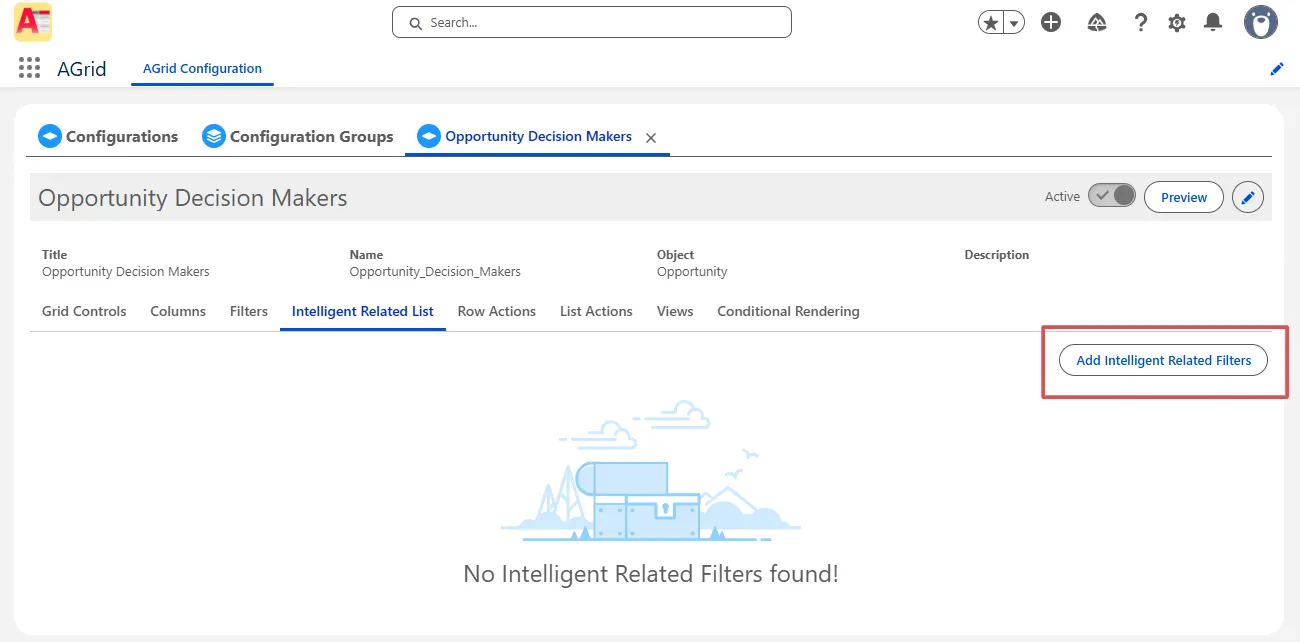
Step 3: Open the “Intelligent Related List” Tab
Within the Opportunity configuration, navigate to the Intelligent Related List tab and click Add Intelligent Related List.
Step 4: Select Case as Both Source and Destination
Choose Case as the related object.
This defines the context where the sibling Opportunity records will be displayed.
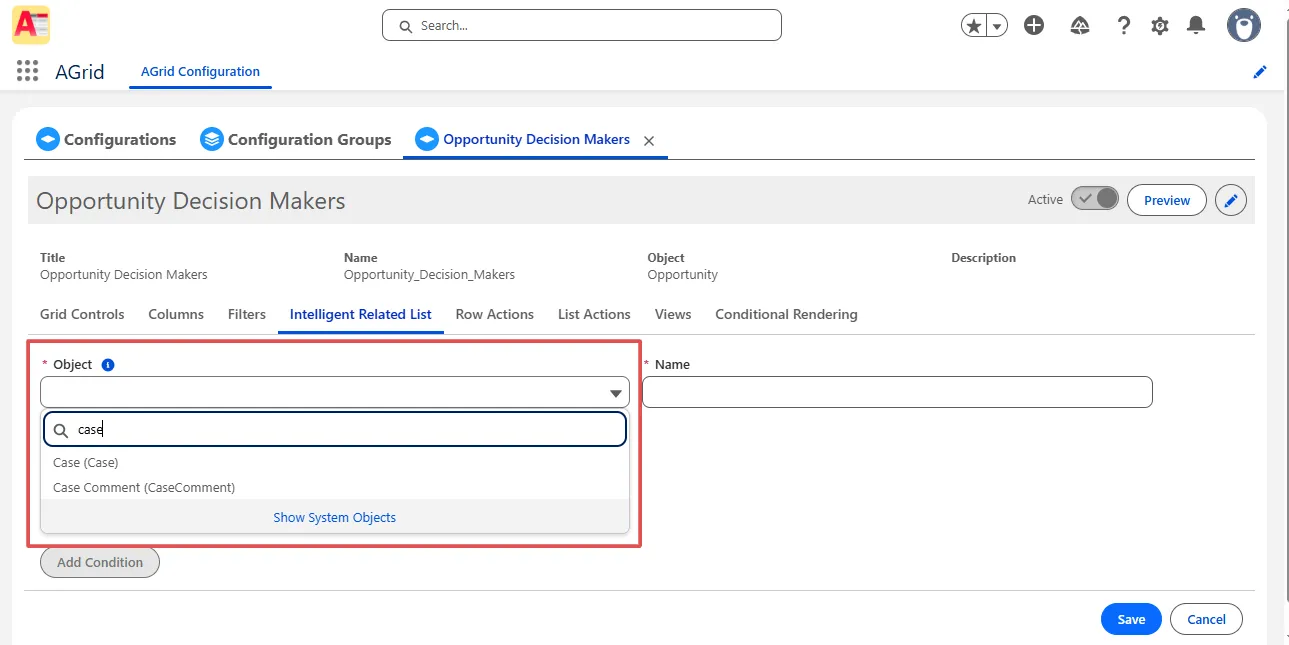
This is the foundation of sibling Case visibility.
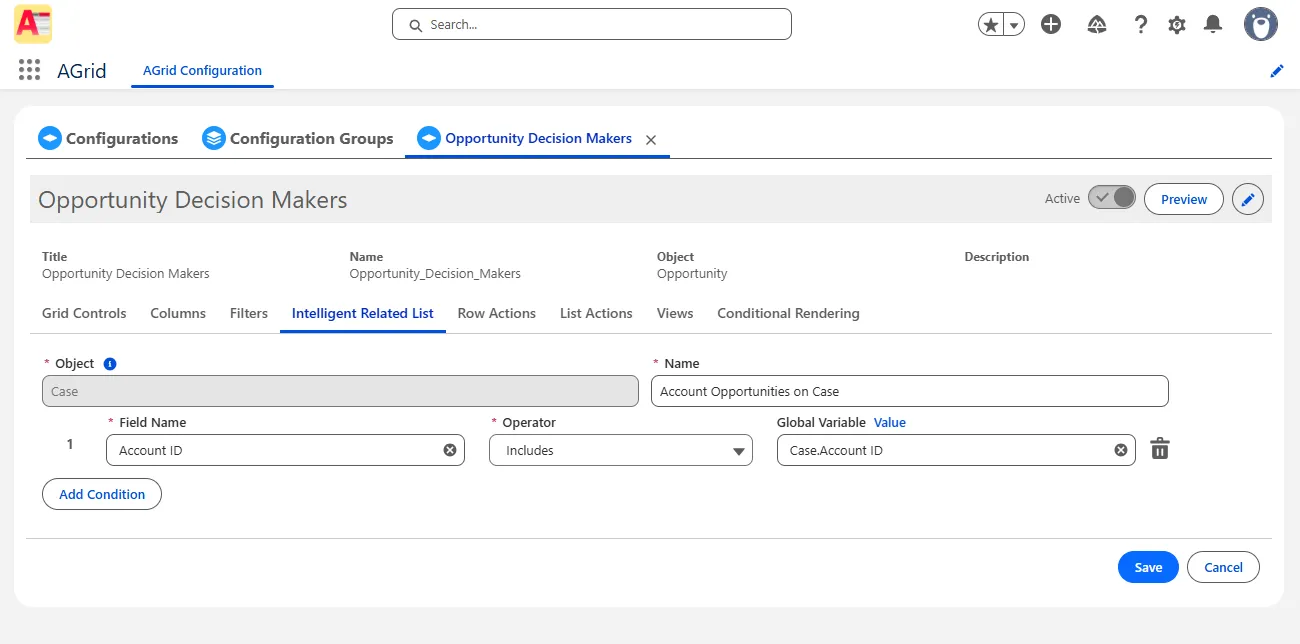
Step 5: Name the Intelligent Related List
Provide a clear and descriptive name such as Account Opportunities on Case.
This name will be used later when placing the AGrid component on the Case record page.

Step 6: Define the Sibling Condition
Configure the matching condition that links Opportunities and Cases through their shared parent:
- Opportunity.AccountId = Case.AccountId
This ensures that, when viewing a Case, the grid displays all Opportunities associated with the same Account.
Optional filters can be added to narrow results, such as:
- Stage ≠ Closed
- Amount greater than a defined value
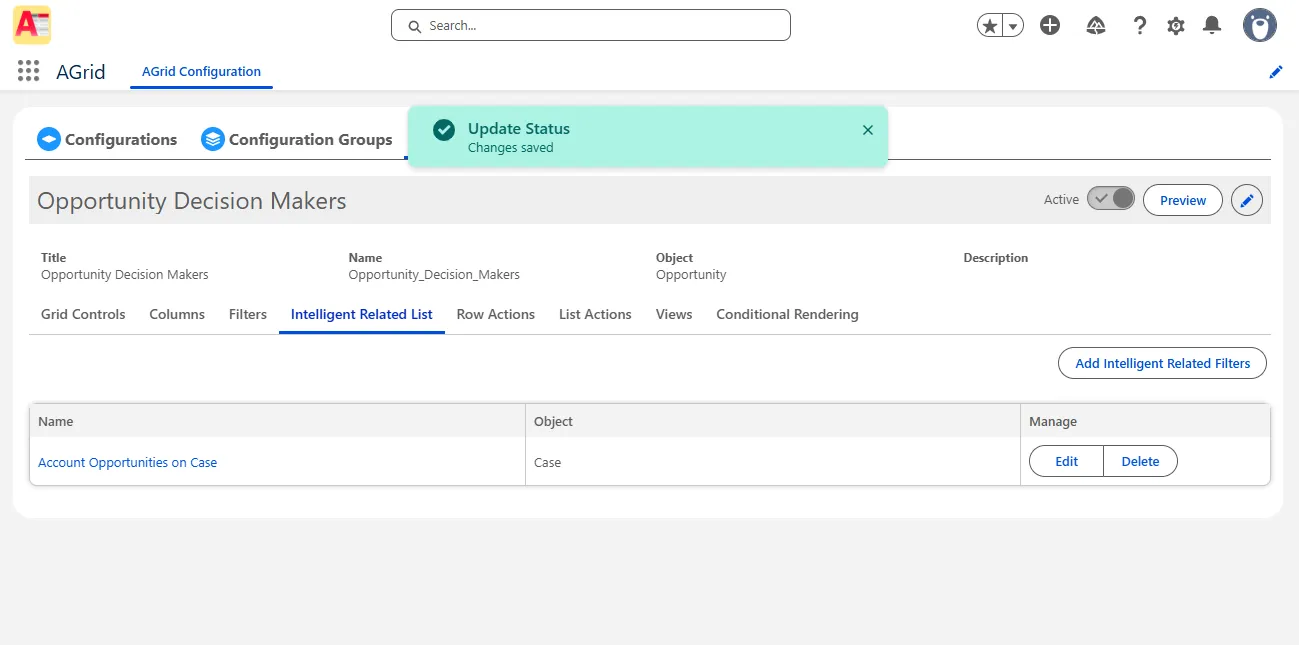
Step 7: Save the Intelligent Related List
Save the Intelligent Related List and then save the Opportunity AGrid configuration to apply the relationship logic.
Step 8: Add AGrid to the Case Lightning Record Page
Open Lightning App Builder and edit the Case record page.
- Drag the AGrid List View component onto the layout
- Select the Opportunity AGrid configuration
- Enter the Intelligent Related List name created earlier
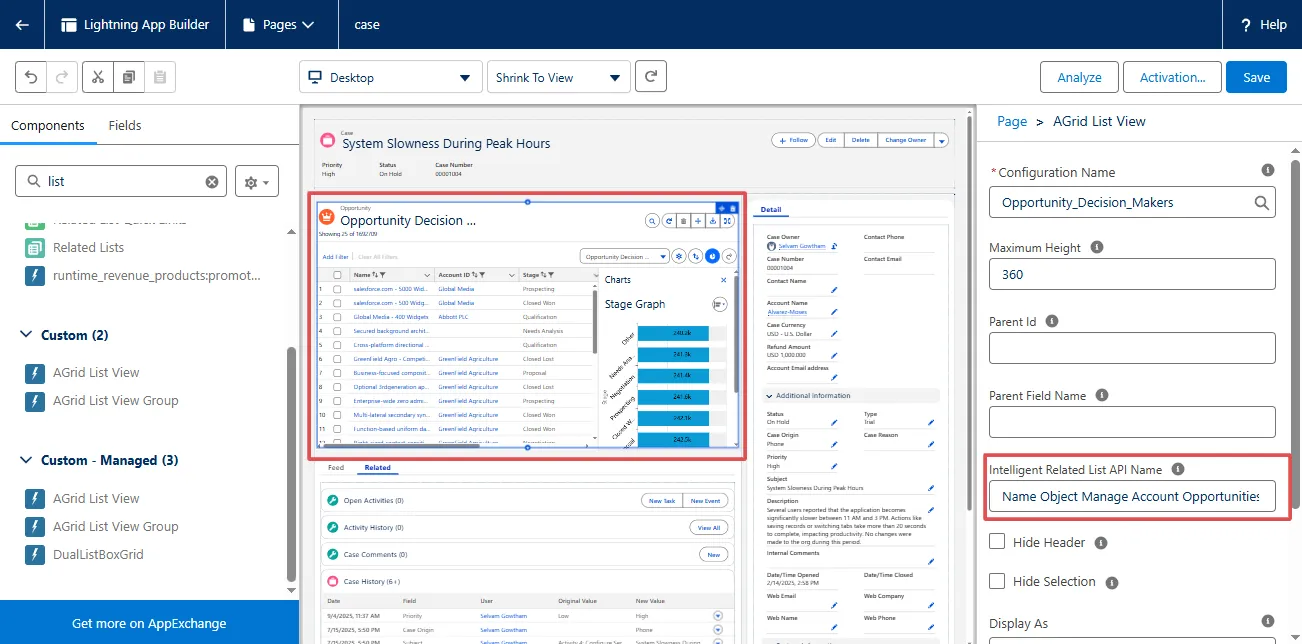
Save and activate the page.
Step 9: View Sibling Cases on Any Case Record
Open any Case linked to an Account with Opportunities.
You will now see a grid displaying all related Opportunities directly on the Case page, enabling quick analysis and action without navigating away.
Common Problems This Solves
- Avoids navigating back to the Account just to view related or sibling records
- Reduces dependency on reports for simple sibling context
- Helps users identify related risks or opportunities faster
- Minimizes page switching during investigation or review
- Brings Salesforce sibling related records and data closer to where work actually happens
Optional AGrid Enhancements You Can Layer On
As your needs evolve, you can further enhance Salesforce sibling records view with:
- Saved user preferences for columns and filters
- Charts and summaries for quick insights
- Row and list actions to automate follow-up steps
- Mobile-friendly grids for on-the-go access
These enhancements can be adopted gradually, based on how teams use sibling records.
Conclusion
Sibling records often hold the context users need to resolve issues, spot patterns, or make better decisions—but only when they are easy to access and work with. By extending Salesforce’s related list experience into an interactive grid, AGrid Intelligent Related Lists help teams move from simply seeing sibling records to actively using them.
Explore More in This Series
Explore more ways to use Intelligent Related Lists with AGrid:
- Access Grandchild Records in Salesforce with AGrid List Views
- Viewing Unrelated Salesforce Records with Intelligent Related Lists
Connect Records Salesforce Can't. Want to Explore Sibling Records?
More Insights for you








Ready to Transform Your Business with Salesforce & AI?
