

AGrid Spring ’26: Salesforce Grid Control Is Here!



.svg)
Table of Contents


It’s here! AGrid Spring ’26 brings one of the most powerful releases yet for teams that manage Salesforce data through grids, list views, related lists, and custom record experiences.
This release is all about better Salesforce grid control giving admins more flexibility, helping users work without losing context, protecting data from accidental overwrites, and giving developers a faster way to build advanced grid experiences inside Salesforce.
From Split View and Record Collision Action to Child Traversal, Lookup Filters, controlled action refresh, and the new AGrid Dev Component, this release helps Salesforce teams work faster while keeping data cleaner, safer, and easier to manage.
What’s New in AGrid Spring ’26?
AGrid Spring ’26 brings a major set of updates across user experience, data protection, filtering, action behavior, and developer flexibility.
This release includes:
- Split View for viewing record details, highlight panels, and configured actions without leaving the grid
- AGrid Dev Component for building advanced custom Salesforce grid experiences inside LWCs
- Record Collision Action to help prevent accidental overwrites during inline editing
- Child Traversal with Enable Child Object Filters to filter connected parent and child records together
- Action refresh control to decide when the grid should refresh after Row Actions or List Actions close
- Parent Field support in Lookup Filters to make lookup value selection more context-aware
- Improved Includes and Excludes filters with partial text matching for faster record discovery
View Records and Actions Side by Side with Split View
Salesforce users often need to open a record, check details, review related information, or run an action before moving forward. But switching between pages can break the flow of work, especially when users are reviewing multiple records from the same list.
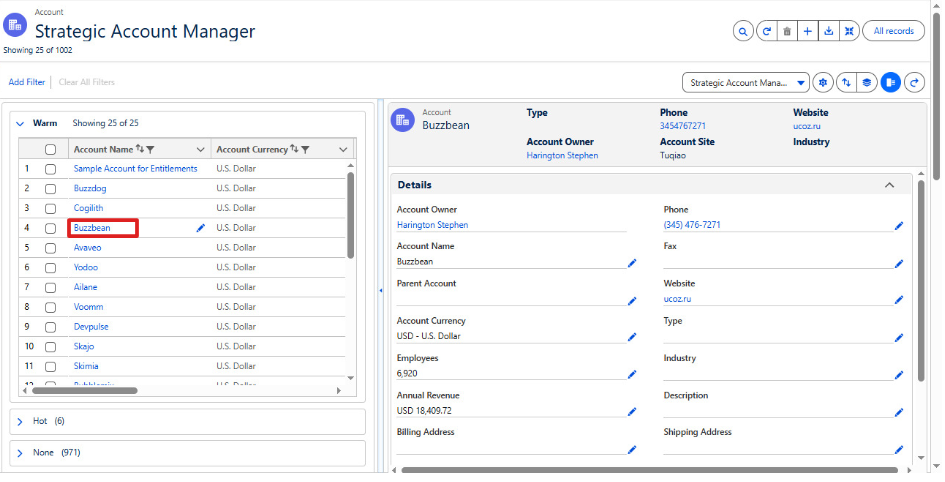
AGrid Spring ’26 introduces Split View, giving users a side panel experience directly inside the AGrid List View. Instead of leaving the grid, users can open record details, view highlight information, and access configured actions in the same screen.
Configure Split View from Grid Controls
Admins can configure Split View under Grid Controls → Split View. The setup includes two key sections: Split View Settings and Components.
In Split View Settings, admins can control three options:
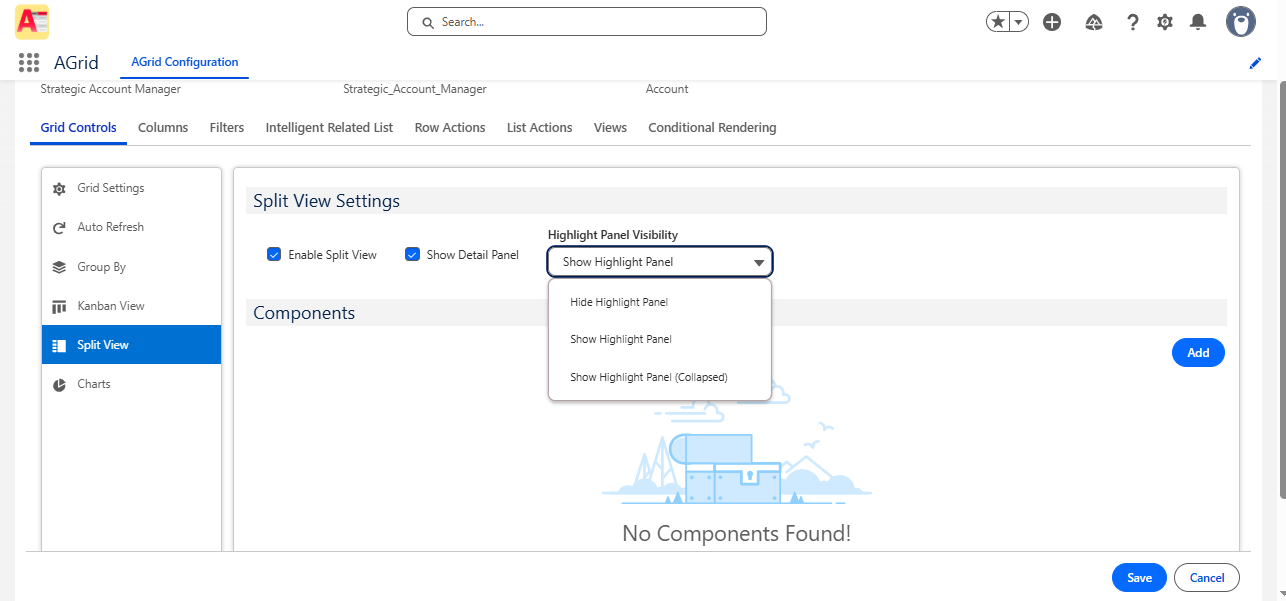
The Highlight Panel Visibility option gives admins three choices:
- Hide Highlight Panel
- Show Highlight Panel
- Show Highlight Panel (Collapsed)
This helps admins decide how much record context users should see when they open Split View.
Add Components to the Split View Panel
The Components section lets admins add supported Row Actions into the Split View experience.
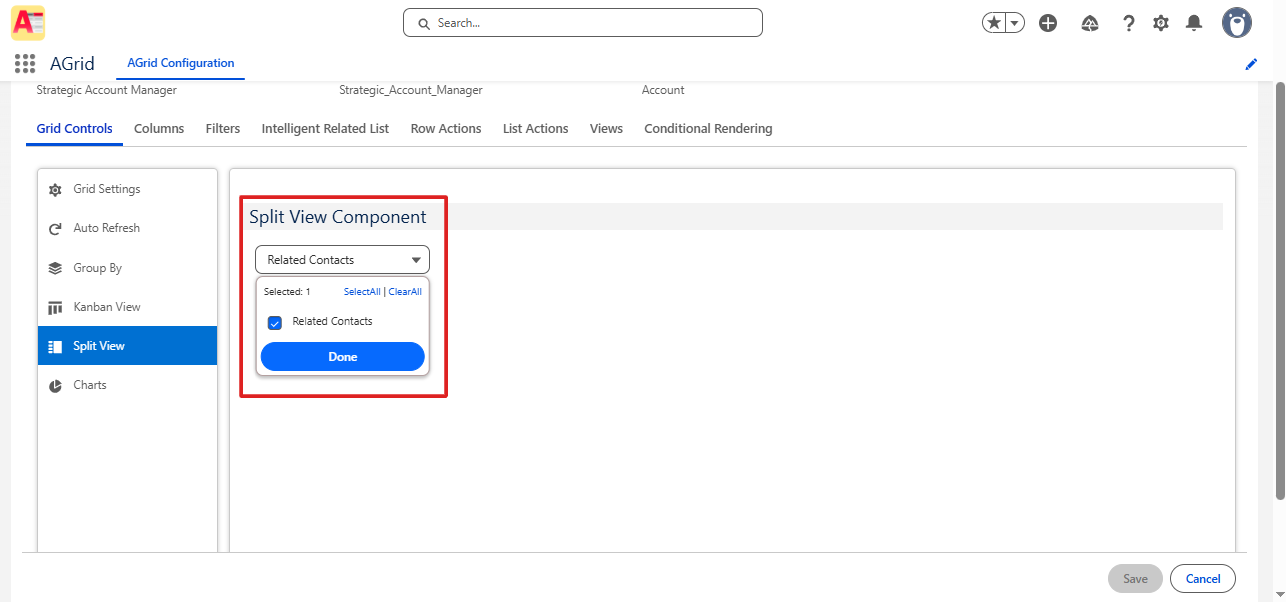
Admins can add:
- Launch AGrid
- Launch AGrid Group
- Flow
These actions must already be configured under Row Actions. Once added, they can appear inside the Split View panel based on the selected Split View setup.
This allows users to not only view record details, but also access related grids, grouped views, or configured Flow actions without moving away from the List View.
For example, an admin can let users open an Account record in Split View and also show related Contacts through an AGrid action below the record details.
Open Record Links in Split View
AGrid also extends hyperlink navigation with Split View support.
Previously, admins could decide how record links should open using options such as the same tab, a new tab, or a modal window. With Spring ’26, Split View is now added as another navigation option.
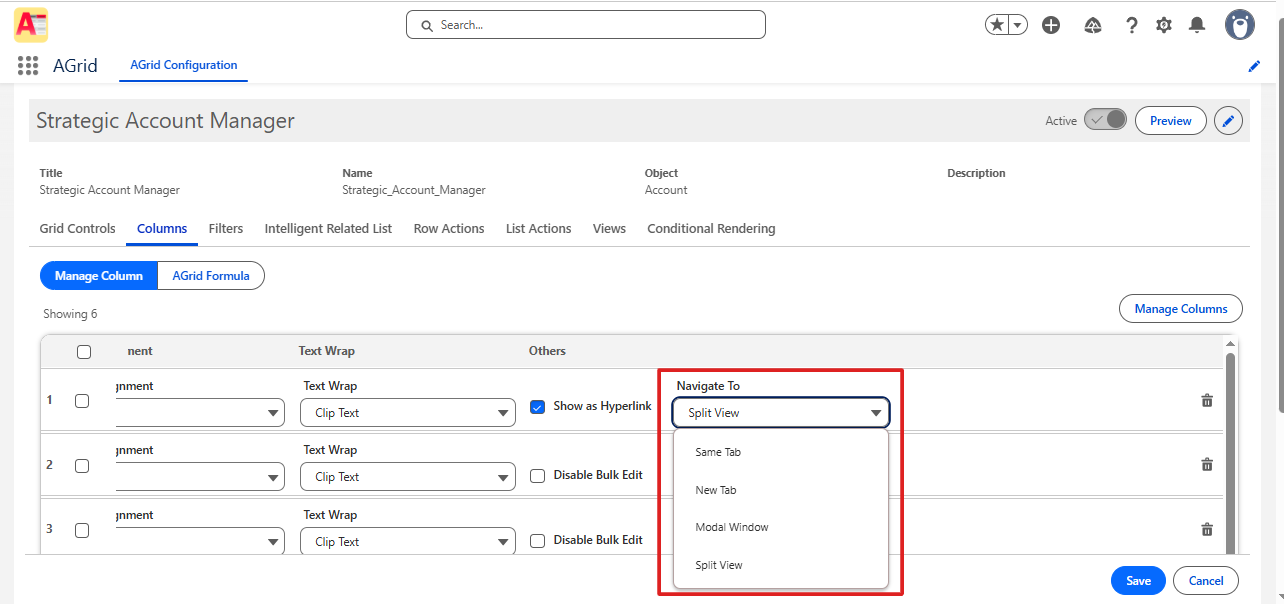
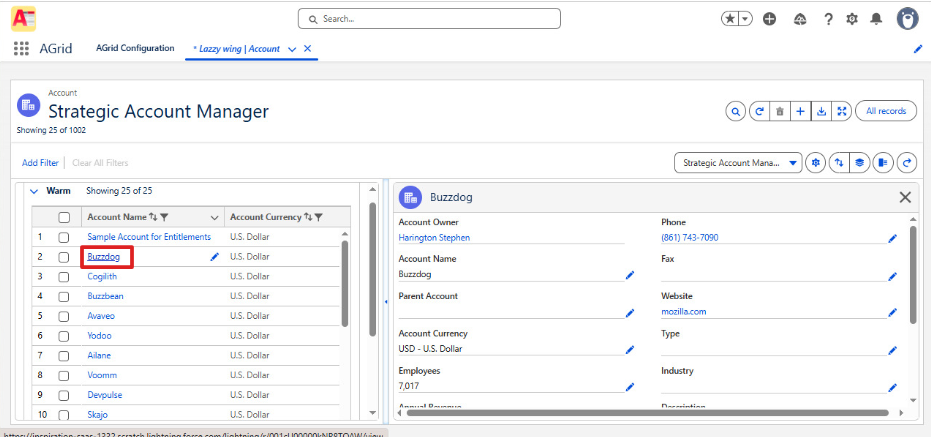
For the Name field, admins can choose Split View under the Navigate To option. Once selected, users can click the record link from the grid and view the record details in the side panel while keeping the List View open.
Launch Row Actions in Split View
AGrid Spring ’26 also improves Row Actions with a new Action Launch Type option.
Previously, supported Row Actions opened in a modal by default. Now, admins can choose how these actions should launch:
This applies to supported Row Actions such as Launch AGrid, Launch AGrid Group, and Flow.
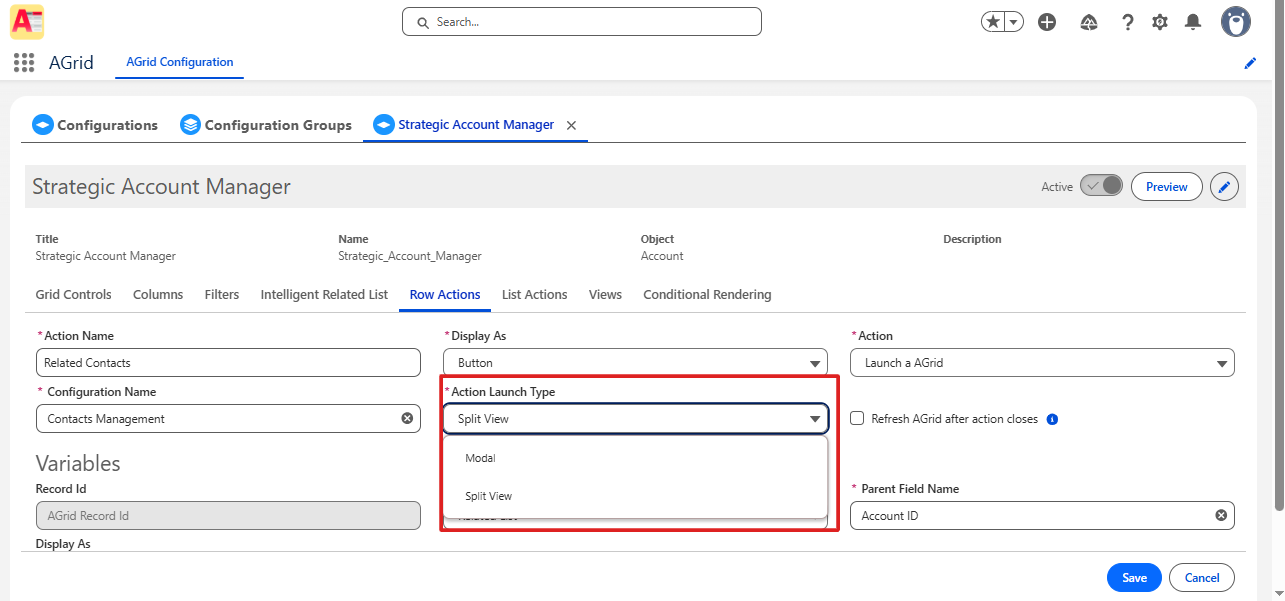
When Row Actions are launched through Split View, users can interact with the action while staying connected to the original grid. AGrid and AGrid Group actions can show related data in the side panel, while Flow actions can run directly in the Split View experience.
Note:
- When a Row Action is launched using Split View, the action can render in the side panel even if Split View is not enabled from the main Split View settings.
- When launching action in split view, an AGrid Helper component is not required.
How It Feels for End Users
On the List View, users can access Split View from the top of the table along with other list-level options. Once opened, they can click a record and view details or configured actions in the side panel, based on what the admin has set up.
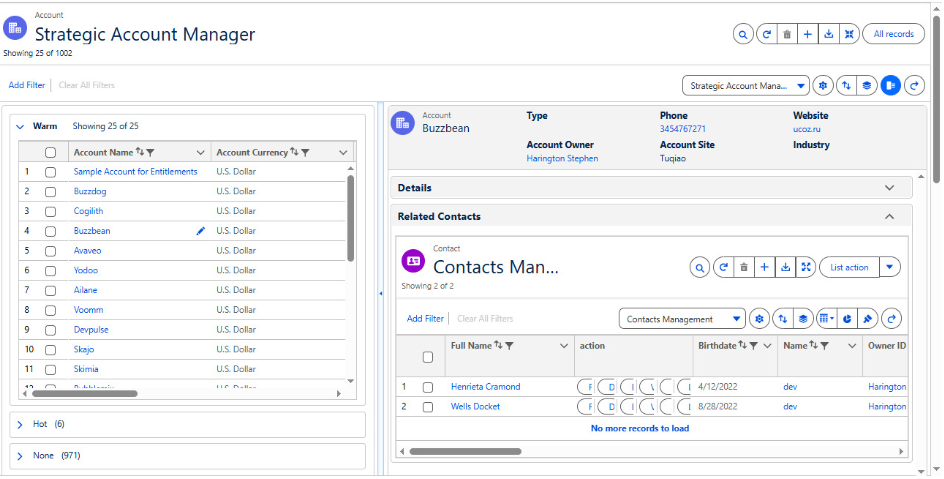
This keeps the user’s work focused inside one grid experience. They can review a record, check related information, and take action without opening multiple tabs or losing their place in the list.
Unlock Developer-Ready Grids with the AGrid Dev Component
AGrid Spring ’26 introduces one of its most powerful developer-focused capabilities yet — the AGrid Dev Component. This reusable Lightning Web Component allows developers to bring AGrid’s advanced grid experience directly into their own custom Salesforce applications.
Instead of building grid behavior from scratch, developers can use the AGrid Dev Component inside custom LWCs by passing the required columns, configuration properties, and data in the defined format.
This opens up a faster way to create custom Salesforce grid experiences while still using familiar AGrid capabilities for editing, filtering, sorting, actions, summaries, and more.
What Developers Can Build With It
The AGrid Dev Component supports several core grid capabilities that are commonly needed in custom Salesforce applications, including:
- Inline editing
- Sorting and filtering
- Row Actions and List Actions
- Lazy loading
- Column freeze
- Global search
- Summary rendering
- Column resize
- Wrap Text and Clip Text
- SObject and non-SObject record support
This makes it useful for teams building custom data workspaces, embedded record management screens, or specialized grid-based Salesforce applications.
Custom Logic Through Events
The component also supports event handling, allowing developers to capture user actions and apply their own logic.
For example, when a user edits records and clicks Save, the updated values can be returned through an event. Developers can then decide how the save should be handled based on their application requirements.
Supported events include actions for loading more records, searching, filtering, sorting, creating, deleting, saving, refreshing, and more.
Faster Path for Developer-Led Grid Experiences
The AGrid Dev Component helps developers move faster by bringing AGrid’s proven grid functionality into custom LWCs. Teams can focus more on business logic and user experience instead of rebuilding common grid features again and again.
For more details on the AGrid Dev Component, implementation support, and availability, reach out to our team.
Note:
The AGrid Dev Component is a cross-namespace Lightning Web Component. Due to Salesforce platform limitations, cross-namespace components can be accessed only when Lightning Web Security (LWS) is enabled in the Salesforce org.
To use the AGrid Dev Component within custom LWCs, organizations must enable Lightning Web Security (LWS). If LWS is not enabled, Salesforce will not allow access to cross-namespace components, and the Dev Component cannot be used in your custom LWC component.
Prevent Accidental Overwrites with Record Collision Action
When multiple users update the same Salesforce data from a grid, there is always a chance that one user’s change can overwrite another user’s recent update. AGrid Spring ’26 introduces Record Collision Action to give admins better control over how these conflicts are handled during inline editing.
Earlier, simultaneous updates could continue without collision handling, which kept the experience simple but did not alert users when another user had already changed the same field. Now, admins can decide whether AGrid should ignore the conflict, block the save, or let users review the difference before saving.
Admins can configure this under Grid Controls → Grid Settings.
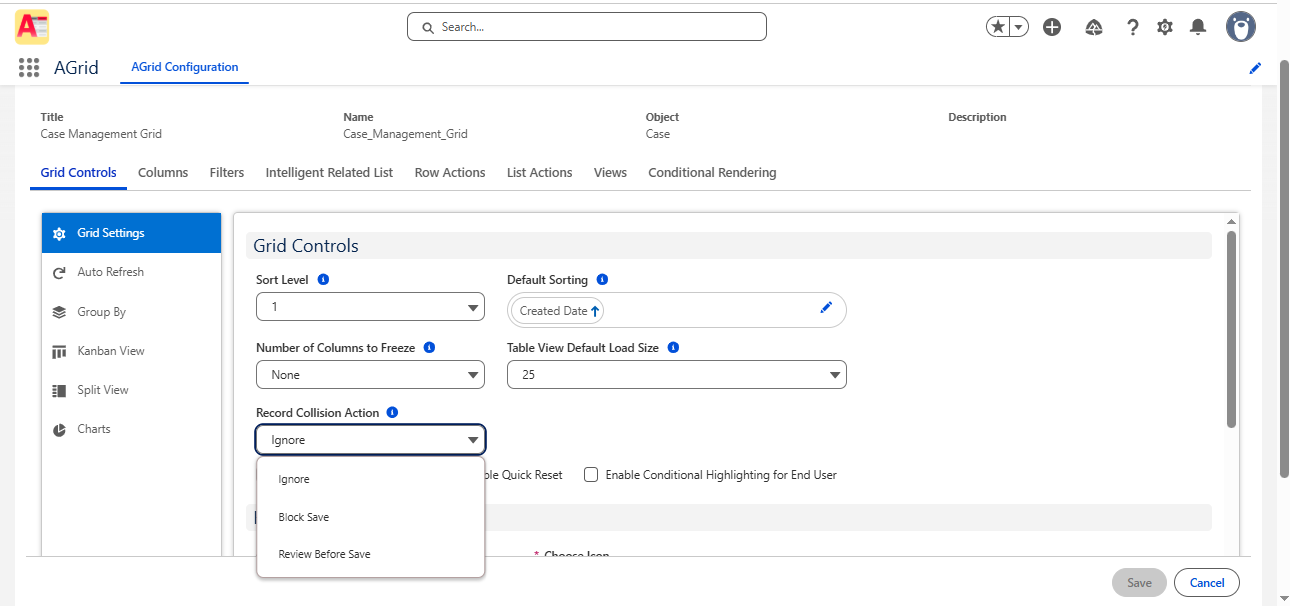
With Review Before Save, users can compare three values before applying the change:
- Your Value: the value entered by the current user
- Saved Value: the value already saved by another user
- Skip: the original value before the current user made changes
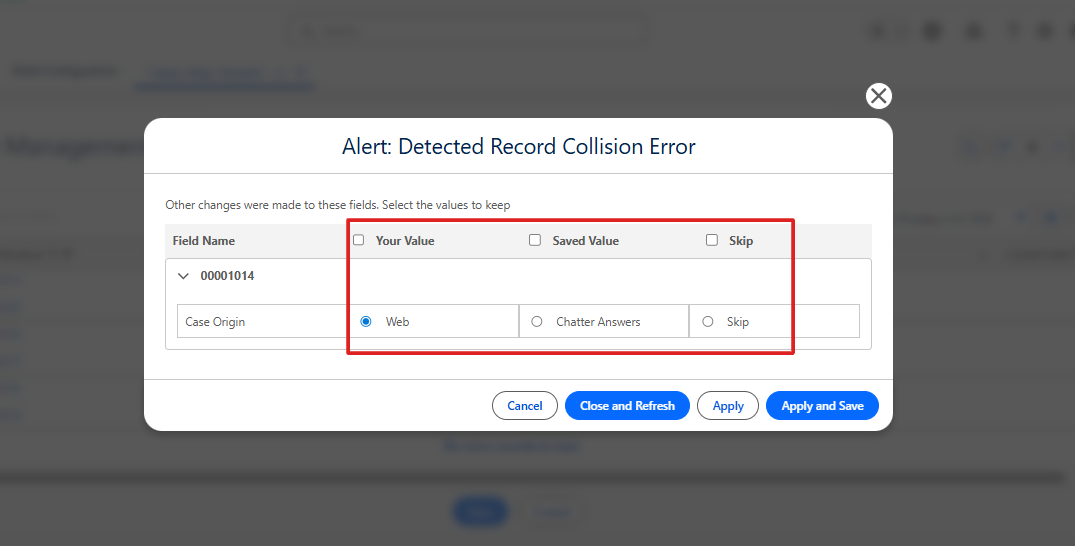
For example, if the original value was 123, another user saved 20, and the current user entered 567, selecting Skip restores the original value of 123.
After selecting the value they want to keep, users can decide how to proceed using the modal footer actions. They can Cancel the action, Close and Refresh the grid to view the latest data, Apply the selected value without saving immediately, or Apply and Save to save the selected value right away.
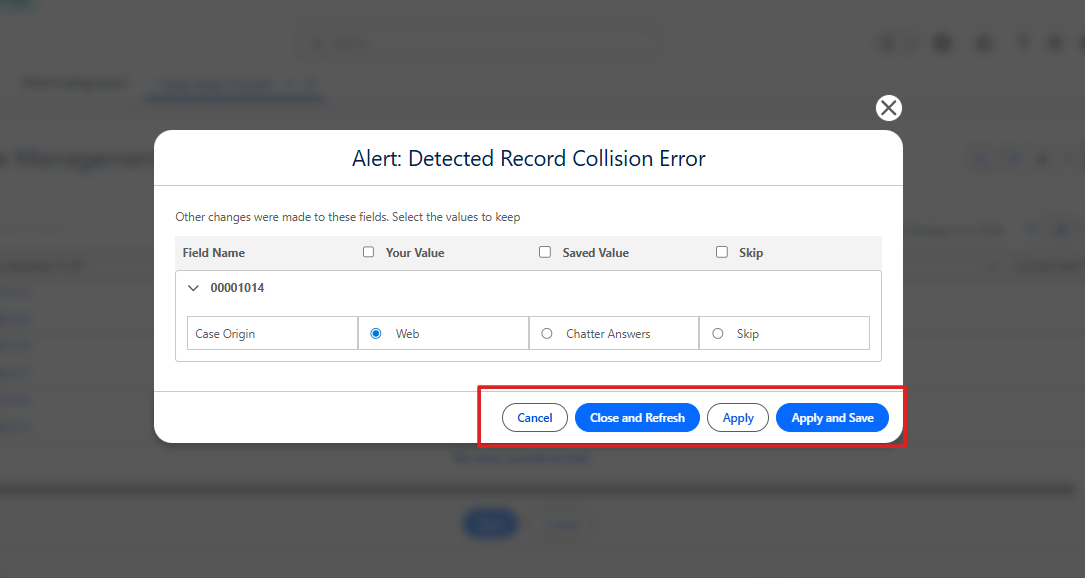
From the review modal, users can cancel the action, apply the selected value without saving, close and refresh the List View, or apply the selected value and save immediately.
Note: Record Collision Action supports all data types, dependent picklists, and first-level parent fields.
Filter Parent Records Using Child Traversal Across Multiple Related Objects
Salesforce data often spans multiple related objects, but standard Salesforce filtering does not directly support filtering a parent record using criteria from multiple child relationships at the same time.
For example, a customer success manager may want to find: Accounts with a renewal Opportunity in the Negotiation stage that also have an open High-Priority Case.
This helps teams quickly identify customers whose upcoming revenue may be at risk and prioritize outreach.
While Grid Filters can filter records using fields on the configured object, they could not previously combine criteria across multiple child relationships to return only the matching parent records.
With AGrid Spring ’26, admins can now do this using Child Traversal and the new Enable Child Object Filters option.

How It Works
When Enable Child Object Filters is turned on, admins can:
- Select related child objects for filtering
- Add filter conditions using fields from those child objects
- Combine parent and child criteria in a single filter
- Use the configured filters in Views and end-user List Views
For the example above, admins can configure:
- Opportunity Type = Renewal
- Opportunity Stage = Negotiation
- Case Priority = High
- Case Status ≠ Closed

AGrid then returns only the Accounts that meet all of these conditions, making it easier to identify at-risk customers and take action.

Note: Child Traversal filters use AND logic only. OR and Custom Logic are not supported when Enable Child Object Filters is enabled. All configured conditions must be met for a record to be returned.
Control Grid Refresh After Row and List Actions
Action-based updates are important, but not every action needs the grid to refresh right away. In earlier behavior, the grid could refresh after action modules were closed, which helped users see updated data but could also interrupt their workflow when a refresh was not required.
With AGrid Spring ’26, admins now have direct control over this experience.
The new Auto-refresh grid on close option is available for both Row Actions and List Actions, allowing admins to decide whether the AGrid List View should refresh automatically after an action module is closed.
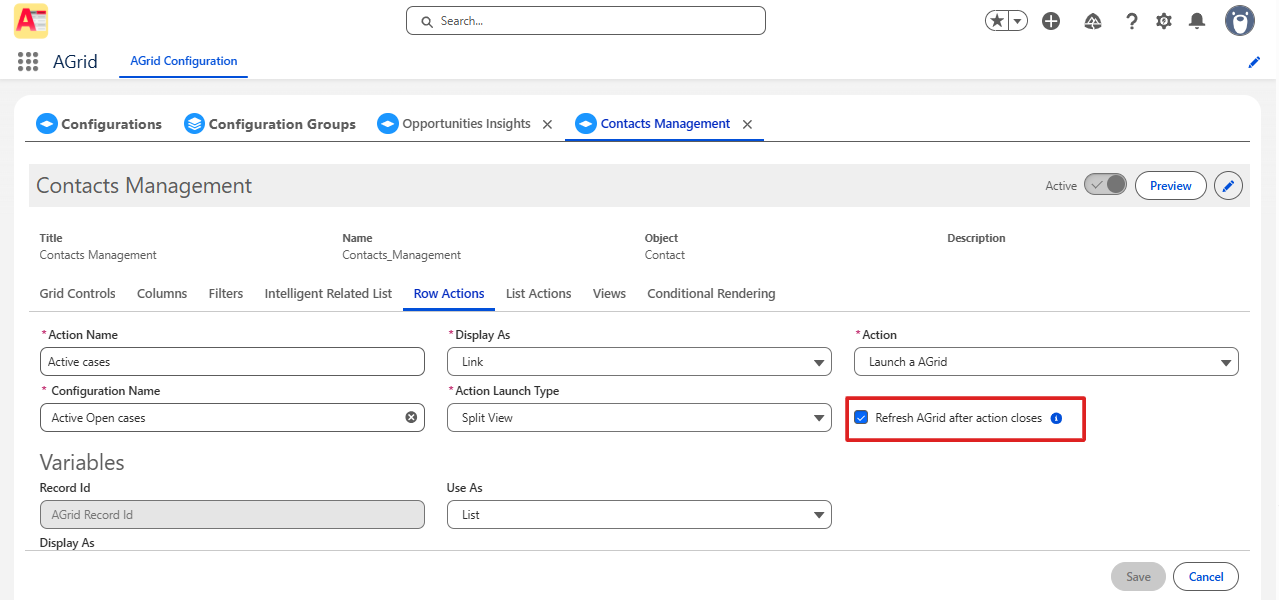
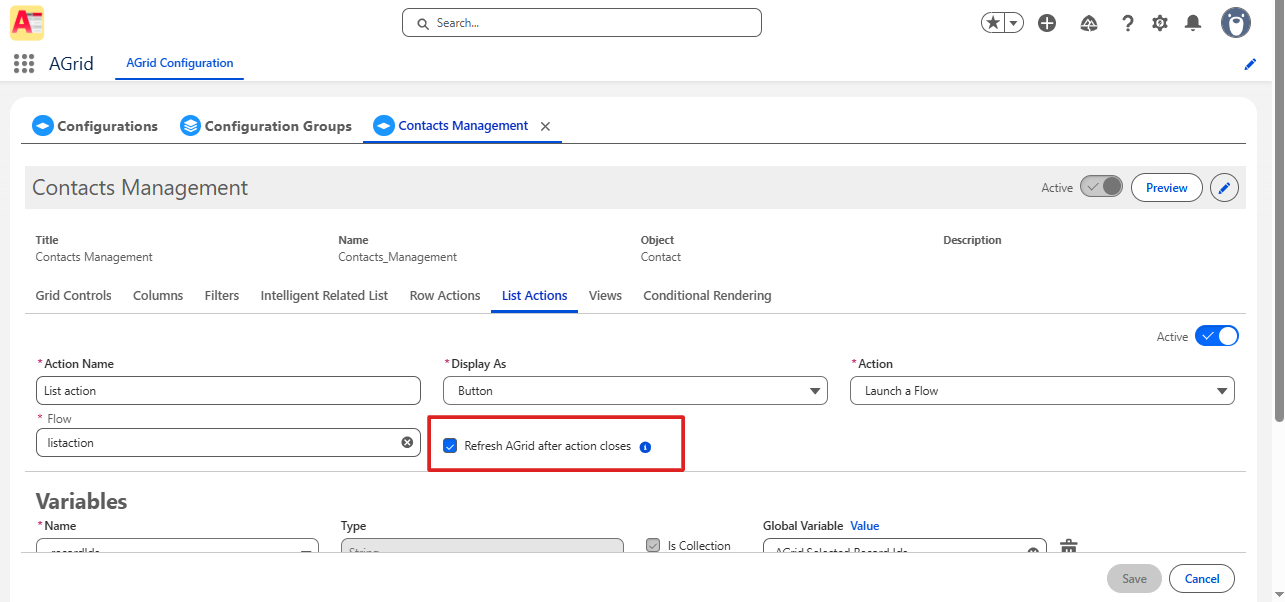
This gives admins a simple but useful way to balance data freshness and user experience. Teams can keep the grid updated where it matters, while avoiding unnecessary refreshes that slow down active work.
This release also improves the overall List View refresh behavior by reducing unwanted refresh events. As a result, users get a smoother grid experience, especially when working with frequent actions or larger datasets.
Apply Parent Field Filters to Lookup Values
Lookup Filters already help admins control which lookup values users can select in the AGrid List View. When a user selects a lookup field, admins can filter the available options so users only see relevant records instead of searching through every possible lookup value.
AGrid Spring ’26 expands this capability with Parent Field support in Lookup Filters.
Before This Release
Admins could already use Lookup Filters to control the lookup records shown in the List View. This helped ensure users selected valid and relevant lookup values based on configured filter conditions.
Lookup Filters supported filtering based on options such as: User, Profile, Organization and Metadata
This worked well for many lookup filtering scenarios, but it did not fully support conditions based on parent-level fields from the object being configured.
What’s New Now
With Spring ’26, admins can now apply Parent Field filters within Lookup Filters.
This means that when a lookup field is selected, the lookup options shown to the user can be filtered using fields from the configured object’s parent relationships.
For example, if an AGrid configuration is built on a child object, admins can use fields from its parent record to control which lookup values appear for users.
This gives admins more flexibility to make lookup selections context-aware and aligned with the record relationship.
How This Improves Lookup Selection
With Parent Field support, lookup values can now be filtered using a wider set of criteria from the configured object and its parent context.
Admins can use this to:
- Show only lookup values that match the record’s parent context
- Reduce incorrect lookup selections
- Keep lookup options more relevant for end users
- Improve data accuracy directly from the grid
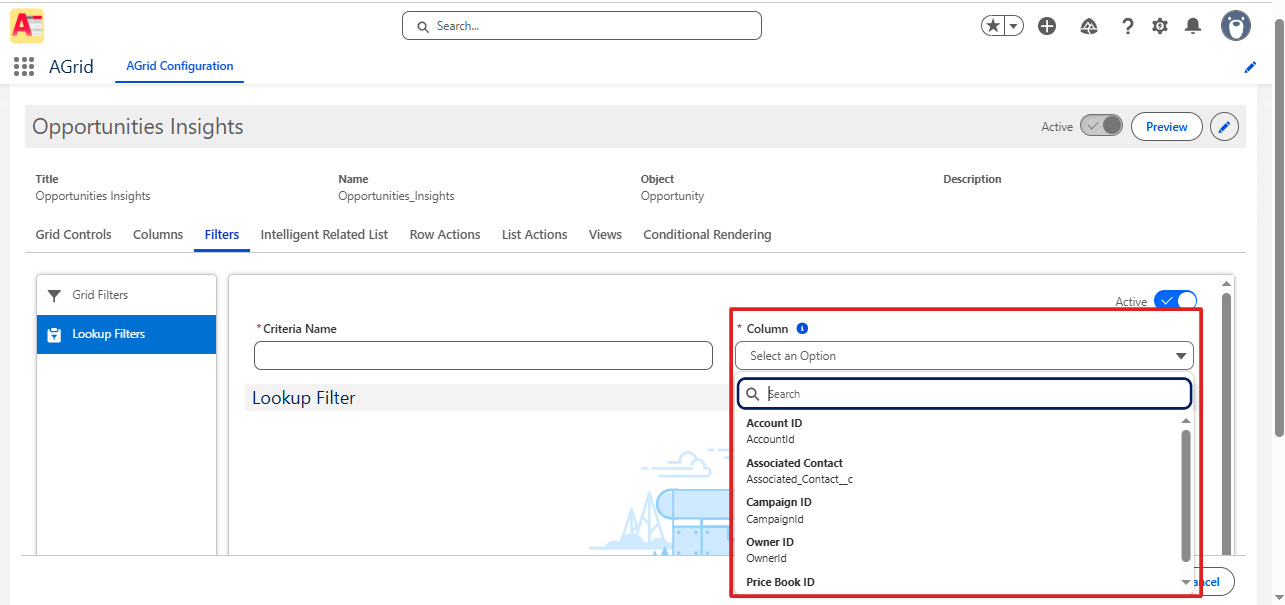
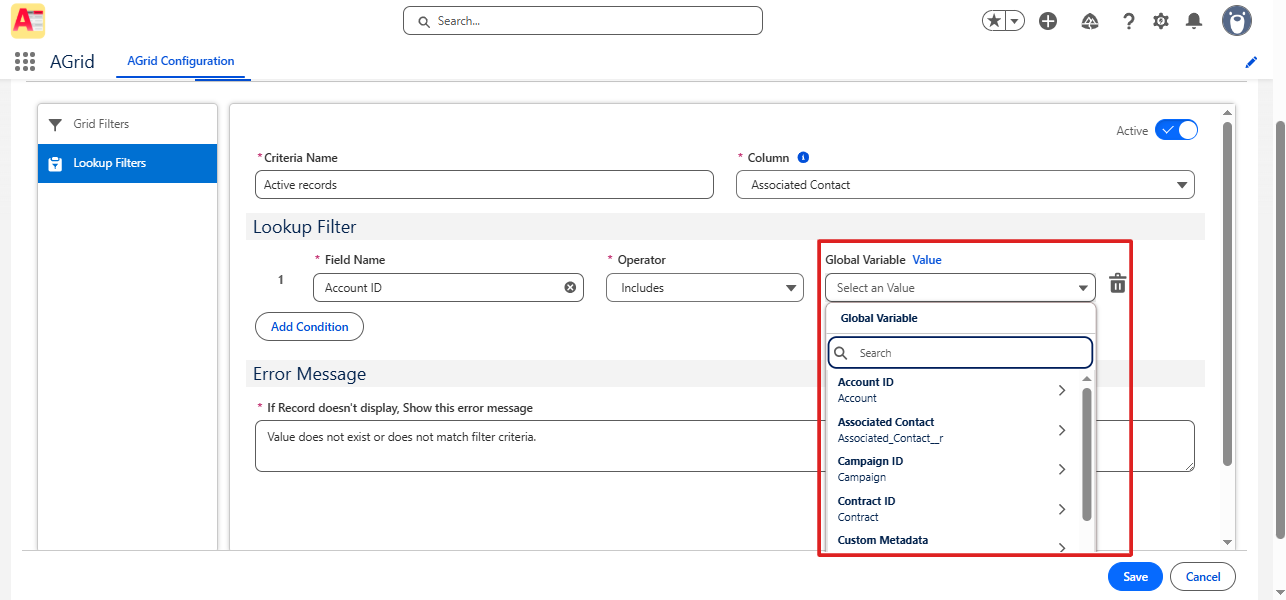
The existing Lookup Filters feature continues to support filter logic such as AND, OR, and Custom Criteria, along with configurable error messages when a selected lookup record does not meet the filter condition.
Find Records Faster with Improved Includes and Excludes Filters
Filtering becomes easier when users do not have to remember the full value they are searching for. AGrid Spring ’26 improves the Includes and Excludes operators by supporting partial text matching for selected field types.
This enhancement helps users find matching records faster, especially when working with long values, mixed text, or fields where they only remember part of the value.
Before This Enhancement
Earlier, users had to enter the complete value for Includes and Excludes filters to return accurate results.
For multiple values, users also had to enter full comma-separated values.
What’s Improved Now
With this enhancement, users can enter partial values when using Includes or Excludes.
For example, if a field contains: Apple pie, Orange
Users can now filter using partial text such as: App, pi, Ora
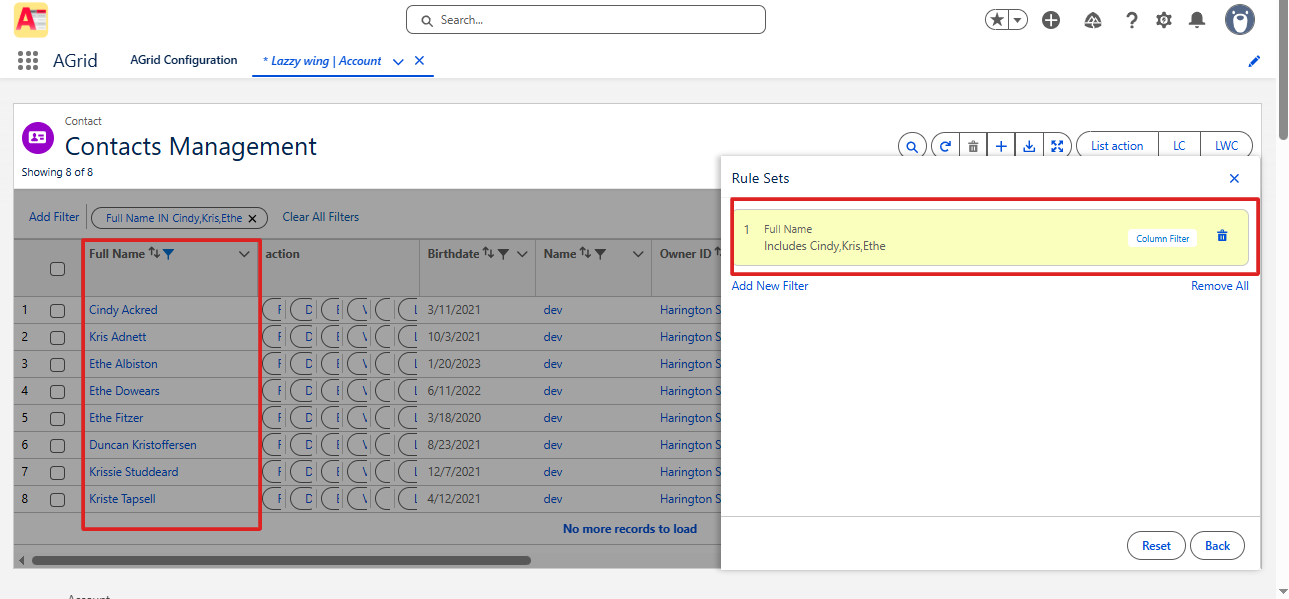
AGrid returns matching records based on the entered text, so users no longer need to type the full value every time.
Handling Values with Commas
If the value itself contains a comma, users need to place it inside double quotes.
Example: "Apple, Pie"
This helps AGrid treat the comma as part of the value instead of reading it as a separator.
Supported Field Types
This improved Includes and Excludes behavior is supported for:
- Text
- URL
- Auto Number
- Phone
For other field types, users still need to enter the full value for accurate results.
Note: If the value contains a semicolon, records with empty field values may also be returned. If the value contains an underscore or percent symbol, all records with non-empty cell values may be rendered.
AGrid Spring ’26 Is Here to Make Salesforce Data Work Smarter
AGrid Spring ’26 brings more control, context, and flexibility to the way teams manage Salesforce data.
With Split View, users can review records and actions without leaving the grid. Record Collision Action helps prevent accidental overwrites. Child Traversal and Parent Field support in Lookup Filters make filtering more connected and relevant. Improved Includes and Excludes behavior makes record discovery faster, while the AGrid Dev Component opens new possibilities for custom Salesforce grid experiences.
Together, these updates make AGrid stronger for admins, smoother for end users, and more powerful for developers.
Ready to experience the latest AGrid release? Explore Spring ’26 and see how smarter Salesforce grid control can help your teams work faster.
Ready to Transform with AI?
More Insights for you






Ready to Transform Your Business with Salesforce & AI?
