



Table of Contents


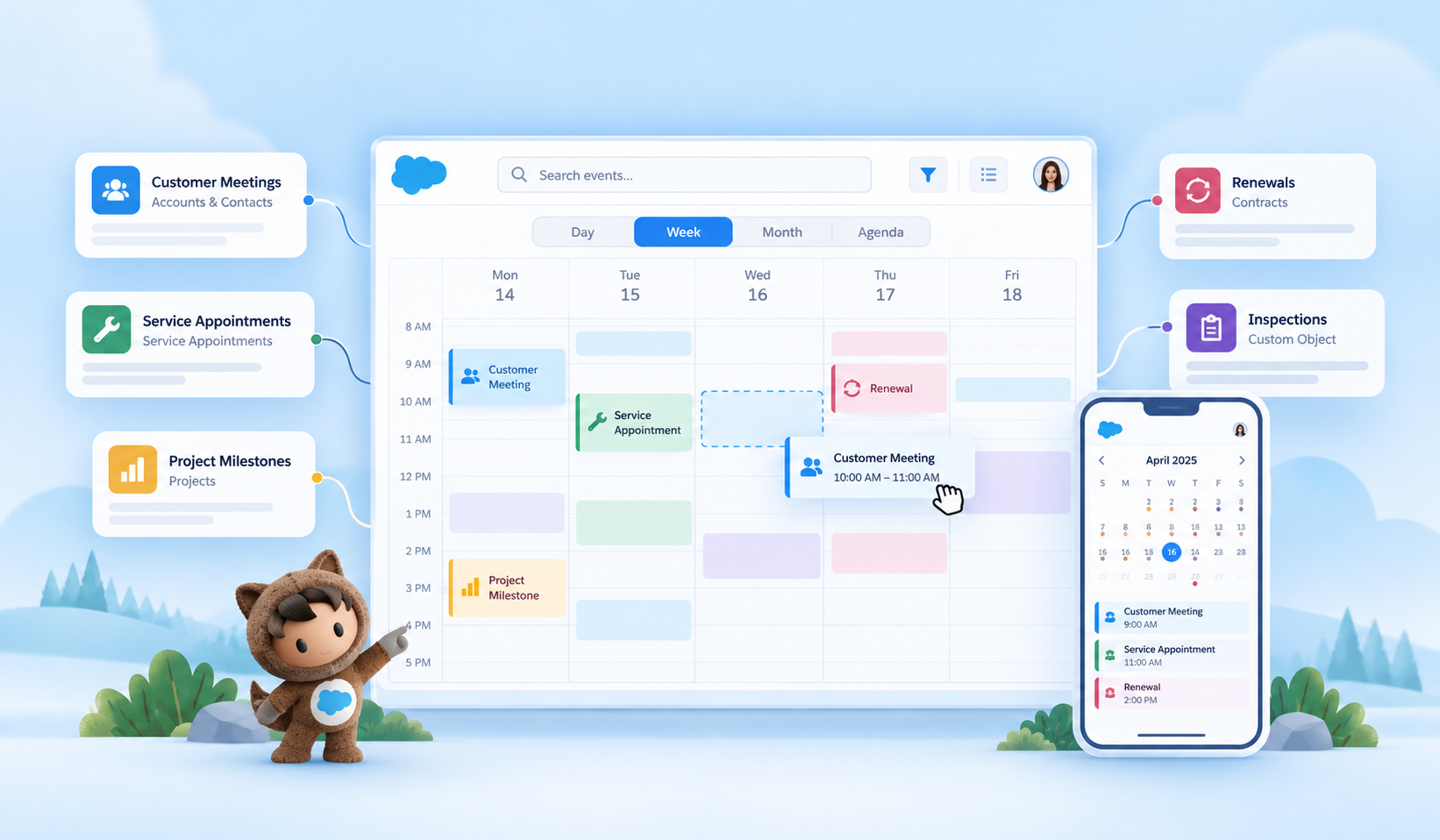
Salesforce is full of dates.
Customer meetings. Opportunity close dates. Appointments. Store visits. Service schedules. Renewals. Inspections. Project milestones. Follow-ups.
The information may already exist in Salesforce, but understanding what is happening today, next week, or across the month often means moving between records, lists, reports, and different objects.
AGrid Calendar brings those dates together in a visual, configurable calendar experience inside Salesforce.
Whether your process needs a calendar for records from one Salesforce object or a calendar that brings together multiple relevant objects, AGrid gives admins the flexibility to configure the calendar around the way their teams actually work.
And just like AGrid itself, the experience remains admin configurable.
No separate calendar application. No need to build a custom calendar every time a team has a different scheduling requirement.
Your Salesforce Records Already Have Important Dates
Much of the work managed in Salesforce is date-driven. A date may represent a meeting or appointment, but it could just as easily represent an asset expiry date, contract renewal, warranty end date, inspection deadline, project milestone, delivery date, campaign period, or another important point in a business process.
The challenge is that these dates are often easier to understand individually than collectively.
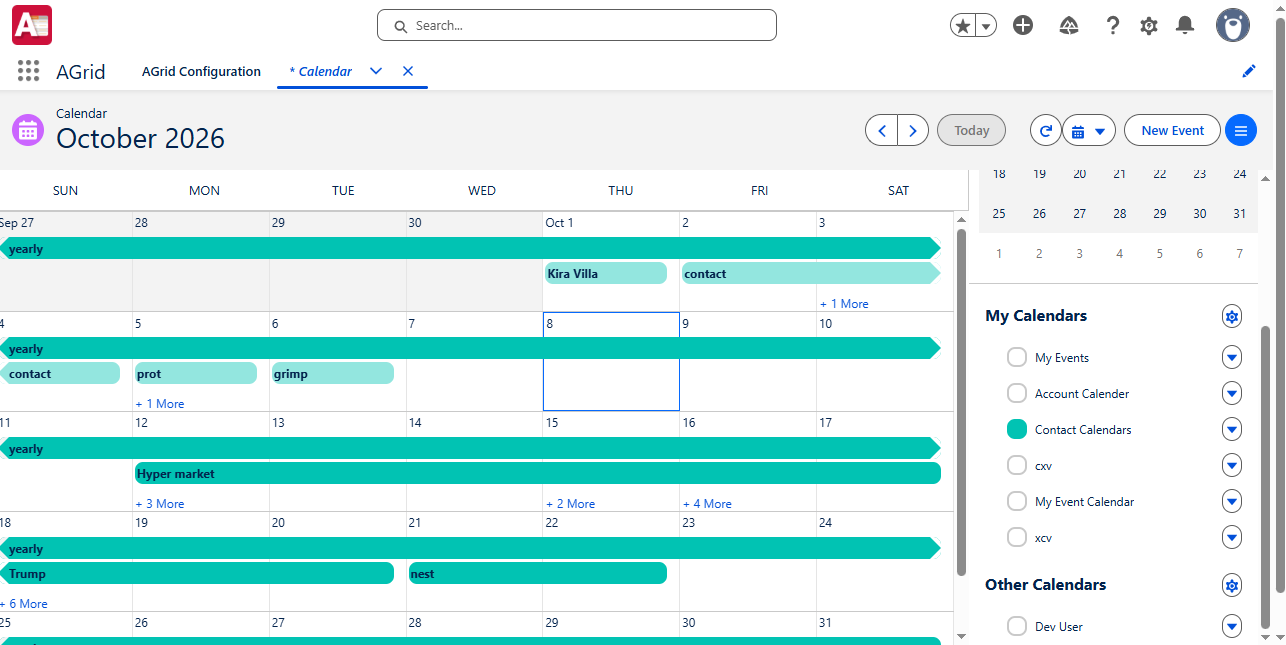
A list can tell you that ten records have upcoming dates.
A calendar immediately tells you when those ten records are happening.
That change in perspective can make it easier for teams to:
- Understand what is coming up
- Spot busy periods
- Identify overlapping work
- Keep track of deadlines
- Search for scheduled activity quickly
- Act on records directly from the same calendar
AGrid Calendar is designed to turn the date fields already available on Salesforce records into that visual experience.
What Is AGrid Calendar?
AGrid Calendar is a configurable Salesforce calendar that lets teams visualize and work with date-driven records through Day, Week, Month, and Agenda views.
Those dates do not have to represent something scheduled. They can be any meaningful start date, end date, due date, expiry date, renewal date, milestone date, or other date field stored on a Salesforce record.
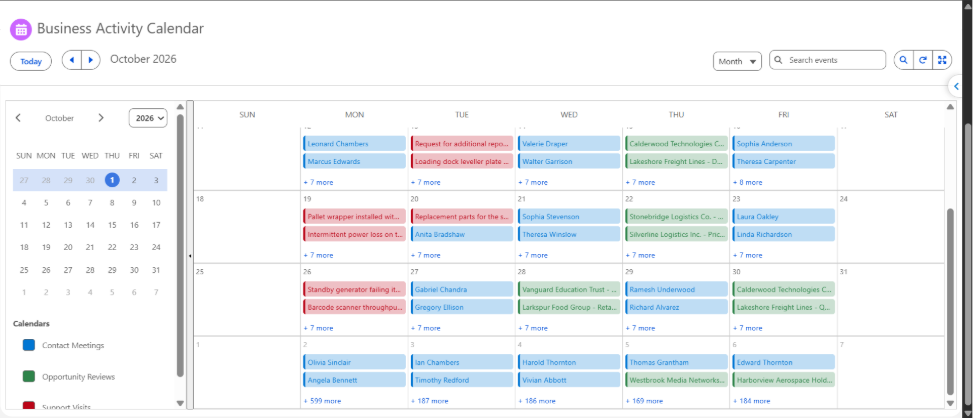
Admins can build a calendar around one Salesforce object or add multiple objects when they belong to the same business process. Standard and custom objects are supported, while filters determine which records from each object actually appear.
Calendars can also be configured as standalone experiences or placed in the context of a specific Salesforce record.
Then let Bring One or Multiple Salesforce Objects into the Calendar explain the concept in more detail.
Bring One or Multiple Salesforce Objects Calendar
Some processes only need records from one Salesforce object. Others involve several objects that share the same business timeline.
AGrid Calendar supports both.
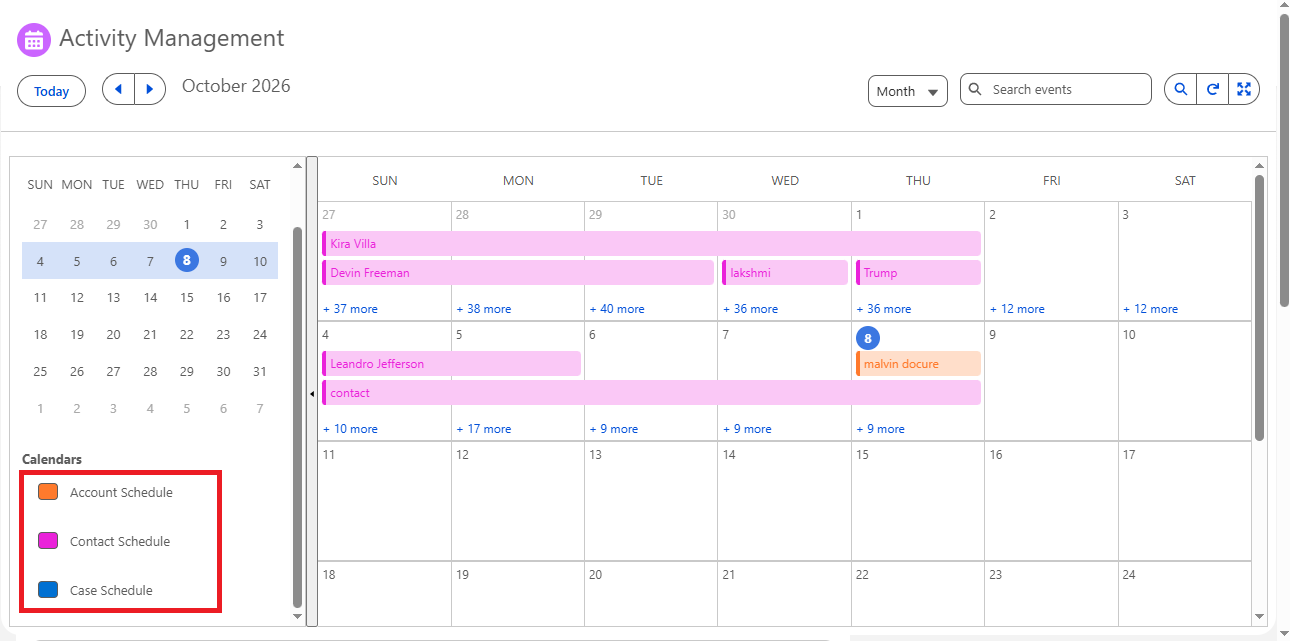
Admins can add one or multiple calendar sources, with each source mapped to its own Salesforce object, event title, start/end date fields, color, and filters.
For example, a process could include milestones from one object, reviews from another, and scheduled visits from another. When those objects belong to the same business context, they can be viewed through the same calendar.
The object defines where the records come from; filters determine which of those records appear.
AGrid Calendar Is Admin Configurable - Just Like AGrid
AGrid Calendar follows the same configurable approach that AGrid users are already familiar with. Admins can also choose which Day, Week, Month, or Agenda views are available, select the initial view, and determine which calendar source is enabled by default.
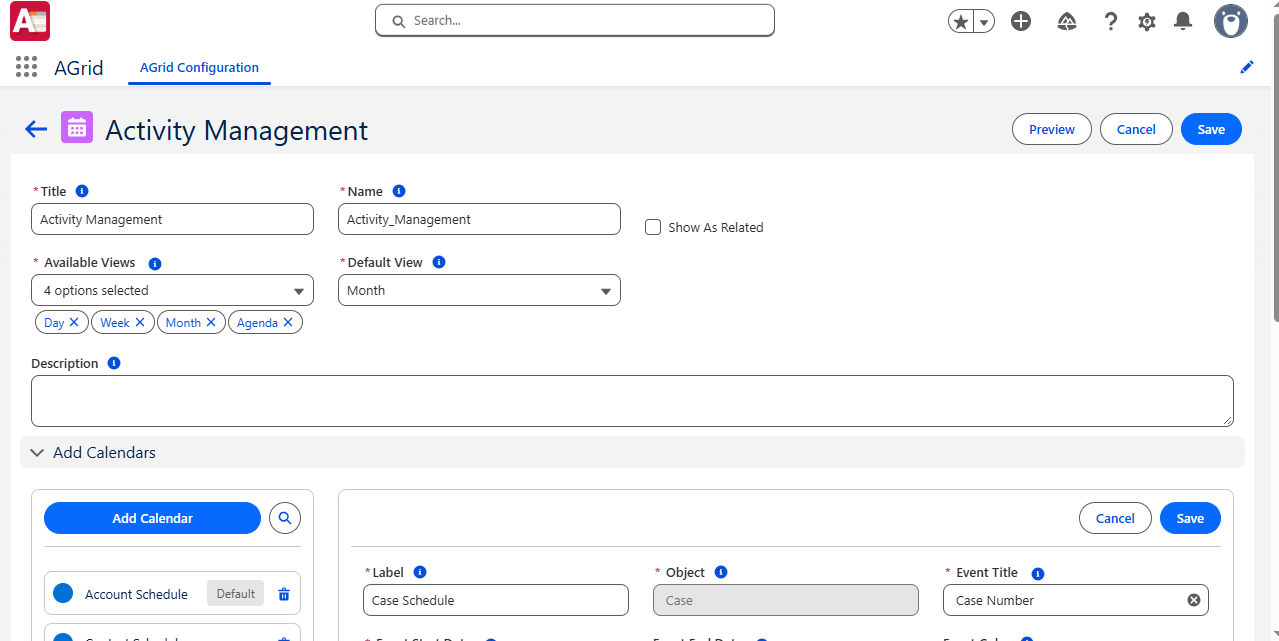
Admins set up the calendar based on the Salesforce process they want users to see, then place the AGrid Calendar component on the required Lightning page.
Just as you drag and drop the AGrid component onto a Salesforce page, the AGrid Calendar component can be added where the calendar experience is needed.
The more important configuration choices are the ones that determine how the calendar behaves.
Choose the Objects and Dates That Drive the Calendar
For each calendar source, admins select the Salesforce object and map the fields that determine how the record appears. That includes the field used for the event title and the date or date/time field used as the start date.
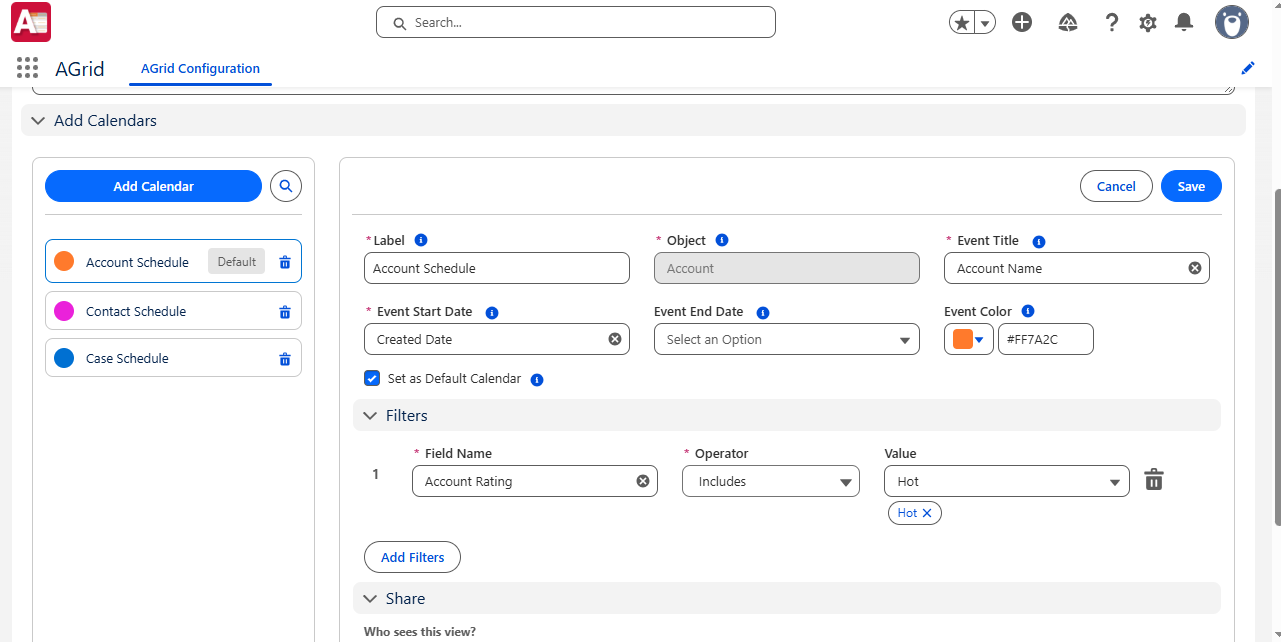
An end date can also be configured when the business process needs it.
If an end date is not configured, the event uses the same day as its start date.
This makes single-day records simple to represent while still supporting activities that span multiple days.
Show the Calendar in the Context of a Record
For a Related Calendar, admins first define the Parent Object the calendar belongs to.
Each calendar source then uses the appropriate Parent Lookup Field to identify how its records are related to that parent.
For example, if Account is the Parent Object, a calendar placed on an Account record page can use the configured lookup fields to display only the calendar records related to that particular Account.
This gives users a focused calendar for the record they are already viewing rather than the broader set of records shown in a Standard Calendar.
Filter the Records That Should Appear
Selecting an object establishes the source of the records; filters determine which records should appear. Admins can create conditions using fields such as status, owner, region, stage, amount, or other relevant Salesforce fields, and combine conditions for more specific calendar scenarios.
Control Who Can Access the Calendar
Admins can also define who should be able to use the calendar.
Depending on the requirement, the calendar can be shared with:
- Internal users
- External users
- Specific users or groups
- A restricted audience
That makes visibility part of the Calendar configuration rather than something users need to manage separately.
Standard or Related Objects: Choose the Right Calendar Context
AGrid Calendar supports two ways of presenting date-driven Salesforce records.
Standard Calendar
A Standard Calendar gives users a broader view of the records included in the configuration.
It works well when the goal is to see time-sensitive records across a team, process, region, or another business scenario.
There is no parent record controlling which records are displayed.
Related Calendar
A Related Calendar works in the context of a specific Salesforce record.
Instead of showing the wider set of records, it uses the parent relationship to show only records connected to the record the user is viewing.
For example, a calendar on an Account page could display only activities related to that Account.
This lets users understand the schedule around a specific record without moving to another tab, report, or separate calendar.
More Than a Calendar You Simply Look At
AGrid Calendar is designed to be interactive. Users can switch between the configured Day, Week, Month, and Agenda views, navigate between periods, and return to today without leaving the calendar experience.
Search and Find What You Need
When a calendar contains many entries, users do not have to manually scan through dates to find a specific item.
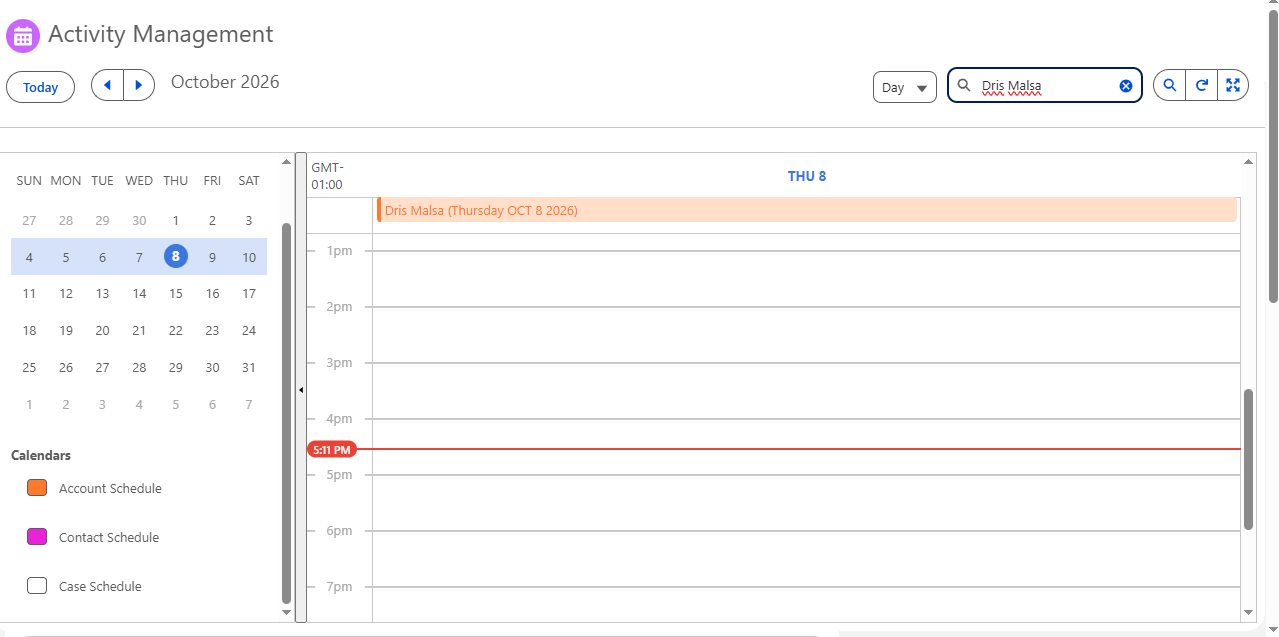
AGrid Calendar includes event search, helping users quickly locate the scheduled record they need especially when multiple calendar sources are being viewed together.
Work with Records Directly from the Calendar
Calendar entries remain connected to their Salesforce records.
Users can click an event to view more information and access actions such as More Details, Edit, and Delete. They can also create records for configured objects directly from the calendar.
When schedules change, users can drag an item to another supported date or time. The corresponding date on the Salesforce record is updated, so the calendar continues to reflect the underlying Salesforce data rather than maintaining a separate schedule.
Take the Calendar with You on Mobile
AGrid Calendar also provides a mobile experience for users who need access to date-based business activity away from their desktop.
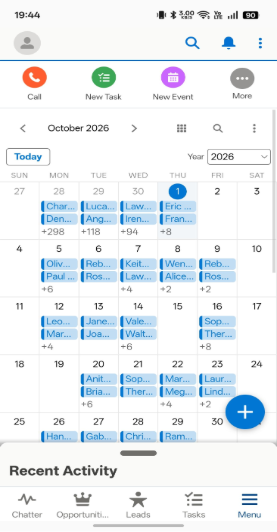
Mobile supports:
- Day View
- 3-Day View
- Month View
- Agenda View
Users can navigate between periods, search their schedule, and open calendar entries for more detail from their mobile device.
One Calendar Capability Across Salesforce
AGrid Calendar is not limited to one Salesforce cloud, industry, or type of business process.
Because the Calendar is configured around Salesforce objects and date fields, the same capability can support very different use cases.
For example:
- Sales Cloud: customer meetings, demos, follow-ups, proposal dates, and opportunity close dates.
- Service Cloud: callbacks, escalations, support sessions, and customer follow-ups.
- Field Service: installations, inspections, repairs, technician visits, and preventive maintenance.
- Healthcare: patient appointments, consultations, assessments, and follow-up activity.
- Consumer Goods Cloud: retail store visits, merchandising activity, and territory schedules.
- Revenue processes: contract milestones, quote expirations, subscription renewals, and other time-sensitive activity.
- Custom processes: project milestones, inspections, training schedules, deliveries, or other custom Salesforce records with meaningful dates.
- Asset and lifecycle tracking: asset expiry dates, warranty periods, maintenance windows, certification expiry dates, or contract end dates.
These are not different versions of AGrid Calendar.
They show how the same configurable calendar capability can adapt to different Salesforce processes.
The feature is not restricted to one cloud, one object, or one predefined type of event.
The calendar is configured around the business requirement.
How Is AGrid Calendar Different from the Salesforce Calendar?
Salesforce already provides Events and object calendars for straightforward calendar requirements. AGrid extends the experience when teams need greater control over the objects, records, context, placement, and interaction available through the calendar.
Both Salesforce and AGrid can work with standard and custom object dates. The difference becomes more noticeable when teams need multiple configured calendar sources, dedicated filtering, record-level context, and more control over how the calendar is placed and used.
The difference is not simply that AGrid has a calendar.
It is the level of control admins have over which objects contribute records, which records appear, where the calendar is placed, who can access it, and how users interact with those records.
AGrid Calendar: Built Around Your Process
Build the calendar around your process & not the other way around.
The date that matters may live on an Opportunity, an appointment, an inspection, a renewal, or a custom Salesforce object.
AGrid Calendar works with the records and date fields already driving those processes, giving admins the flexibility to configure the right calendar and users a clearer way to see and act on what is scheduled.
The dates are already in Salesforce. AGrid Calendar makes them easier to see and work with.
Ready to See Your Salesforce Data on a Smarter Calendar?
AGrid Calendar adds another way to work with Salesforce data, one built around time.
From a focused calendar using one Salesforce object to a calendar combining multiple objects that belong to the same business process, admins can configure an experience that fits the way their teams work.
Explore AGrid or talk to our team to see AGrid Calendar in action.
Ready to Transform with AI?
Frequently Asked Questions
AGrid Calendar is a configurable calendar experience that displays date-driven Salesforce records in Day, Week, Month and Agenda views. It can be configured around different standard and custom Salesforce objects.
Yes. Multiple calendar sources can be configured within one calendar experience, allowing different types of Salesforce records to be viewed together and visually distinguished.
Yes. AGrid Calendar can be configured around the standard and custom Salesforce objects used by your business, with the appropriate title and date fields mapped to calendar entries.
Yes. Related Calendars can be configured to display only records connected to the current parent record, giving users a contextual calendar directly from the relevant Salesforce record page.
Users can interact with calendar entries, open records, create records for configured objects, and move scheduled items when dates change. Updates are reflected on the underlying Salesforce records.
Yes. The mobile calendar experience supports Day, 3-Day, Month and Agenda views, helping users access scheduled Salesforce work away from their desktop.
Salesforce provides Events and object calendars for tracking dates. AGrid adds configurable calendar sources, dedicated filters, related-record calendars, broader placement options, record interaction, sharing controls, and calendar experiences designed around business processes.
More Insights for you








Ready to Transform Your Business with Salesforce & AI?
