

How to Connect Claude to Salesforce Using MCP: A Simple Guide


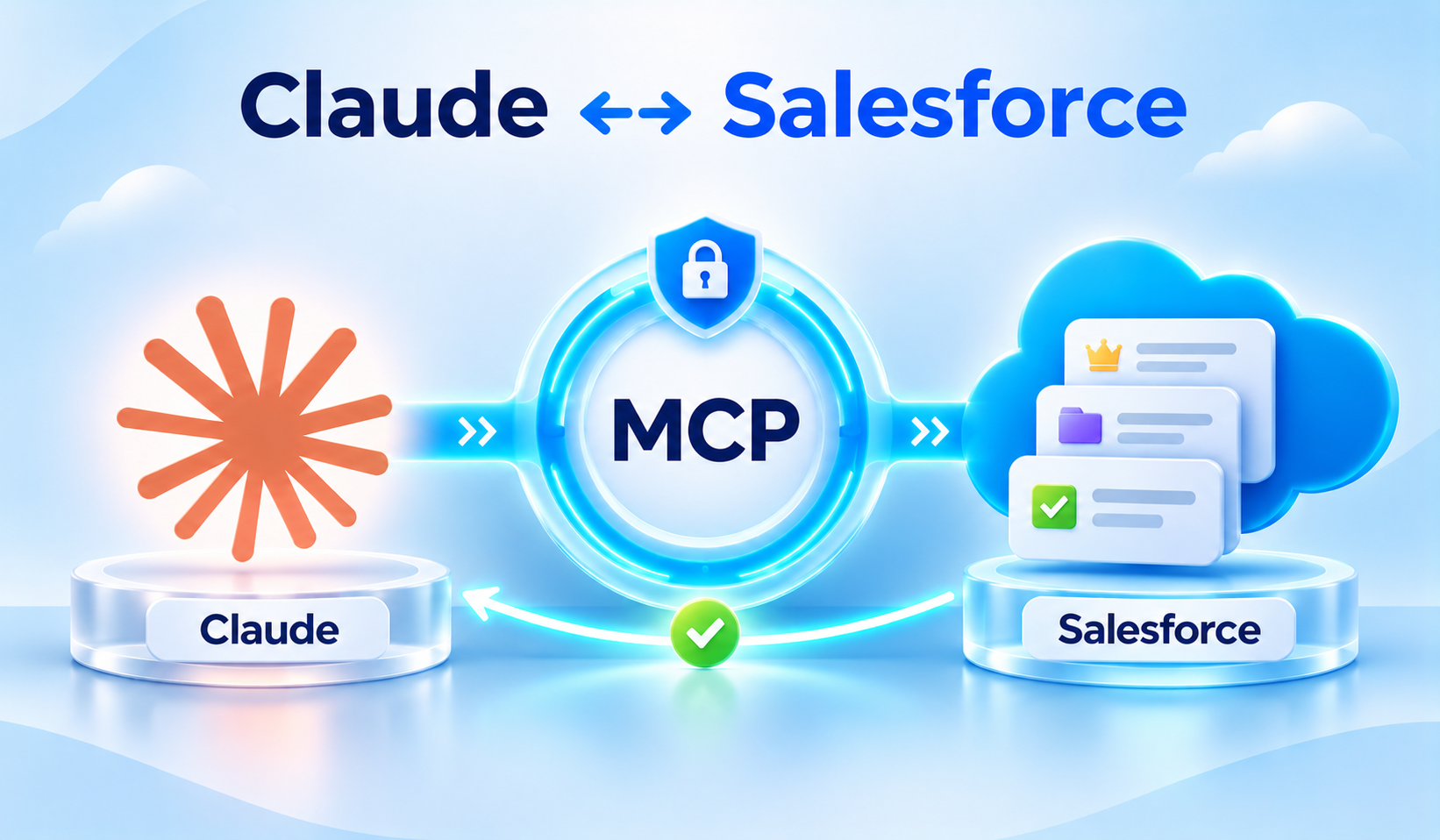
Table of Contents


What if your team could ask Claude about an open Salesforce Case or a pending renewal without copying CRM records into another tool? Salesforce Hosted MCP Servers offer a way to connect Claude to Salesforce through approved tools, authenticated users and existing business rules. The setup is technical, but the business idea is simple: access relevant information and request specific actions without granting an AI assistant unrestricted CRM access.
This guide explains how to connect Claude to Salesforce MCP tools using a structured five-step approach. It is written for business owners and Salesforce teams who want to understand what the connection does, what administrators configure and how to test it safely.
MCP Explained Without the Technical Language
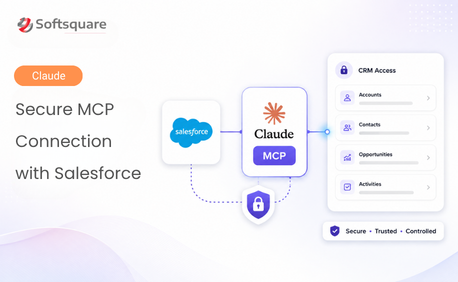
MCP stands for Model Context Protocol. It is a standard that lets an AI client discover and call tools offered by another system. Think of it as a reception desk: Claude asks for information or an action, while Salesforce decides which tools are available and what the signed-in user can access. MCP does not bypass Salesforce security.
A Claude Salesforce MCP connection can be used to retrieve approved CRM context, and when explicitly configured to perform a narrow business action such as creating a follow-up Task. Not every capability is available in every org, server or Claude plan.
What Is Salesforce MCP?
Salesforce Hosted MCP Servers are Salesforce-managed endpoints that expose supported Salesforce functionality to compatible MCP clients. The Salesforce MCP Claude setup has several layers: an MCP-capable client, an authenticated external client application, an active hosted server, and the records or business actions its tools permit.
The phrase “Claude Salesforce connector” is sometimes used for this experience. More precisely, the MCP connection lets Claude use selected Salesforce-hosted tools. It is different from exporting your CRM data or handing the model general-purpose database credentials.
What a Salesforce User Might Experience
A service manager might ask, “Which high-priority Cases assigned to my team are still open?” Claude can retrieve authorized information, summarize it and identify records for the manager to inspect. A later phase could let the manager approve a Task created through a defined Salesforce Flow. The record only changes when the configured tool executes successfully.
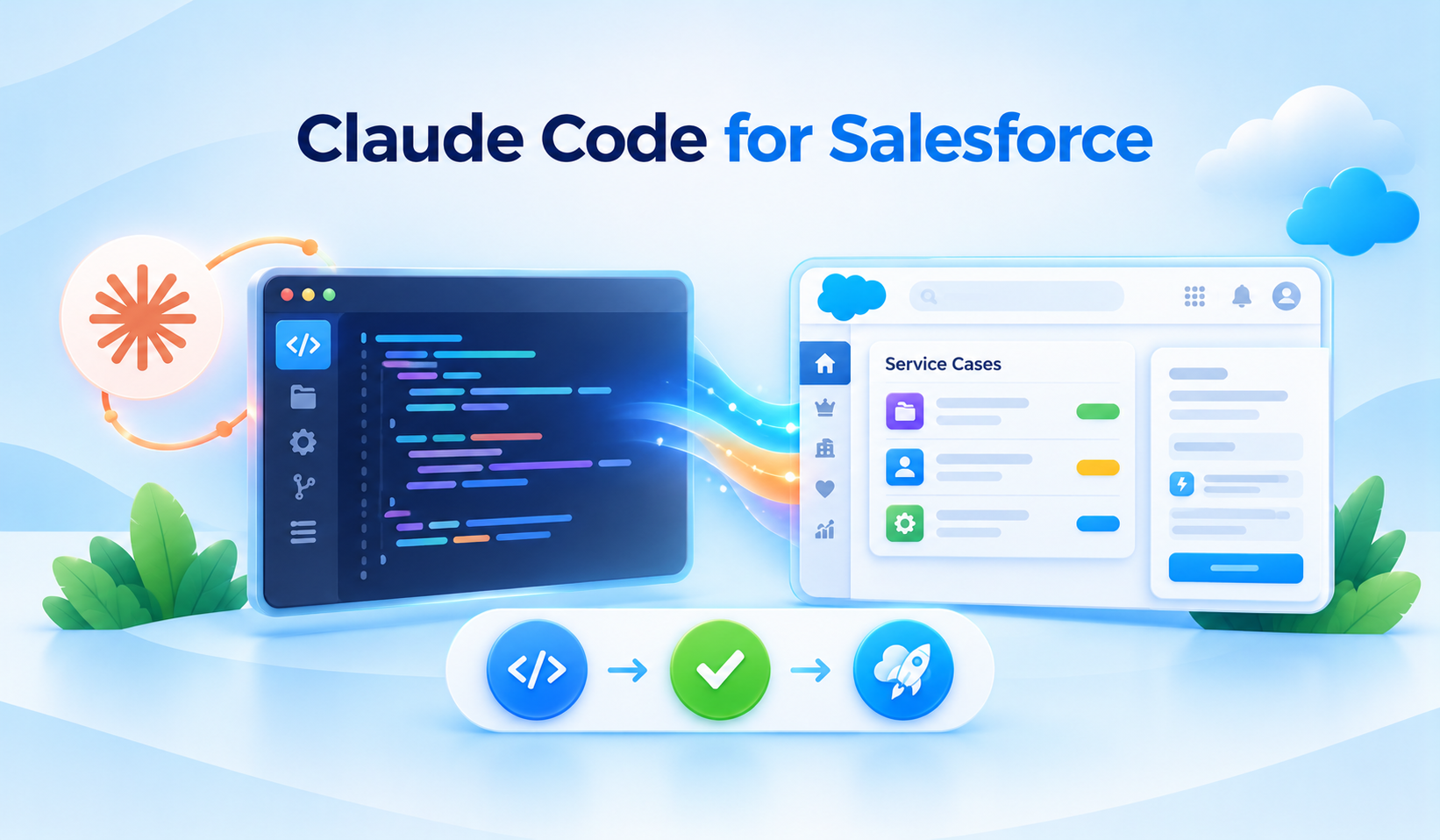
For developers, Claude Code for Salesforce is another possible client. Claude Code can work with MCP connections while a team builds, tests or troubleshoots Salesforce-specific workflows. Business users may instead prefer a supported Claude connector experience. Check the current client capabilities before choosing a deployment path.
Why Use Salesforce Hosted MCP Servers?
A custom-built integration requires an endpoint, OAuth handling, tool descriptions, infrastructure monitoring and ongoing maintenance. Hosted MCP servers reduce that hosting burden and allow teams to reuse Salesforce automation and security controls. A Claude Salesforce integration still needs careful design: the model should see only the tools and fields needed for the approved process.
For a Claude MCP Salesforce integration, start with one valuable use case rather than enabling every available server. This makes it easier to test data access, validate responses and understand where human approval is needed.
How the Architecture Works
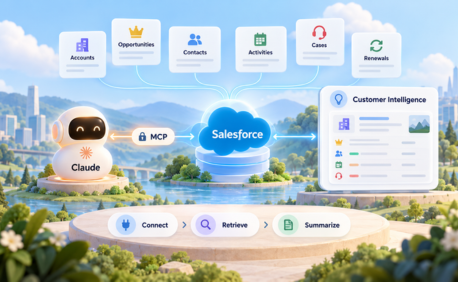
The typical flow is Claude Desktop or Claude Code → MCP client connection → Salesforce Hosted MCP Server → authorized Salesforce tool or record → response to Claude. OAuth authorizes the signed-in user through an External Client App. Salesforce applies access controls, including relevant object, field and record permissions, while custom actions must enforce their own business validations.
Choose a Salesforce MCP server Claude can access through the supported OAuth flow and ensure its tools are appropriate for the task. In a secure Salesforce integration with Claude, an authenticated connection is only the beginning: every tool and action must be tested for correct authorization.
Before You Begin: Prerequisites
- A Salesforce org with the relevant Hosted MCP Server capabilities and entitlements; confirm availability and usage terms for your edition and region.
- An administrator who can activate the chosen server and configure an External Client App.
- A supported Claude client, plus its current authentication and connection requirements.
- A sandbox or other nonproduction environment and appropriately restricted test users.
- A clear list of required objects, fields, permitted tools and expected user approvals.
How to Connect Claude to Salesforce Using MCP: Five Steps
Step 1: Enable the Appropriate Salesforce MCP Server
In Salesforce Setup, find MCP Servers and activate the server that matches the pilot. Salesforce’s documented example uses the Salesforce Servers tab; Setup navigation can vary by release. Copy the server URL and API name. Avoid enabling unrelated servers simply because they are available.
Start with a read-only workflow. If the initial test needs only Case retrieval, do not enable broad write tools.
Step 2: Configure an External Client App
Create an External Client App (ECA) for the Claude connection. Salesforce documents the mcp_api scope for Hosted MCP Server access, along with appropriate refresh-token permissions. Use the current callback URL and PKCE requirements for the specific Claude client; Claude Desktop and Claude Code can use different connection flows.
Restrict who can authorize the ECA, apply your organization’s session and token policies, and safeguard credentials. A Salesforce user must authorize the connection with their own identity; do not substitute a shared integration identity for everyone.
Step 3: Connect Claude Desktop or Claude Code
In the supported Claude client, add the hosted server URL and required OAuth settings, complete the authorization process and confirm the server appears as connected. Claude Code provides a way to review configured MCP servers; other Claude surfaces may use a connector interface.
Follow the latest official steps rather than copying old terminal commands or callback URLs. This is particularly important when connecting a sandbox or scratch org.
Step 4: Validate with Read-Only Prompts
Try a limited request: “List high-priority open Cases I am permitted to see. Show Case number, subject and status. Do not update anything.” Compare the result against Salesforce records, then test a user with fewer permissions to verify that inaccessible information is not returned.
Next, ask for a summary of the open Opportunities related to an Account, with source records identified. Check missing values and confirm that Claude does not invent activity, deal risk or customer details.
Step 5: Add an Approved Salesforce Action
After read-only access works, expose a narrowly scoped action—for example, an autolaunched Flow that creates a follow-up Task. Custom hosted MCP tools may be backed by supported Salesforce actions such as invocable Apex, Flow or Apex REST. Validate input parameters and required fields in Salesforce before executing.
For consequential changes, use review → explicit user approval → action execution → Salesforce result verification. A successful AI message is not proof that a CRM record was created; confirm the actual record and surface errors clearly.
Practical MCP Use Cases
Case Review and Follow-Up
A service representative asks for older open Cases and receives a verified review list. Claude can propose next steps; only approved Tasks are created through Salesforce.
Opportunity Pipeline Briefing
A sales manager requests a concise list of large Opportunities missing next steps. The assistant organizes the accessible data and links each conclusion to an inspectable CRM context.
Running a Custom Business Flow
A company exposes a narrowly defined Flow for scheduling a follow-up. Claude collects required inputs; Salesforce Flow enforces validation, ownership and record-update rules.
Cross-System Preparation
A supported AI client can use separately authorized tools from more than one business system. Each connector adds a security and data-handling review requirement, so begin with the Salesforce task alone before widening access.
Standard vs. Custom MCP Servers
Standard hosted servers are useful when the available tools already match your need. A custom hosted server is appropriate when the business process requires a particular Flow, Apex action, approval sequence, or validation rule. Prefer the narrowest available tool instead of giving the assistant broad write capabilities.
Who Does What During Setup?
The Salesforce administrator manages server activation, user permissions, and External Client App policies. The developer or integration specialist configures the client, custom actions and testing. The business owner identifies the use case, approves success criteria, and defines any human review steps. End users should know which Claude workspace is approved and how to verify CRM results.
Common Integration Mistakes
- Connecting to production before testing in a sandbox or controlled environment.
- Using permissions wider than the use case requires.
- Treating an authenticated Claude Salesforce connector as proof that every action is authorized.
- Enabling record writes without explicit approval, validation or reliable error feedback.
- Accepting a plausible summary without checking the underlying Salesforce records.
Security Checklist for Production
Review OAuth scopes, ECA authorization policies, sharing, CRUD/FLS permissions, allowed tools, input validation, refresh-token duration, audit events, rate limits and revocation procedures. For sensitive CRM data, also confirm contractual, privacy and organizational AI-use requirements before allowing access.
A secure deployment should make it possible to determine which user invoked which tool and whether the Salesforce action succeeded. Salesforce documents Hosted MCP activity monitoring and access controls, but administrators should confirm what logging is enabled and available in their org.
A Quick Checklist Before You Begin
- Choose one repeatable CRM activity with a measurable business outcome.
- Validate the required Salesforce objects, fields, and permissions.
- Configure only the client, server, and tools needed for the pilot.
- Confirm read-only accuracy before adding record updates.
- Have business users review the output and sign off on the approval flow.
Final Thoughts
The goal is not simply to connect Salesforce to Claude. It is to give people faster access to reliable CRM context and a safe path to approved next steps. Begin with one tool, verify every response and expand only when your team can demonstrate accurate, governed behavior.
How Softsquare Can Help
Softsquare can help evaluate Salesforce Hosted MCP Servers, configure a practical OAuth and permissions model, expose narrowly scoped Flow or Apex tools, and validate the complete experience in a controlled pilot. Explore Salesforce integration options with Softsquare.
Sources and Further Reading
- Salesforce Developers — Connect Claude with Salesforce Hosted MCP Servers: https://developer.salesforce.com/blogs/2026/05/connect-claude-with-salesforce-hosted-mcp-servers
- Salesforce Developers — Connecting an MCP Client: https://developer.salesforce.com/docs/platform/hosted-mcp-servers/guide/client-connection-overview.html
- Salesforce Developers — How to Secure Salesforce Hosted MCP Servers: https://developer.salesforce.com/blogs/2026/06/how-to-secure-salesforce-hosted-mcp-servers
- Google Search Central — Changes to HowTo and FAQ Rich Results: https://developers.google.com/search/blog/2023/08/howto-faq-changes
Ready to Transform with AI?
Frequently Asked Questions
Salesforce MCP is a way to expose selected Salesforce tools to a compatible AI client. Claude calls authorized tools through a hosted MCP connection; Salesforce enforces the signed-in user’s permissions and the tool’s business logic.
Activate an appropriate Salesforce Hosted MCP Server, configure an External Client App for OAuth, connect with a supported Claude client, validate read-only data access and then enable narrowly scoped actions if required.
Not when a Salesforce Hosted MCP Server covers your scenario. Standard or custom Salesforce-hosted options can reduce the need to operate separate MCP hosting infrastructure.
Yes, when an authorized MCP tool exposes a supported Flow or action. Require input validation and human confirmation for consequential updates and verify the resulting Salesforce record.
No. The connection uses the authenticated Salesforce user’s access, including relevant object, field and record permissions. Custom tools must also enforce their specific business rules.
No. Claude Code is one supported client option, and other Claude experiences can support MCP connections. Select the client based on user needs, supported authentication and administrator policy.
Check user access, source-data accuracy, missing fields, invalid inputs, action approvals, auditability and error handling. Pilot first with low-risk, read-only operations and documented success criteria.
More Insights for you









Ready to Transform Your Business with Salesforce & AI?
