

Connect OneDrive with Salesforce Using Media Manager


Table of Contents


Salesforce may be where your teams manage customers, opportunities, cases, and everyday business processes. But the documents supporting that work do not always live there.
For organizations using Microsoft 365, many of those documents may already be stored in OneDrive.
Contracts, proposals, spreadsheets, presentations, reports, customer documents, images, and other files can all become part of a Salesforce workflow. A user may be reviewing an Account, progressing an Opportunity, or working on a Case while the document they need sits separately in OneDrive.
That often means leaving Salesforce, opening OneDrive, locating the right folder, finding the file, and then returning to the Salesforce record.
Doing that once is simple. Repeating it throughout the day across users, records, and customers creates unnecessary friction.
Media Manager's OneDrive External Storage Integration connects those two parts of the workflow.
Your files can continue to remain in Microsoft OneDrive while Salesforce users access and manage them through Media Manager as part of their Salesforce onedrive integration.
What Is Salesforce OneDrive Integration?
A Salesforce OneDrive integration connects files stored in Microsoft OneDrive with the Salesforce records and processes where users need them.
Instead of treating Salesforce and OneDrive as two separate places to work, the integration allows externally stored documents to be accessed in the context of Accounts, Opportunities, Cases, or other supported Salesforce records.
With Media Manager, OneDrive remains the actual storage location while Salesforce provides the business context around those files. Users can work with connected documents through Media Manager without first navigating through OneDrive to locate the right folder.
This creates a more connected file-management experience without requiring organizations to move all of their existing OneDrive content into Salesforce.
Why OneDrive and Salesforce Can Feel Disconnected
Salesforce and OneDrive serve different purposes. Salesforce gives users the business context. It tells them which Account they are working with, which Opportunity they are pursuing, which Case needs attention, or which record represents the process they are managing.
OneDrive may hold the documents related to that work.
The challenge comes when users have to connect those two systems themselves.
A salesperson may know that a proposal exists but still have to search through OneDrive folders to find it. A service user may need screenshots or reports related to a Case. An account manager may have customer agreements and presentations stored separately from the Account they are reviewing in Salesforce.
This can lead to a few common problems:
- Frequent switching between Salesforce and OneDrive
- Extra time spent locating the correct customer or record folder
- Files becoming separated from the business context they support
- Users downloading and re-uploading documents unnecessarily
- Difficulty confirming that the correct or latest document has been found
- Duplicate copies of files being maintained across systems
The solution does not always have to be moving those documents into Salesforce.
If OneDrive is already the organization's preferred file repository, connecting it to the Salesforce workflow can be a more practical approach.
Connect OneDrive to Salesforce with Media Manager
Media Manager’s onedrive integration with salesforce supports Microsoft OneDrive as an External Storage source, providing a practical way to salesforce files connect onedrive while allowing users to access and manage their files directly within Salesforce.
The model is straightforward:
- Files stay in OneDrive. Existing documents do not have to be moved into Salesforce Files just to make them available to Salesforce users.
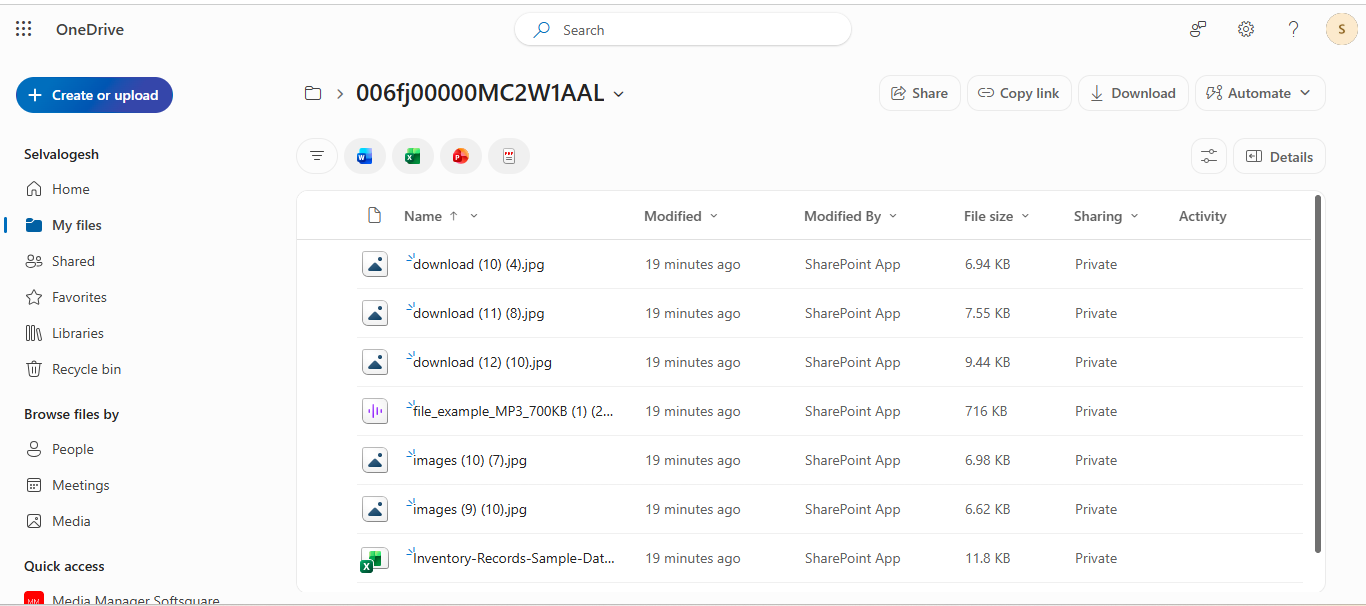
- Salesforce provides the business context. OneDrive folders can be associated with Salesforce objects and individual records.
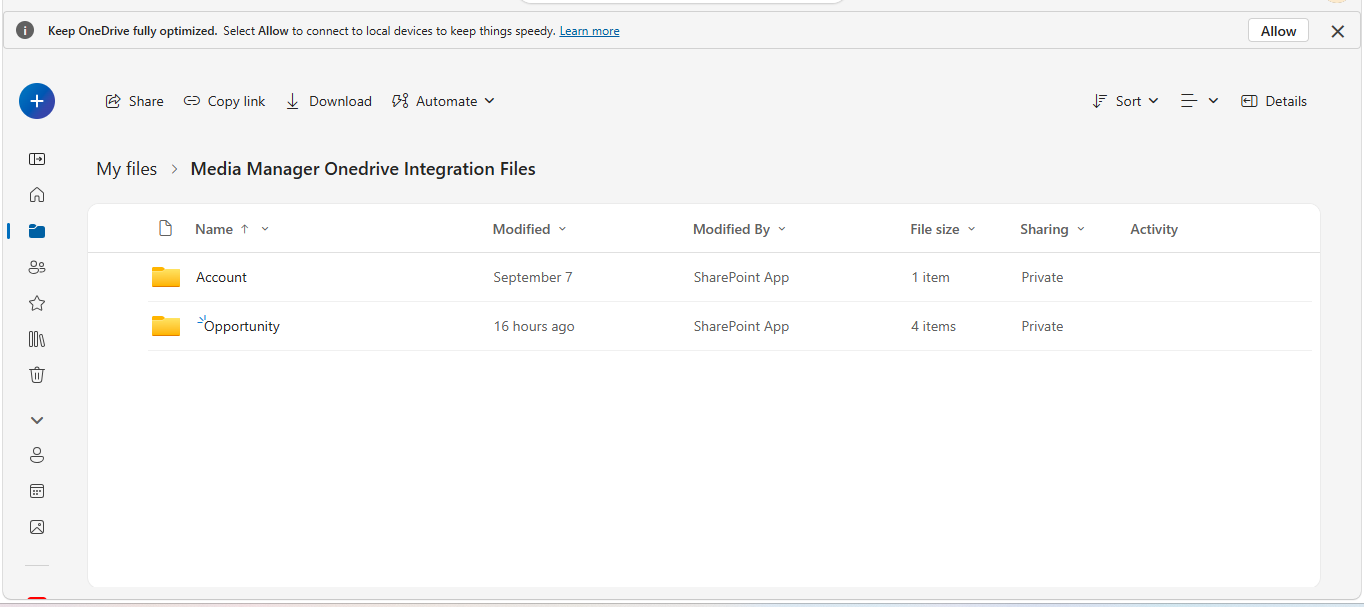
- Media Manager provides the file experience. Users can access and manage the connected files through Media Manager while working from Salesforce.
For example, consider a salesperson working on an Opportunity.
The Opportunity itself is managed in Salesforce, while its proposal, pricing spreadsheet, presentation, and supporting documents may already be stored in OneDrive.
Without Salesforce and onedrive integration, the salesperson has to open OneDrive separately and locate the corresponding folder whenever one of those files is needed.
With Media Manager, the OneDrive folder can be associated with that Salesforce context. The user can access the relevant documents through Media Manager while continuing to work around the Opportunity.
The actual documents continue to reside in OneDrive.
That distinction is important. Media Manager is not creating another copy of every file simply to make it available in Salesforce. Instead, it gives Salesforce users a more connected way to work with the external storage location the organization already uses.
OneDrive remains the storage platform. Salesforce remains the business workspace. Media Manager connects the two.
What Can You Do with OneDrive Files in Media Manager?
Onedrive integration with Salesforce becomes much more useful when users can do more than simply see that an external file exists.
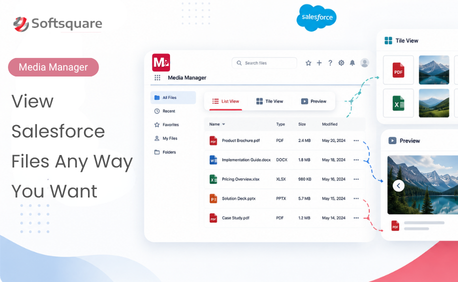
Through Media Manager, connected OneDrive files can be accessed through familiar List, Tile, and Slider views, with many of the common file-management actions users may need during their Salesforce workflow.
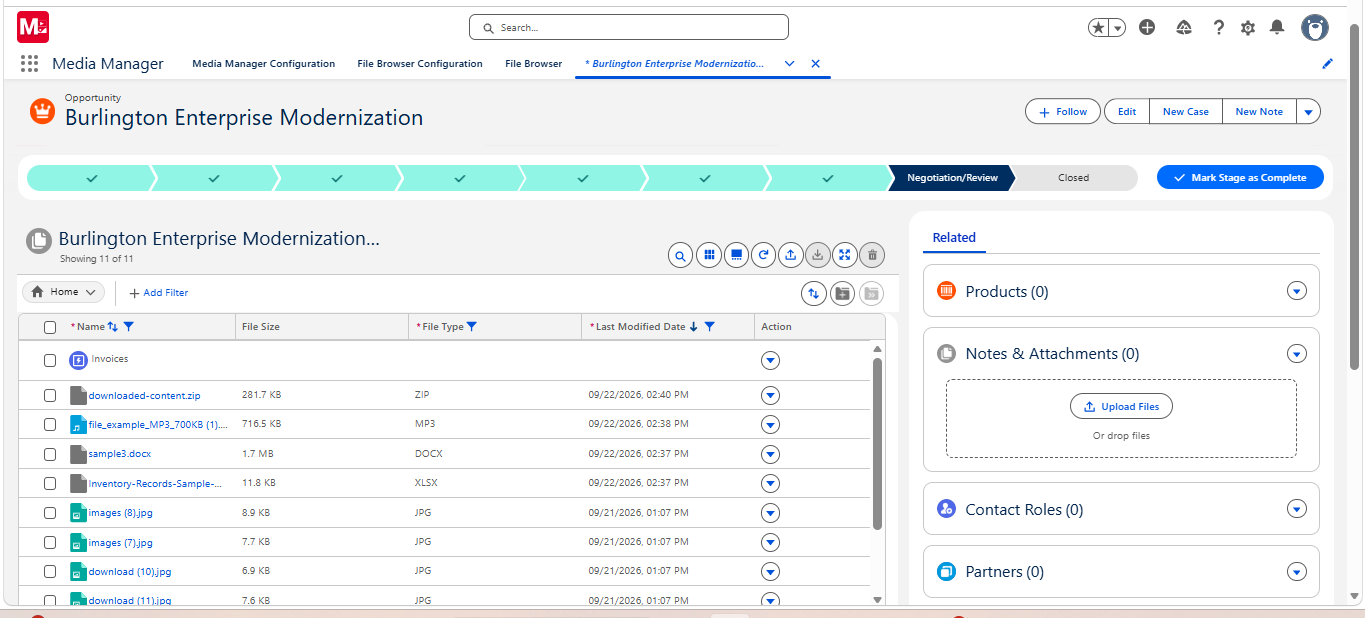
Users can:
- Find and review files: Browse folders, search for files and folders, filter and sort available content, preview supported file types, and refresh the current folder.
- Upload documents: Add individual files or upload multiple files into the connected external storage location.
- Download files: Download an individual document or select multiple files for bulk download.
- Manage updated documents: Upload a new version of an existing file and review available version history.
- Organize files: Rename and delete files or move files between folders.
- Manage folders: Create folders and remove folders that are no longer required.
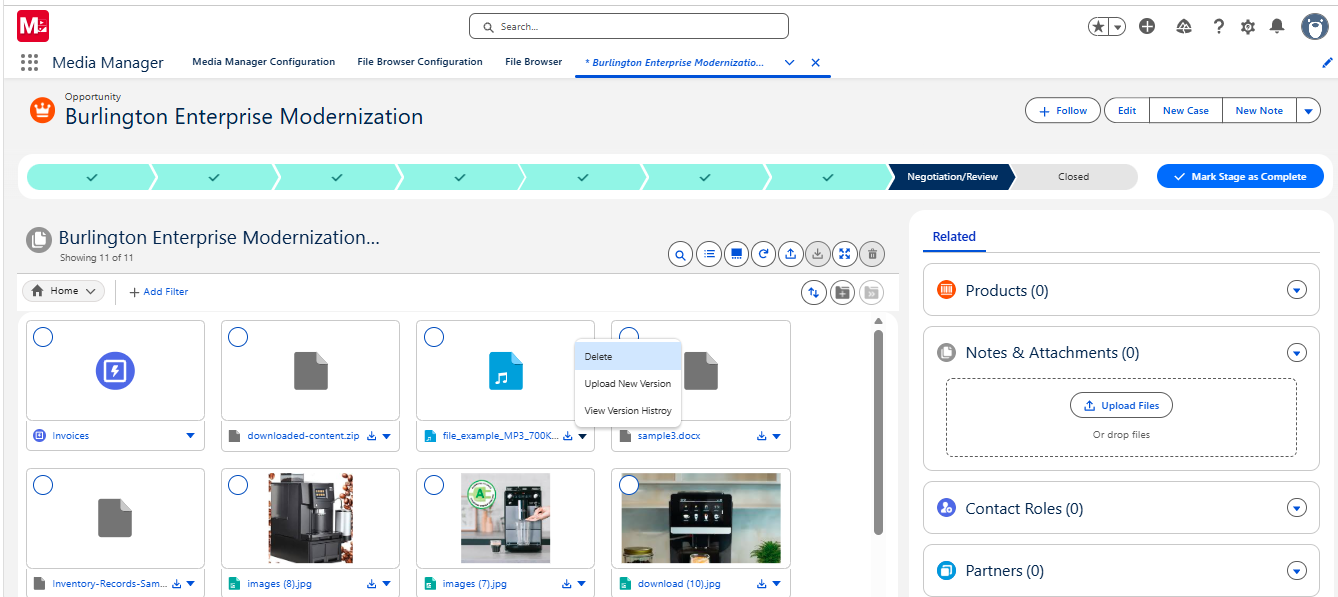
Media Manager can also display useful external file information such as Name, File Type, File Size, and Last Modified Date, helping users quickly identify the document they need.
When users browse folders containing larger volumes of content, Media Manager progressively loads the external files instead of requiring the entire location to load at once.
The goal is not to recreate OneDrive inside Salesforce.
It is to bring the file-management capabilities users regularly need into Media Manager, closer to the Salesforce records and processes they are already working with.
Connect OneDrive Files to the Salesforce Records They Belong To
Salesforce and onedrive integration is useful. Connecting documents to the right Salesforce business context makes the integration even more practical.
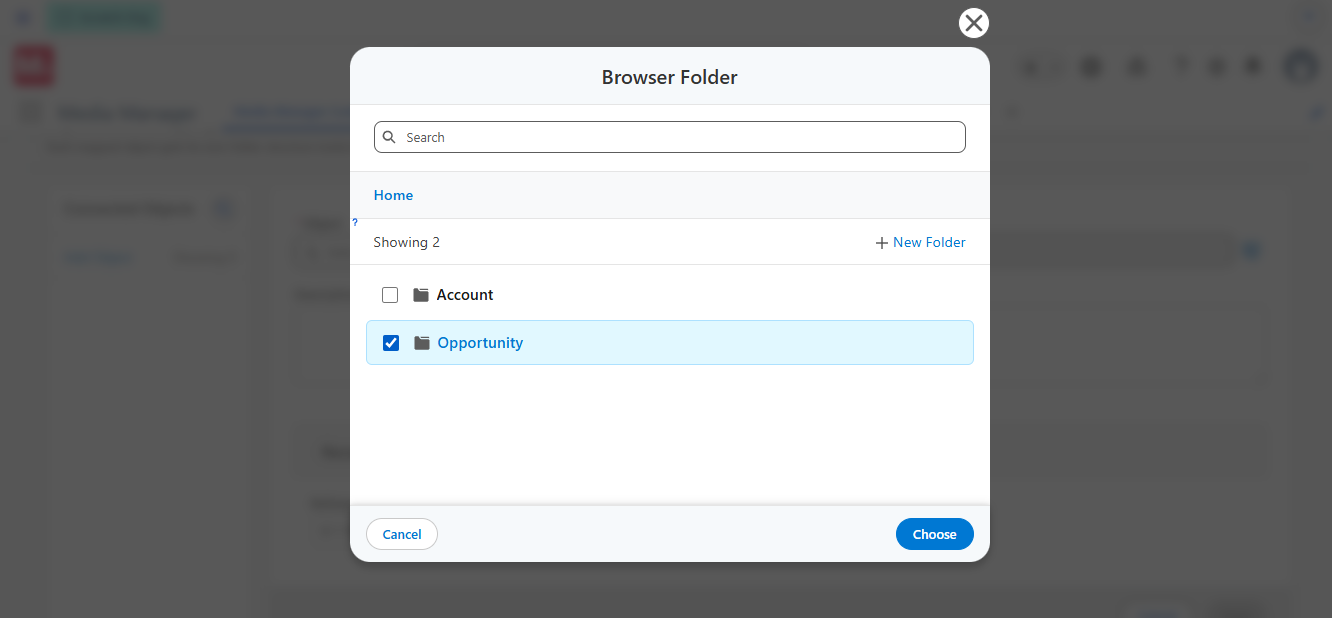
Media Manager organizes External Storage around a simple structure: Root Folder → Salesforce Object Folder → Salesforce Record Folder
The Root Folder is the OneDrive location selected as the base for the Media Manager connection.
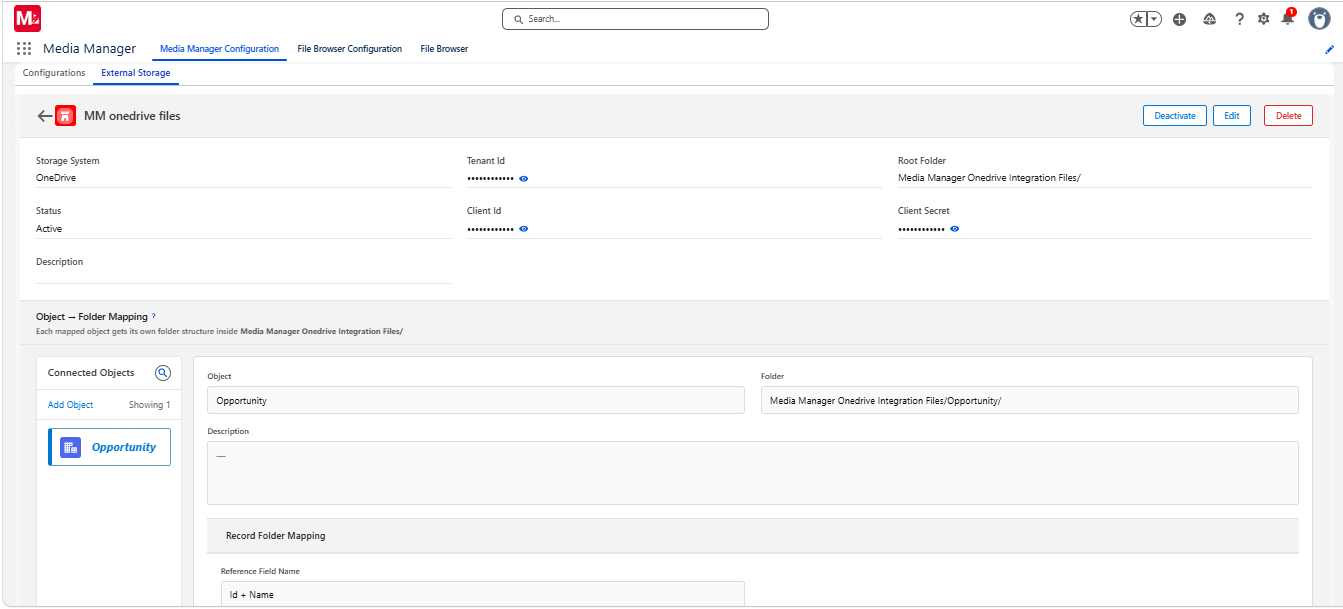
Below that location, folders can represent Salesforce objects such as Account, Opportunity, or Case. Individual record folders can then represent specific Salesforce records.
For example:
OneDrive
→ Salesforce Documents
→ Opportunities
→ Acme Renewal
→ Proposal.pdf
→ Pricing.xlsx
→ Contract.pdf
In this example, Opportunities represents the Salesforce object, while Acme Renewal represents an individual Opportunity record.
Media Manager uses this mapping to connect the external folder structure with the corresponding Salesforce context.
When a user works with that Opportunity, the related OneDrive documents can be made available through Media Manager without requiring the user to navigate through the broader OneDrive folder structure and locate the folder manually.
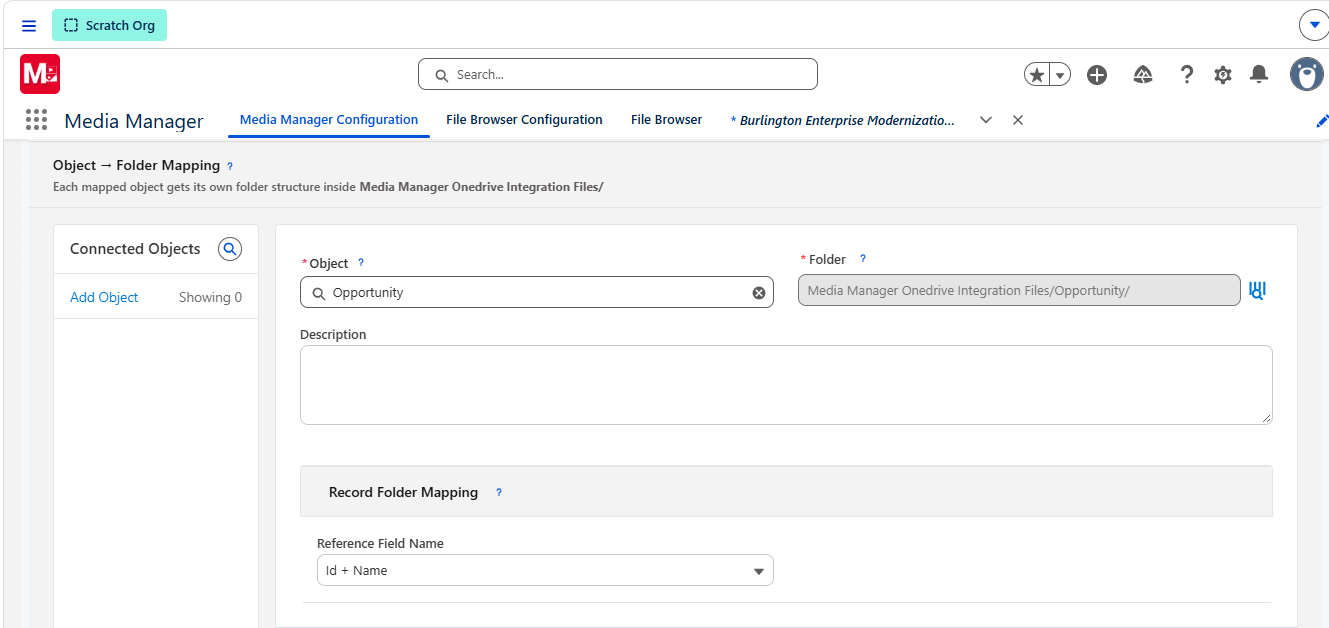
The same concept can be used with other supported Salesforce objects. Administrators can add object-to-folder mappings to the External Storage connection and define how record folders are associated with individual Salesforce records.
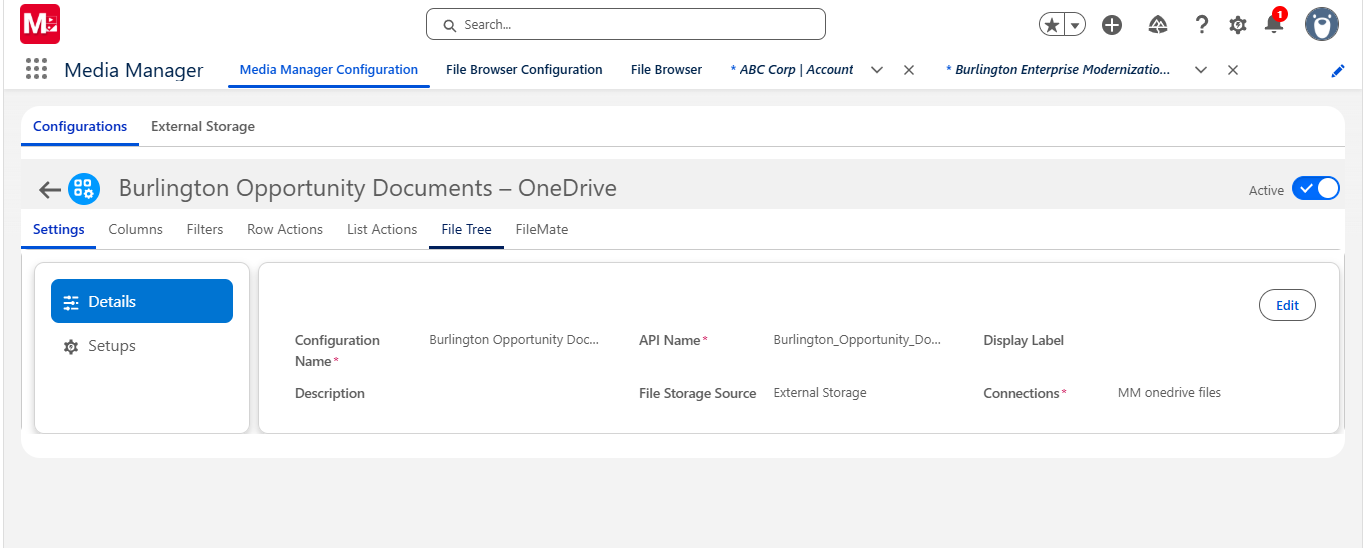
This creates a clearer relationship between the Salesforce record where the work happens and the OneDrive folder where its supporting documents live.
For the complete folder-mapping options and configuration steps, administrators can refer to the Media Manager OneDrive Integration Manual.
Getting OneDrive Connected to Media Manager
OneDrive integration does require administrator configuration, but end users do not need to understand the authentication and connection setup behind it.
At a high level, the setup covers four areas.
- Prepare Microsoft Azure
Media Manager uses a Microsoft Azure App Registration to connect with OneDrive through Microsoft Graph.
The administrator creates the App Registration, generates the required application credentials, adds the necessary Microsoft Graph permissions, and grants the required administrator consent.
- Prepare the OneDrive Location
Next, the organization identifies or creates the OneDrive folder that Media Manager will use.
This becomes the Root Folder beneath which the required Salesforce object folders, record folders, files, and additional folders can be organized.
- Configure Salesforce Access
Salesforce must be allowed to communicate with the Microsoft services required by the integration.
The required Microsoft Graph, Microsoft login, and OneDrive tenant URLs are added through the appropriate Salesforce Remote Site Settings and Trusted URLs.
- Create the Connection in Media Manager
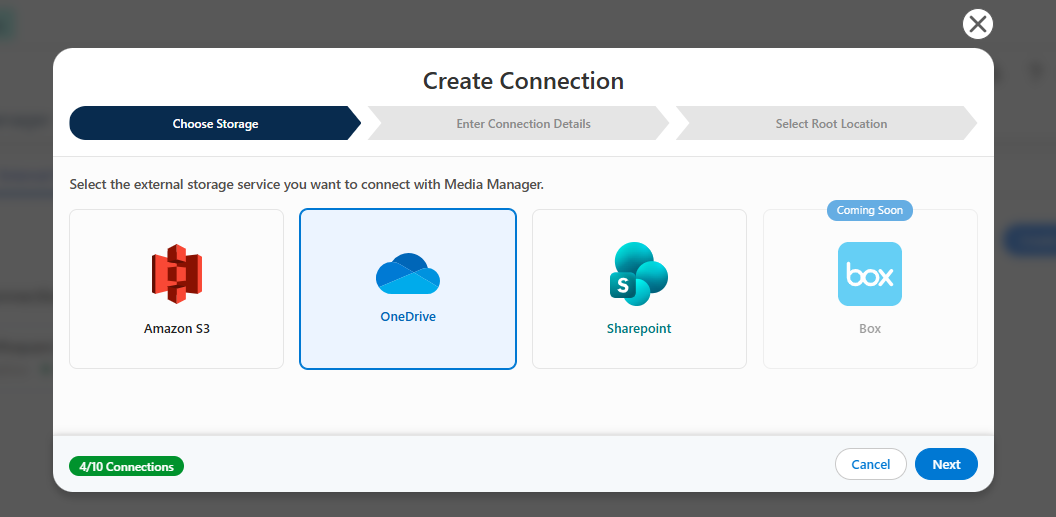
From Media Manager Configuration → External Storage, the administrator selects Microsoft OneDrive, provides the required connection information, authenticates it, selects the Root Folder, and configures the required object and record folder mappings.
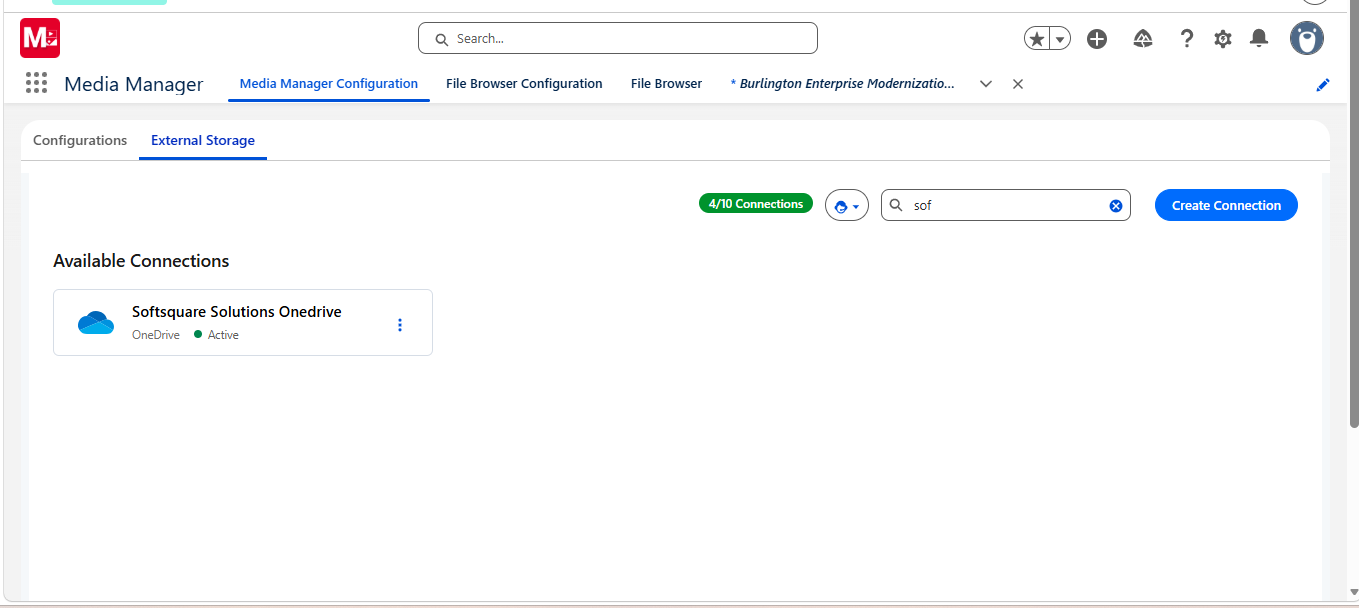
The OneDrive connection is then associated with a Media Manager Configuration using External Storage as the File Storage Source.
Once that configuration is activated, users can work with the connected OneDrive content through Media Manager without needing to understand the authentication and connection setup happening behind the scenes.
This is intentionally only a quick overview. For step-by-step Azure configuration, Microsoft Graph permissions, Salesforce URLs, authentication, folder mapping, and connection maintenance, refer to the Media Manager OneDrive Integration Manual.
Where Can Salesforce and OneDrive Work Better Together?
OneDrive External Storage can fit into any Salesforce workflow where supporting documents are already maintained outside Salesforce.
Here are a few examples:
- Account Management: Keep contracts, agreements, onboarding files, presentations, and other customer documents in OneDrive while making them easier to access around the relevant Salesforce Account.
- Sales: Connect Opportunities with proposals, pricing documents, presentations, customer requirements, and other sales files stored in OneDrive.
- Customer Service: Give service teams access to screenshots, reports, PDFs, customer-provided documents, and other files supporting Salesforce Cases.
- Customer Onboarding: Keep onboarding forms, agreements, checklists, and supporting documents organized in OneDrive while accessing them from the corresponding Salesforce customer records.
- Projects and Operations: Maintain project documents, approvals, reports, spreadsheets, and operational files in OneDrive while users manage the related process through Salesforce.
And these are only a few examples.
The same approach can support other business processes depending on the Salesforce objects your organization uses and the way documents are already organized in OneDrive.
The underlying idea stays the same:
Keep the files in OneDrive. Make them easier to access and manage from the Salesforce context where users need them.
Use OneDrive Files in Salesforce Without Moving Them
If OneDrive is already where your organization stores business documents, Salesforce users should not have to leave their workflow every time they need one of those files.
Media Manager's Microsoft OneDrive External Storage Integration lets the documents remain in OneDrive while bringing the file experience closer to the Salesforce records they support.
Users can find, preview, upload, download, organize, and manage connected files through Media Manager while OneDrive continues to serve as the external storage location.
No unnecessary file migration. Less switching between systems. A clearer connection between the Salesforce record and the documents supporting it.
If your organization already uses Salesforce and Microsoft OneDrive, try Media Manager free for 14 days to explore the OneDrive integration.
You can also connect with our team to see how OneDrive External Storage can fit into your current Salesforce and document-management setup.
Ready to Transform with AI?
Frequently Asked Questions
No. Files accessed through the External Storage integration remain stored in OneDrive and are not converted into Salesforce Files.
Yes. Administrators can configure additional object-to-folder mappings within the OneDrive connection for supported Salesforce objects and their record folders.
Yes. Media Manager supports individual and bulk uploads and downloads for External Storage, along with other supported file-management actions.
Yes. Supported External Storage capabilities include creating and deleting folders and moving files between folders within the configured storage structure.
Yes. Users can upload a new version of an existing external file and view available version history through Media Manager.
Not currently. FileMate and Edit Image are among the Media Manager capabilities that are not supported for files accessed through External Storage.
External Storage currently supports one primary Salesforce object in File Tree. Parent, child, and multi-object File Tree structures are not currently supported.
More Insights for you







Ready to Transform Your Business with Salesforce & AI?
