

Salesforce SharePoint Integration for Easier File Management


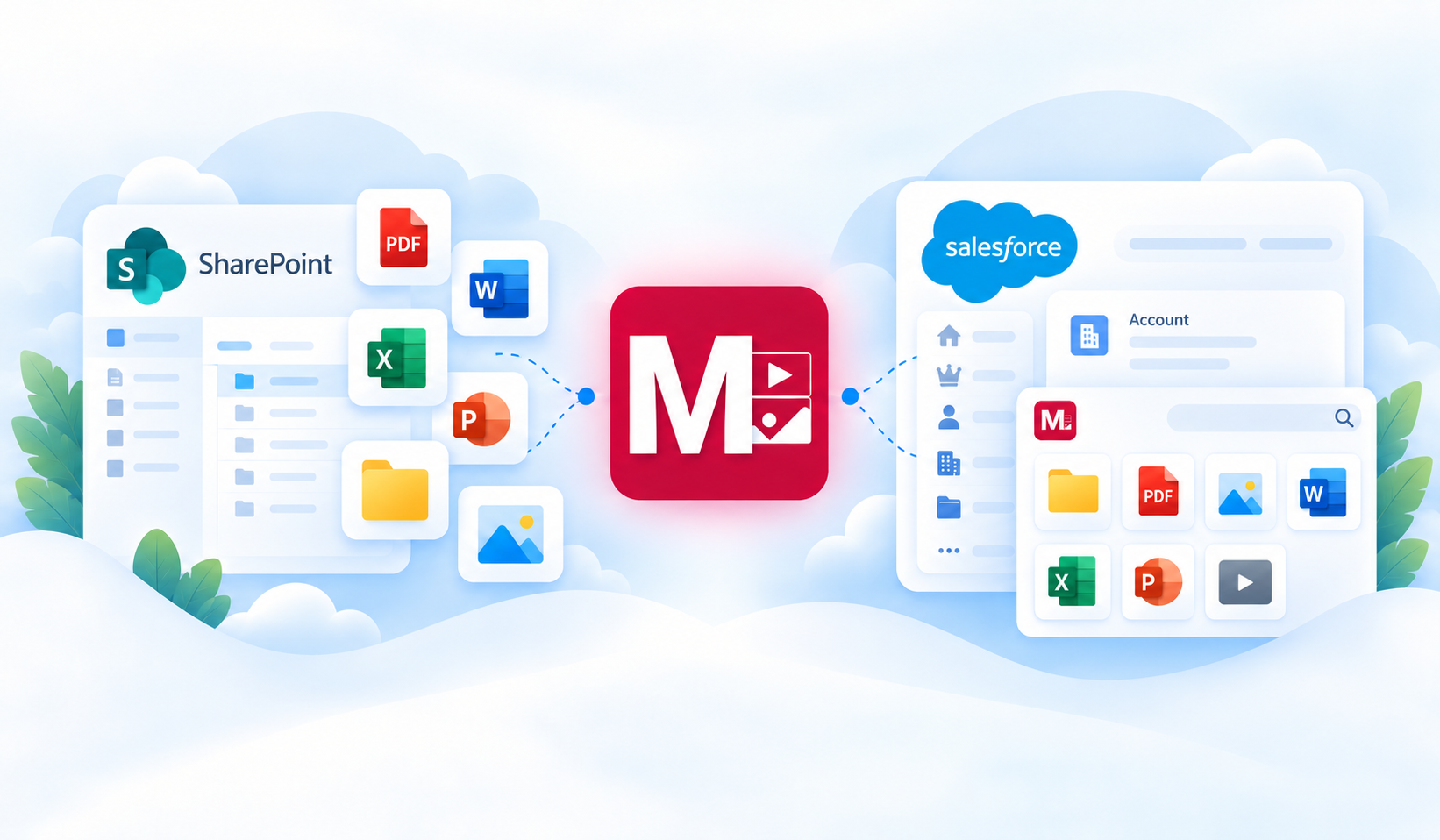
Table of Contents


Salesforce may be where your teams manage customers, opportunities, cases, and other business processes. But the documents supporting that work often live somewhere else.
For many organizations, that somewhere is Microsoft SharePoint.
Contracts, proposals, customer documents, service reports, images, and other files may already be organized across SharePoint sites and folders. When Salesforce users need those files, however, they often have to leave the record they are working on, open SharePoint, find the right site and folder, locate the file, and then switch back to Salesforce.
And accessing the file is only part of the problem.
If someone needs to upload another document, download a set of files, check an existing version, or organize documents into the right folder, the same back-and-forth continues.
The result is a disconnected experience: your business process is in Salesforce, while the files supporting it are managed separately in SharePoint.
What Is Salesforce SharePoint Integration?
Salesforce SharePoint integration connects the business context managed in Salesforce with documents and folders stored in Microsoft SharePoint. Instead of treating the two systems as separate workspaces, the integration makes it easier for users to access the SharePoint files they need while working with Salesforce records.
With Media Manager, businesses can connect Salesforce to SharePoint without moving their existing documents into Salesforce. SharePoint continues to serve as the file repository, while Media Manager brings those files into the Salesforce experience and links them to relevant objects and records.
This helps teams work with customer, sales, service, or operational documents in the context of the Salesforce process they already follow, reducing the need to repeatedly switch between Salesforce and SharePoint.
Bring SharePoint Files into Your Salesforce Workflow
Media Manager now supports Microsoft SharePoint as an External Storage Integration, bringing SharePoint files into the Media Manager experience inside Salesforce.
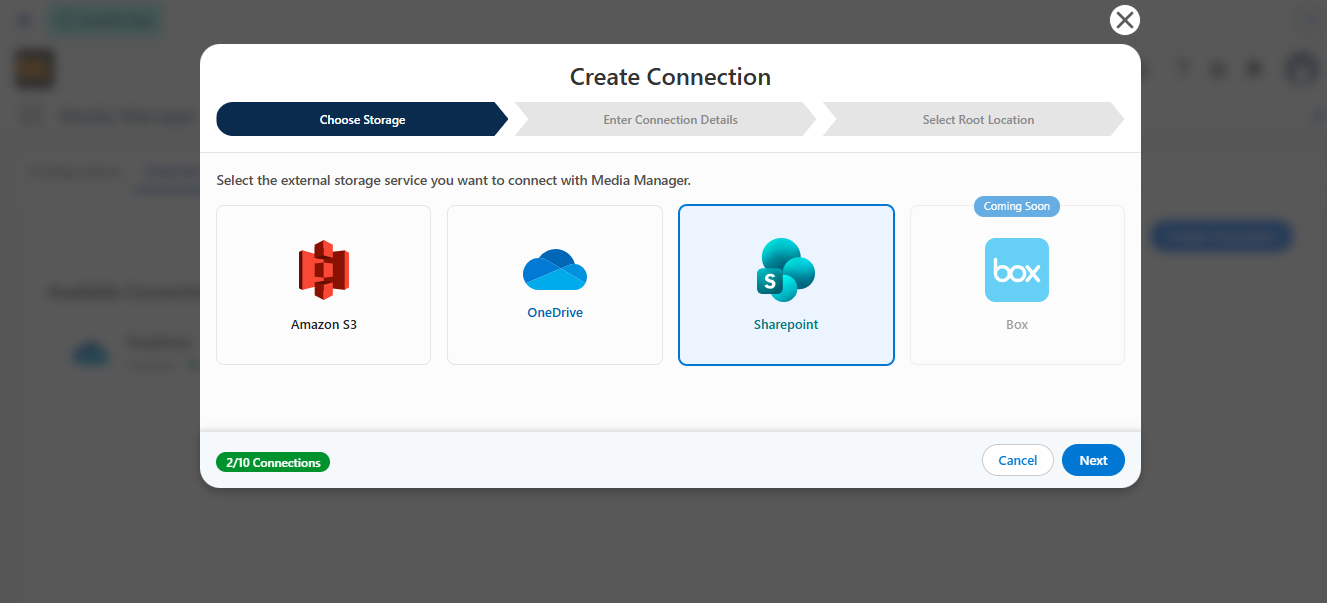
This does not require moving your existing documents into Salesforce.
Your files continue to remain in SharePoint, while Media Manager connects the external storage location with Salesforce and gives users a way to access and manage those files from their Salesforce workflow.
The connection can also be structured around Salesforce context.
A SharePoint folder can be mapped to a Salesforce object such as Account, Opportunity, or Case, with individual record folders underneath it. For example:
SharePoint
Customer Documents
→ Accounts
→ Acme Corporation
→ Files and folders
When a user is working with Acme Corporation in Salesforce, Media Manager can bring that record's SharePoint files into the experience instead of requiring the user to locate the folder separately.
This is where the integration becomes more than simply having access to SharePoint from Salesforce. It connects where the files are stored with where the business work is happening.
What Can You Do with SharePoint Files in Media Manager?
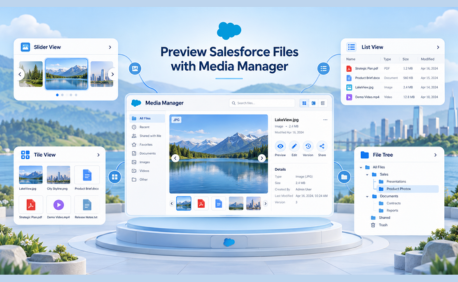
Once SharePoint is connected, users get a more familiar Media Manager experience for working with externally stored files through sharepoint salesforce integration
They can:
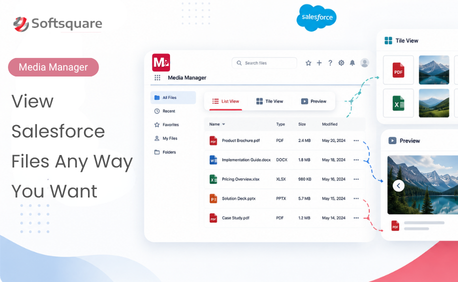
- Preview files without leaving their Salesforce workflow
- Search, filter, and sort files to find what you need faster
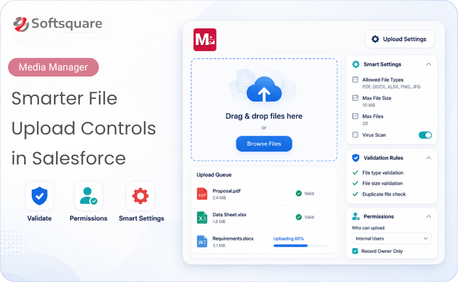
- Upload and download files, including supported bulk operations
- Upload new versions and view version history as documents change over time
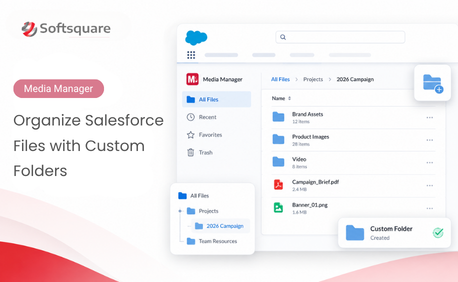
- Create and manage folders to keep SharePoint content organized
- Access files in the context of the relevant Salesforce objects and records
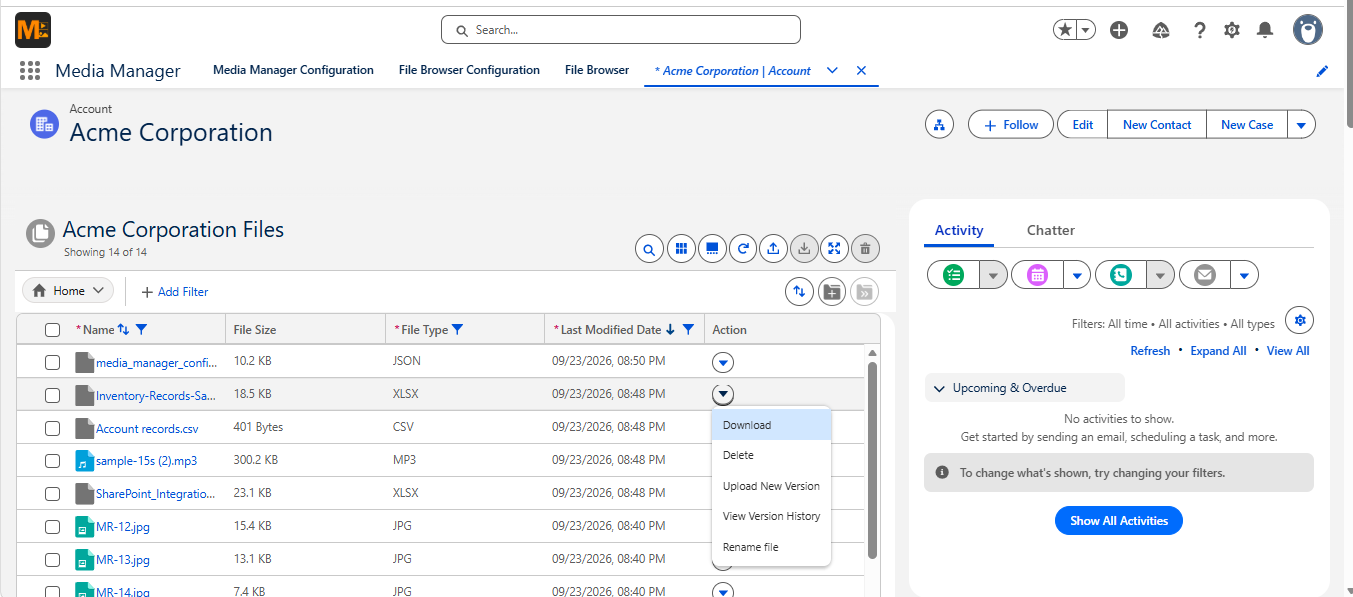
This makes the SharePoint Salesforce integration more than just another way to open an external file. It brings useful file-management capabilities into the Salesforce experience while the actual files continue to reside in SharePoint.
You don't have to change where your documents are stored to make them easier to work with from Salesforce. SharePoint can continue to serve as your existing file repository, while Media Manager gives Salesforce users a connected way to access and manage those files.
Getting SharePoint Connected to Media Manager
The SharePoint connection is configured by an administrator behind the scenes.
At a high level, the connection involves:
1. Preparing the required Microsoft Azure application and permissions.
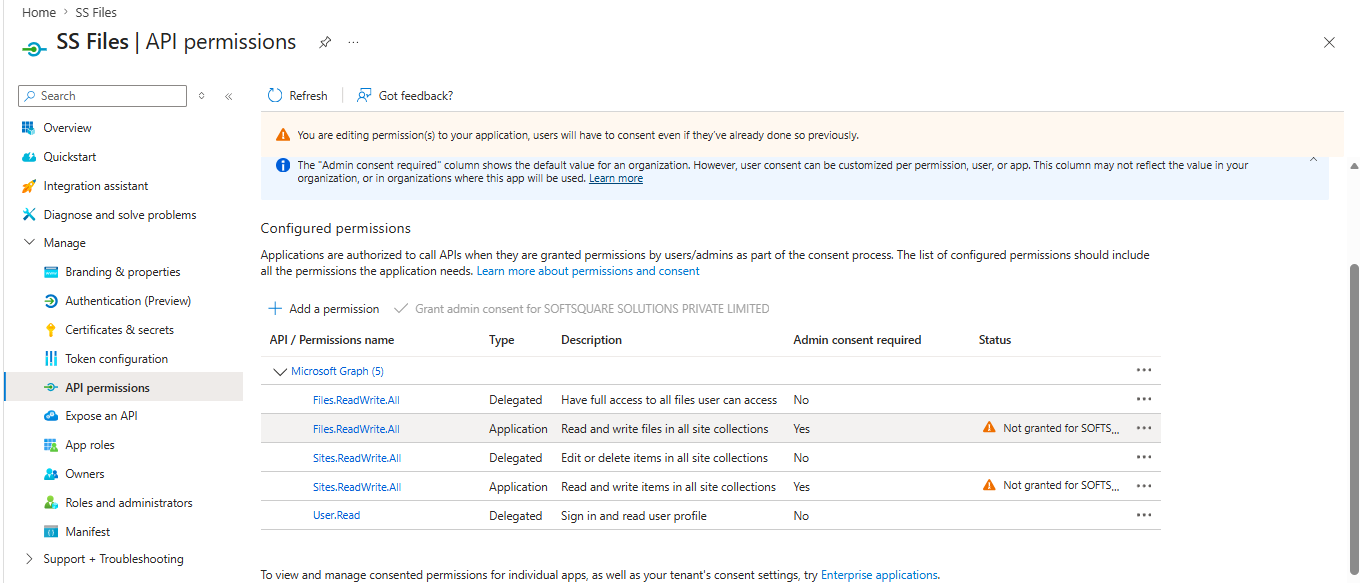
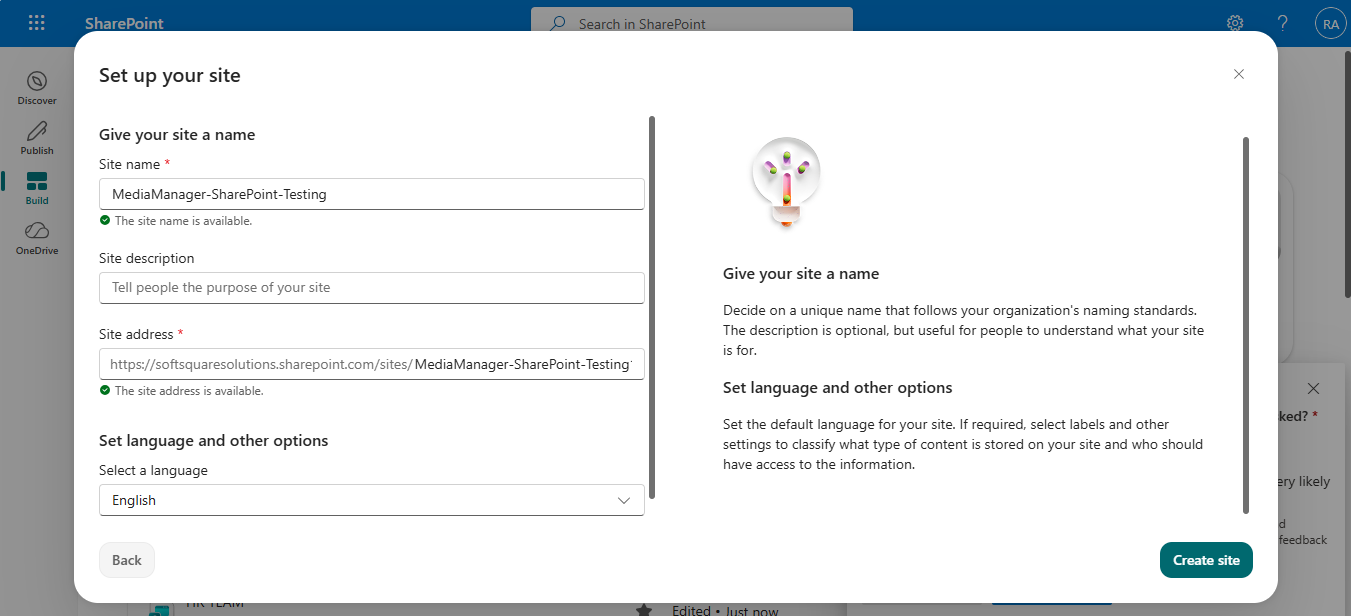
2.Connecting Media Manager to the appropriate SharePoint site.
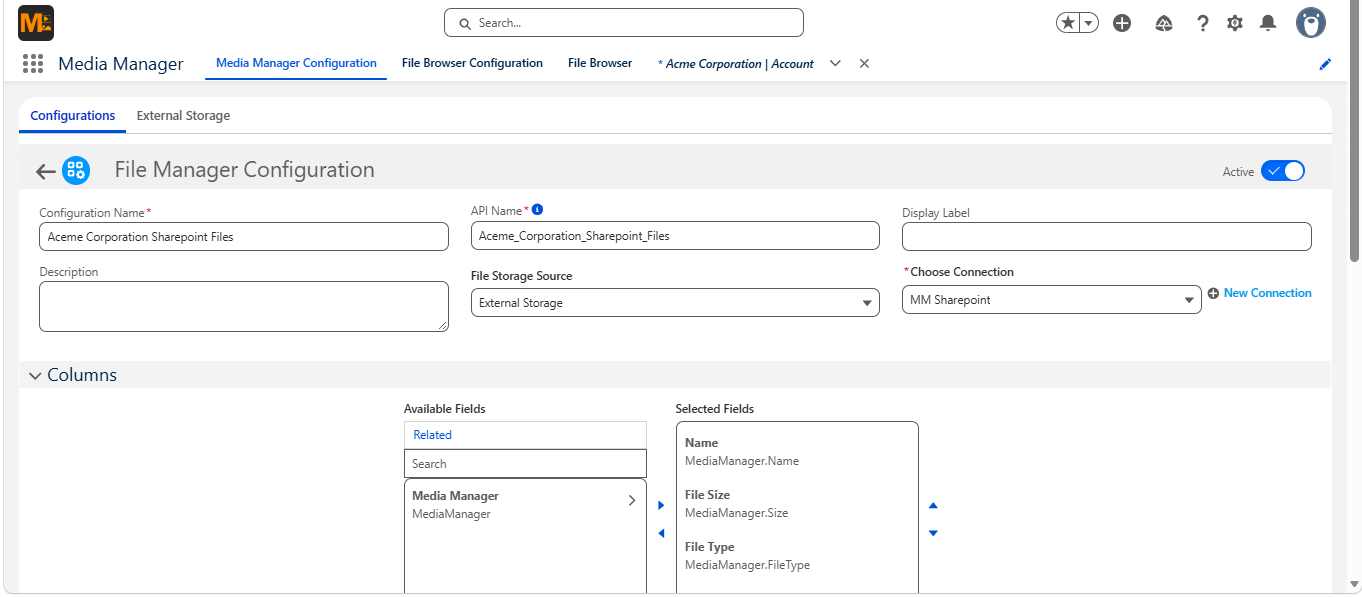
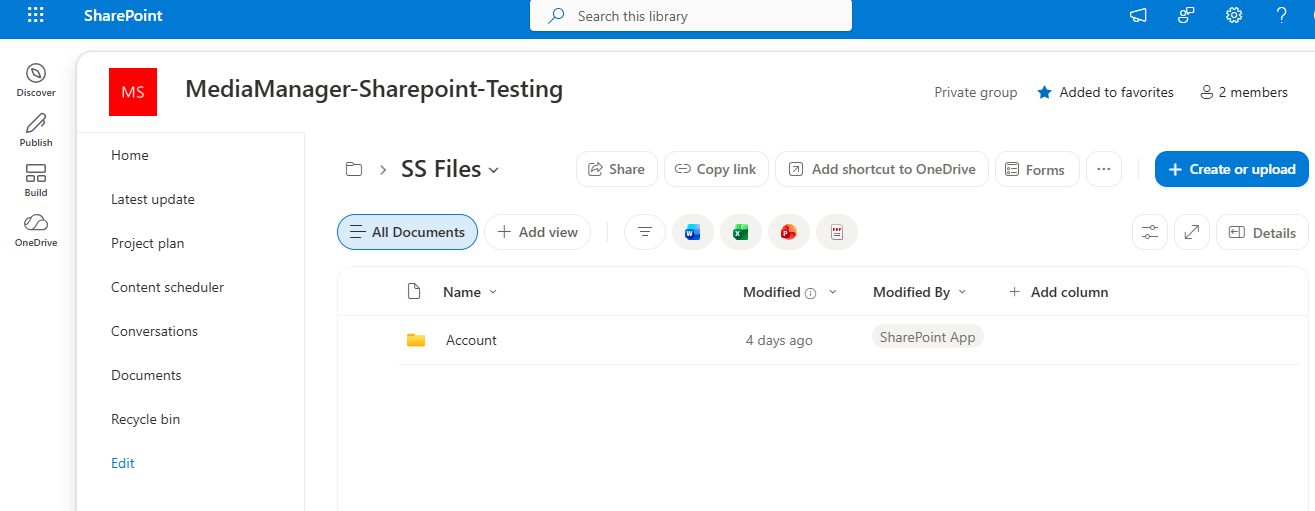
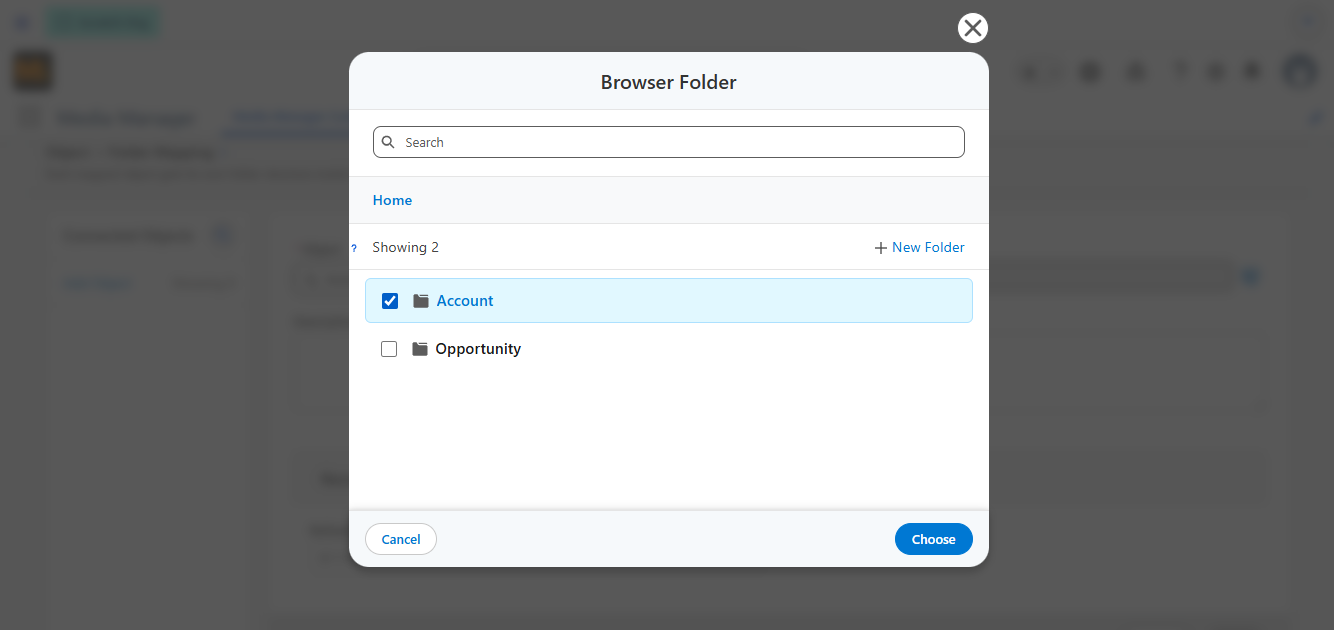
3. Selecting the SharePoint folder that Media Manager should use as its root location.
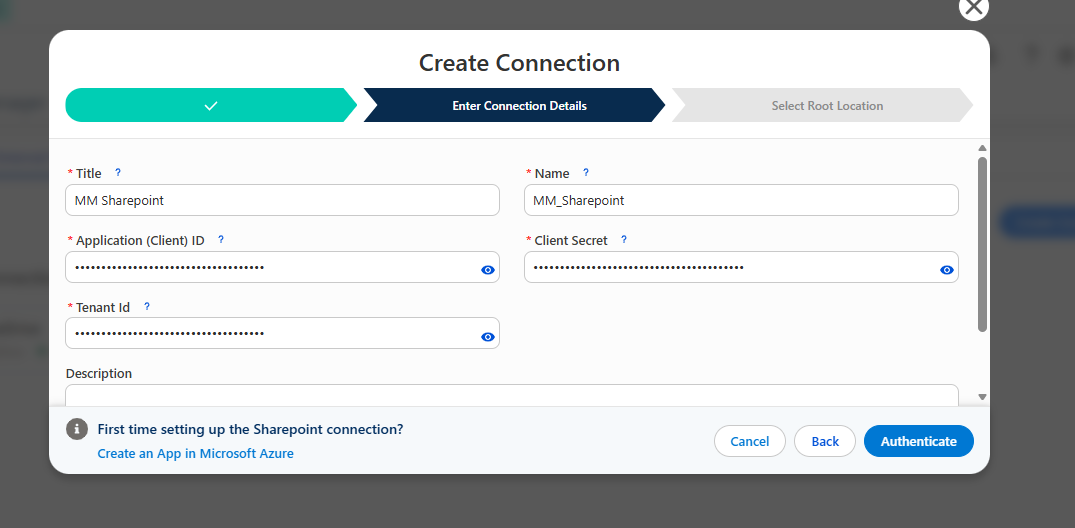
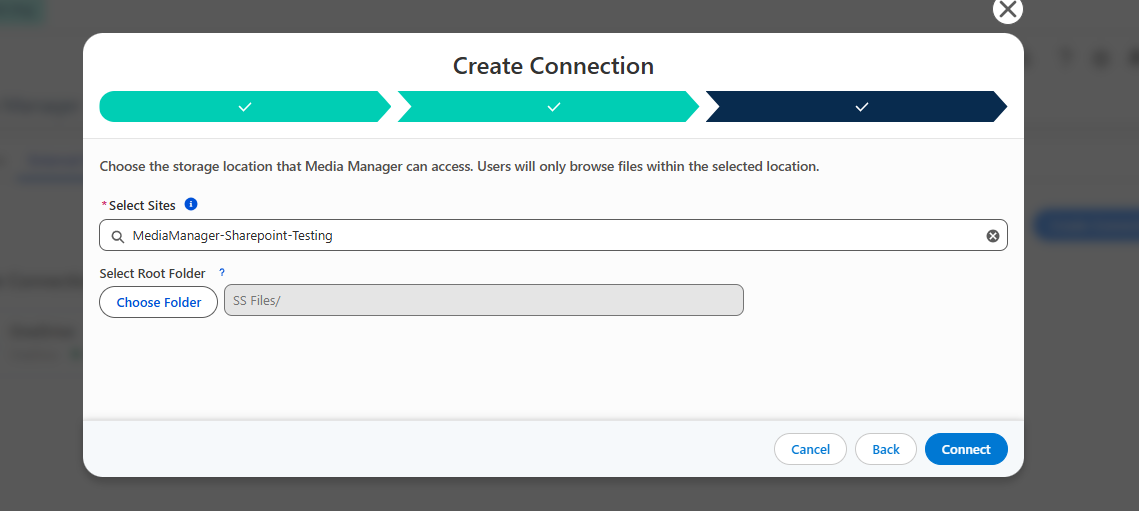
4. Mapping Salesforce objects and records to the corresponding SharePoint folders.
5. Using that SharePoint connection within a Media Manager External Storage configuration.
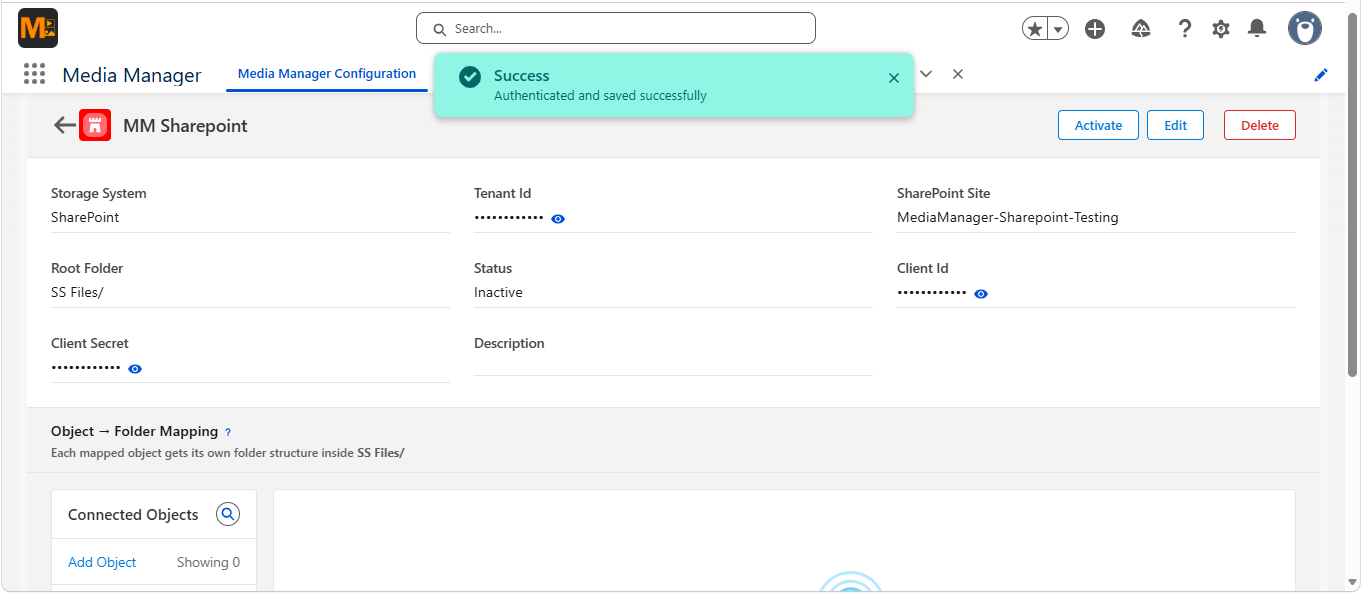
Once configured, Salesforce users can work with the connected SharePoint content through Media Manager without needing to understand the Salesforce and SharePoint integration setup behind it.
For the complete authentication, permission, and configuration steps, administrators can refer to the Media Manager SharePoint Integration Manual.
Where Can Salesforce and SharePoint Work Better Together?
Salesforce sharepoint integration files connect can support Salesforce processes where related documents are already maintained externally, such as:
- For Account Management, teams could keep contracts, agreements, onboarding documents, and other customer files in SharePoint while accessing them around the Account in Salesforce.
- For Sales, proposals, presentations, supporting opportunity documents, and other sales collateral can remain in SharePoint while becoming easier to access during the Salesforce sales process.
- For Customer Service, reports, images, customer documents, and supporting case files can be connected with the Salesforce Case workflow.
- And for projects or operational processes, teams can work with project documents, approvals, reports, and other supporting files without continuously switching between Salesforce and SharePoint.
Whatever the process, the idea remains the same: users work with files in the context of the Salesforce record, while SharePoint remains the storage location.
Make SharePoint Easier to Work with from Salesforce
Salesforce and SharePoint often serve different but equally important roles.
Salesforce manages the customer and business process. SharePoint manages the supporting documents. The challenge comes when users have to manually bridge those two systems throughout their day.
With Media Manager's SharePoint External Storage Integration, teams can continue using SharePoint for their documents while making those files easier to access and manage from their Salesforce workflow.
Less switching between systems. Less time searching for the right files. A more connected Salesforce and SharePoint experience.
Already using Salesforce and SharePoint?
Try Media Manager free for 14 days to explore the SharePoint integration, or connect with our team to see how it can fit into your existing file-management setup
Ready to Transform with AI?
Frequently Asked Questions
Yes. Media Manager supports Microsoft SharePoint as an External Storage Integration, allowing Salesforce users to access and manage SharePoint files from within their Salesforce workflow.
No. The files continue to remain in SharePoint. Media Manager connects Salesforce with the external storage location so users can work with those files without creating separate Salesforce copies.
Users can preview, search, filter, sort, upload, download, manage folders, upload new versions, and access version history for supported SharePoint files.
Yes. Media Manager can map SharePoint folders to Salesforce objects and individual records using a Root Folder, Object Folder, and Record Folder structure.
Yes. Users can upload files to the connected SharePoint location and download files through Media Manager, including supported bulk upload and download operations.
Yes. Media Manager supports uploading new versions of SharePoint files and viewing version history, helping users work with updated documents from Salesforce.
An administrator needs to configure the Microsoft Azure application and permissions, connect the SharePoint site, select a Root Folder, map Salesforce objects and records, and activate the connection in Media Manager.
More Insights for you








Ready to Transform Your Business with Salesforce & AI?
