

How to View Salesforce Files in Different Ways Using Media Manager


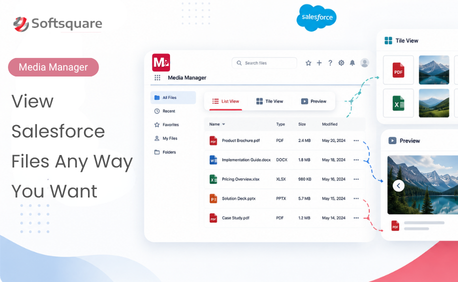
Table of Contents


Finding a file in Salesforce should not slow down the work that depends on it.
But in many teams, it does. A user opens a Case, checks the Files related list, looks through email attachments, opens the Account, checks related records, downloads a file to preview it, and still wonders if they are looking at the right version.
That is why teams need more than a basic file preview. They need a practical way to understand how to view Salesforce files using Media Manager based on the record, related record, file type, folder, version, email attachment, or visual preview.
Media Manager helps teams view files the way their work actually happens. Instead of keeping users inside one flat file list, it gives admins configurable ways to make files easier to find, understand, and act on.
The Real Problem: Salesforce Files Lack Working Context
File preview is only one part of the experience.
Users also need to know where the file came from, which record it belongs to, whether it is the latest version, and what they can do with it next.
This becomes harder when files are spread across:
- Current records
- Related Accounts, Contacts, Cases, or Opportunities
- Email attachments
- Older file versions
- Files and Attachments
For support teams, this can mean extra time checking screenshots, logs, and customer-shared files. For sales teams, it can mean searching for the latest proposal or signed document. For field users, it can mean struggling to preview mobile images clearly. For admins, it creates pressure to organize file access without building custom components.
Media Manager solves this by turning Salesforce file viewing into a configurable workspace.
Choose the Right File View for the Task
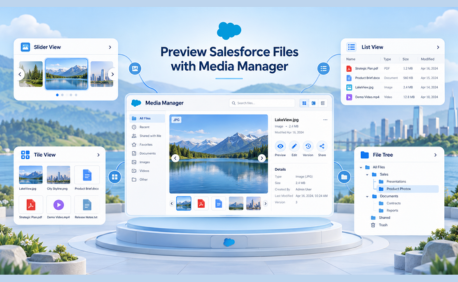
Media Manager works as a flexible Salesforce file viewer that helps users view Salesforce files in multiple ways. It includes List, Tile, and Slider views, but the viewing experience goes beyond layout.
Users can also browse files through grouping, folders, File Tree, File Browser, version history, email attachments, and mobile-friendly previews.
The goal is simple: help users view files in the format that matches the task.
1. Preview Files One After Another with Slider View
Slider View helps users move through files in a carousel-style experience without opening each file separately.
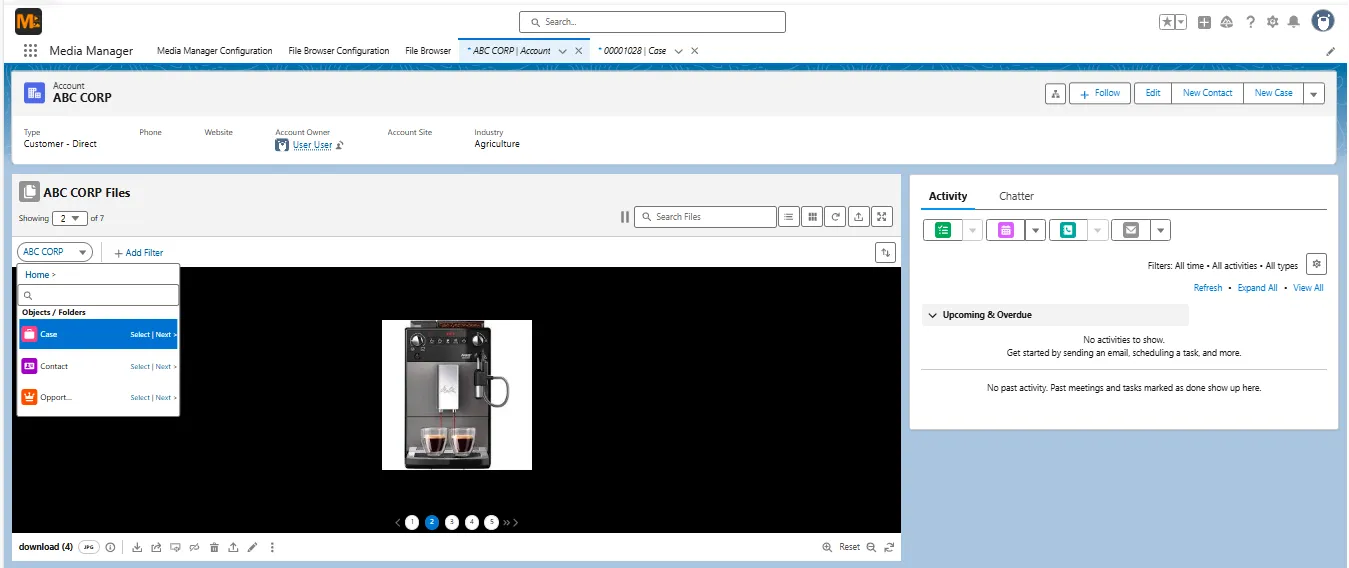
It works well when users need to visually inspect images, PDFs, videos, or case-related media. Admins can configure auto-play, transition duration, and background color. Mobile users can also zoom in and out in Slider View, though precise area-specific zoom is not supported.
Use when: users need to review field photos, inspection images, customer screenshots, or media-heavy Case files quickly
2. Review File Details Faster with List View
List View helps users understand file details before opening the file.
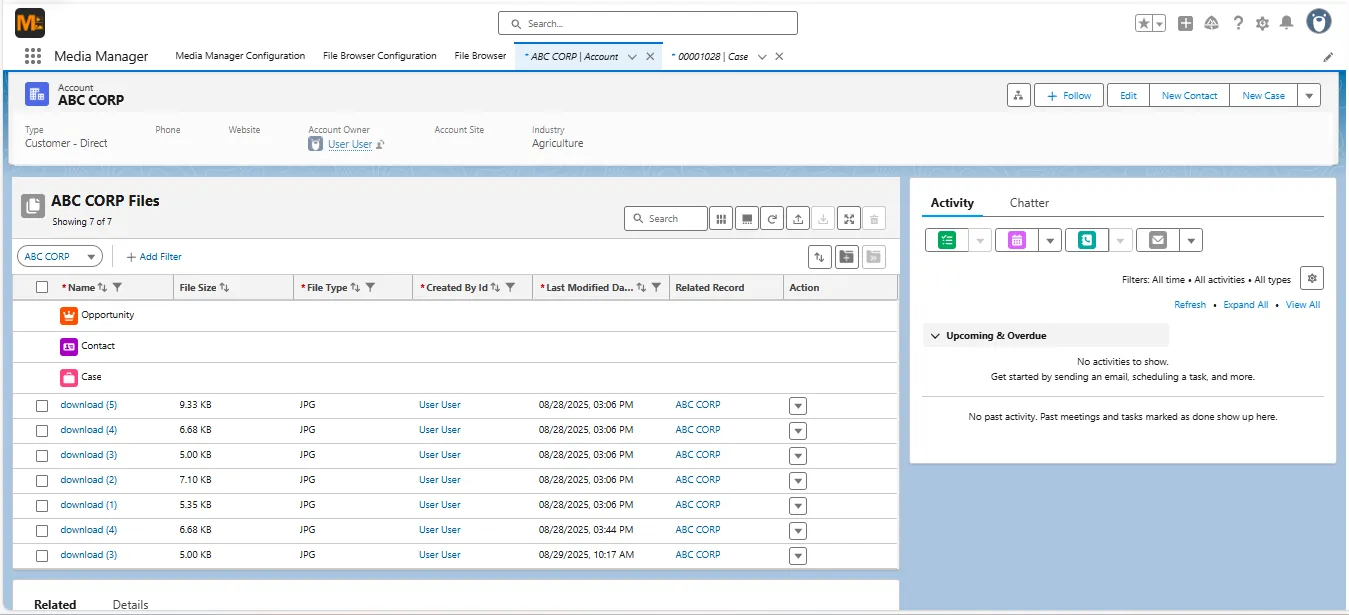
Admins can configure columns such as file name, file type, last modified date, related object, and related record. Supported fields can also be made editable, allowing users to update file or object details directly from the list. Inline edits are validated in real time, and bulk edit is supported for editable fields.
Use when: users need file metadata, related record context, filters, or quick updates from a structured file list.
3. Browse Visual Files Quickly with Tile View
Tile View gives users a more visual way to scan files.
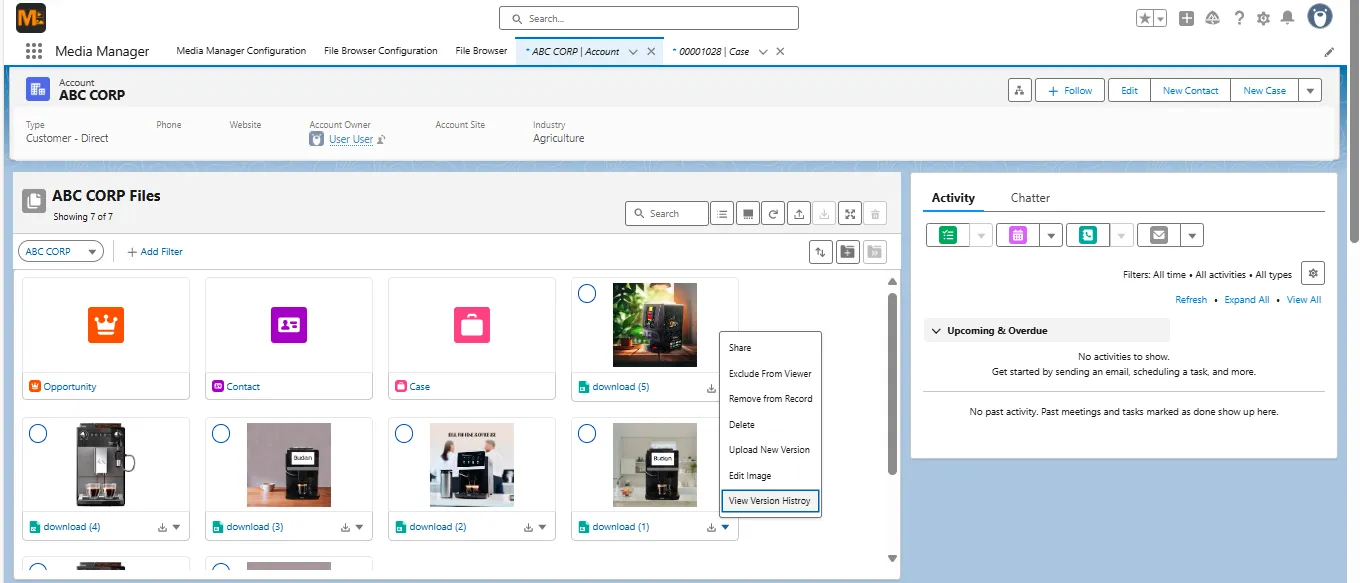
Instead of reading through rows, users can browse files as tiles. Admins can configure tile sizes as Small, Medium, or Large, with Medium as the default. This is useful when users recognize files faster by appearance than by file name.
Use when: teams work with images, visual documents, field uploads, product photos, or customer-submitted screenshots.
4. Group Files So Users Find the Right Set Faster
When a record has many files, a flat list can become difficult to use. Grouped views help users quickly narrow their attention.
Admins can make grouping available by adding columns to the configuration and enabling Allow Group By for the fields that should be used for grouping. Depending on the configuration, users can group files by supported Files or Attachments fields, custom fields on the file object, and Media Manager fields such as Related Object or Related Record.
For example, a support user can separate PDFs, images, and videos. A manager can review files based on the Salesforce record they belong to. This makes large file sets easier to scan before users open or act on anything.
Group By is available when the file source is Files or Attachments, but not when the source is Both. When Folder View is enabled, files are grouped through the folder-based structure instead of Related Object or Related Record grouping.
Use when: users handle high file volumes and need files grouped by file type, record context, or configured file fields before reviewing them.
5. Browse Related Record Files with File Tree
File Tree helps users view files across related Salesforce records from one place.
For example, from an Account, users may need files from related Contacts, Cases, or Opportunities. Without File Tree, they may need to open each record separately. With File Tree, admins can configure a relationship-based structure so users can browse files through the right business context.
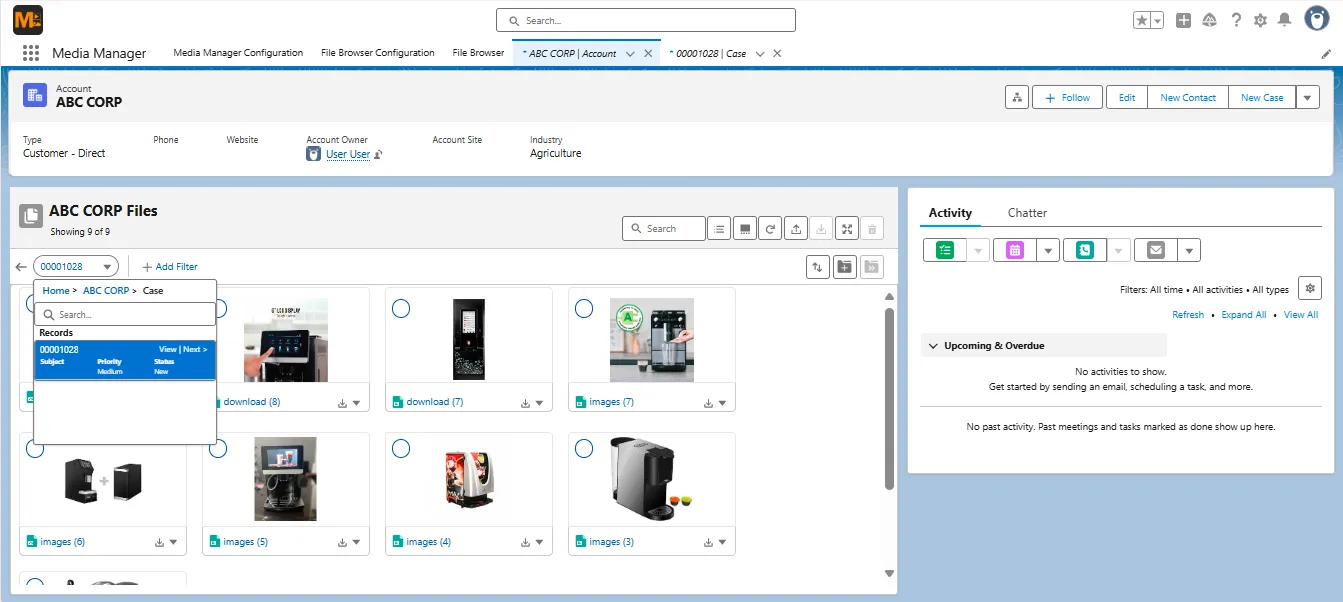
File Tree can be displayed in two ways: with Folder View or without Folder View. When Folder View is enabled, files are grouped as object folders, giving users a more structured way to browse files across related records.
Use when: users need files across Account hierarchies, Cases, Contacts, Opportunities, service records, or other related objects.
6. Organize Record Files with Folder View and Custom Folder
Folder View gives users a clearer way to organize files inside Salesforce.
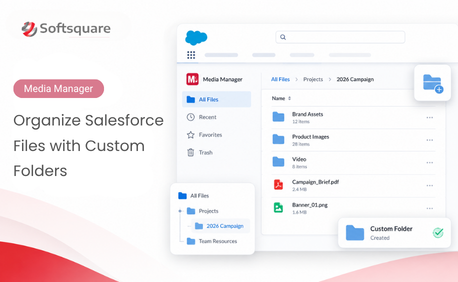
Admins can allow users to create custom folders, move files, rename folders, download folder contents, and organize files based on the record’s workflow. This helps teams avoid relying only on file names to keep content understandable.
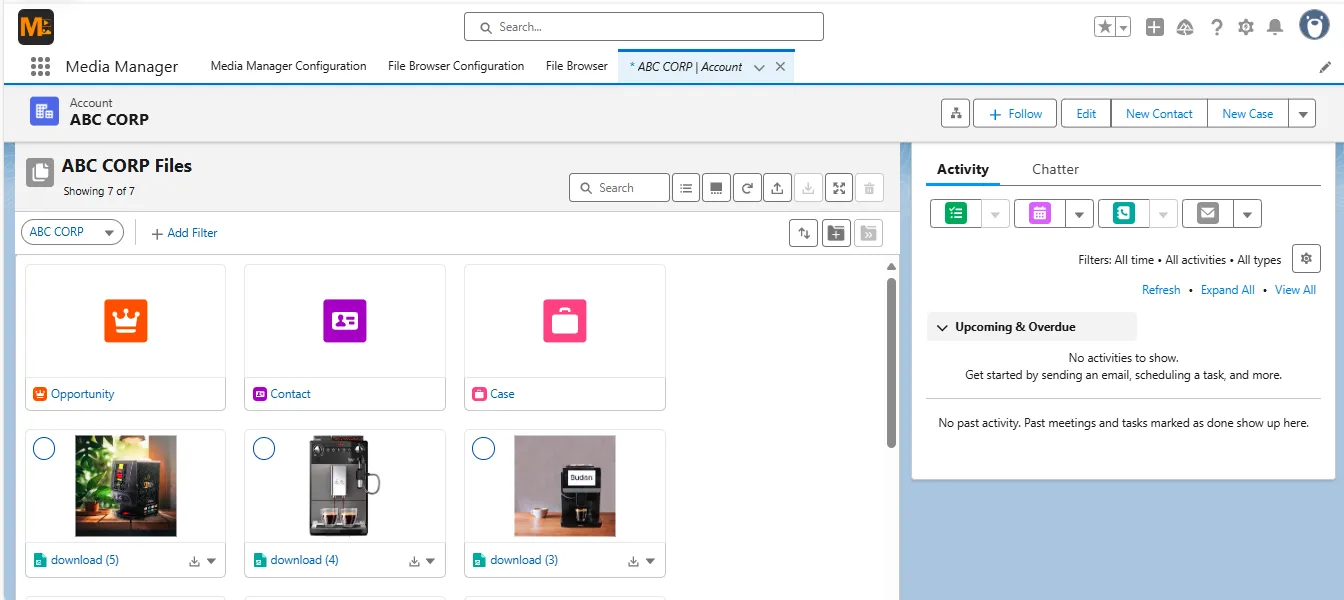
For example, users can create folders such as Customer Documents, Issue Screenshots, Approval Files, Before and After Photos, or Signed Documents.
Folder actions are available only when Enable Folder View is enabled. Slider View can preview files inside folders, but folder-level actions such as Create or Move are not supported in Slider View.
Use when: teams need structured file organization inside a record.
7. Find Files Across Records with File Browser
Sometimes users do not know where a file was uploaded.
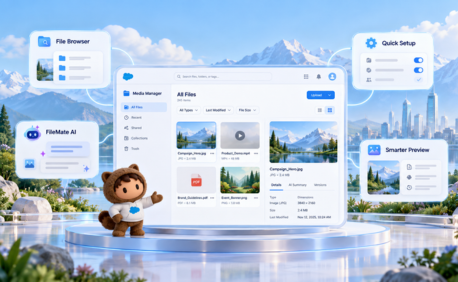
File Browser gives users an org-wide file discovery workspace. Users can start a search, view files they have access to, refine results, switch views, sort, group, download, and save reusable configurations. File Browser can also reuse an existing Media Manager configuration as a starting point.
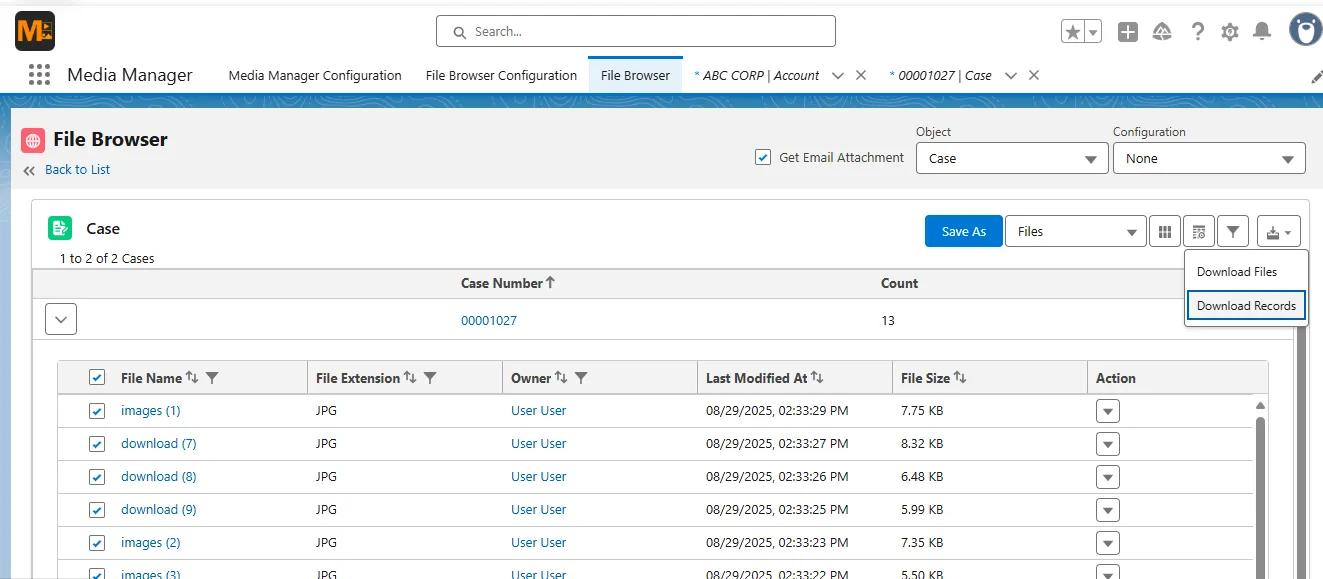
This is different from viewing files on one record. File Browser is useful when users need to find files across multiple records, related records, and related objects.
Use when: support, operations, finance, or compliance teams need to locate files without knowing the exact record.
Additional Ways to Support Real File Workflows
Media Manager also supports file viewing scenarios that often matter in day-to-day Salesforce work.
- Email attachment viewing helps service teams include customer-shared files from Case-related email workflows. This is useful when important documents or screenshots arrive through customer emails instead of direct file uploads.
- Mobile and HEIC file viewing helps field users and iPhone users work with uploaded images more easily. HEIC files can be viewed directly in Slider View, and internal users can convert HEIC files to JPG for better performance and consistent viewing. The converted file can be saved as a new version or as a separate file based on user preference. Community users can view HEIC files, but they cannot download them or convert them to JPEG.
From Admin Setup to End-User Experience
Media Manager’s viewing experience is fully configuration-driven. Admins decide which file sources, views, filters, folders, grouping options, columns, and actions should be available for each business use case.
Once configured, users get a cleaner file workspace where they can preview, filter, browse, organize, and act on files without jumping between records or related lists.
For example, a Case page can be configured to show customer email attachments, related Account files, grouped file types, and quick actions like Download, Upload New Version, Edit Image, or View Version History — all from the same Media Manager component.
Practical Example: Case File Review
A support user opens a Case with customer screenshots, email attachments, and related Account documents.
Without Media Manager, the user may need to check the Case, open related records, review email attachments, and search through file lists separately.
With Media Manager, the admin can create a Case-focused experience that brings the right files into one workspace. Users can switch between List, Tile, and Slider views, browse related files through File Tree, use folders for organization, apply filters, and take actions such as Download, Upload New Version, Edit Image, or View Version History.
Now the support user can review files with context, confirm the latest document, and act on the file without leaving the Case workspace.
Conclusion
Salesforce file viewing should not stop at opening a basic preview.
Media Manager gives teams multiple ways to view and work with Salesforce files based on the task in front of them. Users can preview files visually, review file details, browse related records, organize folders, search across records, and work with mobile files more easily.
For teams managing growing file volumes, Media Manager for Salesforce file views turns file viewing into a structured, contextual, and action-ready experience.
Ready to Transform with AI?
More Insights for you







Ready to Transform Your Business with Salesforce & AI?
