

A Guide to Organize Files in Salesforce with Custom Folders


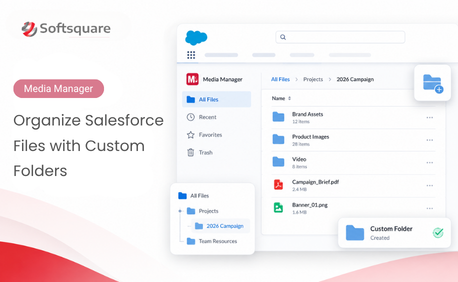
Table of Contents


Why Salesforce File Organization Breaks Down at Scale
If you have ever typed how-to-organize-files-in-Salesforce into Google, you are in good company. Salesforce admins, ops leads, and CRM managers across industries face the same wall: files pile up across records, related lists become unmanageable, and teams burn time hunting for documents that should be one click away.
Native Salesforce file management doesn't support folders. Files appear as flat, undifferentiated lists — attached to records, scattered across objects, with no structural grouping. The gap is real, and it's costly.
"I want to set up a folder structure that is the same for all accounts." — Salesforce Trailblazer Community
This guide covers how Media Manager by Softsquare closes that gap, giving Salesforce orgs a true folder-based file organization system — built natively inside your CRM.
The Limitation: Salesforce Has No Native Folder Structure for Files
Salesforce is a world-class CRM, but its file management capabilities haven't kept pace with how modern teams work with documents. Here's what that looks like in practice:
These gaps drive teams toward messy workarounds — rigid naming conventions, manual search, memory-based navigation. None of these scale.

An effective Salesforce file organization experience should help users:
- Group files by record, document type, or business process.
- Navigate files through folders instead of scanning a flat list.
- Separate key documents like contracts, invoices, approvals, case files, and images.
- Access related record files without jumping across multiple Salesforce pages.
- Maintain a clean structure that works for sales, service, field teams, and admins.
From Salesforce IdeaExchange to Reddit's r/salesforce, the demand is consistent: admins want folders in Salesforce Files. Media Manager delivers exactly that.
What Are Custom Folders in Salesforce?
Media Manager is a 100% native Salesforce AppExchange app that introduces custom folder structures directly within Salesforce records — no third-party storage, no external tools.
With custom folders enabled, your teams can:
- Create folders directly inside a Salesforce record (Case, Account, Opportunity, etc.)
- Organize files by business category - contracts, onboarding docs, inspection photos, invoices
- Navigate using a visual folder tree instead of scanning a flat list
- Move files between folders instantly without re-uploading
- Perform bulk actions like move, download, delete across multiple files at once

This brings a true Salesforce document management experience into your existing workflow — no migration, no disruption.
How Custom Folders Improve Salesforce File Management Workflows
The shift custom folders create is fundamental — from search-based file access to structure-based navigation.
Before: "Where was this file uploaded?" After: Navigate → Record → Folder → File
This change has measurable downstream effects:
- Faster file retrieval: users navigate, not search
- Fewer errors: files land in context-specific folders, not random lists
- Cleaner record pages: structured folders reduce visual noise
- Better compliance: documents like contracts and signed forms are easier to locate and audit
- Reduced onboarding time: new team members understand where things live immediately
Custom folders also eliminate the hidden overhead of informal systems. When naming conventions break (and they always do), files become unfindable. Folders don't rely on memory — they enforce structure.
Key Features: Salesforce Custom Folder Capabilities in Media Manager
Some of the key features while you can create custom folder for salesforce files:
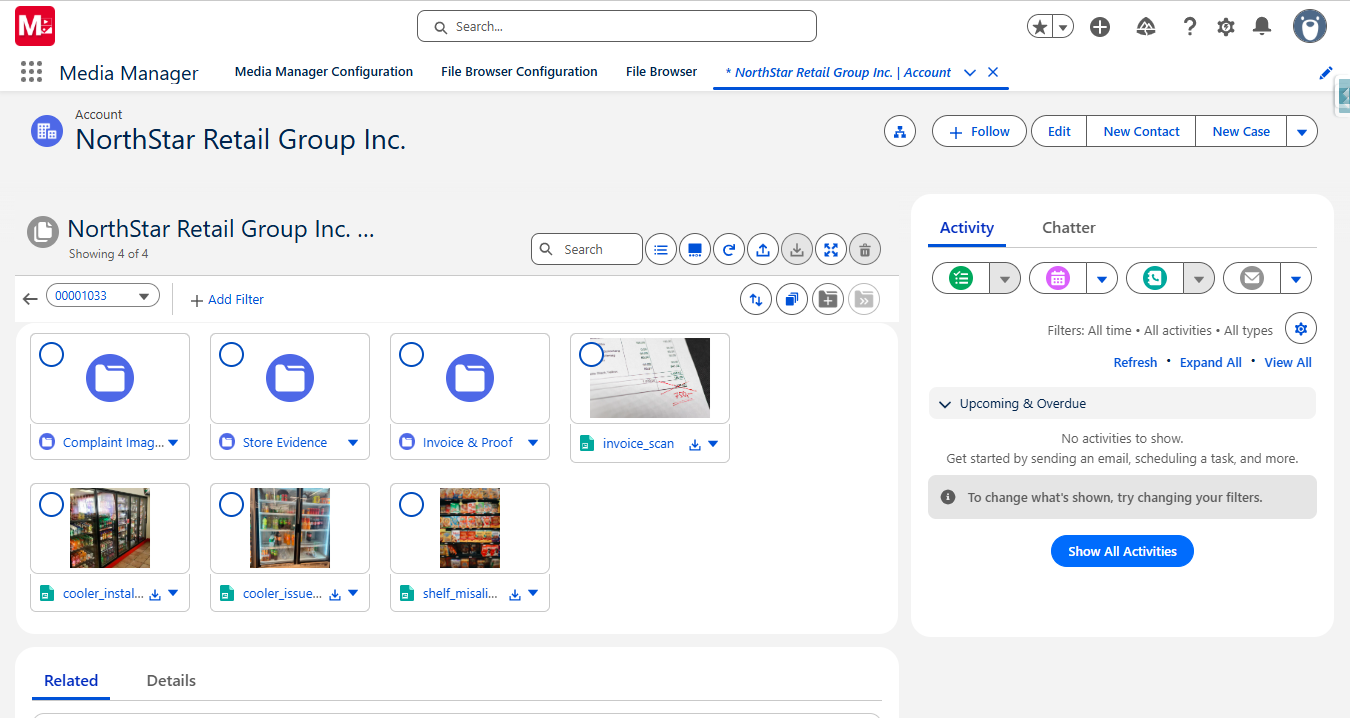
Create Custom Folders
Add folders directly within any Salesforce record to organize files by purpose, process, or document type. This helps users avoid scanning through one long file list and gives each record a cleaner file structure.

Nested Folder Hierarchy
Build multi-level folder structures for more detailed organization. For example, teams can group files by project, phase, customer request, case stage, or document category.
Move Files Without Re-uploading
Move files between folders without downloading, deleting, or re-uploading them. This makes it easier to clean up misplaced files and reorganize documents as work progresses.
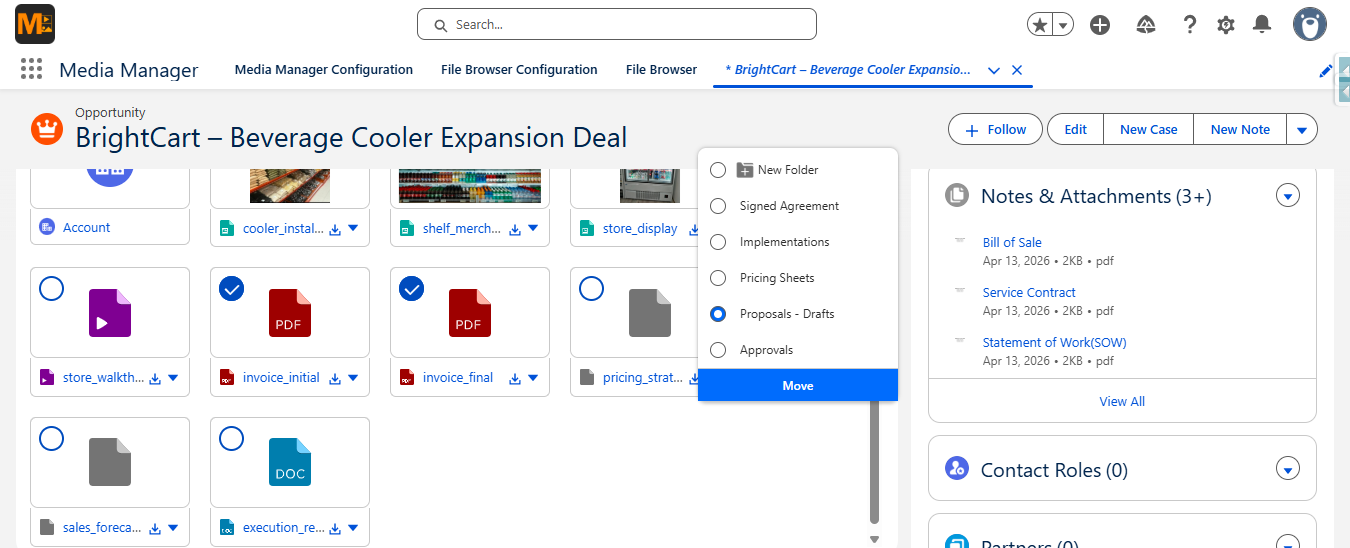
Bulk File and Folder Actions
Select multiple files or folders and perform actions like move, download, or delete in one step. This is especially useful when teams handle high file volumes across cases, accounts, or service records.
Object-Level Organization
Maintain a unique folder structure for each Salesforce related record. Files stay organized within the right business context, reducing confusion between similar documents across different records.

Rename and Delete Folders
Manage the folder lifecycle directly inside Media Manager. Users can rename folders as needs change or delete folders that are no longer required, based on admin-enabled actions.
Supercharge Folders with File Tree: Navigate Across Related Records
Custom folders become dramatically more powerful when paired with Media Manager's File Tree feature.
File Tree connects related Salesforce objects — for example, Account → Contact → Case — and surfaces all related files in a single, unified navigation panel. Instead of opening three different records to find a file, users see the entire file hierarchy in one view:
Object → Record → Folder → File
This combination solves one of Salesforce's most frustrating limitations: the need to jump between related records to access files that belong to the same business context.
With File Tree + Custom Folders, your Salesforce org gets a complete document management system — structured, navigable, and context-aware.
Use-case: Field Service File Management
Consider a field service representative handling a customer complaint. They're working a Case in Salesforce and need to access:
- Inspection photos from a previous visit
- A signed warranty document
- Service notes from the Account team
- Compliance forms attached to the Contact record
Without custom folders, these files appear as a disorganized list — or worse, are split across multiple records. The rep wastes time switching screens, searching by filename, and losing context mid-task.
With Media Manager, an admin can configure custom folders for the Case object. Files are organized by type or stage. File Tree pulls in files from related Account and Contact records. The rep clicks once, sees everything, and gets the job done.
How to Set Up Custom Folders in Salesforce with Media Manager
Admins can enable custom folder support in Media Manager in under 15 minutes:
- Create a Media Manager configuration for your target object (e.g. Case, Opportunity, Account).
- In Settings, enable Folder View and toggle on Allow Creating Custom Folder.

- Optionally configure File Tree to include related objects (e.g. Case → Account → Contact).
- Add the Media Manager V2 Lightning component to the target page layout.
- Select your configuration — done. Users can now create, navigate, and manage folders within the record.

No code. No custom development. No additional storage costs.
Comparison of Salesforce Native Files vs. Media Manager
Key Takeaways
The inability to organize files in Salesforce isn't a minor inconvenience — it's a productivity and compliance issue that compounds as your org scales. Flat file lists, missing folder structures, and cross-record navigation gaps slow down every team that depends on documents.
Media Manager's custom folder feature solves this directly. Combined with File Tree for cross-record access and multiple view modes for fast file preview, it transforms Salesforce into a complete, structured document management environment.
If your team is still relying on file naming conventions and manual search to stay organized, it's time to change that.
Want Flexible File Organization?
More Insights for you






Ready to Transform Your Business with Salesforce & AI?
