

Salesforce Doesn’t Support HEIC Files: Here’s the Solution



.svg)
Table of Contents


Sales, service, and field teams frequently capture inspection or service photos on iPhones and upload them into Salesforce. Straightforward—until they realize the files are in HEIC format, which Salesforce can’t preview. It’s not just direct uploads, either.
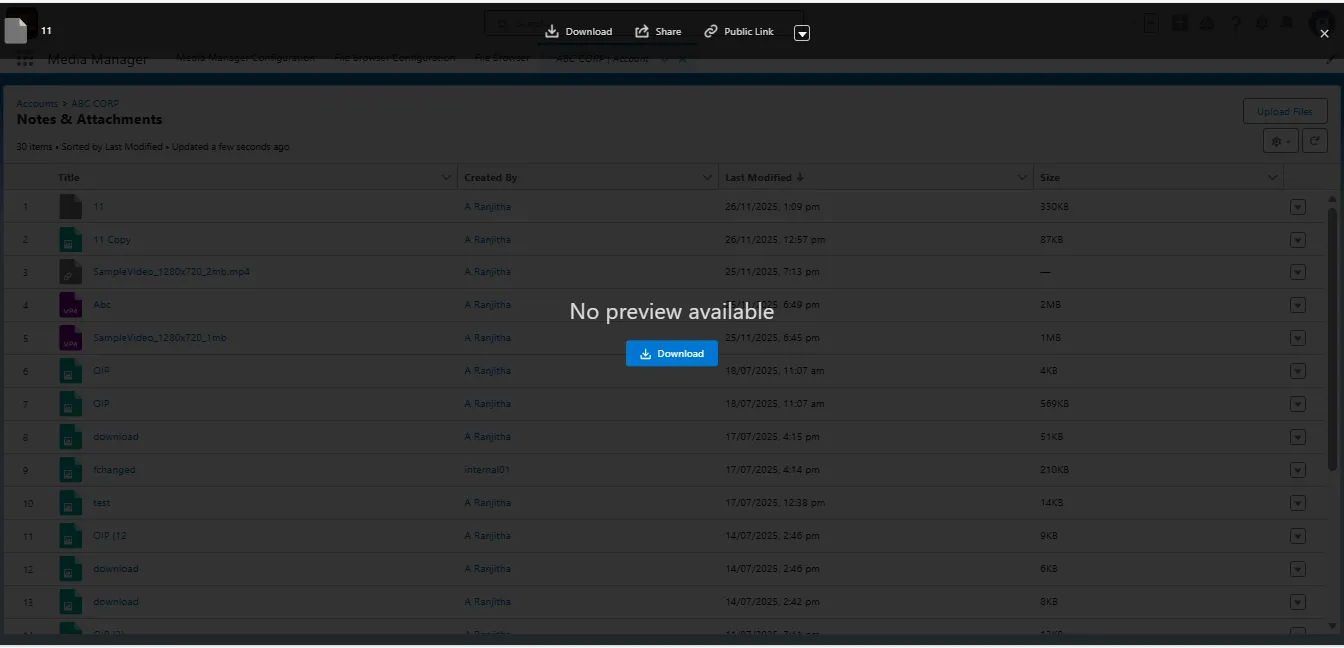
Customers often send HEIC images through emails, customer portals, or web forms, all of which end up stored in Salesforce—but remain invisible.
The result? Users have to download, convert to JPG externally, or simply can’t view them.
Community threads say it best:
- “When consumers send us photos from their Apple devices, we are unable to preview these.” Trailhead
- Another: “HEIC format is not supported by Salesforce for preview.” Trailhead
- And on the IdeaExchange:
“Salesforce doesn’t support these formats, so our user uploads these format files, we cannot use preview.” ideas.salesforce.com
A small limitation, but one that breaks everyday workflows for teams relying on quick visual context.
Why HEIC causes friction
HEIC is Apple’s default photo format since iOS 11—great for quality and file size, but unsupported by Salesforce’s native viewer.
Many Salesforce reps and admins end up downloading files locally to preview them, which not only adds extra clicks but also introduces security and compliance risks when files leave the platform.
The end result? Lost time, scattered file versions, and a workflow that feels outdated for something as simple as viewing a photo.
Solution: Media Manager’s HEIC file support
Media Manager fixes this everyday frustration by enabling a native HEIC preview inside Salesforce—no external apps, downloads, or conversions.
In just two clicks, users can finally see HEIC files directly in context:
- Open Slider View to browse all related files.
- Click “View File” to open the HEIC image directly inside Salesforce.
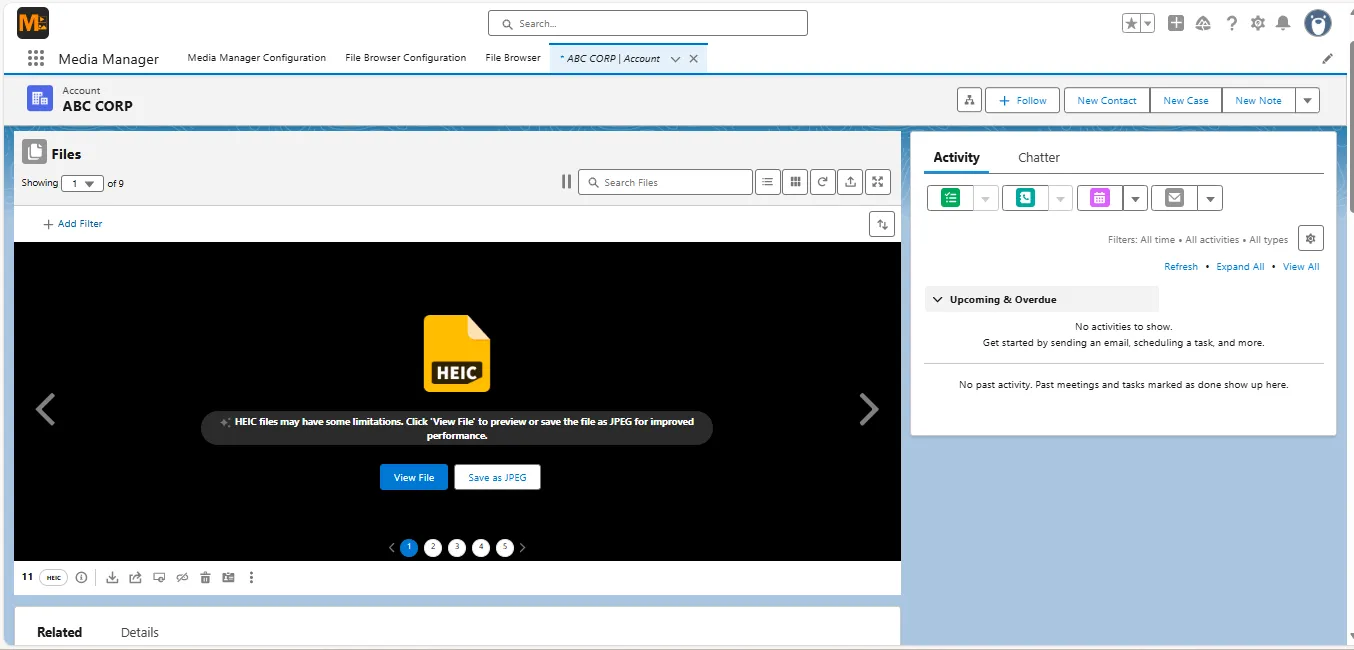
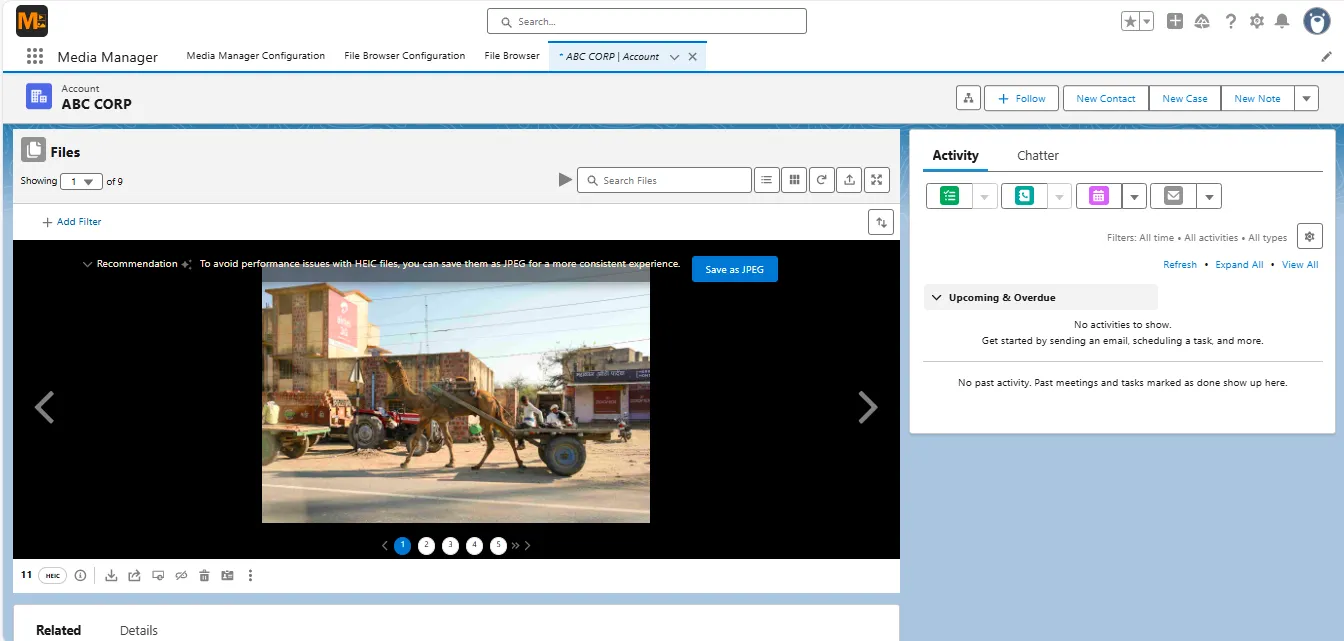
That’s it. The image appears in full clarity without needing to leave the platform.
(Note: HEIC previews are supported only in Slider View, not in Tile or List View.)
For users who still need a standard format for reports or sharing, Media Manager also includes an optional “Save as JPG” function—so you can generate a new version in seconds while keeping the original intact.
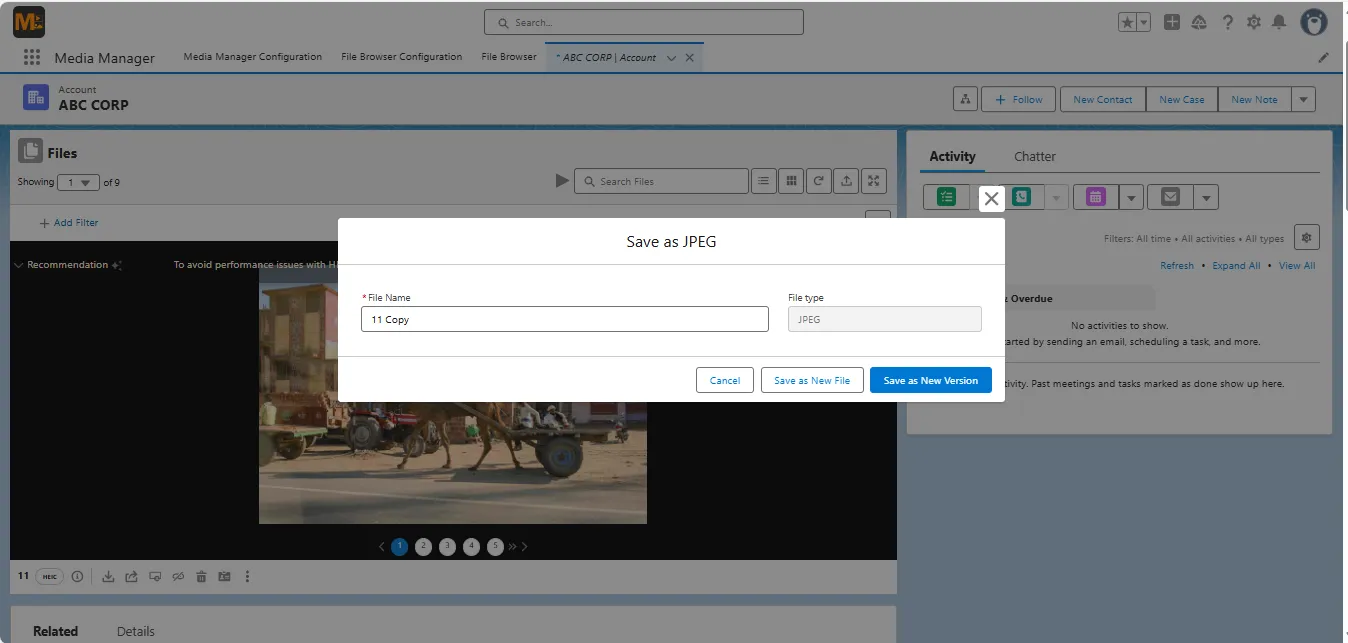
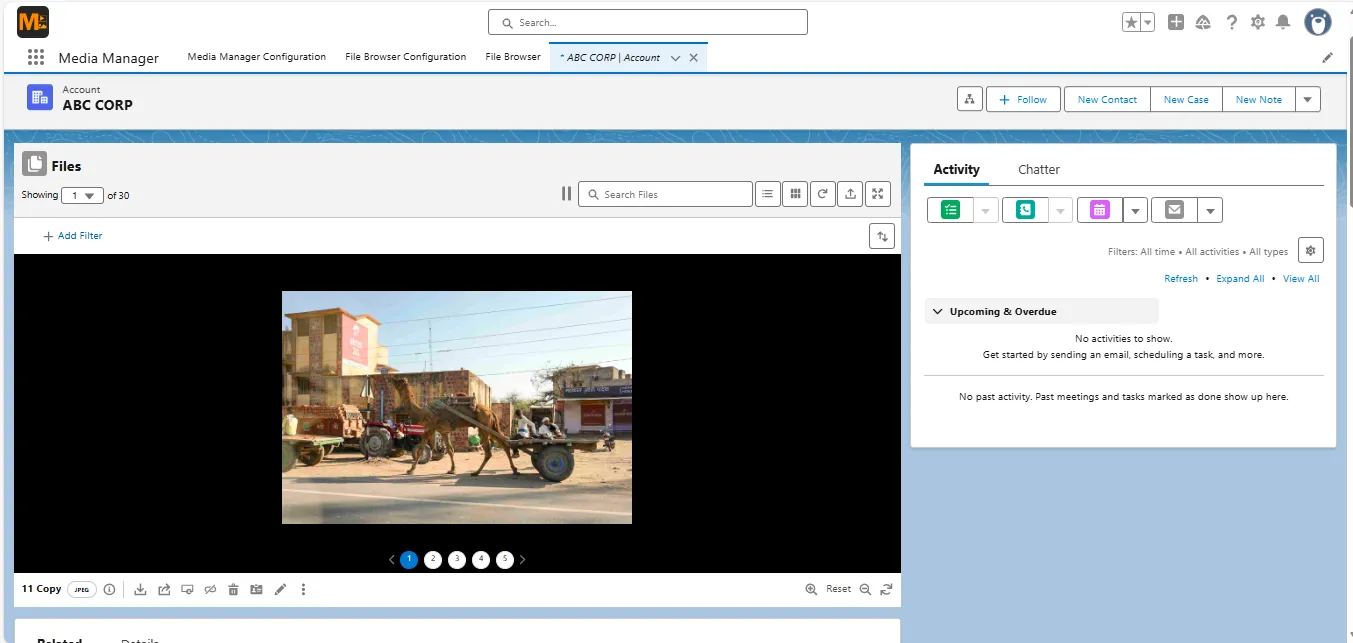
This upgrade turns out what used to be a frustrating process—upload, download, convert, and re-upload—into a simple in-app viewing experience. From iPhone capture to Salesforce preview, the journey is now seamless.
Why choose Media Manager for this feature
Media Manager doesn’t just add compatibility—it makes file handling smarter across the board:
- 100% native experience: no plug-ins or extensions.
- Unified file management: view, edit, and version multiple media types in one place.
- Admin configurability: define folders, control views, and preview settings.
- Future-ready: designed to adapt to evolving file standards like HEIC or AVIF.
Real-world impact: field teams finally get visual context
A field engineer documents equipment damage using an iPhone. They upload the photo directly into Salesforce.
Before: Support agents see a HEIC file name with no preview. They download, convert, and re-upload it—wasting time and context.
Now: With Media Manager, open Slider View, click “View File,” and instantly preview the image inside Salesforce. No conversions, no lost moments.
That simple, two-click improvement saves hours across teams, keeps everyone in Salesforce, and ensures visual records are accessible at the moment they’re uploaded.
Get started in minutes
- Install Media Manager from the Salesforce AppExchange.
- Set up configurations as required under the “Media Manager” App.
- Upload a HEIC image to any record.
- Open Slider View, click “View File,” and preview instantly.
- (Optional) Use “Save as JPG” if you need to share the file externally.
That’s it—no setup scripts, no conversions, no extra apps.
Try it now and preview HEIC files inside Salesforce
Salesforce doesn’t natively preview HEIC images but now you can.
With Media Manager, users can view, manage, and even convert HEIC images directly inside Salesforce in just two clicks.
No more downloads. No more “file not supported” messages.
🔗 Start your free trial on AppExchange and experience how Media Manager brings HEIC previews to Salesforce.
Want to Preview HEIC Files?
More Insights for you







Ready to Transform Your Business with Salesforce & AI?
