

How to Read and Summarize Salesforce Files in Claude Using a Custom MCP Server


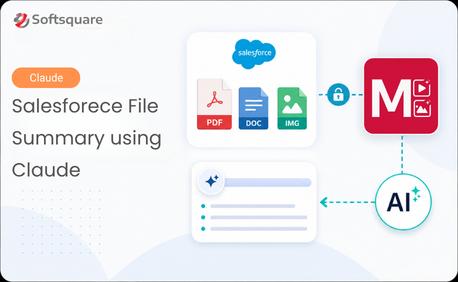
Table of Contents


Salesforce records often contain important business information inside contracts, proposals, invoices, case documents, technical specifications, and other uploaded files.
To analyze these documents with Claude, users would normally need to download the file from Salesforce, upload it to Claude, and then request a summary. A custom Salesforce MCP Server removes these manual steps entirely.
By connecting Claude with Salesforce through the Model Context Protocol, Claude can securely retrieve an authorized Salesforce file and use its content to generate summaries, identify important details, and answer document-related questions.
Real-Time Impact: From File Hunting to Instant Answers
The real shift this integration creates is not that Claude reads documents faster. It is that the entire retrieval chain disappears.
In the manual workflow, a Salesforce file has to leave Salesforce before anyone can analyze it with AI. It gets downloaded, re-uploaded into a separate tool, and re-explained with context the tool does not have.
With the custom Salesforce MCP Server, that chain collapses into one motion: the user asks, Claude retrieves the file, Claude answers. No download folder. No second tool. No re-explaining what the document is.
• Faster decision-making: When a rep or CS agent can ask Claude directly instead of hunting for a file, decisions on that deal or case happen sooner.
• Faster onboarding: New reps and support agents do not need training on where files live in Salesforce. They just ask Claude.
• One integration, growing value: The same foundation built for file summarization today extends to Opportunities, Cases and Accounts tomorrow.
What We Are Building
In this implementation, Claude connects to a custom Salesforce MCP Server that provides access to Salesforce Files. The complete process works as follows:
- A user asks Claude to summarize a Salesforce file
- Claude identifies the appropriate Salesforce MCP tool
- Salesforce authenticates the user
- The MCP Server calls an Apex action
- The Apex action retrieves the requested Salesforce file
- The file information is returned to Claude
- Claude analyzes the content and generates the summary
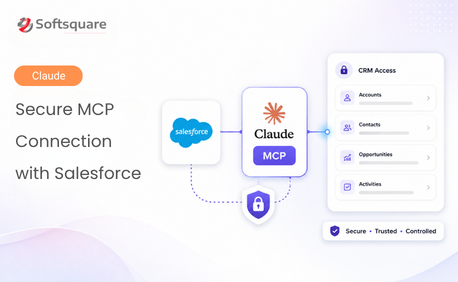
Salesforce hosts the MCP Server, manages authentication, and controls access to the file. This means the Claude MCP Salesforce integration does not require a separately hosted MCP Server.
Business Use Case for Summarizing Salesforce Files with Claude
This Claude MCP Salesforce integration can help users quickly understand information stored inside Salesforce Files. Users can ask Claude to:
- Summarize a contract attached to an Account
- Identify important terms in a proposal
- Review case documents and highlight the main customer issue
- Extract key details from technical documents
- Summarize meeting notes or project documents
- Identify follow-up actions from an uploaded file
Setup: Connecting Salesforce Files to Claude
Step 1: Create the Apex Action: The Apex action retrieves the Salesforce file. It accepts a ContentVersion ID, retrieves the file title, type, and content, and returns the information to the MCP tool. The Apex action retrieves the file blob — Claude performs the document analysis and generates the summary.
Step 2: Create the Custom Salesforce MCP Server: In Salesforce Setup, navigate to MCP Servers and create a custom server with a clear description that explains the business capability it provides.
Step 3: Add the Apex Action as an MCP Tool: Open the MCP server and add the Apex action as a tool. Configure it as read-only and non-destructive. The tool description is important, Claude uses it to understand when the tool should be called.
Step 4: Create an External Client App: Claude must authenticate with Salesforce before accessing the MCP Server. Create an External Client App, enable OAuth, and add the Claude callback URL. Copy the Consumer Key, it becomes the OAuth Client ID in Claude.
Step 5: Activate the MCP Server: Return to MCP Servers in Salesforce Setup and activate the server. Copy the generated Server URL from Salesforce, always use the URL provided in Setup rather than manually building it.
Step 6: Connect the MCP Server to Claude: In Claude, add a custom connector, paste the Salesforce MCP Server URL, and add the Consumer Key as the OAuth Client ID. Claude redirects to Salesforce for authentication. After login and approval, Claude can access the get_salesforce_file_content tool.
Salesforce Security Still Applies
Claude does not automatically receive access to every Salesforce file. The integration works using the permissions of the Salesforce user who authorized the connection.
A dedicated Permission Set can be used to provide only the access required for this integration. Claude can only retrieve files the authenticated Salesforce user is already allowed to access.
Business Benefits
This integration provides several practical benefits:
- Reduces manual file downloading and uploading
- Makes Salesforce documents easier to understand through natural-language requests
- Helps users find important information faster
- Keeps Salesforce as the controlled source of the file
- Uses existing Salesforce permissions — no new security model to build
- Extends to Opportunities, Cases and Accounts as the integration matures
Conclusion
A custom Salesforce MCP Server provides a secure way to connect Salesforce with Claude for document analysis. In this implementation, an Apex action retrieves an authorized Salesforce File and exposes the capability through an MCP tool.
This allows business users to work with Salesforce documents through simple natural-language requests, while technical teams continue to control authentication, permissions and file access through Salesforce.
The result is a more connected experience where users can understand important Salesforce documents without repeatedly downloading and uploading files between systems.
Ready to Transform with AI?
More Insights for you












Ready to Transform Your Business with Salesforce & AI?
