

What Apps Can You Connect with Salesforce? Everything You Need to Know


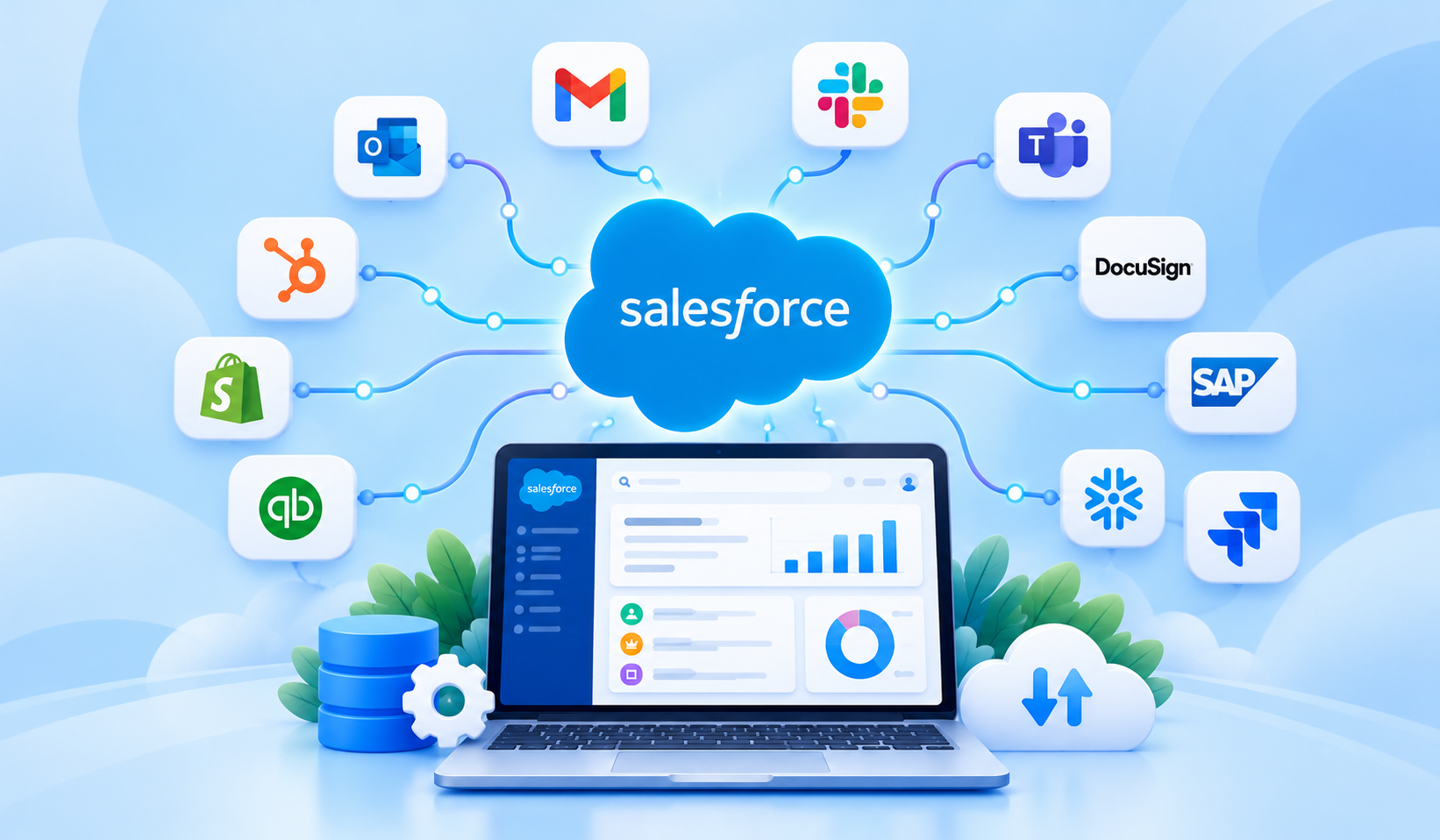
Table of Contents


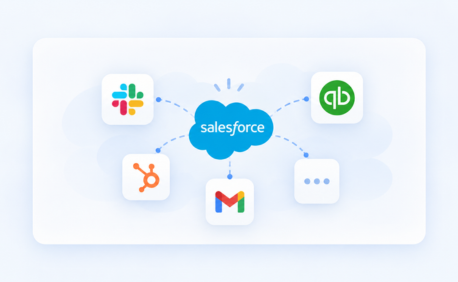
Salesforce can connect with almost any business application that offers a compatible API or integration method. From Gmail, Outlook, and Slack to QuickBooks, Shopify, SAP, and Snowflake, businesses can bring their everyday tools into the Salesforce ecosystem.
Through native integrations, marketplace apps, APIs, and integration platforms, Salesforce helps businesses exchange information and automate workflows without always requiring custom development.
Its marketplace has also evolved, with AppExchange becoming part of the unified AgentExchange experience in April 2026.
By connecting applications, businesses can reduce manual updates, improve data consistency, and give teams better visibility into customer information.
In this guide, we'll explore what apps you can connect with Salesforce, the available integration methods, and how to choose the right approach for your business.
What Does It Mean to Connect an App with Salesforce?
A Salesforce integration allows Salesforce and another application to exchange information or trigger actions automatically.
For example, when a customer completes a payment in Stripe, the payment status can be updated in Salesforce. Similarly, new Salesforce leads can be passed to a marketing automation platform for follow-up campaigns.
These connections generally work in two ways:
- One-way integration: Information moves from one application to another.
- Two-way integration: Both systems exchange updates based on predefined synchronization rules.
There's also a difference between installing an app and integrating an external system.
A Salesforce app typically adds functionality within the CRM, while an integration connects Salesforce with another platform through APIs, connectors, or middleware. Some packaged apps provide both capabilities.
Depending on the requirements, businesses can exchange customer records, activities, files, orders, and payments in real time or through scheduled updates.
Types of Apps You Can Connect with Salesforce
Salesforce integration apps span almost every business function, from sales and marketing to finance, customer service, and analytics.
Here's a look at commonly connected applications and what they can help businesses accomplish.
NOTE: Specific capabilities depend on the selected connector, Salesforce edition, vendor configuration, and licensing. Not every connection is available natively.
How These Integrations Help in Everyday Work
Consider a sales representative managing opportunities in Salesforce, communicating through Outlook, and sending contracts through DocuSign.
With the appropriate integrations, relevant customer emails can be associated with Salesforce records, while agreements can be sent and tracked through the sales process.
Instead of switching between applications to find information, the representative can manage more of the customer journey from Salesforce.
That's the value of connecting applications: making information accessible where people need it.
Ways to Connect Apps with Salesforce
Not every Salesforce app integration requires the same technical approach. Some connections can be configured quickly, while others need a more customized architecture.
Here are the main options available.
1. AgentExchange (Formerly AppExchange) Apps
Salesforce AgentExchange brings together applications, integration solutions, components, and AI agents in one marketplace.
For common business requirements, existing apps can provide ready-made functionality without building a custom solution.
Before installing an app, check Salesforce edition compatibility, security review status, pricing, documentation, customer reviews, and support.
Best suited for: Businesses looking for ready-made functionality with less custom development.
2. Native Salesforce Integrations
Salesforce provides supported integration capabilities for commonly used platforms such as Outlook, Gmail, Slack, and Tableau.
For broader data connectivity, Salesforce Data 360 (formerly Data Cloud) provides prebuilt connectors to integrate information from external applications, databases, and cloud storage. It also supports zero-copy data federation for supported sources, helping businesses unify customer information for analytics, segmentation, and AI-driven experiences.
These options reduce custom development for suitable use cases, although available features, licensing, and configuration requirements vary.
Best suited for: Standard business integrations and organizations looking to unify customer data from multiple sources.
3. Salesforce Connect and External Objects
Not every integration requires copying data into Salesforce.
With Salesforce Connect, businesses can access supported external data through external objects while keeping the information in its original system.
For example, a sales team can view ERP order information alongside Salesforce Account records without duplicating the entire dataset.
Unlike Data 360, which focuses on connecting and unifying data for broader customer insights, Salesforce Connect primarily provides access to external records within Salesforce.
Best suited for: Accessing large external datasets or information maintained outside Salesforce.
4. APIs, Connected Apps, and Named Credentials
When existing connectors don't meet your requirements, custom integrations offer greater flexibility.
Salesforce supports REST and SOAP APIs for exchanging information with external applications. OAuth-based authentication and External Client Apps help manage application access, while Named Credentials simplify secure outbound connections.
When researching connected apps Salesforce or Salesforce connected apps, it's important to know that Salesforce now recommends External Client Apps for new integrations. Creation of traditional Connected Apps has been restricted since Spring '26.
Custom native Android and iOS applications can also connect with Salesforce through REST APIs and the Salesforce Mobile SDK. This enables businesses to build mobile experiences for field teams, inspections, service activities, and other workflows, including offline data synchronization where supported.
Best suited for: Custom workflows, proprietary applications, and specialized integration requirements.
5. Middleware and Integration Platforms
When Salesforce needs to exchange information with several applications, managing individual connections can become complicated.
Middleware platforms such as MuleSoft coordinate data exchange, transformation, error handling, and workflows across systems.
Other options include Heroku Connect for supported Salesforce–Heroku Postgres synchronization, AWS-based integration architectures, and tools such as Zapier for simpler automation.
Best suited for: Multi-system environments, complex data transformations, and enterprise integration requirements.
6. Salesforce Flow, External Services, and AI Agents
Salesforce Flow can automate processes involving external systems, while External Services can expose supported API operations as actions without extensive custom coding.
Agentforce introduces additional possibilities, allowing appropriately configured AI agents to retrieve information or perform authorized actions through connected tools.
Ultimately, the method depends on your requirements. Connecting Outlook may be straightforward, while synchronizing Salesforce, SAP, and multiple financial systems could require middleware and custom development.
Best suited for: Process automation and supported AI-driven workflows.
Native vs. AppExchange vs. Custom vs. Middleware: Which Method Fits?
Different Salesforce application integration methods offer different levels of flexibility, implementation effort, and maintenance.
Native integrations work well for standard requirements, while marketplace apps provide ready-made functionality.
Custom APIs are appropriate when processes demand specialized logic. Middleware becomes valuable when several systems need coordinated data exchange.
Most established Salesforce environments use a combination rather than relying on one integration method.
How to Choose the Right App or Integration for Your Business
Before installing another application, identify what the business actually needs.
For example, if your team only needs invoice status visible in Salesforce, implementing a complex two-way finance synchronization may be unnecessary.
Evaluate these considerations before choosing a solution:
- Business requirements: What information needs to move, in which direction, and how frequently?
- Compatibility: Does the solution support your Salesforce edition, API access, data volume, and existing systems?
- Security: Review authentication, OAuth scopes, access permissions, compliance requirements, and data residency.
- Cost: Consider subscriptions, licensing, implementation, and ongoing maintenance.
- Vendor reliability: Check reviews, documentation, support quality, release frequency, and compatibility.
These factors help determine whether to purchase a ready-made application, configure a connector, or build a custom integration.
The best solution is one that meets your requirements without introducing unnecessary complexity.
Step-by-Step: How to Connect an App to Salesforce
Although each integration has different setup requirements, the overall implementation can be organized into five practical stages.
Step 1: Define Your Requirements and Verify Compatibility
Identify which applications, Salesforce objects, and fields need to connect. Determine the data flow, source of truth, synchronization frequency, and expected outcome.
Verify Salesforce edition compatibility, required licenses, API access, expected data volumes, and vendor documentation before proceeding.
Step 2: Configure the Connection Securely
Install the application or configure the integration in a Salesforce sandbox first.
Set up appropriate authentication using OAuth, External Client Apps, or supported vendor authentication methods. Use Named Credentials where applicable.
For system-to-system connections, use a dedicated integration identity with minimum required permissions.
Step 3: Map Data and Configure Permissions
Define how fields and records correspond between applications.
Establish synchronization direction, record-matching rules, duplicate handling, and conflict-resolution logic.
Configure permission sets, object permissions, and field-level security so the integration accesses only authorized information.
Step 4: Test and Deploy the Integration
Test with realistic scenarios, including duplicate records, missing information, authentication failures, conflicting updates, and larger data volumes.
Once validated, deploy through your approved release process and help users understand any changes to their workflows.
Step 5: Monitor, Maintain, and Improve
Monitor synchronization errors, failed requests, API consumption, and unexpected data changes.
Configure alerts and recovery procedures where appropriate. Review the integration regularly as Salesforce releases, external APIs, or business processes change.
A successful integration doesn't end at deployment. Ongoing monitoring keeps it reliable as your business evolves.
Common Challenges and Best Practices
Salesforce integrations can encounter issues with data quality, performance, and security if they aren't planned carefully.
Duplicate records and conflicting updates are common challenges. Establish clear data ownership and synchronization rules to maintain consistency. For high-volume integrations, consider Bulk API, batch processing, or event-driven approaches where appropriate.
Other best practices include:
- Secure access: Use least-privilege permissions and avoid hard-coded credentials.
- Avoid tool sprawl: Review existing apps before adding overlapping functionality.
- Detect failures: Configure error monitoring, alerts, and recovery procedures.
- Manage changes: Document dependencies and test critical workflows after platform or API updates.
Start with a high-value integration, validate its performance, and expand gradually.
Real-World Examples of Salesforce Integrations
The value of Salesforce integrations becomes clearer when we look at how they can improve everyday business processes.
Sales Collaboration with Slack
When a high-value opportunity reaches the negotiation stage in Salesforce, an integration can notify the relevant Slack channel.
Sales managers and account teams can coordinate next steps without waiting for separate status updates.
The benefit: Faster internal communication and better visibility into important opportunities.
Finance Visibility with QuickBooks
An account manager preparing for a renewal wants to check whether the customer has outstanding invoices.
With an appropriate QuickBooks integration, invoice and payment information can be available directly within Salesforce.
The benefit: Better preparation for customer conversations and less back-and-forth between sales and finance.
Customer Insights with Snowflake
A business manages customer relationships in Salesforce while storing transaction and behavioral information in Snowflake.
With suitable data connectivity, teams can combine selected external information with CRM data for analysis without necessarily duplicating the entire dataset.
The benefit: More complete customer insights and better-informed business decisions.
These are illustrative scenarios. Actual capabilities depend on the selected integration and implementation.
How Softsquare Helps Businesses Connect Apps with Salesforce
Connecting applications is only one part of building a well-integrated Salesforce environment. The real value comes from making systems, workflows, and business data work together reliably.
At Softsquare, we help organizations connect Salesforce with their existing technology ecosystem through custom API development, MuleSoft, Heroku, AWS-based integrations, and other solutions tailored to their requirements.
Our expertise also extends to Salesforce AppExchange app development. With 35+ AppExchange apps delivered, we've helped businesses design, develop, and launch Salesforce applications that address their specific operational needs.
Alongside client projects, we've developed Salesforce-native products such as AGrid for advanced data management and Media Manager for file management and external storage integrations.
From integrating third-party applications to developing and launching Salesforce apps, our team supports architecture, development, security review preparation, deployment, and ongoing maintenance.
Need to connect Salesforce with your business applications or build a custom Salesforce app? Explore Softsquare's Salesforce services and see how we can help.
Conclusion
So, what apps can you connect with Salesforce? From everyday productivity tools to enterprise ERP platforms, data warehouses, and AI applications, the possibilities are extensive.
The important decision isn't how many applications you can connect, but which connections will make your business processes more efficient.
Whether you choose native integrations, marketplace apps, custom APIs, or middleware, start with a clear requirement and build for long-term reliability.
The right integration should make Salesforce more valuable to your business, not more complicated.
Ready to Transform with AI?
Frequently Asked Questions
Salesforce can connect with Gmail, Outlook, Slack, QuickBooks, Shopify, SAP, Snowflake, and many other applications through native integrations, marketplace connectors, or APIs.
Most applications with compatible APIs or supported integration methods can connect with Salesforce. The available capabilities depend on authentication, permissions, and technical compatibility.
Yes. Since April 2026, Salesforce has unified AppExchange, AgentExchange, and Slack Marketplace into one marketplace experience. Existing AppExchange apps remain available.
Choose a compatible integration method, configure authentication and permissions, map the required data, and test the connection in a Salesforce sandbox before deploying it to production.
Yes. Salesforce supports integration options for all three, helping teams connect communications, calendar activities, and collaboration workflows with CRM processes.
Some integrations are included with existing licenses or offer free options. Others require third-party subscriptions, additional Salesforce licenses, or custom development costs.
Not always. Administrators can configure many native and marketplace integrations. Custom APIs, complex data mapping, and multi-system workflows may require development expertise.
More Insights for you







Ready to Transform Your Business with Salesforce & AI?
