

Claude AI CRM Integration: How Salesforce MCP Enables Secure Access


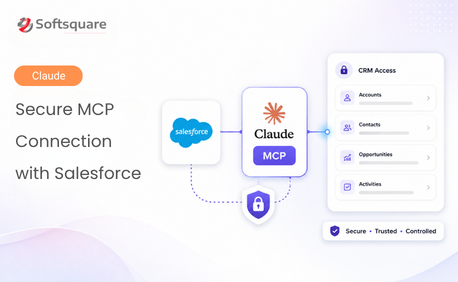
Table of Contents


Your sales team works inside Salesforce. Your AI assistant — Claude — works outside it. Every time someone needs an account summary, a deal update, or a pipeline report, they copy data between systems. That's a workflow problem that Claude CRM integration is designed to solve.
The Model Context Protocol (MCP) creates a secure, standards-based connection between Claude and Salesforce without custom code, without open API access, and without compromising your CRM's security model. Your team gets AI-assisted CRM workflows. Your admins keep full control over what Claude can and cannot do.
This guide explains how the Claude MCP integration works, how to set it up, and why Salesforce MCP is the right way to bring AI into your CRM.
What Is Claude CRM Integration?
Claude CRM integration connects Claude AI to your Salesforce org so your team can query, summarize, and act on CRM data using plain language. Instead of logging into Salesforce and navigating menus, a sales rep can ask Claude to pull open deals, flag at-risk accounts, or draft a follow-up email and Claude retrieves the right data instantly.
The connection is built on MCP — Model Context Protocol an open standard developed by Anthropic that lets AI assistants like Claude securely interact with external tools, data sources, and business systems. Think of MCP as a universal connector for AI. Before MCP, every AI-to-Salesforce integration required custom code. With MCP, the connection is standardised, governed, and ready to use.
Why Claude AI CRM Integration Matters for Sales and Service Teams
Sales and service teams spend significant time navigating Salesforce to find information they need for calls, meetings, and follow-ups. That time adds up. Claude CRM integration reduces that friction by letting your team ask questions in plain language and get answers grounded in live Salesforce data.
Here is what your team can do with a Claude AI CRM connection:
• Ask Claude to summarise an account before a customer call
• Pull a list of deals that have had no activity in the past two weeks
• Draft a follow-up email based on the latest opportunity stage
• Flag service cases that are approaching SLA breach
• Get a pipeline summary by region, product, or sales rep
All of this happens through Claude's natural-language interface with Salesforce remaining the source of truth and your admins controlling every permission.
The Problem with Traditional AI-to-CRM Connections
Before Salesforce MCP, connecting an AI assistant to your CRM meant one of three things: building a custom API integration, exporting data to a separate system, or giving the AI broad access to your Salesforce org — all of which created security gaps or development overhead.
Common problems teams ran into:
• Wide API access: Claude or another AI could query data beyond what the user's role permitted
• No audit trail: no way to see what data the AI accessed or what actions it triggered
• Manual data movement: users downloaded Salesforce files to upload them to Claude separately
• Custom code dependency: every AI-to-Salesforce workflow required a developer to build and maintain it
The Claude MCP connector solves all four. It works within Salesforce's existing security model, respects user-level permissions, and requires no custom code for standard use cases.
How Salesforce Claude MCP Works
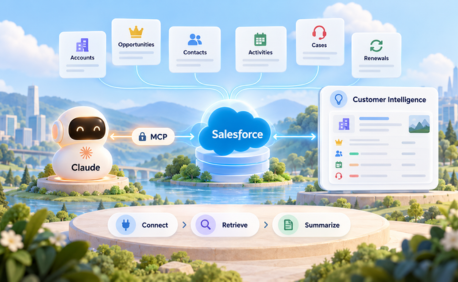
The Salesforce MCP architecture has three parts:
- Claude acts as the MCP client — it sends requests and receives responses from Salesforce
- The Salesforce Hosted MCP Server handles authentication, exposes approved tools, and manages what Claude can access
- Salesforce remains the governed data source your existing profiles, permission sets, and sharing rules stay active
Claude becomes the MCP client, while Salesforce remains the governed system. The Claude MCP connector enables the connection through approved tools, OAuth authentication, and user-level permissions.
What this means in practice: Claude can only see what the authenticated user is permitted to see in Salesforce. If a sales rep's profile excludes financial records, Claude cannot retrieve them either.
Technical Steps to Connect Salesforce Claude MCP
Salesforce Hosted MCP Servers are now generally available. You do not need to host, secure, or maintain a server yourself. Here is how to set up the integration:
Step 1: Set up an External Client App in Salesforce
In Salesforce Setup, configure an External Client App to enable OAuth 2.0 authentication. This is the credential layer that allows Claude to authenticate as a specific user.
Step 2: Assign a Permission Set for MCP Access
Create a dedicated Permission Set for users who will access Salesforce through Claude. Assign it only to the users who need it. Do not grant broad access — keep it role-scoped.
Step 3: Configure the MCP Server in Claude
In Claude's settings (desktop or web), add the Salesforce Hosted MCP Server URL and authenticate using your Salesforce credentials. Claude will connect through the MCP client.
Step 4: Authorise and Test in Sandbox First
Always start in a sandbox environment. Test that Claude retrieves the correct data scope for each user profile before enabling in production.
Step 5: Enable for Your Team
Once validated, roll out to your production org. Monitor usage through Salesforce's audit logs to maintain visibility over what Claude accesses.
How Claude works: Activate → Authorize → Connect
Claude connects to Salesforce through MCP using Salesforce Hosted MCP Servers and an External Client App.
- Activate: The user opens Claude on desktop or web and types a natural-language question or request about their Salesforce data.
- Authorize: Claude connects through the MCP server using the user's OAuth credentials. Salesforce verifies the user's identity and permission scope.
- Connect: Claude retrieves the requested data — an account record, a deal list, a case summary and presents it in plain language. The user can follow up with additional questions in the same session.
Each session is user-authenticated. Claude does not store Salesforce credentials or cache CRM data between sessions. Every request goes through the MCP server with fresh authentication.
Key Benefits of Claude MCP Integration for Salesforce Teams
- Respects your existing permission model: Claude inherits Salesforce's user-level permissions. No new access controls to build. No risk of data leakage beyond what the user is already authorised to see.
- No custom API code required: Salesforce Hosted MCP Servers work out of the box for standard Salesforce objects. Custom tools can be built using Apex Actions, Flows, or Apex REST if your team needs them.
- User-level accountability: Every action Claude takes is tied to an authenticated Salesforce user. Your audit trail stays intact. Compliance teams can see exactly what was accessed and when.
- Faster CRM workflows: Teams stop downloading data, copying records, or switching between systems. Everything happens in Claude with Salesforce as the source.
- Works with standard and custom objects: The MCP server supports standard Salesforce objects and can be extended to your custom data model without rebuilding the integration.
Why Salesforce Claude MCP
Other ways of connecting AI to Salesforce require open APIs, third-party middleware, or manual data exports. All three create risk — either security risk, data freshness risk, or maintenance risk.
Salesforce MCP is different because it is built inside the Salesforce trust boundary. Anthropic is the first AI provider to achieve full containment within Salesforce's Einstein Trust Layer. Your CRM data does not leave Salesforce's governed environment. Claude reads what it needs, responds, and moves on without persisting data or bypassing your security model.
These points show why MCP is a safer way to enable a Claude CRM integration and bring Salesforce CRM context into Claude:
✓ No third-party middleware in the data path
✓ OAuth 2.0 authentication at every request
✓ Permission sets control tool-level access for each user
✓ Audit logs capture every MCP interaction
✓ Salesforce data never leaves the trust boundary
What to Consider Before You Start
The Salesforce Claude MCP setup is straightforward, but a few things are worth planning before you roll it out:
User scope: Decide which users need Claude MCP access. Start with a small group account executives or service managers and expand based on results.
Permission set design: Design your MCP permission sets carefully. Follow the principle of least privilege: give Claude access to only the objects and fields each user's role requires.
Sandbox-first testing: Always validate in sandbox. Confirm that the data scope Claude retrieves matches exactly what the user's profile allows in production.
Custom objects: If your team relies on custom Salesforce objects, you may need to configure custom MCP tools using Apex Actions or Flows. Your Salesforce admin or a Salesforce consulting partner can handle this.
Why Work with Softsquare for Your Claude CRM Integration
Softsquare helps Salesforce teams implement AI integrations that are practical, secure, and aligned with your existing governance model. We have configured Salesforce MCP setups across sales, service, and ISV environments and we understand where the edge cases appear.
If your team needs help with permission set design, custom Apex MCP tools, or validating the integration against your Salesforce security model, our team can accelerate the setup and make sure it is production-ready.
Conclusion
Claude CRM integration through Salesforce MCP gives your team a practical, secure way to bring AI into your Salesforce workflows. Claude handles the natural-language interface. Salesforce handles the data and permissions. MCP connects them without breaking your security model.
The result is an AI-assisted CRM experience where sales reps spend less time navigating Salesforce and more time acting on the right information at the right moment.
If your team is ready to explore what this looks like in your Salesforce org, Softsquare's AI team can help you plan and implement the integration from scratch.
Ready to Transform with AI?
Frequently Asked Questions
Claude CRM integration connects Claude AI to Salesforce through MCP so teams can query, summarize, and act on CRM data using plain language — without custom code or open API access.
Not for standard objects. Salesforce Hosted MCP Servers work out of the box; custom objects can be extended using Apex Actions or Flows by a Salesforce admin.
Yes. Claude inherits user-level permission sets through Salesforce's Einstein Trust Layer and cannot access data beyond what the authenticated user is already authorized to see.
Start with account executives, service managers, and operations leads. Design a dedicated MCP permission set per role and validate in sandbox before rolling out to production.
Teams can summarize accounts, pull inactive deals, draft follow-up emails, flag SLA-at-risk cases, and get pipeline summaries — all through Claude's natural-language interface.
Each session uses OAuth 2.0 through a Salesforce External Client App. Claude does not store credentials or cache CRM data — every request is freshly authenticated per user.
Basic setup — External Client App, Permission Set, and MCP server in Claude — takes a few hours for standard objects. Custom objects or multi-role setups may take longer.
More Insights for you







Ready to Transform Your Business with Salesforce & AI?
