

How to Integrate Salesforce Data Cloud with CRM Analytics


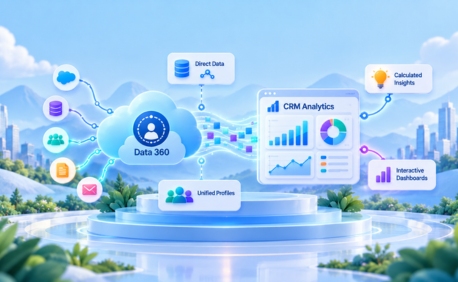
Table of Contents


Businesses collect customer data across Salesforce, service, marketing, commerce, and external systems. The challenge is turning that disconnected information into insights teams can actually use.
Salesforce Data Cloud, now called Data 360, connects and unifies data from these sources, while CRM Analytics turns that data into queries, dashboards, and interactive insights. Together, they can provide a more complete view of customer and business performance without requiring teams to analyze each source separately.
In this guide, we'll cover the available integration approaches, prerequisites, setup process, dashboard creation, use cases, best practices, and troubleshooting.
What Is Salesforce Data Cloud (Data 360)?
Salesforce Data Cloud is now called Data 360. As of October 14, 2025, Salesforce rebranded Data Cloud to Data 360. Salesforce states that the functionality and content remain unchanged, although some Salesforce screens and documentation may still use the older Data Cloud terminology.
Data 360 is Salesforce's data platform for connecting and working with data from Salesforce and external systems.
It supports different ways of bringing data into the platform, including data ingestion and data federation. With ingestion, data is brought into Data 360 and stored in Data Lake Objects. With data federation, Data 360 can connect to supported external data sources without copying all the data into Data 360.
The main goal is to create a more consistent and useful data foundation.
Important Data 360 Concepts
Data Source Objects (DSOs): DSOs represent data structures from source systems before that information is mapped and harmonized into the Data 360 data model.
Data Lake Objects (DLOs): A Data Lake Object, or DLO, stores data that has been ingested into Data 360. For example, an organization might ingest customer transaction data from an external system. That incoming data can be stored as a DLO.
Data Model Objects (DMOs): Data Model Objects represent harmonized data within the Data 360 data model. Information from different systems can be mapped into a common Data 360 data model so that it can be used consistently across analytics and other capabilities.
Calculated Insights: Calculated Insights provide calculated business information from Data 360 data. For example, an organization could calculate total customer revenue, number of orders, average order value, customer engagement, or service activity. These calculated results can then be used for analysis.
Identity Resolution: Customer information often appears differently across systems. One system may identify a customer using an email address, while another may use a customer number. Identity resolution helps Data 360 determine when records from different sources represent the same individual or entity. This is important because analytics are only useful when the underlying customer data is properly unified.
What Is Salesforce CRM Analytics?
CRM Analytics is Salesforce's business intelligence and analytics platform, previously known as Einstein Analytics and Tableau CRM. It supports advanced data exploration, visualization, preparation, and predictive analytics through capabilities such as datasets, lenses, recipes, dashboards, queries, and Einstein Discovery.
CRM Analytics works with Salesforce and supported external data sources and can surface insights within Sales Cloud and Service Cloud workflows. With Direct Data, users can also analyze supported Data 360 information without first loading it into a traditional CRM Analytics dataset.
Salesforce Data Cloud CRM Analytics Integration: Why It Matters
Data 360 provides the unified data foundation, while CRM Analytics turns that information into interactive analysis and dashboards.
With Direct Data, CRM Analytics can query supported Data 360 objects without first creating a traditional CRM Analytics dataset. This can reduce unnecessary data duplication and manual stitching across sales, service, marketing, and external systems while supporting analytical and predictive use cases such as lead prioritization, churn risk, customer value analysis, and SLA risk.
Ways to Integrate Salesforce Data 360 with CRM Analytics
- CRM Analytics Direct Data for Data 360: This is the primary approach covered in this article. With Direct Data, CRM Analytics can query supported Data 360 information directly.This approach can be useful when data changes frequently, when users want to analyze Data 360 information directly, when the organization wants to avoid maintaining another copy of the data, or when users need interactive exploration.
- CRM Analytics Dataset-Based Analytics: Traditional CRM Analytics datasets remain useful when data needs to be prepared and stored for analytics using supported Salesforce or external sources. This approach is separate from Data 360 Direct Data, where supported Data 360 objects are queried directly rather than accessed through traditional Data Sync, Dataflows, or Recipes.
- CRM Analytics Recipes Writing Data to Data 360: CRM Analytics also supports the opposite direction: a recipe can write prepared CRM Analytics dataset output to Data 360 as a Data Lake Object. This is separate from using Data 360 data as a Direct Data source in CRM Analytics.
Prerequisites for Integrating Data 360 with CRM Analytics
Required Licenses
- CRM Analytics Plus or CRM Analytics Growth
- Data 360
Salesforce states that both licenses must be provisioned in the same Salesforce org for CRM Analytics Direct Data for Data 360.
CRM Analytics Must Be Enabled: CRM Analytics must be enabled in the Salesforce org.
Data 360 Must Be Set Up: The required Data 360 data should already be available. Depending on the use case, this may include Data Streams, DLOs, DMOs, relationships, identity resolution, and Calculated Insights.
Required Permissions
Users working with the integration need the appropriate Data 360 and CRM Analytics permission sets. Salesforce identifies CRM Analytics Plus User or CRM Analytics Growth User for users who need to view insights in CRM Analytics Direct Data. Users who need to build dashboards and create insights also need the appropriate dashboard permissions, including Create and Edit CRM Analytics Dashboards.
Step-by-Step: How to Connect Salesforce Data 360 to CRM Analytics
Once the prerequisites are in place, the following steps show how to start analyzing Data 360 data in CRM Analytics. Navigation and labels can vary slightly by Salesforce release and enabled features.
Step 1: Verify the Required Licenses
Navigation: Setup → Company Information
Confirm that CRM Analytics Plus or CRM Analytics Growth and Data 360 are provisioned in the same org. If either license is unavailable, contact your Salesforce account team to confirm provisioning.
Step 2: Enable CRM Analytics
If CRM Analytics has not already been enabled in the org, enable it before attempting to use Direct Data for Data 360.
Navigation: Setup → Analytics → Getting Started
If CRM Analytics isn't already enabled, select Enable CRM Analytics. If it is already active, continue without changing the existing configuration. Do not disable and re-enable CRM Analytics simply as part of this integration. Org-level Analytics changes can affect existing configuration and scheduled analytics jobs.
Step 3: Set Up and Verify Data 360
CRM Analytics cannot create the underlying Data 360 data model for you. Before starting the analytics configuration, make sure the Data 360 data you intend to analyze already exists and is populated.
Navigation: App Launcher → Data 360.
Before creating analytics queries, confirm that the required Data 360 data is available:
- Data Streams: Verify that the required stream exists and is processing data successfully.
- DLOs: Confirm the expected source data and fields are available.
- DMOs: Check that the required fields are mapped and available for analysis.
- Relationships: Ensure related DMOs are correctly connected before attempting multi-object queries.
- Calculated Insights: Validate any calculated metrics required by the dashboard.
- Identity Resolution: Confirm unified profiles are accurate where identity resolution is being used.
Step 4: Assign the Required Data 360 Permissions
The user who works with Data 360 and CRM Analytics needs the appropriate Data 360 permissions. The exact permission set depends on the user's responsibilities, but Salesforce provides standard Data 360 permission sets.
Salesforce navigation: Setup → Permission Sets
If the organization uses multiple Data Spaces, also verify that the permission set provides access to the Data Space containing the required data.
Data Space access: Setup → Permission Sets → [Data 360 permission set] → Data Space Management
- Open the relevant Data 360 permission set.
- Locate the Data Space Management settings.
- Edit the Data Space assignments if required.
- Select the appropriate Data Space.
- Save the changes.
Verify that the user's permission set is associated with the Data Space containing the required data. Salesforce automatically associates the default Data Space with standard Data Cloud permission sets except Data Cloud Architect; access to other Data Spaces must be associated as required.
Step 5: Assign the Required CRM Analytics Permissions
Data 360 permissions alone are not enough. The user also needs CRM Analytics permissions.
Navigation: Setup → Permission Sets → CRM Analytics Plus User / CRM Analytics Growth User → Manage Assignments.
If the User Needs to Create Dashboards
Users who need to create or modify dashboards also need the appropriate dashboard permissions. For Direct Data for Data 360, Salesforce identifies the Create and Edit CRM Analytics Dashboards permission for users who build dashboards and insights.
Permission navigation: Setup → Permission Sets → relevant CRM Analytics permission set → System Permissions
Open the applicable permission set, review the system permissions, and confirm that Create and Edit CRM Analytics Dashboards is available to the user through the assigned permission set.
Step 6: Open CRM Analytics and Start a Data 360 Exploration
Once licensing, permissions, and Data 360 data preparation are complete, you can begin analyzing the data. There are two practical ways to start: from Data 360 or from CRM Analytics.
Option A: Start from Data 360
Salesforce navigation: App Launcher → Data 360 → supported DLO, DMO, or Calculated Insight
From a supported DLO, DMO, or Calculated Insight in Data 360, select Explore in Analytics to launch an exploration directly in CRM Analytics.
CRM Analytics opens an exploration using the selected Data 360 information. This is useful when you already know which Data 360 object contains the information you want to investigate.
Option B: Start from CRM Analytics
Salesforce navigation: App Launcher → CRM Analytics → Analytics app/dashboard → Create Query
Select Salesforce Data Cloud (Data 360) as the source and choose the required object. This approach works well when you're starting from a dashboard or business question rather than a specific Data 360 object.
Step 7: Select the Data 360 Object and Build the Query
This is where CRM Analytics begins querying Data 360. Available options depend on the Data 360 objects and capabilities enabled in the org.
Salesforce navigation: CRM Analytics → Dashboard Designer → Create Query → Salesforce Data Cloud/Data 360
- Open Dashboard Designer and select Create Query.
- Choose Salesforce Data Cloud/Data 360 and select the required Data 360 object.
- Select the fields, filters, measure/aggregation, and grouping field needed for the analysis.
- Choose an appropriate visualization.
- Run or preview the query and review the results.
For example, an Order DMO could use Sum of Order Amount as the measure, Product Category as the grouping field, and Order Status = Completed as a filter to show completed revenue by product category.
Validate the Query Before Building the Dashboard
Before adding the visualization to a production dashboard, compare a few results with the underlying Data 360 data. This helps identify problems with mappings, filters, relationships, or calculations before they reach business users.
Step 8: Join Multiple Data Model Objects for the Analysis
A single Data Model Object may not contain everything needed for a business question. For example, a customer dashboard might need customer information, order information, and service interaction information.
Before attempting the join in CRM Analytics, make sure the required relationships have been configured correctly in Data 360.
Salesforce navigation: CRM Analytics → Dashboard Designer → Create/Open Direct Data Query → Salesforce Data Cloud/Data 360
- Create a Direct Data query on the primary DMO.
- In Lens mode, select Manage Data Sources
- Add the related DMOs, apply the changes
- Then build the query using fields from the joined objects.
Salesforce documents four supported join types for related DMOs and uses a left join by default in this experience.
Example
Suppose the business wants to identify customer segments that generate high revenue and also have significant service activity. The analysis may require an Individual DMO for customer information, an Order DMO for revenue, and a Service Interaction DMO for service activity. If the appropriate relationships are configured in Data 360, the related information can be queried through Direct Data and used in the analytics experience.
Building a CRM Analytics Dashboard with Data 360 Data
Once the Direct Data query returns the expected results, you can use it to build a CRM Analytics dashboard.
Salesforce navigation: App Launcher → CRM Analytics → Create → Dashboard
Choose Blank Dashboard if you want to design the dashboard yourself, or select an available template.
Inside Dashboard Designer:
- Add a chart, table, metric, or other dashboard component.
- Create or attach the relevant Direct Data query.
- Select Salesforce Data Cloud/Data 360 as the data source.
- Select the required Data 360 object and fields.
- Configure the filters, measures, aggregations, and grouping required for the analysis.
- Select an appropriate visualization.
- Add the component to the dashboard and repeat the process for additional business metrics as needed.
Example Customer 360 Dashboard
A Customer 360 dashboard might combine customer, sales, service, and engagement information to provide a broader view of customer activity.
For example, it could include:
- Customer overview: total customers, active customers, segments, and geography
- Sales: revenue, orders, average order value, and pipeline
- Service: open cases, high-priority cases, and service interactions
- Engagement: marketing engagement, website activity, and recent interactions
The goal should be to include the information that helps the intended user answer a business question or make a decision rather than adding every available metric.
Save and Test the Dashboard
When the dashboard is complete, click Save, provide a meaningful name and description, and select the appropriate CRM Analytics app where the dashboard should be stored.
Before sharing it with a larger audience:
- Compare several dashboard values with the underlying Data 360 data.
- Test filters and selections.
- Test the dashboard with representative users.
- Verify that users have the appropriate access.
- Confirm that the dashboard answers the original business question.
- Review query and dashboard performance.
Performance Considerations
Although Direct Data avoids the need to first load Data 360 information into a traditional CRM Analytics dataset, dashboard design can still affect performance.
Review the number and complexity of queries used by the dashboard and investigate slow-performing components. For complex metrics that are used repeatedly, consider whether a Data 360 Calculated Insight is a better place to perform the calculation.
Keeping the dashboard focused on the most important metrics can also reduce unnecessary query complexity while making the dashboard easier for users to understand.
Important Clarification About Recipes
Data 360 objects and CRM Analytics recipes represent different integration patterns. Salesforce's current Data 360 object-availability guidance positions supported Data 360 objects as Direct Data objects in CRM Analytics rather than traditional Data Sync, Dataflow, or Recipe inputs.
Separately, a CRM Analytics recipe can write prepared CRM Analytics dataset output to Data 360 as a DLO. Because these capabilities can evolve between releases, verify current Salesforce documentation when designing recipe-based integrations.
Use Cases for Data 360 and CRM Analytics
Customer 360: Bring together customer information from sales, service, marketing, commerce, and external systems and provide a more complete analytical view of the customer relationship.
Sales Analysis: Analyze revenue, pipeline, customer engagement, product purchases, customer segments, and account activity with a broader view of customer context.
Service and SLA Risk: Combine customer information with service interactions to highlight customers with multiple open cases, high-priority activity, increasing service activity, or potential SLA concerns.
Segment and Revenue Analysis: Analyze revenue and engagement by customer segment, region, industry, product, or business unit to identify where performance is growing or slowing.
Marketing and Engagement Analysis: Compare marketing engagement with customer and sales information to answer questions such as whether highly engaged customers also generate higher revenue.
Best Practices
- Start With a Business Question: Start with the decision the dashboard should support, then identify the data required to answer it.
- Prepare Data 360 First: Make sure the required data is connected, ingested or federated, mapped, harmonized, and related correctly before building the dashboard.
- Resolve Customer Identity: If one customer appears as multiple customers across sources, analytics can be misleading. Identity resolution should be considered before analysis.
- Use Direct Data for the Right Use Case: Evaluate data volume, performance, query complexity, dashboard requirements, security, and user needs before selecting the approach.
- Use Calculated Insights for Complex Metrics: If a complex metric is needed repeatedly, consider whether it should be created as a Data 360 Calculated Insight.
- Keep Dashboards Focused: A dashboard should answer a business question. Start with the most important KPIs and add detail only when it helps users investigate.
- Test Security: Test dashboards with representative users and verify that users can access only the information appropriate for their role.
Monitor Performance
Review query count, query complexity, filters, dashboard components, and Calculated Insights when performance needs improvement.
Common Challenges and Troubleshooting
- Data 360 Does Not Appear: If Data 360 doesn't appear as a Direct Data source, verify licensing, CRM Analytics enablement, user permission sets, Data Space access, object availability, and feature support.
- User Can Open Data 360 but Cannot Explore in CRM Analytics: Verify that the user has the appropriate CRM Analytics Plus User or CRM Analytics Growth User permission set and the necessary Data 360 permissions.
- Data 360 Object Is Not Available in a Recipe: This is consistent with Salesforce's current documentation that Data 360 objects are available as Direct Data objects and aren't available through Data Sync, Dataflows, and Recipes.
- Dashboard Is Slow: Review query count, query complexity, dashboard components, filters, and complex calculations. Consider whether a Calculated Insight is appropriate for repeated complex metrics.
- Data Is Incorrect: Trace the issue from the Data 360 layer: Data Stream, DLO, mapping, DMO, relationship, identity resolution, Calculated Insight, and finally the CRM Analytics query.
How Softsquare Helps Businesses Integrate Data 360 with CRM Analytics
Integrating Data 360 with CRM Analytics requires more than enabling the connection. Data architecture, identity resolution, data modeling, security, dashboard design, and performance all need to work together.
Softsquare can support Data 360 implementation, identity resolution, analytics architecture, CRM Analytics dashboard development, and ongoing optimization—helping teams turn connected data into analytics that support better business decisions.
Need help planning a Data 360 and CRM Analytics implementation?
Talk to our Salesforce team to discuss your data architecture, analytics use case, and dashboard requirements.
Conclusion
Salesforce Data 360 and CRM Analytics complement each other by connecting a unified data foundation with an interactive analytics experience. With Direct Data, teams can analyze supported Data 360 information in CRM Analytics without first loading it into a traditional dataset.
A successful implementation still depends on the right licenses, permissions, data model, relationships, identity resolution, security, and dashboard design. Start with a focused business question, prepare the Data 360 foundation correctly, and build analytics around the decisions users need to make.
Because Salesforce capabilities and navigation evolve between releases, verify the latest Salesforce documentation before deployment.
Ready to Transform with AI?
Frequently Asked Questions
Salesforce Data Cloud, now called Data 360, is primarily a data platform used to connect, ingest, harmonize, and unify data. CRM Analytics is an analytics and visualization platform used to explore data and create dashboards.
Yes. Salesforce rebranded Data Cloud as Data 360 on October 14, 2025. Salesforce states that the functionality and content remain unchanged, although references to Data Cloud may still appear during the transition.
For CRM Analytics Direct Data for Data 360, Salesforce currently requires CRM Analytics Plus or CRM Analytics Growth and a Data 360 license. Both must be provisioned in the same org.
Direct Data allows CRM Analytics to query supported Data 360 information directly without first loading it into a traditional CRM Analytics dataset.
It depends on the business and technical requirement. Direct Data is useful when you want to query supported Data 360 data directly. Dataset-based analytics may still be appropriate for use cases that specifically require traditional CRM Analytics datasets and supported dataset-based processing.
Salesforce's current guidance makes supported Data 360 objects available in CRM Analytics through Direct Data rather than as traditional Data Sync, Dataflow, or Recipe inputs. Separately, CRM Analytics recipes can write prepared dataset output to Data 360 as a Data Lake Object.
Yes, where the appropriate relationships are defined. Salesforce documents support for joins between related Data Model Objects in Direct Data for Data 360.
More Insights for you







Ready to Transform Your Business with Salesforce & AI?
