
Challenges in Sales Cloud

Sales teams depend on documents at every stage, but file handling often creates friction instead of supporting deal momentum.
Disconnected File Locations
Sales documents live across Accounts, Opportunities, Quotes, and inboxes, forcing repsto search multiple places to gather deal context.
Unclear Document Versions
Multiple proposal and contract versions exist without clear tracking, leading to confusion and risk of sharing outdated files.
Hidden Email Attachments
Important attachments remain inside email threads, making them difficult to locate or reuse during active deal cycles.
Fragmented File Access
Users must open multiple records to view related files, slowing down preparation for meetings and follow-ups.
Approval-Ready Documents
Sales documents are not always attached in the right place, delaying internal reviews and slowing deal progression.
Limited On-the-Go Access
Field sales teams struggle to quickly access the right documents during meetings,impacting responsiveness and confidence.

How Media Manager Elevates Sales Cloud

Media Manager brings structure to sales documents inside Salesforce, so teams can work withthe right files at the right stage of the deal.

Every proposal, quote, and contract in one place.

Bring files from Opportunities, Accounts, Quotes, Contacts, and related records into one connected workspace, so teams can prepare for deal conversations without hunting across records.

  • View multiple related Object files together
  • Use File Tree for structured navigation
  • Use File Browser to reduce searching across records
Organize documents around your deal process.

Use folders, custom folders, grouping, search, sorting, and column filters to keep proposals,
contracts, quote files, and supporting attachments easy to find.

  • Create custom folders for deal documents
  • Group files by record, type, or purpose
  • Find documents faster with search and filters

Open key deal documents without downloading.

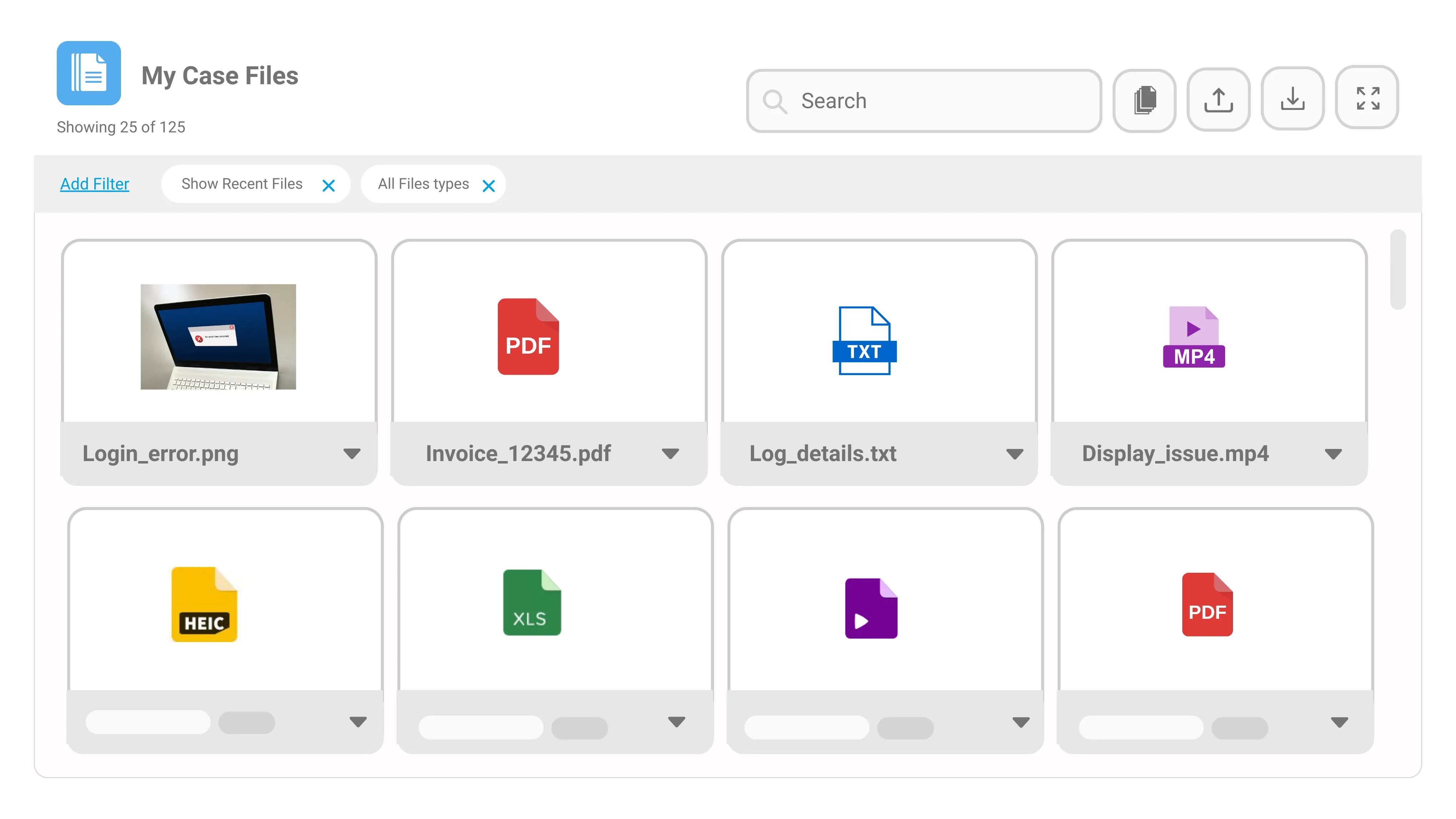
Preview proposals, PDFs, decks, images, videos, audio files, and HEIC uploads directly inside Salesforce using layouts that fit different review needs.

  • Preview PDFs, images, videos, audio, and HEIC
  • Switch between list, tile, and slider views
  • Review deal content before calls or approvals

Keep the latest document ready to share.

Manage proposal revisions, quote updates, contract versions, and email attachments with
clearer version history and file accuracy inside Salesforce.

  • Track document changes with version history
  • Upload new versions to replace outdated files
  • Capture sales email attachments into related records

Fix visual files without leaving the record.

Edit product images, screenshots, or deal-related visuals directly inside Salesforce, so files stay
ready for customer conversations and internal review.

  • Crop, rotate, compress, and zoom images
  • Save edited visuals back to Salesforce
  • Reduce external image editing steps

Turn files into part of the workflow.

Run actions directly from the file workspace using row and list actions, including Salesforce
Flow, Lightning Web Components, and Lightning Components.

  • Trigger Flow from selected files
  • Launch LWC or Lightning Component actions
  • Run row-level and list-level file actions

Results with Media Manager

65%
Faster document access
3x
Quicker deal preparation
50%
Reduction in manual file handling
94%
Faster proposal turn around

What You Can Do with User 360

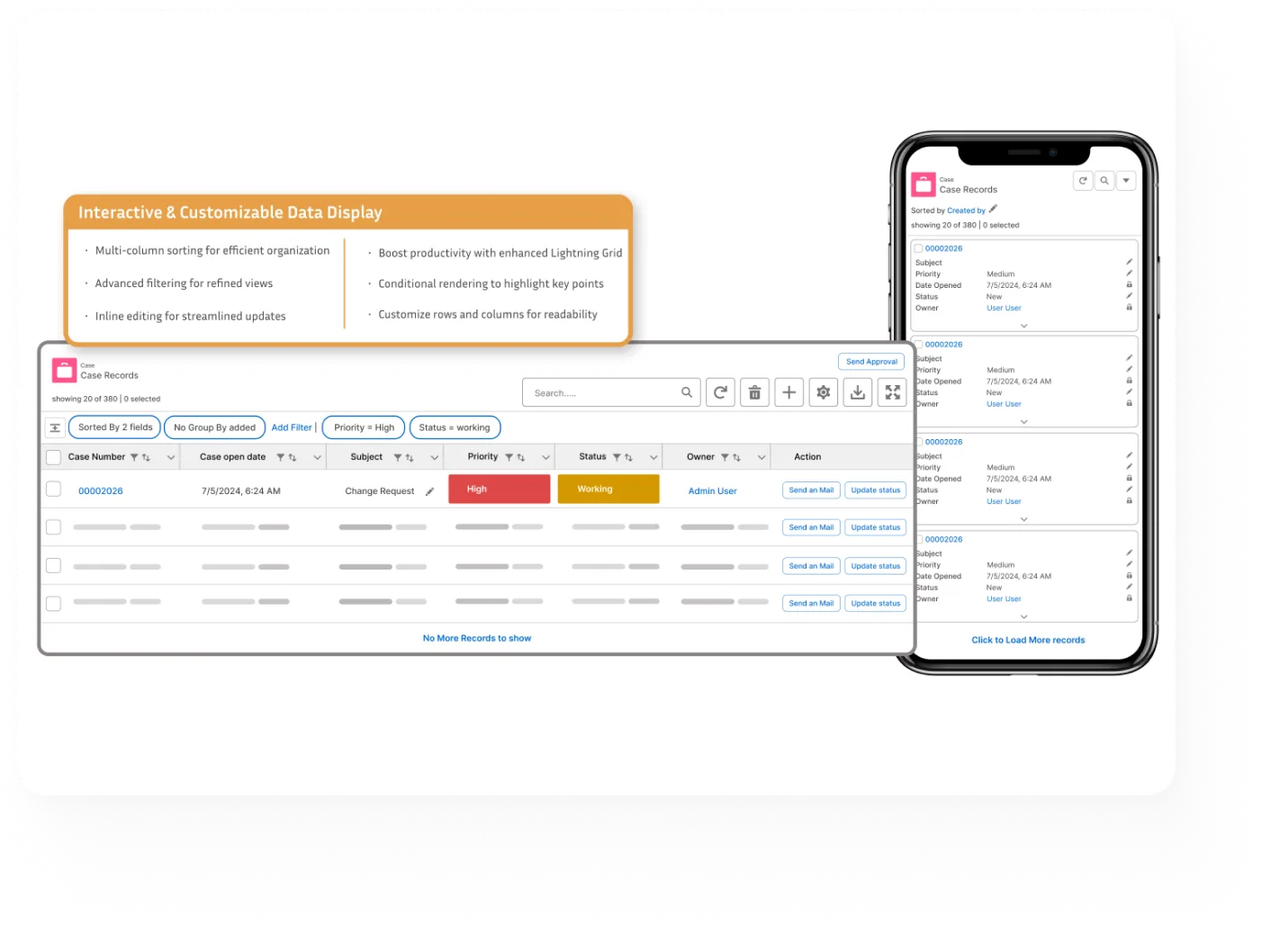
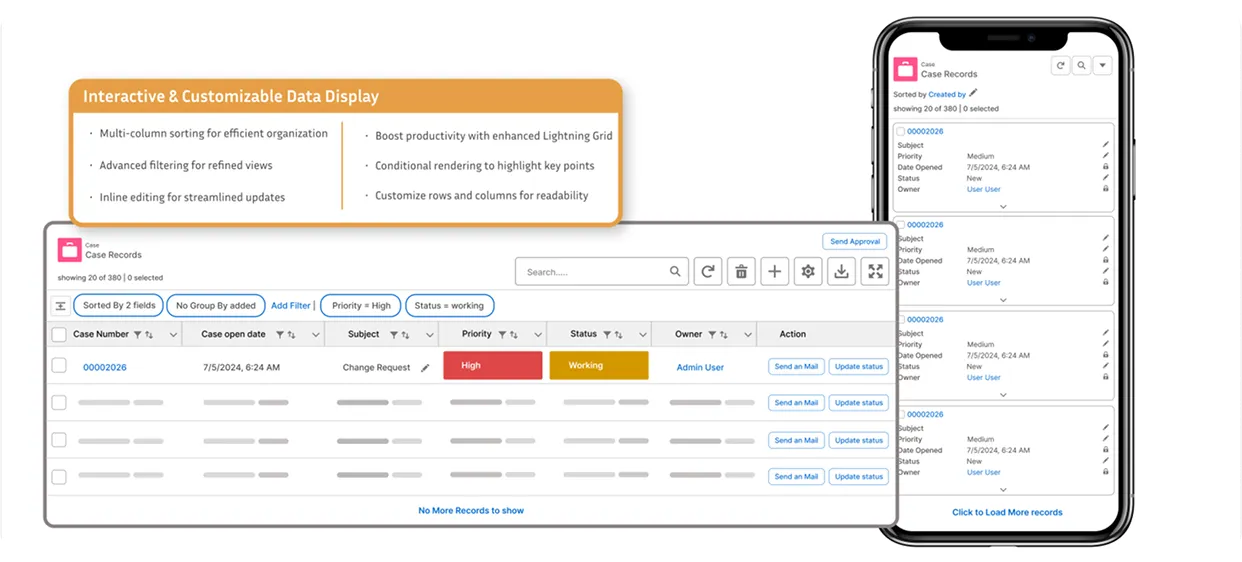
Experience the power of customizable grids in Salesforce.
what our customers say

We've been using Media Manager for a couple of months now and it has been excellent for our use case. The User experience with seeing File Previews on Cases and pulling related Files in one view has made our Users much more efficient.

Jake Gharib
Winnebagoind

We were looking for an easy to use, affordable solution to view files in Salesforce. Media Manager does just that. Quickly resize, rotate and zoom files, easy browsing, and configuration is easy.

Bart Lont
Oranje Fonds

This app enables you to truly manage your files and attachments, limit actions, and control visibility. Great team to work with who met all our requirements. It beats the standard Salesforce offering and is codeless to set up.

Merly Thomas
SMA Technologies
View all on appexchange
what our customers say

AGRID is a fantastic tool that has completely transformed the way we manage and review our records in Salesforce. The visual clarity it provides is outstanding.

Sam  Rosenberg
Reside NY

AGrid is a great work facilitator and a big time saver with inline edit of related lists. The tool is very easy to use, no coding necessary, and the team is quick to respond.

Sam  Rosenberg
Reside NY

Their support and product have been outstanding. They quickly respond and assist, often setting up meetings to solve issues. Highly recommend for day-to-day use.

Sam  Rosenberg
Reside NY

Agrid components are intuitive, highly-customizable, and load quickly. We love the ability to see a child record's related list from the parent page—great for adoption.

Sam  Rosenberg
Reside NY

Super easy to set up with filtering views based on logged in user, launching Flow buttons, and placing components on utility bar. Far more affordable than others.

Tom Connolly
Centuri Group

A total game-changer! Users can line-edit records, filter and save filters, run actions on selected rows, and see calculated values for each column.

Luison Lassala
Bedrock Success

Fastest load times and most responsive support. Integration with flows is a huge advantage. A superlative solution that exceeded expectations.

Michael Boyens
Streamline Edge

Fantastic experience with zero coding needed. Column selection, search, filter, sorting, and lazy loading work seamlessly with an intuitive UI built on Lightning.

Mahendran Sundarraj
Comcast Cable Communications
View all on appexchange

Resources & Support

Find everythink you need to setup, manager, and troubleshoot Agrid with a line to quick support when needed
What is the difference between Create from Scratch Import, Salesforce List View and Import Salesforce Related List?
Option
Create from Scratch
Import Salesforce List View
Import Salesforce Related List
Description
Start fresh and manually define every element of the configuration.
Automatically pulls fields and filters from an existing Salesforce List View for faster setup.
Imports columns from a related Salesforce object, based on parent-child relationships.
Customization
Full control over columns, filters, actions, and layout.
Customization allowed after importing fields and filters.
Modify and adjust imported columns and details as needed.
Why does my AGrid show "No columns to display"?
This occurs if you forget to add at least one column while creating the configuration. Fix: Always click "Add Column" after filling in the Configuration Details to ensure columns are added.
Can AGrid admin select fields from related parent objects for display in the list view?
Yes, AGrid admin can select fields from the primary object or related parent objects for display in the list view. Currently, AGrid supports up to 5 parent object levels.
What is Inline Edit Support for Parent level?
Inline Edit Support for Parent level refers to the ability for users to edit fields on the first level parent record of a related object directly from the AGrid List View. For example, if a user has a Configuration for Contacts, they can edit fields on the parent Account record directly from the AGrid List View. This feature can save time and improve efficiency for users who need to make quick updates to related records without having to navigate to the parent record's detail page.
Can users reset a grid to its original setup?
Yes! The Enable Quick Reset option allows users to reset changes (grouping, sorting, kanban, column width, text wrap, etc.) and revert to the base configuration.
What types of fields support column filtering in AGrid?
Supported fields include: Text, Picklist, Multi select picklist, Reference (lookup), Number, Date/Datetime, (Some fields like Rich Text, Text Area are not supported for direct column filtering.)
Can I build related lists for objects without direct relationships in AGrid?
Yes, AGrid's Intelligent List feature enables you to build related lists for objects without direct relationships, visualize complex relationships with sibling records, sibling objects, grandchild objects, and unrelated objects.
How do I pass values to Custom Actions in AGrid?
You can pass values to Custom Actions in AGrid using the Value field or the Global Variable field. In the Global Variable field, you can select a value based on the current AGrid List View or the context of the selected object in the configuration.
Frequently Asked Questions
Does Media Manager help with Salesforce Case file management from multiple sources?
Option
Create from Scratch
Import Salesforce List View
Import Salesforce Related List
Description
Start fresh and manually define every element of the configuration.
Automatically pulls fields and filters from an existing Salesforce List View for faster setup.
Imports columns from a related Salesforce object, based on parent-child relationships.
Customization
Full control over columns, filters, actions, and layout.
Customization allowed after importing fields and filters.
Modify and adjust imported columns and details as needed.
Does Media Manager replace the Files tab?
No. It enhances it with structure, folders, versioning, and better previews.
Can sales reps see files from related records?
Yes. File Tree combines Account, Opportunity, and Quote files into a single workspace.
Does Media Manager support email attachment extraction?
Yes. It automatically pulls attachments from inbound sales emails.
How does version control work?
All changes are tracked through Upload New Version and Version History.
Can files be shared with customers?
Yes. Public Link Sharing lets reps send files to prospects instantly.